When several sellers have cars you may want to buy, you need to know which opportunity deserves the next call, an offer or a pass. This Car Dealer Sheets workbook keeps seller opportunities and buying follow-up together so you can review the next action alongside your acquisition estimates.
The used car sourcing pipeline spreadsheet is for target vehicles you are considering buying, not retail customer leads. Record the seller, vehicle, stage and costs, then use the calculated statuses and summary counts to organize your buying review.
When to use this workbook
- Keep each seller opportunity tied to a target vehicle and a specific next action.
- Compare estimated acquisition outlay with your buying budget before pursuing an offer.
- Separate overdue follow-up from upcoming work using an editable review date.
- See missing stages and incomplete estimates before relying on your worklist.
What is in the file
How to use the workbook
1. Set the review assumptions
Open Lists and Settings. Review B2 for the Review Date, B3 for the Upcoming Follow-Up Window (days), and B4 for the Minimum Budget Headroom (USD). The starting window is 3 days and the minimum headroom is USD 0. B2 starts with =TODAY(); replace it with a date if you want a fixed review point.
2. Replace the fictional sample records
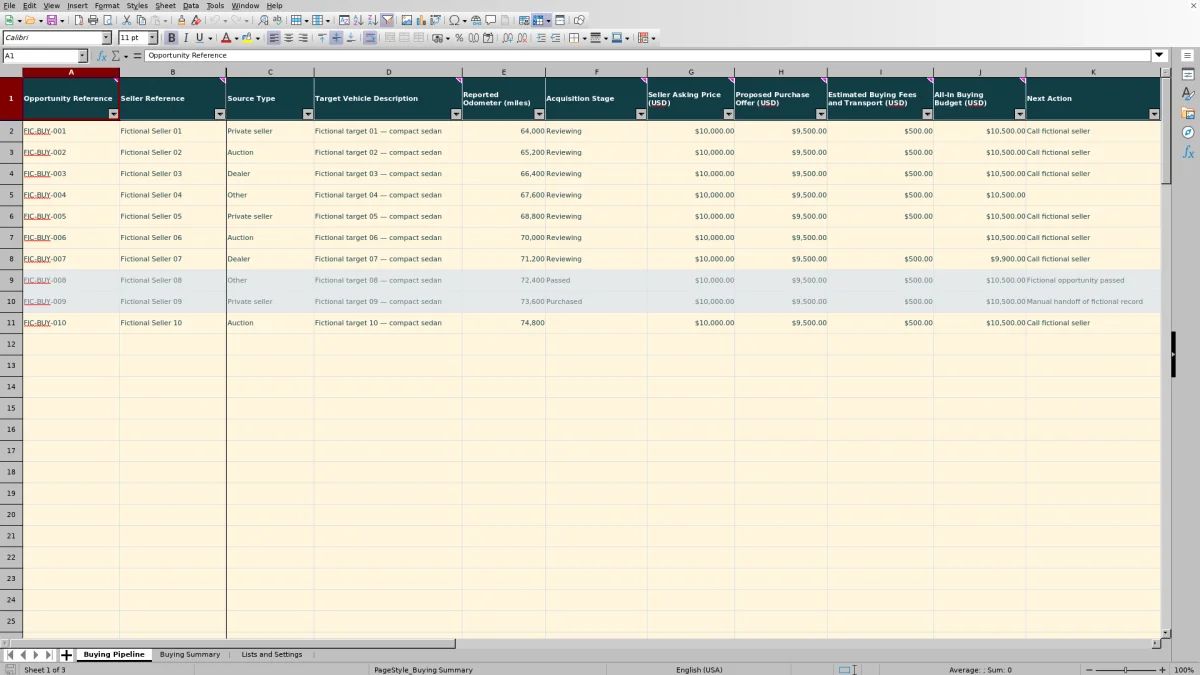
Buying Pipeline rows 2–11 contain ten fictional examples. Replace or clear their entries in columns A:L before using the workbook for your dealership. The prepared area covers rows 2–101. Keep calculated columns M:P intact; they are visually separated from the entry cells but are not protected.
3. Record the opportunity and estimate
Enter an Opportunity Reference, seller reference and target vehicle details. Choose a source and acquisition stage from the dropdowns. Enter asking price, any proposed offer, estimated buying fees and transport, and your buying budget in USD. Record the reported odometer in miles. Leave an unknown fee estimate blank rather than entering zero.
4. Assign follow-up and review the results
Enter a concrete Next Action and a Follow-Up Date in MM/DD/YYYY format. Check the calculated outlay, headroom and statuses, then open Buying Summary to see the record counts. Use the pipeline filters to work the relevant records, updating estimates and stages as information changes.
Define the buying opportunity before comparing cars
Use one row for one target vehicle from one seller. Give it a consistent Opportunity Reference so you can return to the same record when the seller changes the price or you revise an offer. Seller Reference identifies the seller in your own records; it does not establish a connection to a contact system.
Make the Target Vehicle Description specific enough to distinguish similar cars. The Reported Odometer (miles) field records the figure you enter, not a verified mileage reading. Check the vehicle details and supporting information separately before using them to support a buying decision.
This is a sourcing record, not a retail stock register. A car can be worth investigating without being owned by the dealership or ready to sell.
Practical example: compare an offer with your buying budget
Estimated Acquisition Outlay (USD) uses a numeric Proposed Purchase Offer (USD) when one is entered. Otherwise, it uses Seller Asking Price (USD). It then adds Estimated Buying Fees and Transport (USD). An entered offer takes priority, even if the seller has not accepted it, so the result remains a planning estimate.
Budget Headroom (USD) is your All-In Buying Budget (USD) minus that estimated outlay. Positive headroom means the estimate is below your recorded budget; negative headroom means it exceeds that budget. Budget Status compares headroom with the minimum set in Lists and Settings. Headroom equal to the minimum is Within target, while anything lower is Below target.
For a fictional example, a seller asks USD 10,000, you enter a proposed offer of USD 9,500, and buying fees and transport are estimated at USD 500. Estimated outlay is USD 10,000. Against a USD 10,500 budget, headroom is USD 500. With a minimum headroom of USD 0, the active opportunity is Within target.
If you clear that offer, the calculation returns to the USD 10,000 asking price, giving USD 10,500 outlay and USD 0 headroom. That still meets a zero minimum, but leaves no room within the entered budget for a higher price or fee estimate. Confirm the price basis and charges before deciding whether to proceed. This comparison is not expected profit, market value or purchase approval.
Build a follow-up list around a clear review date
Follow-Up Status uses the review date in Lists and Settings, not an independent reminder service. A follow-up date earlier than the review date is Overdue. A date from the review date through the final day of the upcoming window is Due soon. A later date is Scheduled.
For a fictional review dated 10/03/2026 with a 3-day window, 10/02/2026 is Overdue, dates from 10/03/2026 through 10/06/2026 are Due soon, and 10/07/2026 is Scheduled. If you use a fixed review date, update it when you want the worklist to move forward.
Missing information comes before date scheduling. An active record without a stage shows Stage needed. Once a stage is present, a missing next action shows Action needed; with an action but no date, it shows Date needed. Resolve these records as well as overdue calls so an incomplete entry does not disappear from your attention.
Use Next Action for something you can carry out, such as requesting a transport quote or confirming the seller's asking price. The status labels support an in-workbook review; they do not send calls, messages or calendar reminders.
Use summary counts to organize the buying review
Buying Summary counts records with nonblank Opportunity Reference entries. It shows their stages and the calculated follow-up and budget-status groups. Start with missing-stage records, then review incomplete estimates and the follow-up work that needs attention.
These counts are records, not unique vehicles. Two entries for the same opportunity can inflate the apparent workload. Resolve highlighted duplicate references by checking whether they represent an accidental duplicate or two genuinely different opportunities; do not simply rename a duplicate to remove the warning.
The summary does not total financial estimates. Use it to organize individual reviews, not to report total buying commitments or cash required. Budget-status counts also exclude records with no stage and records marked Passed or Purchased, so they are not expected to equal the total opportunity count.
Errors and solutions: missing estimates and status results
A blank result is not a zero estimate. A blank Opportunity Reference suppresses all four calculated outputs for that row. If you entered vehicle and price details but see no results, check the reference first.
- If Estimated Acquisition Outlay (USD) is blank, check for a numeric asking price or offer and a numeric fee-and-transport estimate. Blank fees mean unknown; enter zero only when you intentionally estimate those charges at USD 0.
- If outlay appears but Budget Headroom (USD) is blank, check that the buying budget is entered as a number.
- If Budget Status says Estimate incomplete, finish the price basis, fees and budget before treating the record as within or below your target.
- If Budget Status is blank, check the stage. A missing stage, Passed or Purchased suppresses that status.
If results stop calculating after editing, check whether an entry replaced a formula in M:P. Those cells are not protected. Restore the affected formula from an untouched copy of the workbook rather than typing a result over it, then check the row's inputs again.
Close an opportunity without mistaking it for a completed purchase
Set Acquisition Stage to Passed when you are no longer pursuing the opportunity, or Purchased when you want to close it as a purchase in this sourcing workflow. Both stages produce Closed in Follow-Up Status and remove the budget-status alert. The recorded estimates remain available.
Purchased is a manual closeout marker. It is not evidence of settled funds, ownership or title verification. Complete those checks outside this workbook and manually carry the relevant vehicle and acquisition details into your dealership's stock and bookkeeping records.
Because closed records no longer require follow-up here, make sure any remaining purchase administration has a clear place in your separate process before relying on Closed as the end of the buying worklist.
Plan around the prepared 100-record range
The supplied formulas cover Buying Pipeline rows 2–101, and the summary formulas refer to that same range. Keep operational entries within those 100 prepared rows unless you deliberately maintain and check the workbook's ranges.
Do not assume that adding a row below row 101 extends every formula, dropdown, highlight and summary count. Before using an expanded version, check each of those elements with a known test record. If you keep closed opportunities in the prepared area, they still occupy record space.
When your process needs more capacity or a longer sourcing history, decide whether to retain separate dated workbook copies or evaluate another tool. Copying records between files is a manual process, so establish which file is the current worklist before adding new opportunities.
Comparison: this sourcing workbook versus a blank spreadsheet
Compare the complete Car Dealer Sheets sourcing workbook with starting a buying register in a blank spreadsheet. This workbook supplies the record layout, planning settings, estimate formulas and summary counts together. A blank spreadsheet lets you define a different structure, but you must build and check the calculations and review rules you need.
| Method | Opportunity recording | Buying estimate review | Follow-up and workload review | Maintenance and limits |
|---|---|---|---|---|
| Car Dealer Sheets sourcing workbook | Prepared seller-opportunity fields, stage and source dropdowns, and 100 record rows | Supplied outlay, headroom and target-status formulas with an editable minimum headroom | Supplied date-based statuses, review-date settings and summary counts | Manual entries and purchase handoff; preserve formulas and check ranges before expansion |
| Blank spreadsheet buying register | You define the seller, vehicle, stage and action fields | You calculate manually or build and check your own estimate formulas | You review dates manually or create your own status rules and summaries | You maintain the layout, calculations and record ranges as your process changes |
Choose for the work you need to control. Use the prepared workbook if its sourcing scope, review rules and capacity fit your buying process. Start with a blank spreadsheet if a custom structure matters more than having these calculations and summaries already in place. Neither choice makes an entered estimate a verified cost or a purchase approval.
If you need connected stock, accounting or multi-user workflows, evaluate specialized dealer management software against those requirements. Do not assume this workbook provides those connections, and verify the capabilities of any alternative before adopting it.
Frequently asked questions
Can I change the acquisition-stage dropdown labels?
The stage dropdown draws from Lists and Settings D2:D7. Keep the labels unique and nonblank. The status formulas use the exact labels Passed and Purchased to recognize closed records, so changing either label requires corresponding formula maintenance. Check both pipeline statuses and summary counts after any stage-list change.
Does choosing Auction connect the workbook to an auction platform?
No integration is established by that selection. Source Type classifies your manually entered opportunity as Private seller, Auction, Dealer or Other. It does not import listings, retrieve prices or update seller information.
Does estimated outlay include dealership prep?
The implemented calculation adds the selected purchase-price basis to Estimated Buying Fees and Transport (USD). There is no separate prep input or prep-cost calculation. Account for any prep allowance in your broader buying decision rather than treating this outlay as the complete cost of getting a car ready for retail sale.
Why might a file preview show no calculated results?
The workbook is supplied without cached calculation results. A preview that does not calculate formulas may therefore show no results for formula cells. Recalculate the workbook in your spreadsheet application before relying on the statuses or summary, and check a known record against its inputs.
Editorial areas

Owen AshfordVehicle stock & purchasing
About this editorial area →
Mara WestbrookSales records & delivery
About this editorial area →