When you buy several used cars for one agreed wholesale price, you need a purchase-cost assignment for each car. This Car Dealer Sheets Excel workbook divides that total across stock references using the relative weights you enter.
Use it to prepare the allocation and check that the amounts reconcile before transferring them to your purchasing records. It is a buying worksheet, not a valuation tool: you supply the vehicle references, weighting assumptions and agreed purchase total.
When to use this workbook
- Turn one agreed lot purchase total into individual purchase-cost assignments.
- Apply a consistent relative weighting basis across the cars in the lot.
- Identify incomplete entries, invalid weights and duplicate references before using the allocations.
- Check the allocated total against the agreement before manually recording purchase costs.
What is in the file
How to use the workbook
1. Prepare a copy for one purchase lot
Use one workbook copy per lot. Replace the fictional lot details on Lot Control and the fictional entries in Allocation rows 2–11. If your lot has fewer than 10 vehicles, clear the unused sample references and weights without deleting the formulas.
2. Enter the agreement details
On Lot Control, enter Lot Reference, Purchase Agreement Date in MM/DD/YYYY format, and Agreed Lot Purchase Total (USD). The total must be positive and have no more than two decimal places. Enter the agreed wholesale purchase amount only; exclude estimated prep, actual prep invoices and unrelated fees.
3. Enter the cars and relative weights
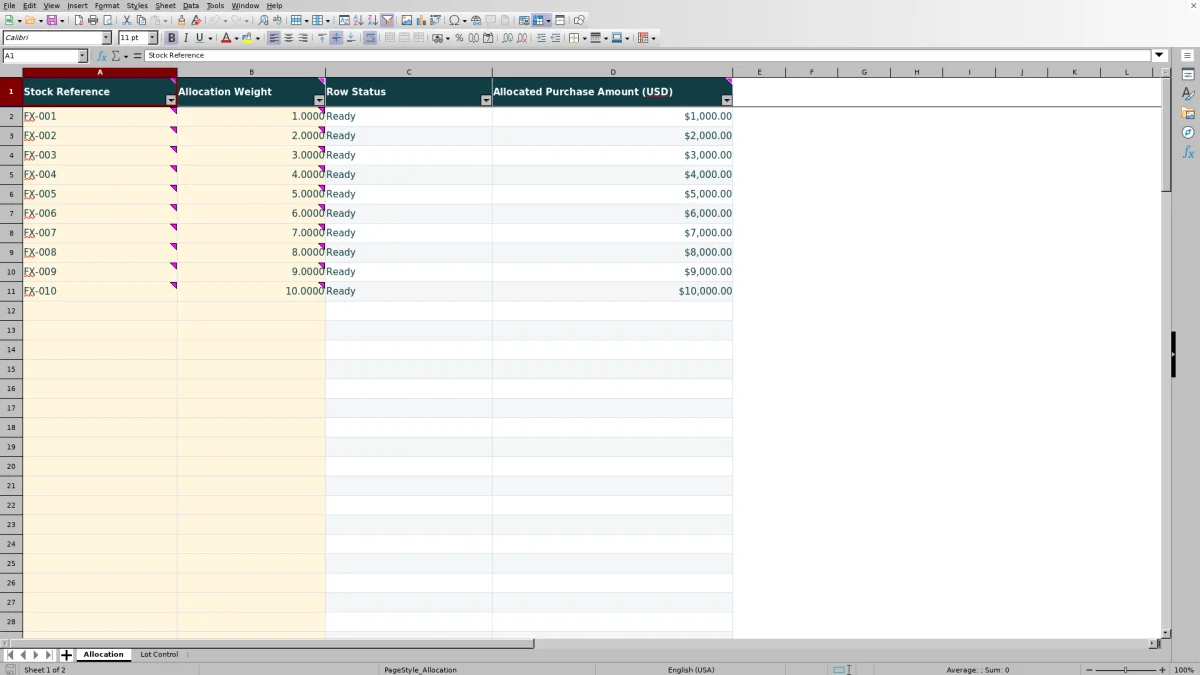
On Allocation, use the cream input cells in A2:B101. Give each car a unique text entry under Stock Reference and a positive numeric Allocation Weight. Keep the reference tied to the correct vehicle in your purchasing records. Leave Row Status and Allocated Purchase Amount (USD) formulas intact.
4. Resolve checks and confirm the result
Recalculate the workbook in Excel before relying on the outputs. Correct any row issues, then check the lot-level results. Before manual transfer, confirm Reconciled and a $0.00 difference, along with the intended vehicle count, references and weights. A balanced total does not prove that your weighting assumptions are appropriate.
Choose weights that express your intended cost split
An Allocation Weight is a relative weighting unit, not a USD amount or a decoded vehicle attribute. A car weighted 2 receives twice the share of a car weighted 1, subject to cent rounding. Equal weights produce equal shares before rounding.
The basic calculation is agreed lot purchase total × the car’s weight ÷ total weight. This turns your assumptions into purchase-cost assignments; it does not establish market values or asking prices. You choose the allocation basis. Keep a separate explanation of that basis with the purchase documentation so the resulting split can be understood later.
The workbook uses the full precision you enter even though weights display four decimal places. If two displayed weights look equal but produce slightly different results, inspect their full entered values before changing the allocation.
Fictional example: split a $55,000 wholesale purchase
The included fictional sample has 10 stock references, FX-001 through FX-010, with relative weights 1 through 10. Those weights total 55. With an agreed purchase total of $55,000.00 USD, each weighting unit represents $1,000.00 of that total.
FX-001 therefore receives $55,000.00 × 1 ÷ 55 = $1,000.00, while FX-010 receives $55,000.00 × 10 ÷ 55 = $10,000.00. The allocations run from $1,000.00 through $10,000.00 and total $55,000.00. The expected difference is $0.00 and the expected result is Reconciled.
These results show that the arithmetic balances, not that the cars are worth those amounts. Before using your own allocation, compare each reference and assigned cost with the intended purchase list and your documented weighting basis. Replace all fictional inputs rather than treating them as suggested values.
Understand how rounding assigns the last cents
The workbook rounds the running allocation total to two decimals, then subtracts the preceding rounded running total to calculate each car’s amount. This cumulative method keeps the individual amounts tied to the agreed lot total rather than rounding every share independently.
For a fictional $100.00 USD lot with three equal positive weights, the amounts in row order are $33.33, $33.34 and $33.33. The middle row receives the extra cent because the rounded cumulative amounts are $33.33, $66.67 and $100.00.
Row order can affect cent assignments. Reordering vehicles may move a cent between them, so verify the final row order before transferring costs. Very small totals can also give a positive-weight vehicle a $0.00 allocation. That zero is not proof of a missing car; check whether the total and weighting basis are really what you intended.
Errors and solutions for held allocations
If allocation amounts are blank, inspect Row Status on Allocation and Allocation Status on Lot Control. Blank outputs are not zero-cost assignments. A lot on Hold suppresses allocation amounts and reconciliation totals.
- Incomplete: supply the missing stock reference or weight. If the row is not part of the lot, clear both inputs.
- Invalid weight: replace text, zero or a negative number with a positive numeric weight.
- Duplicate reference: check the source purchase list and correct repeated references. Do not simply rename a repeated entry if it represents the same car entered twice.
- Hold with no row issues: inspect the lot reference, agreement date and purchase total. Confirm that at least one vehicle is entered and that the total is positive with no more than two decimal places.
- Review: inspect the difference and allocation amounts. This result means the reconciliation check did not find both a zero difference and nonnegative amounts.
Correct inputs and recalculate rather than typing over an allocation to make the total balance. Pasted entries still need checking against the source documents.
Use reconciliation as a checkpoint before handoff
Ready means the required lot inputs and row checks pass. Reconciled means the calculated difference is zero and no allocation is negative. Neither status confirms that every car on the purchase agreement has been entered or that the agreed price was copied correctly.
On Lot Control, compare Vehicle Count with the purchase list. Check Allocated Total (USD) against the agreement and Difference From Agreed Total (USD) against $0.00. Then inspect the individual assignments for unusually large, small or zero amounts that could point to an unintended weight.
Transfer the assignments manually only after these checks. The workbook has no automated transfer or synchronization with your purchasing records. Keep the checked workbook copy with the supporting agreement and weighting explanation. Built-in calculation checks do not execute spreadsheet formulas, so recalculation is still required before relying on the results.
Keep the allocation within its buying scope
The prepared range supports one lot and up to 100 vehicle entries in Allocation rows 2–101. Entries outside that range are not included in the shown lot counts, weight total or checks. For a larger lot, do not assume that adding rows extends the formulas and controls; use a separately checked approach that covers the full purchase.
The identifier field is Stock Reference, not a dedicated VIN-verification field. If your task requires allocation by vehicle identification number (VIN), you can use that identifier as the unique text reference, but you must verify it against your source records. The workbook does not decode VINs, verify titles or certify roadworthiness.
Allocated amounts represent shares of the entered wholesale purchase total. They are not asking prices, retail sale prices, expected funds or settled payments. The file does not track prep or maintain an owned or consigned stock register, and it does not determine taxes or legal requirements.
Compare this workbook with a blank spreadsheet
A blank spreadsheet is a realistic alternative when you need to design a different allocation process. This workbook provides a defined weighted split and reconciliation layout; a blank file leaves you responsible for building and checking those elements.
| Method | Allocation setup | Checks | Scope and handoff |
|---|---|---|---|
| Car Dealer Sheets workbook | Enter one agreed total and positive relative weights in prepared input cells. | Included row-status checks, cumulative cent rounding and lot reconciliation. | One lot, up to 100 prepared vehicle rows; manual transfer to purchasing records. |
| Blank spreadsheet | Create your own fields, allocation method and formulas. | You must build and verify duplicate checks, rounding and reconciliation. | You define the range and record layout, along with the transfer process. |
Choose this workbook when its relative-weight method and prepared range fit the purchase. Choose a custom spreadsheet when you need a different basis or additional cost categories, allowing for the work needed to verify its formulas. If you need a broader purchasing system or automated record transfer, assess specialized dealer management software separately; those functions are not part of this file.
Frequently asked questions
Do allocation weights need to add up to 100?
No. The workbook divides each weight by the total entered weight. Weights of 1, 2 and 3 give the same proportions as 10, 20 and 30. Every included vehicle needs a positive numeric weight.
Can I include prep expenses in the lot purchase total?
No. The operating notes call for the agreed wholesale purchase amount only, excluding estimated prep, actual prep invoices and unrelated fees. Track those costs separately; this workbook does not calculate a fully prepared vehicle cost.
Are formula cells protected from accidental edits?
No. Formula cells carry locked metadata, but worksheet protection is not enabled. Edit the cream input cells and avoid overwriting columns C and D on Allocation or the calculated results on Lot Control. If a formula is overwritten, restore it from an unchanged copy before relying on the allocation.
Does the purchase agreement date change the allocation?
The date is a required lot input, displayed as MM/DD/YYYY. It does not change the weighting calculation or create a deadline or reminder. Check the entered date against the agreement rather than treating Ready as verification of the date’s accuracy.
Can I leave the fictional sample vehicles in unused rows?
No. The fictional references FX-001 through FX-010 and their weights are active inputs, so leaving them in place changes the vehicle count, total weight and allocations. Replace them with your lot details or clear both input cells on each unused sample row while preserving the formulas.
Editorial areas

Owen AshfordVehicle stock & purchasing
About this editorial area →
Mara WestbrookSales records & delivery
About this editorial area →