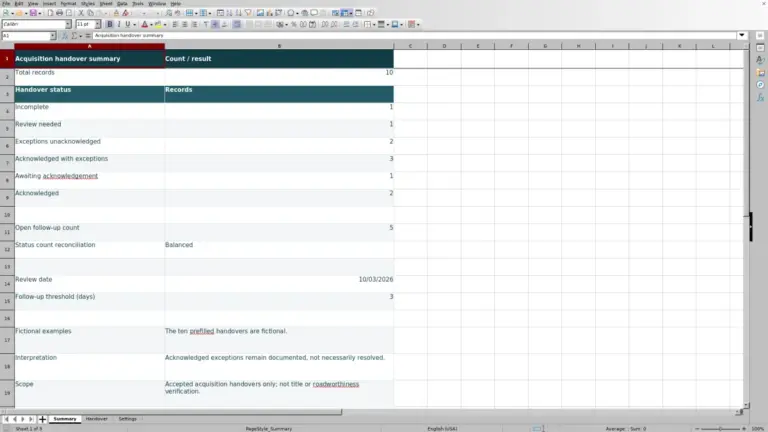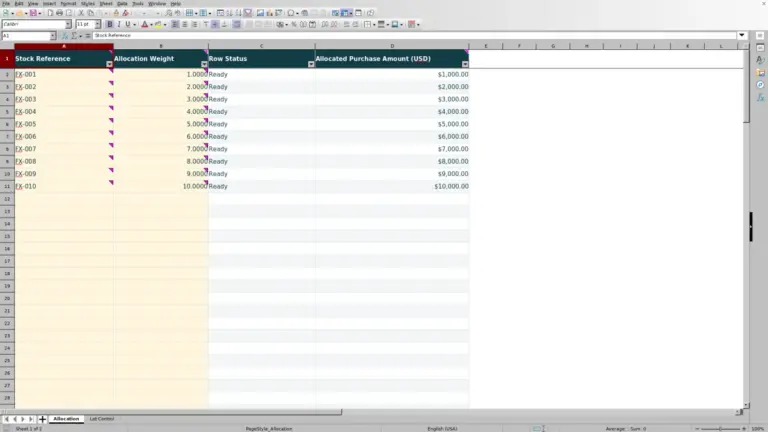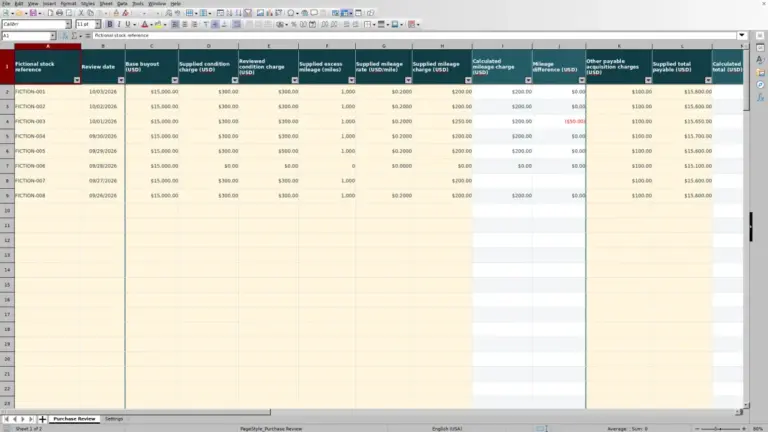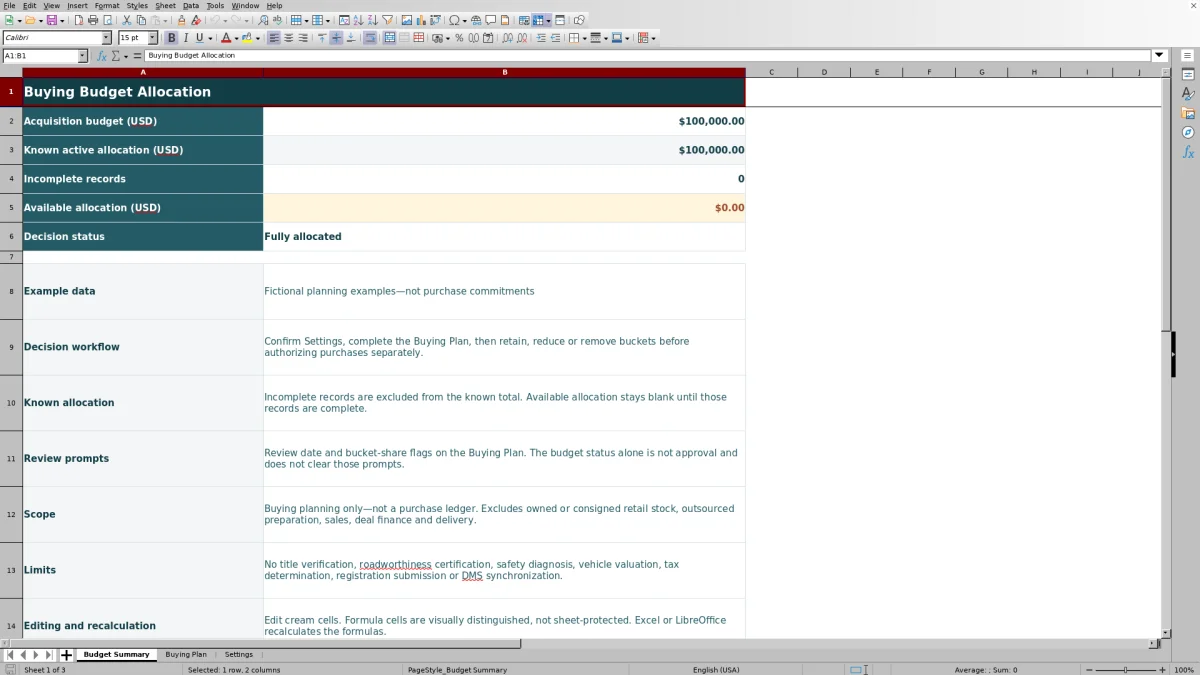
Before the next buying date, divide your approved acquisition cash among vehicle segments and check how much of the budget you have assigned. This Car Dealer Sheets Excel workbook helps you organize planned vehicle counts and per-vehicle spending caps, then review the allocation before authorizing purchases separately.
Use Settings to establish the budget, Buying Plan to record each segment-and-date allocation, and Budget Summary to check the result. The workbook is a buying plan, not a purchase ledger: its figures are spending limits, not bank balances, actual purchases or settled funds.
When to use this workbook
- See how planned vehicle counts and acquisition caps use your approved buying budget.
- Weigh which segment-and-date allocations to retain, reduce or remove before committing to purchases.
- Avoid treating a partial allocation total as available budget when required row inputs are missing.
- Review buying dates and large individual allocations alongside the overall budget position.
What is in the file
How to use the workbook
1. Confirm the acquisition budget and review settings
In Settings, enter your manually approved acquisition cash in Acquisition budget (USD). Confirm the Planning date and Bucket review threshold. The supplied $100,000 budget and 20% threshold are fictional planning settings, not recommendations. Keep the planning date and threshold populated before reviewing the plan.
2. Replace the fictional buying allocations
Rows 2–9 of Buying Plan contain fictional examples. Replace them with your plan, or clear their inputs in columns A–E if you will not use them. For each allocation, complete Vehicle segment, Planned buying date, Planned vehicles, Acquisition cap per vehicle (USD) and Allocation status. Use MM/DD/YYYY dates. Rows 10–101 are prepared for additional allocations.
3. Check the allocation and review prompts
For each complete Active row, the workbook multiplies the planned vehicle count by the per-vehicle cap. Check Active allocation (USD), Share of budget and Review. Resolve missing inputs and inspect date or threshold prompts before relying on the overall result.
4. Adjust the plan before authorizing purchases
Open Budget Summary and check Incomplete records, Available allocation (USD) and Decision status. Keep an allocation Active to retain it, lower its count or cap to reduce it, or select Removed to exclude it from the active total. Recheck the summary and individual review prompts after changes. Budget available is not purchasing approval.
Set the cash boundary before dividing the budget
Start with the acquisition cash you have approved for this plan, not a forecast of future sales receipts. Settings does not retrieve a bank balance or establish purchasing authority. Confirm the funding basis outside the workbook before entering the budget.
Keep the budget and caps on the same acquisition-only basis. The file excludes preparation, taxes, financing and delivery costs. Reserve money for those costs separately before deciding what acquisition cash to allocate; do not treat Available allocation (USD) as cash left after all dealership expenses.
Each row is a planning bucket: one vehicle segment on one planned buying date. Multiple segments can share a date, and the same segment can appear on several dates. This lets you split a buying plan without treating the rows as individual vehicles already purchased.
Example: release room in a fully allocated buying plan
In the supplied fictional example, the acquisition budget is $100,000 USD. The first Compact cars row plans two vehicles at an acquisition cap of $8,000 USD each. Multiplying 2 by $8,000 produces a $16,000 active allocation, which is 16% of the $100,000 budget.
The eight complete Active example rows together allocate $100,000. Available allocation (USD) is therefore $0, and Decision status is Fully allocated. This means the recorded spending limits use the full budget—not that $100,000 has been spent.
Suppose you decide to plan for only one compact car in the first row. Changing Planned vehicles from 2 to 1 lowers that row to $8,000 and the total to $92,000. With the budget unchanged and no incomplete records, available allocation becomes $8,000. You can then decide whether to leave that amount unallocated or assign it to another complete buying bucket.
The arithmetic reflects your entered limits. It does not establish whether an $8,000 cap is appropriate for any vehicle or confirm that funds are ready to use.
Read dates and concentration prompts together
The Planning date in Settings initially uses TODAY(). The fictional buying dates in Buying Plan rows 2–9 are formulas linked to that setting, so they move when the planning date changes. If you need a fixed planning reference, replace the Settings date with the approved date. If you reuse the example rows, check whether their linked dates match your intended buying schedule.
Review displays Date before planning date when a complete, non-Removed row has an earlier buying date. This is a prompt to reconsider the schedule, not a legal deadline. The budget summary combines all active allocations; buying dates do not create separate cash balances or model incoming funds between buying dates.
The bucket threshold tests one row’s share of the whole budget. With a $100,000 USD budget and a 20% threshold, a $20,000 allocation is not flagged; a $21,000 allocation is. A repeated segment can have several rows below the threshold even when its combined share exceeds 20%, because the check is per bucket rather than per segment.
Review shows one result at a time. An earlier-date prompt takes precedence over a threshold prompt, so recheck the row after fixing its date. Neither prompt prevents the allocation from being included in the total, and the summary can still say Budget available while a row needs review.
Decide what to retain, reduce or remove
When the plan exceeds the budget, use the Buying Plan filter to focus on Active allocations and review where you are willing to change the buying instructions. The workbook reports the recorded position; it does not rank segments or recommend a buying mix.
- Retain: leave the row Active if its vehicle count, cap and date remain appropriate.
- Reduce: lower Planned vehicles when you want fewer vehicles, or lower Acquisition cap per vehicle (USD) when you intend a tighter limit for each vehicle.
- Remove: select Removed to keep a completed planning row visible while making its active allocation zero.
These choices have different operating meanings even when they release the same dollar amount. Reducing a vehicle count changes how many purchases you are planning; reducing a cap changes what you are willing to allocate per vehicle. Tell the buyer which instruction changed rather than communicating only the new total.
If Decision status is Over budget, the negative available allocation is the amount by which recorded active limits exceed the budget. Revise the plan—or separately approve a different acquisition budget—before using the figures to guide purchases.
Errors and solutions: incomplete records and misleading totals
A blank available allocation is not zero. Budget Summary leaves Available allocation (USD) blank when the acquisition budget is missing or any Buying Plan row is marked Incomplete. Incomplete rows are excluded from Known active allocation (USD), so that known total may understate the plan you intended to record.
- If Decision status says Enter budget, populate Acquisition budget (USD) in Settings.
- If it says Complete records before deciding, filter Review for Incomplete and complete all five inputs in columns A–E. This requirement also applies to rows you want to mark Removed.
- If a row is unused, clear all five input cells in A–E rather than leaving a segment, status or linked example-date formula behind. Preserve the calculations in F–H.
- If an allocation unexpectedly shows zero, check the status and numeric inputs. The calculation allocates count multiplied by cap only when Allocation status is Active; other nonblank status text can produce zero.
- If a date or threshold result seems wrong, confirm that the Planning date and Bucket review threshold are populated in Settings.
Use the supplied status choices Active and Removed without renaming them. Pasting can bypass spreadsheet validation, so inspect pasted statuses, dates, counts and caps before relying on the totals. Input validation is not a substitute for checking the plan.
Keep edits within the prepared planning area
The workbook provides 100 allocation rows, from row 2 through row 101. The summary formulas refer to that range. Rows added below 101 are outside the existing summary ranges, so simply typing more allocations below the prepared area will not include them in the reported budget position.
Use the cream input cells for routine changes and preserve the calculation cells. Formula cells are visually distinguished but are not sheet-protected, so an accidental paste can overwrite the calculations. Keep an unchanged copy of the workbook so you can compare or restore formulas if a result stops behaving as expected.
If you need more than 100 buckets, extend and check the calculations, summary references, validation and filter range before relying on the expanded file. Treat that as a workbook modification, not as part of the prepared capacity.
Compare the workbook with a blank spreadsheet
Choose the method according to how much structure you need for the buying decision. This workbook provides a defined acquisition-allocation process. A blank spreadsheet gives you a starting point when your planning structure is different, but you must build and check its calculations yourself.
| Method | Initial setup | Allocation review | Scope and limits |
|---|---|---|---|
| Car Dealer Sheets workbook | Enter the budget and settings, then replace fictional allocations with your own. | Prepared totals, incomplete-record checks, date prompts and per-bucket share prompts. | 100 prepared segment-and-date buckets; acquisition planning only, with no purchase ledger or dealer management system synchronization. |
| Blank spreadsheet | Create the layout, inputs, formulas and any validation you need. | Checks must be designed and verified by you. | Scope depends on what you build; no planning calculations are supplied at the start. |
Use the prepared workbook when its acquisition-only budget and segment-and-date buckets match your task. Consider a custom spreadsheet when you need a different planning model, such as a dated schedule of expected cash movements. If you need purchasing and retail stock records connected to broader dealership operations, assess specialized dealer management software against those requirements; this file does not provide that connection.
Frequently asked questions
Can I change the vehicle segments?
Yes. Edit the four segment labels in Settings cells D2:D5. The Buying Plan segment list points to that fixed range. Adding a fifth label below it will not automatically expand the list; that requires a validation change. Keep the status labels Active and Removed unchanged because the calculations use those labels.
What happens if the acquisition budget is zero?
Share of budget stays blank when the budget is zero or less, because the share calculation requires a positive budget. With a zero budget and no incomplete rows, a positive active allocation produces a negative available allocation and an Over budget status. If both the budget and active allocation are zero, the summary reports Fully allocated. That result does not establish purchasing authority.
Does the acquisition cap tell me what a car is worth?
No. Acquisition cap per vehicle (USD) is the spending limit you enter for planning. It is not a vehicle valuation, asking price or expected sale price. Establish the cap through your separate buying assessment, and keep preparation, taxes, financing and delivery costs outside this workbook’s acquisition-only figures.
Should I record completed purchases or owned stock here?
No. The workbook is for forthcoming acquisition allocations, not a purchase ledger or retail stock register. Record completed purchases and actual acquisition costs in your separate records. When revising this plan after a purchase, reconcile the remaining approved acquisition budget outside the workbook and update the relevant settings and buckets deliberately; changing a row to Removed alone does not record cash spent.
Does a Ready review result mean the vehicle or purchase is cleared?
No. Ready is a planning-row result based on the workbook’s input, date and threshold checks. It does not verify title, certify roadworthiness, diagnose safety issues, determine taxes or submit registration information. Complete your separate vehicle checks and purchase authorization before committing funds.
Editorial areas

Owen AshfordVehicle stock & purchasing
About this editorial area →
Mara WestbrookSales records & delivery
About this editorial area →