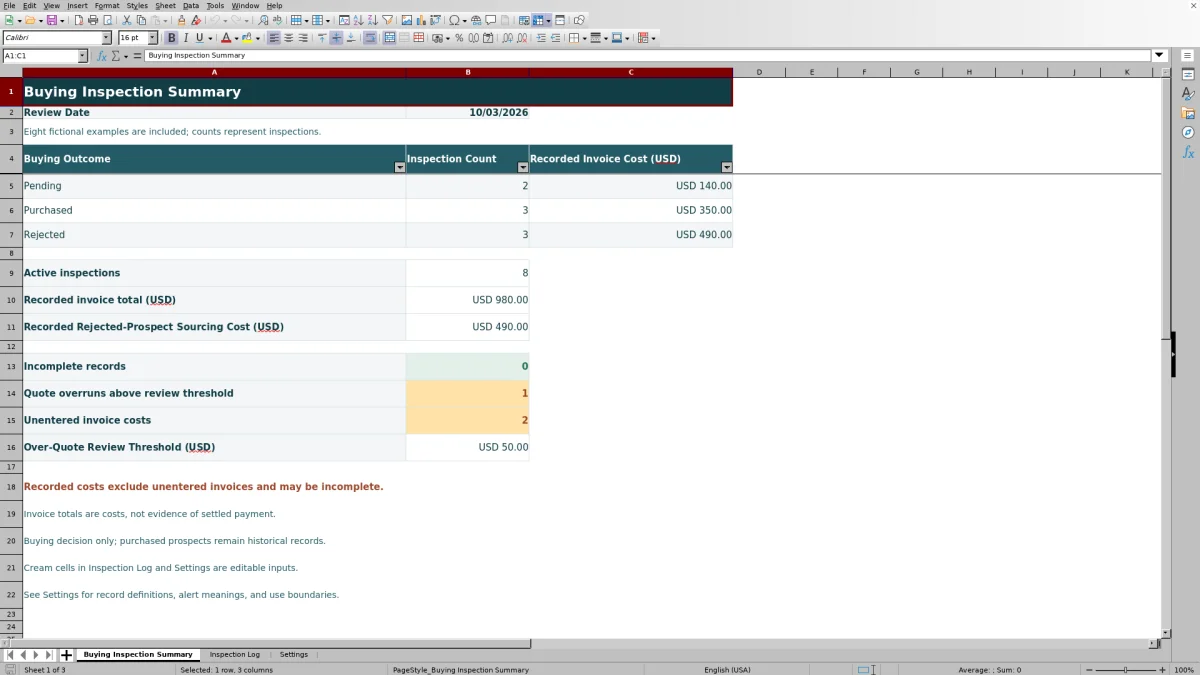
An inspection can leave you with a bill even when you decide not to buy the car. Use this car dealer inspection expense log to record third-party inspection fees and separate costs for purchased, rejected and still-pending prospects.
The Car Dealer Sheets Excel workbook brings inspection records, invoice costs and quote-overrun checks into one buying review. It helps you see recorded sourcing costs, but missing invoices can leave the totals incomplete, and an entered invoice does not establish settled payment.
When to use this workbook
- Keep rejected-prospect inspection costs visible alongside fees for cars you purchased.
- Identify invoice amounts that need a discussion about the original quote.
- Find missing inputs before relying on the buying review totals.
- Retain inspection history for prospects without treating them as retail stock.
What is in the file
How to use the workbook
1. Set your review assumptions
Open Settings and enter your Review Date in B2 using MM/DD/YYYY. Set the Over-Quote Review Threshold (USD) in B3 to the amount you want to use for internal review. The supplied values are 10/03/2026 and USD 50.00; change them to suit your review. Keep the outcome and invoice-status labels unchanged because the formulas use those labels.
2. Replace the fictional sample inputs
Inspection Log rows 2–9 contain eight fictional examples. Clear or replace their cream input cells before using the totals for your dealership. Preserve the formulas in columns J and K. Use the cream cells for entries rather than assuming calculated cells are protected from accidental edits.
3. Record each inspection engagement
Use one row per inspection engagement and one final invoice. Enter a unique Inspection Reference, the Prospect Reference, Inspection Date, Buying Outcome, Inspection Provider Alias and Quoted Inspection Fee (USD). Choose Pending, Purchased or Rejected for the buying decision. Repeat inspections of the same prospect need separate inspection references.
4. Update the invoice and review the results
Use Not received while the invoice is outstanding, leaving Invoice Date and Actual Invoice Cost (USD) blank. When you have the documented final invoice, select Received and enter its date and total. Check Review for missing inputs or quote overruns, then open Buying Inspection Summary to review costs by outcome and follow up on outstanding records.
Read rejected-prospect costs as part of the buying process
In Buying Inspection Summary, Recorded Rejected-Prospect Sourcing Cost (USD) shows the entered final invoice costs for inspections marked Rejected. A record must have an Inspection Reference and Invoice Status set to Received to contribute to this cost total. This keeps inspection spend visible even when no car was purchased.
Recorded cost is not total sourcing cost. An outstanding invoice contributes no amount, and the workbook does not calculate other sourcing expenses. Use the rejected total as a starting point for a manual discussion about inspection spend, not as a complete measure of what unsuccessful buying activity cost you.
The summary counts inspections, not unique vehicles. Its Active inspections figure counts records with an inspection reference, including Purchased and Rejected records; it is not a count of open buying decisions. If one prospect has two inspections, both engagements count.
Fictional example: interpreting costs and quote differences
Consider a fictional three-inspection review using the supplied examples. A purchased prospect has a USD 150.00 quote and a USD 150.00 final invoice. Two rejected prospects have quote/invoice pairs of USD 180.00/USD 220.00 and USD 100.00/USD 180.00. Assume these are the only active records, all required inputs are complete, and all three invoices are marked Received.
The recorded invoice total would be USD 550.00: USD 150.00 for the purchased prospect and USD 400.00 for the two rejected prospects. That USD 400.00 is the recorded inspection cost associated with decisions not to buy—not acquisition cost for the purchased car and not proof of payment.
At a USD 50.00 review threshold, the rejected invoices are USD 40.00 and USD 80.00 over quote. Only the USD 80.00 difference exceeds the threshold. Your next action is to compare that invoice with the agreed quote and ask the provider about the difference. The figures alone do not show whether rejecting either car was the right buying decision.
Choose a threshold that supports a specific review
Over Quote (USD) subtracts the quoted inspection fee from the actual invoice cost. A positive result means the invoice is above quote; a negative result means it is below quote; zero means the amounts match. The result stays blank until the row has an inspection reference, Received status, a quote and an invoice cost.
The alert uses a strictly greater-than threshold. With Settings B3 set to USD 50.00, an overrun of exactly USD 50.00 does not trigger the threshold alert, while USD 50.01 does. Choose the threshold as an internal follow-up rule, not as an amount the provider is automatically authorized to charge.
The row's Review field gives missing inputs priority over an overrun message. A row can therefore say Complete inputs while its calculated difference still contributes to the summary's Quote overruns above review threshold count. Resolve the incomplete details and then review the quote difference; these two checks answer different questions.
Inspection log errors and solutions
Complete inputs is an instruction, not a confirmation. It means required fields are missing or the invoice status conflicts with the invoice details. Use these checks when the log or summary looks wrong:
- If a populated row is absent from the active count or cost totals, check Inspection Reference first. Records without that reference do not contribute to those figures.
- If Invoice Status is Received, supply both Invoice Date and Actual Invoice Cost (USD). If it is Not received, leave both invoice fields blank until the final invoice is available.
- If an invoice cost is entered but excluded from totals, check that Invoice Status is Received. An amount alone is not enough.
- If a date entry is rejected, check that it is a valid date no later than Settings B2. Correct either the date or the review assumption as appropriate.
- If a repeated inspection reference is rejected, give the new engagement its own reference. The Prospect Reference may repeat.
The summary's Unentered invoice costs figure counts referenced records with a blank actual cost, including invoices not yet received. Do not replace an unknown amount with zero just to remove the blank: zero is a recorded amount, not a placeholder for an outstanding bill. Also check Incomplete records, since a received invoice cost can enter the totals even when other required details remain missing.
Keep the review date and record range in perspective
Review Date is not a reporting-period filter. It appears on the summary and sets the latest date allowed by the inspection-date and invoice-date validation. The summary formulas total qualifying records across Inspection Log rows 2–101; they do not select a month or cut off records using Review Date.
Use the log filters to inspect a particular outcome, provider or date group, but do not read the main summary as a total of only the visible rows. Its formulas use the full configured range.
The workbook provides space and formulas for 100 inspection records. Entries beyond row 101 are outside the supplied summary ranges, so simply typing beneath the log does not extend the review. Before you reach that limit, decide whether to keep a separate period-specific copy or have the ranges, formulas and validation deliberately extended and checked.
A dated copy can preserve the figures you used for a particular review. Changing the Review Date alone does not preserve an earlier view of records that you later edit.
Compare the workbook with a blank spreadsheet
Choose this workbook when you want an inspection-specific structure for quotes, invoices and buying outcomes. A blank spreadsheet is a realistic alternative when your record layout or analysis needs are different, but you would need to define the calculations and entry checks yourself.
| Method | Starting setup | Cost review | Record controls and limits |
|---|---|---|---|
| Car Dealer Sheets workbook | Prepared log, summary and settings; replace fictional inputs before use. | Received-invoice totals by buying outcome, rejected-prospect costs and quote differences. | Supplied validation and review flags across 100 inspection rows; manual invoice entry. |
| Blank spreadsheet | You choose the fields, row structure and status vocabulary. | You create the totals and quote comparisons needed for your review. | You set the record range, validation and missing-input checks. |
Use the prepared workbook if its one inspection and one final invoice per row structure matches your process. Start with a custom spreadsheet if you need a substantially different record unit. If you need payment functions, synchronization or broader dealership operations, assess those requirements separately; this workbook has no external links, payment functions or synchronization.
Frequently asked questions
Does Received mean the inspection invoice has been paid?
No. Received describes the invoice status, not settled funds. Actual Invoice Cost (USD) is the manually recorded final invoice total. Check your separate payment or accounting records to establish whether it has been paid.
How should I record a second inspection of the same prospect?
Use a new row and a unique Inspection Reference for the second engagement. You can reuse the Prospect Reference to identify the same prospect. Each row represents one inspection engagement and one final invoice, so the summary will count two inspections rather than one vehicle.
Does selecting Purchased add the car to retail inventory?
No. Purchased records remain historical buying records. The workbook does not record ownership or consignment position, and a Prospect Reference or stock-like reference does not connect the file to a retail inventory system.
Can this log tell me whether a car is suitable to buy?
No. It records inspection fees and buying outcomes, not a condition assessment. It does not diagnose safety, verify title or certify roadworthiness. Use the inspection findings and your separate buying checks to make the vehicle decision.
Can I include prep work or repair invoices?
This workbook is designed for third-party inspection fees on buying prospects, not outsourced prep or repair jobs. Keep those costs in a separate record suited to that work so the inspection totals retain a clear meaning.
Editorial areas

Owen AshfordVehicle stock & purchasing
About this editorial area →
Mara WestbrookSales records & delivery
About this editorial area →