Before a buyer starts looking for your next used car, set the segment, model-year range, maximum mileage, appearance limit and buying budget. This Car Dealer Sheets Excel workbook turns those instructions into a target vehicle buying brief with a calculated offer ceiling and sourcing action.
Use one row for each wanted vehicle slot, not for a car already purchased. The workbook helps you decide whether a brief is complete and current enough to source against; it does not approve a purchase or verify a candidate vehicle.
When to use this workbook
- Give buyers a consistent set of vehicle preferences and spending limits for each wanted slot.
- Reserve estimated buying costs and prep before deciding how much room remains for an offer.
- Identify briefs that need missing details, budget corrections or a fresh review before sourcing.
- Separate open buying needs from paused or closed instructions without treating them as retail stock.
What is in the file
How to use the workbook
1. Set the review assumptions
On Settings, check As of Date in B2 and Review Interval (days) in B3. B2 starts with =TODAY(), and the review interval starts at 14 days. Use an interval that fits your buying process; it is an operational assumption, not a legal deadline.
2. Replace the fictional instructions
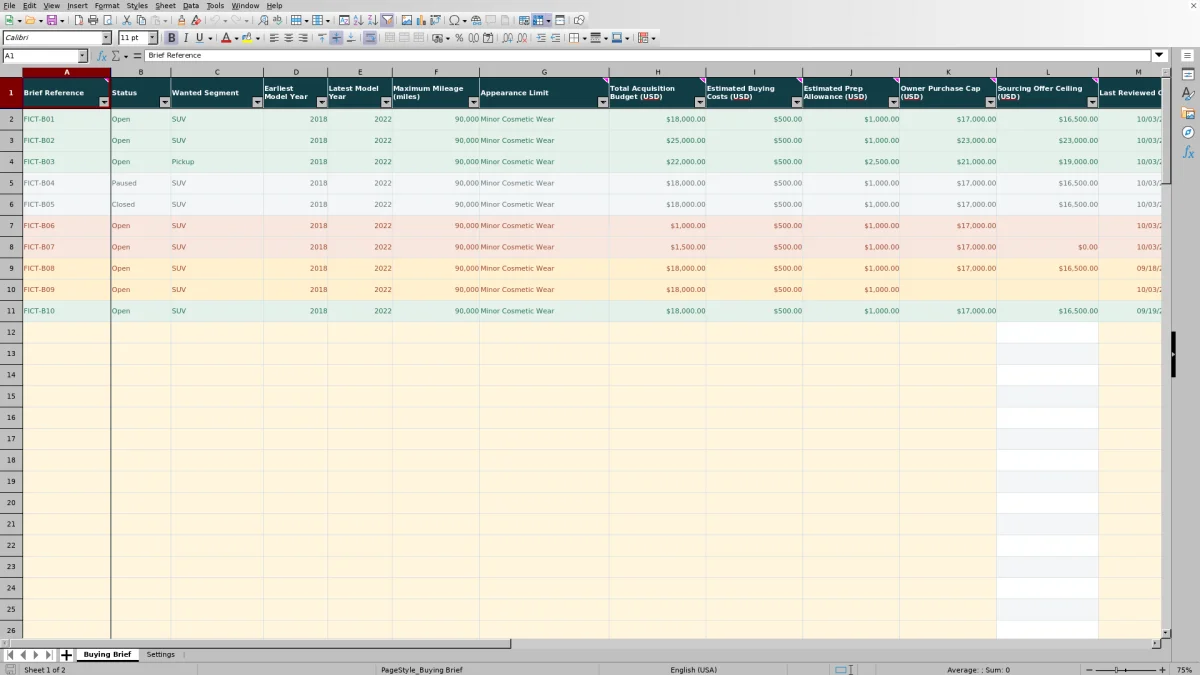
Buying Brief rows 2–11 contain fictional FICT-B01–FICT-B10 examples. Replace or clear their input values before relying on the action counts. Enter your own information in columns A:K and M, leaving the calculated columns L, N and O intact.
3. Define the slot and its budget
Assign a Brief Reference, choose Status and Wanted Segment, and enter the year range, Maximum Mileage (miles) and Appearance Limit. Complete all four USD budget fields. Enter numeric zero for unused buying-cost or prep allowances rather than leaving them blank.
4. Review the result before handing it to a buyer
Enter Last Reviewed On as MM/DD/YYYY. Check Sourcing Offer Ceiling (USD) and Sourcing Action, then use the header filters to find the briefs you need. Ready to Source is not purchase approval; it means sourcing may proceed under the recorded brief.
Set criteria a buyer can apply to a candidate car
Use Wanted Segment, Earliest Model Year, Latest Model Year and Maximum Mileage (miles) to define the search. For example, a fictional brief for a 2018–2022 SUV with a 90,000-mile maximum gives the buyer concrete limits to compare with a listing. It does not mean that every car within those limits is suitable.
Appearance Limit offers Clean Appearance, Minor Cosmetic Wear and Cosmetic Work Considered. Treat these as cosmetic preferences, not mechanical findings. Agree separately on what the selected description means for your dealership and resolve uncertainty before making a commitment.
The workbook does not record a candidate vehicle assessment, verify title, certify roadworthiness, decode vehicle identification numbers or provide valuations. If you need mechanical or other condition restrictions, communicate and document them outside this brief; the appearance choice is not a substitute.
Example: turn the total budget into an offer ceiling
The offer ceiling is the lower of two limits: the Owner Purchase Cap (USD), or the Total Acquisition Budget (USD) left after Estimated Buying Costs (USD) and Estimated Prep Allowance (USD). This keeps the offer allowance separate from the money reserved for buying and preparation.
In the fictional FICT-B01 example, the total budget is $18,000 USD, estimated buying costs are $500 USD, estimated prep is $1,000 USD and the owner purchase cap is $17,000 USD. Subtracting the two allowances leaves $16,500 USD. Because that is below the owner cap, the sourcing offer ceiling is $16,500 USD.
For row 2, the calculation is MIN(K2,H2-I2-J2) once the reference and numeric budget inputs qualify and the budget covers the allowances. A proposed $16,800 USD purchase would exceed this fictional brief's ceiling even though it is below the $17,000 USD owner cap. Recheck the cost assumptions and obtain a revised instruction before proceeding beyond the limit.
The result is a budget limit, not a market value or recommended bid. Buying charges and prep must be represented in your estimates to affect the ceiling. The prep allowance is not an invoice, and neither budget field is an asking price or sale price. Do not total offer ceilings as expenditure or committed buying funds.
Errors and solutions for unusable buying briefs
Use Sourcing Action to identify the next correction rather than treating every populated row as usable. The formula checks problems in a set order, so fixing one issue may expose another.
- Incomplete: complete all 12 inputs in A:K and M. A blank cost allowance is missing information; enter numeric zero only when no allowance is intended.
- Check Review Date: Last Reviewed On is later than As of Date. Check both dates and correct the inappropriate one.
- Budget Conflict: the combined buying-cost and prep estimates exceed the total acquisition budget. Reconsider the budget or estimates using supporting information.
- No Buying Headroom: the calculated offer ceiling is zero. Review the owner purchase cap and the amount left after allowances before asking a buyer to source.
A blank Sourcing Offer Ceiling is not a zero-dollar instruction. It can result from a missing reference, fewer than four numeric budget entries or a budget that cannot cover the allowances. Check the inputs rather than typing over the formula.
Incomplete, date and budget checks come before Paused and Closed in the action formula. A paused brief with missing details can therefore show Incomplete instead of Paused. Read the recorded Status as well as the calculated action.
Keep buying instructions current without assuming reminders
Days Since Review subtracts Last Reviewed On from the As of Date on Settings. For an otherwise qualifying open brief, Sourcing Action becomes Review Brief only when the age is greater than the review interval.
For a fictional example with As of Date set to 10/17/2026, a Last Reviewed On date of 10/03/2026 is 14 days old. With a 14-day interval, age alone does not trigger Review Brief. At an As of Date of 10/18/2026, the age is 15 days and the same open brief needs review.
B2 uses =TODAY() by default, so the reference date follows the current date when that formula recalculates. If you replace it with a fixed date for a dated review, remember that the age checks will remain tied to that date until you change it or restore the formula.
Review the criteria and budget before updating Last Reviewed On. The workbook produces an indicator, not a message or reminder. It does not send the buyer a revised instruction.
Decide which briefs to send out for sourcing
Use the Sourcing Action and Brief Count summary on Settings to see the current workload. Then filter Buying Brief to Ready to Source and inspect the rows you intend to share. The counts describe wanted slots, not available cars, purchase orders or retail inventory.
Before handing over a brief, confirm that its reference identifies the intended slot and that the buyer understands the ceiling and appearance preference. When an owner pauses or ends a search, change Status and communicate that decision directly. There is no external synchronization or messaging.
The summary counts each row's calculated action, not its Status entry independently. It also includes any fictional example rows still populated. Clear unused example inputs so they do not distort your review, while preserving the formula cells.
If a candidate is found, use your separate vehicle checks and purchase authorization process. This workbook ends at buying instructions; it does not manage the subsequent purchase, retail-stock record, prep work or deal.
Compare the workbook with a blank spreadsheet
Choose according to how structured your buying instructions need to be. This workbook provides a defined brief and calculation path. A blank spreadsheet gives you more freedom to design the record, but you must create and maintain the calculations and checks you want.
| Method | Initial setup | Budget handling | Review control | Scope |
|---|---|---|---|---|
| Car Dealer Sheets buying brief workbook | Prepared inputs, dropdowns and formulas for 100 wanted slots | Calculates an offer ceiling from the cap and remaining budget | Review-age calculation, sourcing actions and action counts | Buying instructions only; no purchase or retail-stock management |
| Blank spreadsheet | You design the fields and layout | You calculate limits manually or build formulas | You create the review dates, flags and summaries you need | Scope depends on your own design and maintenance |
Use this workbook when its slot-based structure matches your process and you want the supplied ceiling and review logic. Choose a blank spreadsheet when you need a materially different brief and can maintain the design. If your requirement extends into connected purchasing, stock or deal administration, evaluate specialized dealer management software separately against those needs; this workbook does not supply those functions.
Frequently asked questions
How many buying briefs can I record?
The prepared range is rows 2–101 on Buying Brief, giving you 100 wanted slots. Formulas, validation ranges, filters and summary counts are configured around that range. Adding entries below row 101 does not, by itself, extend all of those elements.
Can several briefs use the same reference?
The Brief Reference validation rule is designed to accept a blank entry or a reference that occurs only once within A2:A101. Give each wanted slot its own reference so you can distinguish similar searches. A blank reference will not qualify a populated brief for sourcing.
Can I change the dropdown choices?
The lists come from Settings: G2:G4 for status, H2:H6 for segment and I2:I4 for appearance. Their source ranges are fixed, so adding a choice below a range does not automatically include it. Keep the supplied Open, Paused and Closed status labels because the action logic explicitly checks Paused and Closed; changing those labels can change how the brief is interpreted.
Does Ready to Source mean all entered details are correct?
No. It reflects the workbook's completeness, date, budget, status and review-age logic. The completeness check counts populated inputs; it does not establish that the preferences or estimates are appropriate. Check the instruction itself before relying on the action, and assess each candidate vehicle separately.
Can I use the brief as a record of an acquired car?
No. Each row represents a wanted vehicle slot, not an owned or consigned car, purchase commitment or expenditure. Record an acquisition in your separate purchasing and retail-stock records. Closing a brief records the end of that sourcing instruction; it does not create a stock record.
Editorial areas

Owen AshfordVehicle stock & purchasing
About this editorial area →
Mara WestbrookSales records & delivery
About this editorial area →