When you buy a used car with a seller lien, you need to know who to contact, whether the quoted payoff is still current and which release documents remain outstanding. This Car Dealer Sheets Excel workbook keeps those follow-up details together by stock reference.
Record the contacts, quoted amount and key dates, then review the calculated statuses to choose your next action. It is a buying follow-up tracker, not a payoff calculator or proof that funds have settled or a lien has been released.
When to use this workbook
- Find recorded follow-ups that are overdue, due today or still need a date.
- Spot expired and incomplete payoff quotes before relying on the recorded information.
- Keep seller and lienholder contact routes beside the next action for each record.
- Separate reported funds receipt, release requests and document receipt when reviewing open work.
What is in the file
How to use the workbook
1. Remove the training entries
Follow-Up rows 2–11 contain 10 fictional examples. Replace or clear their input values before operational use, while preserving the calculated columns N–Q. Pale cream cells identify editable areas.
2. Set the reporting date and warning window
In Settings, check As of date at B2 and Quote warning window (days) at B3. B2 starts with =TODAY(); you can enter a fixed reporting date instead. The initial warning window is three days. Use dates in MM/DD/YYYY format without time values.
3. Enter the buying record
In Follow-Up, enter a unique Stock reference, the seller and lienholder contact routes, and the quote information you have received. Add Next follow-up date and choose a Next action. Record the quoted amount in USD; the workbook does not calculate the amount owed.
4. Review, contact and update
Use Summary to see the workload, then filter Follow-up status in Follow-Up for Overdue, Due today or Schedule follow-up. Check Quote status and Document status before making contact. Afterward, update the relevant dates and next action so the next review reflects what you recorded.
Turn the summary into a contact queue
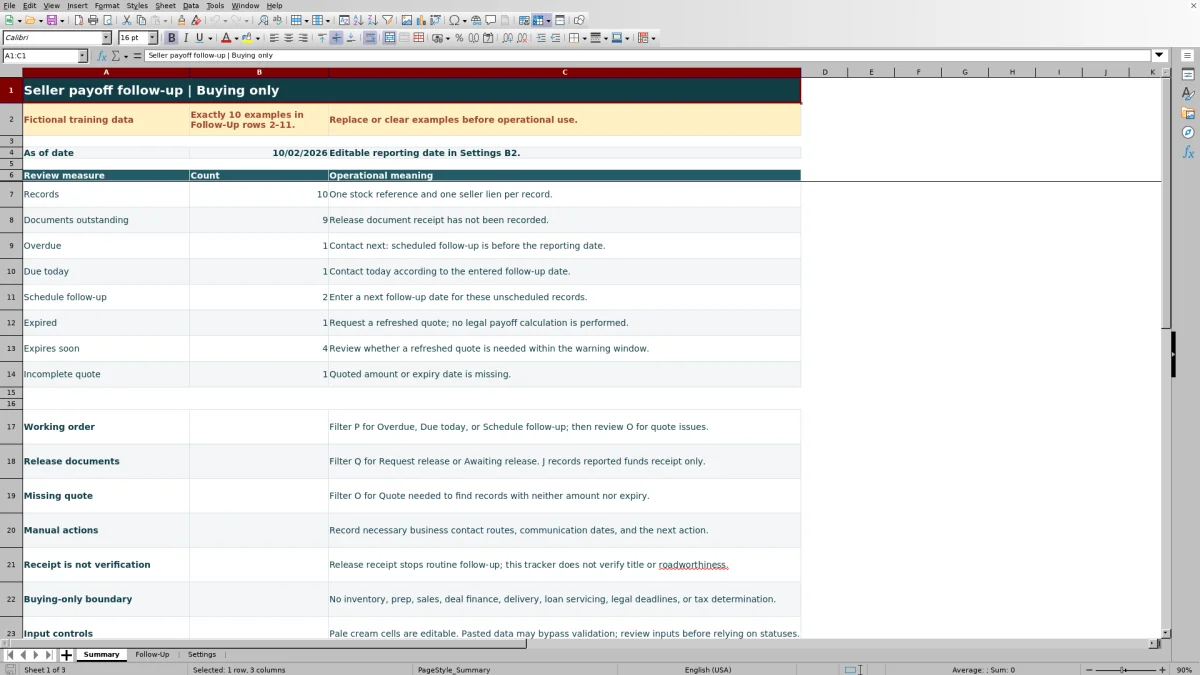
Start with the work that needs a decision today. Summary separates overdue follow-ups, those due today and records without a scheduled follow-up. These results compare Next follow-up date with the reporting date in Settings; they do not measure a legal deadline.
Filter Follow-up status in Follow-Up to see the underlying records. For an overdue item, check Last contact date and the contact route before following up. For Schedule follow-up, decide when the next contact should happen and enter that date. Choosing a Next action alone does not schedule it.
Do not add the summary counts together as separate cases. One record can have an overdue follow-up, an expired quote and an outstanding release document. Documents outstanding means a stock reference is present but Release document received date is blank; it does not establish whether the document exists elsewhere.
Practical example: decide when to request a refreshed payoff quote
Days until quote expires subtracts the reporting date from Quote expires date. A positive result is the number of calendar days remaining; zero means the quote expires on the reporting date, and a negative result means that date has passed.
For records without a release receipt date, Quote status also checks whether both Quoted payoff (USD) and Quote expires date are present. Neither entered produces Quote needed; only one entered produces Incomplete quote. A past expiry produces Expired. An expiry on the reporting date or within the selected warning window produces Expires soon.
Fictional example: Assume a $5,000.00 USD quote expires on 10/04/2026, the reporting date is 10/02/2026 and the warning window is three days. With a stock reference present and no release receipt date, the result is +2 days and Expires soon. The $5,000.00 remains the amount you entered; it is not adjusted for those two days. Check whether you need a refreshed quote for the intended payment timing.
If the same record has a Next follow-up date of 10/01/2026, it also shows Overdue. That combination tells you to contact the lienholder about the recorded quote now, not to calculate a new payoff from the old amount. The workbook performs no legal payoff calculation.
Follow release documents without confusing receipt with verification
Document status is a prompt based on the dates you enter. With none of the receipt or request dates entered, it shows Confirm funds receipt. Entering Lienholder-reported funds receipt date changes it to Request release. Entering Release document requested date changes it to Awaiting release. A Release document received date takes priority and produces Received, not verified.
Reported funds receipt is not verification of settled funds. The field records what the lienholder reported. It does not connect to a bank or confirm a payment. Likewise, Awaiting release means a request date is recorded, not that the lienholder has accepted or processed the request.
Enter Release document received date only to record actual receipt, not an expected arrival date. Any nonblank entry there stops routine follow-up in the formulas: Follow-up status becomes Document received and Quote status becomes Not tracked. Review the received paperwork through your separate verification process; the tracker does not verify title or roadworthiness.
Errors and solutions: fix inputs that can hide open work
- Blank calculated statuses: Check Stock reference first. A blank reference leaves calculated outputs blank, even if other details are entered. Summary also counts records by that reference.
- Unexpected timing labels: Check Settings B2 before changing the record. An old fixed reporting date can make the queue look current when it is not.
- Incomplete quote: Obtain the missing amount or expiry date rather than treating the existing half of the quote as complete. If both are absent, filter Quote status for Quote needed.
- Dates or references that look wrong after a paste: Review the pasted inputs. Pasting may bypass validation, so the presence of input controls is not a guarantee of valid entries. Use whole dates without time values and check for duplicate stock references.
- A record disappears from routine follow-up: Inspect Release document received date for an accidental entry. Receipt takes priority over the next follow-up date.
The file does not supply cached formula results. If calculated areas appear empty in a preview, do not interpret that as zero outstanding work. Recalculate the workbook and check the reporting date before using its statuses.
Keep the tracker within its buying role and prepared capacity
The prepared range is Follow-Up rows 2–101, supporting 100 records. The calculated columns, filters, validation and Summary formulas use that range. Do not assume a record entered below row 101 will be calculated or counted.
The record structure is one stock reference and one seller lien per row, with validation for unique stock references. If a purchase involves multiple liens, resolve how you will identify and reconcile those separate records before entering them; do not assume duplicate stock references are supported.
Use the workbook for contacts, quote timing and release-document follow-up during buying. Keep acquisition accounting, retail inventory, prep, sales, deal finance and handover work in their appropriate records. This file does not determine taxes, service loans or establish legal deadlines.
Compare the workbook with a blank spreadsheet or paper log
Choose according to how you review buying work. This workbook supplies a defined follow-up structure and calculated review labels. A blank spreadsheet gives you a starting point for a different structure, while a paper log leaves the review entirely manual.
| Method | Setup | Timing review | Scope and upkeep |
|---|---|---|---|
| Car Dealer Sheets workbook | Prepared fields, settings and summary for 100 records | Calculated quote and follow-up labels from entered dates | Buying follow-up only; you enter contacts, dates and actions |
| Blank spreadsheet | You design the fields and layout | You create formulas or check dates manually | You define the scope and maintain any calculations |
| Paper log | You create a written record format | You inspect dates and count open items manually | You update and organize the physical records |
Use this workbook when its fixed fields and 100-record range fit your follow-up process. Consider a blank spreadsheet when you need a materially different record structure and can maintain it. A paper log may suit a short list you can review manually. If you need a broader dealer management system, assess that separately rather than treating this tracker as an inventory, accounting or payment system.
Frequently asked questions
Does the tracker send reminders or contact lienholders?
No. It provides calculated statuses and places to record contact routes and actions. You make the calls or send the messages, then update Last contact date, Next follow-up date and the relevant confirmation dates.
Can I change the Next action choices?
Yes. Edit Settings D2:D6, keeping five nonblank choices. The initial choices are Request quote, Confirm receipt, Request release, Follow up and File document. Changing a choice does not rename actions already entered, so review existing entries if you revise the wording.
Can I review the tracker as of a previous date?
You can replace Settings B2 with a fixed date to evaluate the currently entered information against that date. This is not a reconstruction of the workbook's earlier contents. Entering a fixed date replaces =TODAY(), so restore that formula if you want to return to a current-date review.
Why can Summary show no incomplete quotes when some records have no quote?
Incomplete quote means either the amount or the expiry date is missing, but not both. When both are blank, Quote status shows Quote needed instead. Summary has an Incomplete quote count but no separate Quote needed count, so filter Quote status in Follow-Up to find records with neither detail entered.
Does Current mean the payoff amount has been confirmed?
No. Current means an amount and expiry date are entered, the expiry is beyond the warning window and no release receipt date has stopped quote tracking. It does not authenticate the quote or confirm the amount with the lienholder. Check the source quote and any applicable conditions before relying on the recorded amount.
Editorial areas

Owen AshfordVehicle stock & purchasing
About this editorial area →
Mara WestbrookSales records & delivery
About this editorial area →