Before you offer a private seller an inspection time, check that the seller, appraiser and inspection space can all fit the appointment. This Car Dealer Sheets Excel workbook helps you compare recorded availability with proposed purchase inspections and review scheduling conflicts.
Enter seller windows, assign appointment times and review the calculated results before confirming with the seller. Ready to schedule is not a confirmation: it means only that the entered availability and resource checks pass.
When to use this workbook
- Check a proposed inspection against the seller’s recorded time window and location before offering the slot.
- Review competing appointments for the same seller, appraiser or inspection space.
- Keep tentative appointments in the resource check while excluding canceled appointments.
- Identify incomplete references or scheduling inputs before relying on an appointment result.
What is in the file
How to use the workbook
1. Set up your appraisers and inspection spaces
On Setup, replace the fictional entries under Appraiser References and Location References with your own unique references. Treat each location as one inspection space, not a whole site with several spaces. Set Allow touching endpoints? in E3 to Yes or No. Keep the status choices Tentative, Confirmed and Canceled unchanged because the calculations use those exact values.
2. Record the seller’s availability
On Seller Windows, enter a unique Window Reference for each seller-provided interval and location. Add the Seller Reference, Location, Available From and Available Until. Use full dates and times in the dealership’s local time, displayed as MM/DD/YYYY hh:mm AM/PM. The end must be later than the start.
3. Enter the proposed appointment
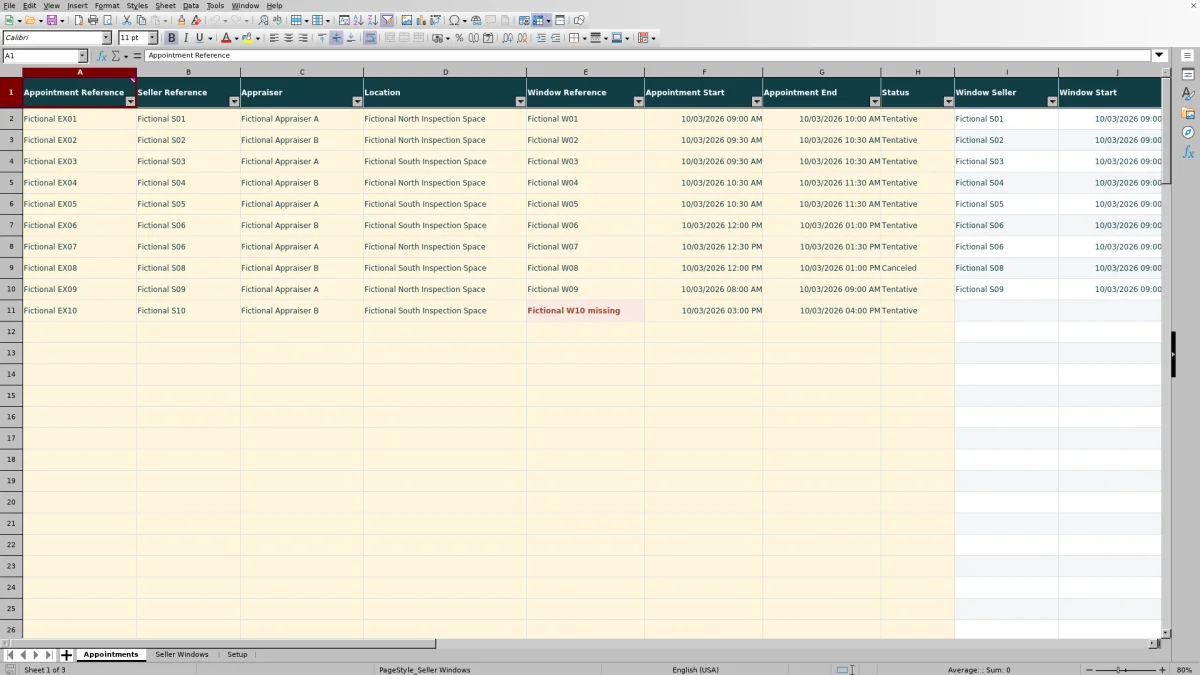
On Appointments, complete columns A:H with a unique Appointment Reference, the seller, appraiser, location, matching window reference, start, end and status. Use Tentative while you are considering the slot. Replace or clear the fictional input records before using the file for live scheduling, and preserve the formulas in I:O.
4. Review the checks before confirming
Read Availability Check, Conflicting Appointments and Scheduling Result together. Correct incomplete inputs, resolve availability issues and move competing appointments as needed. Once you have separately agreed the appointment with the seller and appraiser, record Confirmed. Use the Appointments filters to focus your review, but do not treat a filtered view as the complete schedule.
Match the seller’s window, not just the time
A seller’s availability includes both a time interval and a place. A proposed inspection needs to match the seller and location attached to its selected Window Reference, with the appointment contained within that interval. A suitable time alone is not enough if you have selected another seller’s window or a different inspection space.
If a seller offers two possible intervals, record each one separately on Seller Windows with a unique Window Reference. You can repeat the Seller Reference across those records. Select the particular window you intend to use on Appointments, then check the calculated Window Seller and Window Location alongside the returned times.
Use one reference per interval and location. Reusing a window reference makes the selection ambiguous and can produce Window reference duplicated. If the seller changes availability, update the relevant record and review appointments using that reference before keeping the proposed arrangements.
Decide whether back-to-back inspections are workable
The workbook treats every seller, appraiser and location as a resource with capacity one. Two inspections can compete for the same appraiser even at different locations, or for the same inspection space even with different appraisers. If your dealership has multiple inspection spaces at one site, give each space a distinct location reference.
On Setup, Allow touching endpoints? controls appointments that meet at exactly the same time. Yes allows one appointment to start when another ends. No treats that shared endpoint as a conflict. For example, a 10:00 AM finish and a 10:00 AM start share an endpoint; they do not leave a preparation gap.
No extra turnaround time is added. Include required turnaround within the entered appointment interval, and make sure that interval still fits the seller’s window. Review travel and other commitments separately rather than assuming the recorded times account for them.
Fictional example: two different reasons for a conflict
The workbook’s populated records are fictional examples. On 10/03/2026, Fictional EX01 runs from 09:00 AM to 10:00 AM with Fictional Appraiser A at Fictional North Inspection Space. Fictional EX02 runs from 09:30 AM to 10:30 AM with another appraiser at that same space. Fictional EX03 runs from 09:30 AM to 10:30 AM with Fictional Appraiser A at Fictional South Inspection Space. All three are Tentative.
With touching endpoints allowed, EX01 has a Conflicting Appointments result of 2. EX02 competes for the North space, while EX03 competes for Appraiser A. Both overlap EX01 from 09:30 AM to 10:00 AM, so changing only the endpoint setting would not solve either overlap.
The next decision is which resource to free. Moving EX02 to another available inspection space would also require a matching seller window for that location. Moving EX03 to another time would require checking its seller window and the appraiser’s other appointments. After any change, review the results again rather than assuming one edit resolves the whole schedule.
Errors and solutions for incomplete scheduling records
A zero conflict count is not clearance to book. The formula can return zero for canceled appointments, unsupported statuses or incomplete and invalid appointment inputs. Availability issues are also separate from resource conflicts. Use Scheduling Result and Availability Check alongside the count.
- For Complete inputs, check that all input fields in A:H are filled, the Appointment Reference is unique, the appraiser and location appear in Setup, the status uses an allowed value and Setup E3 is Yes or No.
- For Incomplete in Availability Check, inspect the seller, location and window reference, then check that the start and end are valid date-time values and the end is later than the start.
- For Window reference duplicated, give each Seller Windows record a unique reference and reselect the intended one on Appointments.
- For Window missing or incomplete, check that the selected reference exists and that its seller, location and start and end values are complete and valid.
Blank lookup fields do not mean the seller is available without restriction. They can mean the window reference is missing, does not match a record or points to incomplete data. The included fictional EX09 is outside its window, and EX10 has an intentionally missing window reference; both need availability review even though their expected conflict counts are zero.
Keep tentative holds and canceled appointments distinct
Both Tentative and Confirmed appointments block resources in the scheduling checks. This lets you record a proposed slot without treating the same appraiser or space as free for another proposal. A Canceled appointment does not block resources, and its Scheduling Result is Canceled.
Before offering the day’s remaining slots, review tentative records that are no longer being pursued and update their status. Leaving an abandoned proposal as Tentative can keep it in the conflict check. Conversely, marking a live proposal Canceled removes it from that check.
The status is your record of the arrangement, not evidence that the seller received or accepted it. Agree the details through your normal communication process, then update the workbook. A calculated readiness result does not perform that communication.
Stay within the prepared schedule and time assumptions
The prepared range is 100 appointments and 100 seller windows, in rows 2–101 of their respective sheets. Appointment formulas and the reference ranges use those rows. Do not assume typing below row 101 extends the scheduling checks, dropdown sources or validation rules.
Use full date-time values in dealership local time. The workbook performs no time-zone conversion, so a seller giving availability in another time zone needs to be clarified before you enter it. The display format includes both the date and AM/PM time, helping you distinguish an afternoon appointment from a morning one on the same date.
Setup also includes an Example anchor date. Changing it does not move existing appointments; the example dates are stored values. Reschedule by editing the actual appointment and seller-window date-time inputs. This file is scoped to private-seller purchase inspections, not valuation, acquisition-cost tracking or deal administration.
Compare the workbook with a blank spreadsheet or paper log
Choose the method that fits how you make and check appointments. This workbook supplies a defined scheduling structure. A blank spreadsheet gives you room to design a different structure, while a paper log leaves the availability and overlap review entirely manual.
| Method | Availability review | Conflict review | Setup and limits |
|---|---|---|---|
| This appointment workbook | Links a selected seller window to an appointment and calculates an availability check. | Calculates conflicts for recorded appointments using capacity-one resources and an endpoint setting. | Requires your references and valid inputs; prepared for 100 appointments and 100 windows. |
| Blank spreadsheet | You define the fields and any lookup or comparison formulas. | You review overlaps manually unless you build checks. | You choose the layout and must establish and maintain its rules. |
| Paper appointment log | You write down availability and compare it with each proposed slot. | You manually compare seller, appraiser and space commitments. | No spreadsheet setup, but changes and cross-checks must be recorded by hand. |
Use this workbook when its record limits and single-space resource model fit your process and you want the supplied checks. Choose a blank spreadsheet when your scheduling rules need a different design and you can maintain the calculations. A paper log may suit a small schedule that you can review manually. If you need shared booking workflows, reminders or broader dealership administration, assess specialized software against those requirements rather than assuming this workbook provides them.
Frequently asked questions
Can one seller have several availability windows?
Yes. Add a separate row on Seller Windows for each interval and location, using the same Seller Reference where appropriate but a unique Window Reference for every row. Each appointment selects one window reference. Separate windows do not give the seller extra capacity; the workbook treats each seller as a capacity-one resource.
Does Ready to schedule mean the seller has confirmed?
No. It means only that the entered availability and resource checks pass. Confirm the arrangement separately with the seller and appraiser, then record Confirmed in Status. The workbook’s status and result are not proof of communication or acceptance.
Can I add a status such as Awaiting reply?
Keep Tentative, Confirmed and Canceled unchanged. The scheduling formulas use those exact values, so adding a label to the Setup list does not make it a supported scheduling status. Use Tentative for a proposed appointment that should still block resources while you await a response.
Does filtering the schedule remove hidden appointments from conflict checks?
No. The conflict formula refers to the recorded appointment range, not just the rows visible after filtering. Filters help you review a subset of appointments; they do not cancel hidden records or free their resources.
How should I remove the fictional examples?
Replace or clear the example inputs in Appointments A:H and Seller Windows A:E within rows 2–101, and replace the fictional appraiser and location references on Setup. Do not clear the calculated columns Appointments I:O. Keep the three supported status choices and set the endpoint assumption for your own scheduling process.
Editorial areas

Owen AshfordVehicle stock & purchasing
About this editorial area →
Mara WestbrookSales records & delivery
About this editorial area →