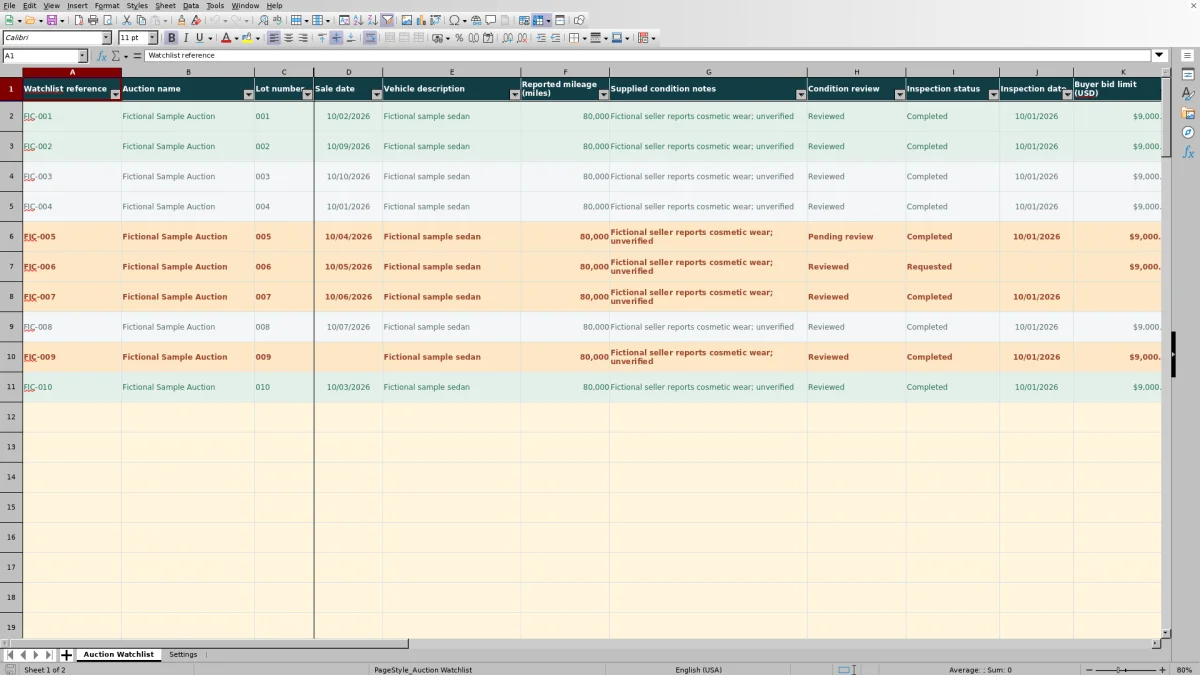
Before an auction buying run, separate lots ready for consideration from those still missing information. The Car Dealer Sheets auction watchlist spreadsheet brings sale dates, supplied condition notes, inspection status and your bid limits into one planning record.
Use this Excel workbook to review your shortlist and decide which lots need attention before the sale. Its calculated labels reflect what you enter: Planning shortlist is not bidding authorization, and the file is not live auction data or retail stock tracking.
When to use this workbook
- Focus your buying run on lots within the sale-date window you choose.
- Identify missing details and unfinished review work before deciding which lots to pursue.
- Keep your manual bid ceiling beside the condition and inspection information used for planning.
- See how many recorded lots are shortlisted, need attention, fall outside the window or have been passed over.
What is in the file
How to use the workbook
1. Set the dates for your buying run
On Settings, review Planning date in B2 and Days ahead in B3. Planning date defaults to TODAY(); enter a fixed date if you want the run to stay anchored to that date. Days ahead accepts whole numbers from 0 through 60.
2. Replace the fictional examples with your lots
The ten populated records are fictional examples, not auction leads. On Auction Watchlist, replace or clear their editable entries while keeping the formulas in Planning status and the summary. Enter a unique Watchlist reference first, then the auction, lot number, sale date and vehicle description. Each row represents one lot at one scheduled sale.
3. Record the information behind your decision
Enter sourced Supplied condition notes and any supplied mileage in whole miles. Use the dropdowns for Condition review, Inspection status and Buyer decision. Add the Inspection date and your positive Buyer bid limit (USD). Dates display as MM/DD/YYYY. These are manually supplied records, not verification by the workbook.
4. Review exceptions before using the shortlist
Correct red-flagged rows first, then filter Planning status to review Planning shortlist or the attention categories. Check the supporting condition information and inspection record before acting. The Buying run summary counts all 100 prepared rows, including rows hidden by a filter.
Choose a planning window that matches the buying run
The window runs from Planning date through that date plus Days ahead. Both endpoints are included. A value of 0 means only the planning date is in scope; 7 includes that date and the following seven calendar dates.
The default TODAY() formula makes the window move as the workbook recalculates on later dates. Use a fixed date when you need to revisit the same buying run without shifting its scope. These settings are planning assumptions, not auction deadlines. Confirm the current sale schedule separately before traveling or preparing to bid.
Read planning statuses in their decision order
The formula assigns one status to each referenced row, so the label reflects the first applicable check rather than every issue on that lot:
- If Watchlist reference is blank, Planning status stays blank, even when other cells contain data.
- If Buyer decision is Pass, the result is Passed. This means you passed over the lot, not that it passed an inspection.
- For a non-passed lot, a blank Auction name, Lot number, Sale date, Vehicle description, Condition review, Inspection status or Buyer decision produces Missing inputs.
- With those core inputs present, a sale before or after the inclusive date window produces Outside window.
- An in-window lot produces Needs follow-up if condition notes are blank, Condition review is not Reviewed, Inspection status is not Completed, or the inspection date or bid limit is blank.
- Otherwise, the result is Planning shortlist.
Status order matters. An Outside window label can hide unfinished inspection work because the date check comes first. If you move that sale into the window, review its newly calculated status before adding it to the run.
Example: deciding whether a Friday lot belongs on the run
In this fictional example, set Planning date to 10/02/2026 and Days ahead to 7. The inclusive end date is 10/09/2026. Record a fictional sedan selling on 10/09/2026 with a unique reference, auction name, lot number and vehicle description. Enter sourced condition notes, Condition review as Reviewed, Inspection status as Completed, Inspection date as 10/01/2026, Buyer bid limit (USD) as $9,000 and Buyer decision as Consider.
Those inputs produce Planning shortlist because the sale falls on the included end date and the required planning entries are present. The result means the lot meets the workbook's recorded planning checks; it does not establish that $9,000 is an appropriate value. Your next decision is whether the underlying evidence and your buying budget support pursuing it.
If the sale moves to 10/10/2026, the result becomes Outside window. If it stays on 10/09/2026 but you remove the inspection date, it becomes Needs follow-up. Use those changes to decide whether to plan a later run or finish the missing work.
Keep supplied condition information separate from your bid decision
Use Supplied condition notes to identify the source of the information, such as an auction report or seller statement. Keep its unverified nature clear. Selecting Reviewed records a review state; it does not turn a supplied statement into a verified finding. Likewise, Completed is a manually entered inspection status, not certification of the vehicle's condition.
The bid limit is your manual USD ceiling. The workbook does not calculate it from mileage or condition, and it is not an asking price, market valuation or agreed purchase price. Work out your expected acquisition costs and prep allowance separately, then enter the ceiling you intend to use.
An inspection date is required for the shortlist, but the planning formula does not assess how recent that inspection is. Compare the date with any later condition reports or sale changes before deciding whether the information is still sufficient.
Fix reference and entry problems before relying on a status
Resolve red flags first. Duplicate references and data entered without a reference take precedence in the row coloring. A row without a reference can contain useful-looking details yet have no planning status and contribute nothing to Recorded lots. Add the correct unique reference before treating it as a tracked lot.
Direct-entry validation checks date values, nonnegative whole-mile mileage and positive numeric bid limits. It also checks reference uniqueness. Pasting can bypass these checks, so review pasted rows against those rules rather than assuming an accepted paste is valid.
If a row shows Needs follow-up, inspect its condition notes, review choice, inspection status, inspection date and bid limit. If it shows Missing inputs, complete the core identifying and status fields first. Green denotes Planning shortlist, amber denotes attention, and gray denotes Outside window or Passed; read the status text as well as the color.
Use summary counts without mistaking them for a filtered total
Recorded lots counts nonblank references in A2:A101. Planning shortlist, Outside window and Passed count their corresponding status labels. Needs attention combines Missing inputs and Needs follow-up, so it represents two different kinds of work: completing the basic record and resolving planning follow-up.
Filters do not change the summary counts. If you filter to one auction or sale date, the summary still covers all prepared rows. Do not use it as the total for only the visible lots.
The supplied status formulas, validations and summary ranges cover 100 records in rows 2–101. Do not assume entries below row 101 are included. If you need more capacity, the related ranges need deliberate extension and checking before you rely on the expanded workbook. Repeated references are also not deduplicated by Recorded lots; fix those records rather than interpreting the count as unique vehicles.
Compare the workbook with a blank spreadsheet
Choose the method according to how much structure you need. This workbook provides a defined buying-run workflow. A blank spreadsheet leaves the layout and decision rules to you.
| Method | Setup | Planning checks | Scope and upkeep |
|---|---|---|---|
| Car Dealer Sheets auction watchlist | Prepared lot fields, dropdowns and date settings | Formula-based status labels and five summary counts | 100 prepared records; you enter and update auction and inspection information |
| Blank spreadsheet | You create the columns and layout | You assess readiness manually or build your own rules | You define the scope and maintain any formulas, validation and reporting |
Use this workbook when its sale-window and readiness checks fit your buying process. Start with a blank spreadsheet if you need a substantially different structure and are prepared to build and check it. If your requirement extends to connected auction information or dealership-wide operations, assess specialized software against those specific needs; this watchlist does not provide those functions.
Frequently asked questions
How should I record a vehicle that is relisted at another sale?
Create a new row with a new Watchlist reference for the new scheduled sale. The reference identifies the sale record, not just the vehicle. Lot numbers are stored as text, so retain the auction's lot identifier, including any leading zeros.
Does missing mileage keep a lot off the planning shortlist?
No. Reported mileage (miles) is optional and is not part of the Planning status formula. Leave it blank when it has not been supplied; do not enter zero to mean unknown. When mileage is supplied, enter a nonnegative whole number of miles and consider whether you need further evidence before buying.
Does the workbook fetch auction reports or inspection results?
No live auction or inspection connection is provided. You enter the sale information, supplied condition notes and inspection status yourself. Those field names describe what you can record, not integrations with outside services.
Can I rename the dropdown choices?
The dropdowns use the visible choice lists on Settings, but the planning formulas compare specific text, including Pass, Reviewed and Completed. Renaming those choices without changing and checking the formulas can change the results. Keep the supplied wording for normal use.
Can I use this file to track cars after purchase?
This workbook is for auction buying preparation, not owned or consigned retail stock, prep invoices, customer deals, finance or handover records. Move purchased vehicles into the appropriate dealership records rather than treating Planning shortlist as an acquisition record. Keep personal, license and credit information, real vehicle identification numbers (VINs), customer deals and payment receipts out of this watchlist.
Editorial areas

Owen AshfordVehicle stock & purchasing
About this editorial area →
Mara WestbrookSales records & delivery
About this editorial area →