Before paying an auction invoice, compare what your dealership was awarded with the charges invoiced and the settlement amount due. This Car Dealer Sheets Excel workbook puts those figures beside each other so you can identify differences and decide what needs clarification.
Enter one purchased lot per row, then use calculated totals, variances and review statuses to guide your checks. This is a manual reconciliation workbook: you supply the document amounts and investigate exceptions; it does not authorize or execute payment.
When to use this workbook
- Keep each stock number connected to its auction, lot, invoice and settlement references.
- Separate charge differences from settlement differences so you know which supporting document to check.
- Focus follow-up on rows marked Review or Incomplete before recommending payment.
- See recorded-lot counts and matched invoice totals together without treating them as settled funds.
What is in the file
How to use the workbook
1. Replace the fictional records and choose a tolerance
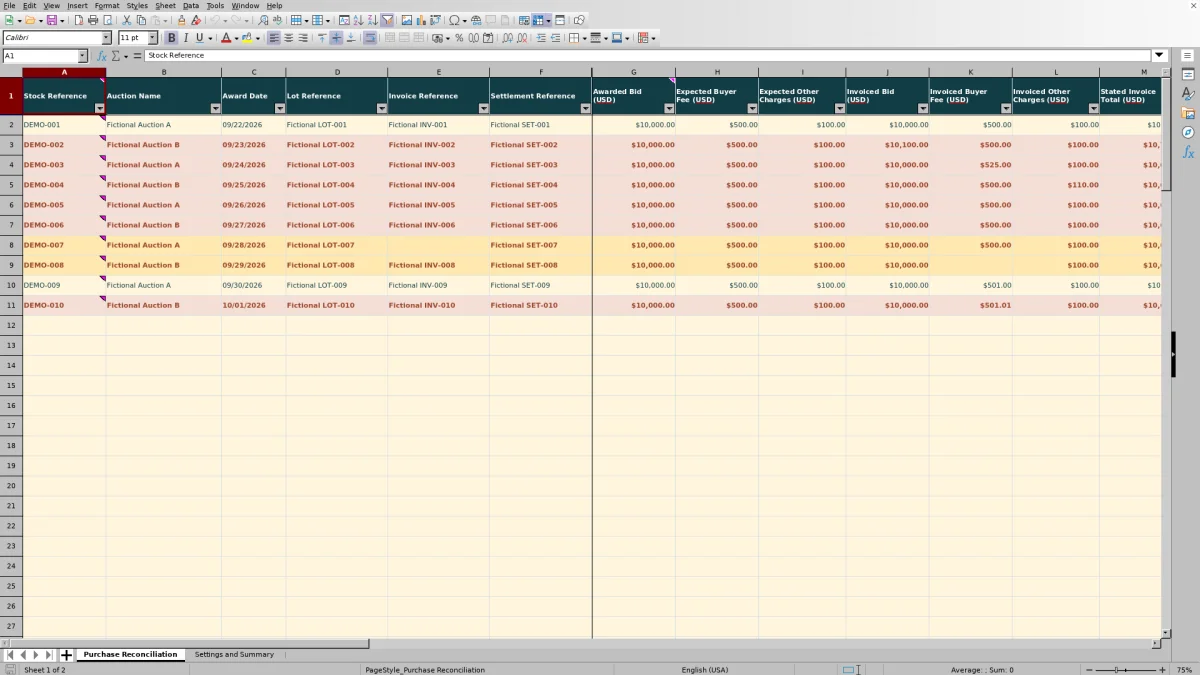
On Purchase Reconciliation, clear A2:N11 to remove the 10 fictional purchase records. Keep the formulas in O:S and the calculated results on Settings and Summary. On Settings and Summary, review Tolerance (USD) in B2. The supplied $1.00 value is a fictional operating assumption, not a required standard.
2. Identify each awarded lot
Use one row per dealership purchase within rows 2–101. Enter your stock number in Stock Reference, followed by the auction name, award date, lot reference, invoice reference and settlement reference. Use MM/DD/YYYY for the award date. Gather the supporting award, invoice and settlement documents before completing the amounts.
3. Enter expectations and document amounts separately
Enter award-based bid, buyer fee and other charges in G:I. Transcribe the invoiced components, stated invoice total and settlement amount due into J:N. All amounts are in USD and the input setup uses nonnegative values. Enter zero only when no charge applies; leave an unknown amount unresolved rather than replacing it with zero. Allocate combined documents to individual lots before entering their amounts.
4. Review exceptions and check the summary
Use the filter on Review Status to examine Incomplete and Review rows. Check missing details, duplicate stock references, charge differences and document totals against the originals. Correct supported entry errors or request clarification from the auction. Then review Settings and Summary for the resulting counts and matched invoice total; a Matched result still needs your payment decision outside the workbook.
Allocate combined auction documents before comparing amounts
A single invoice or settlement statement may cover several purchased lots. Before entering it, work out the amount attributable to each lot and retain the original document references. Entering the full combined total on every lot would repeat the payable rather than reconcile it.
Keep an allocation record alongside the workbook showing how shared charges and settlement amounts were assigned. Check that your lot-level allocations add back to the source document. The workbook does not verify those allocations across documents, so matching individual rows cannot establish that a combined invoice has been fully and correctly distributed.
Use Expected Other Charges (USD) and Invoiced Other Charges (USD) for the relevant documented amounts. These are combined charge fields, not a detailed schedule of every charge. Preserve that detail in your supporting records so you can explain a difference later.
Example: a buyer-fee difference with no settlement difference
In a fictional example, a lot has a $10,000 awarded bid, a $500 expected buyer fee and $100 in expected other charges. Expected Total (USD) is therefore $10,600. The invoice instead lists a $525 buyer fee, with the bid and other charges unchanged, so Calculated Invoice Total (USD) is $10,625.
If the stated invoice total and settlement amount due are both $10,625, Invoice Variance (USD) is positive $25, while Settlement Variance (USD) is $0. The invoice and settlement agree with each other, but the invoice exceeds the award-based expectation. At a $1.00 tolerance, that fee difference needs review. Check the fee basis and request an explanation or correction before recommending payment.
The two variance columns answer different questions. Invoice Variance subtracts Expected Total from Stated Invoice Total; for row 2, its underlying calculation is M2 minus O2. Settlement Variance subtracts Stated Invoice Total from Settlement Amount Due, or N2 minus M2. Positive values mean the later document amount is higher; negative values mean it is lower.
Invoice arithmetic is a separate check: compare Stated Invoice Total (USD) with Calculated Invoice Total (USD), which adds the three invoiced components. A settlement variance of zero does not resolve either an invoice arithmetic error or an unexpected charge.
Set the tolerance without hiding charge differences
Tolerance (USD) on Settings and Summary applies to each monetary comparison. The supplied value is $1.00, and a difference equal to the tolerance passes that comparison. A larger absolute difference triggers review. Choose a tolerance that reflects your dealership's review policy rather than assuming the sample value is appropriate.
The workbook compares bid, buyer fee and other charges separately, as well as invoice arithmetic, the expected total and the settlement amount. That matters because component differences can offset each other.
For example, a fictional invoice could charge $25 more for the buyer fee and $25 less for other charges, leaving the total unchanged. With a $1.00 tolerance, the component differences still require review even though the total variance is zero. Check why the charge allocation changed rather than treating the unchanged total as sufficient evidence of agreement.
A tolerance is not an approval rule. It also does not excuse missing fields or duplicate stock references.
Errors and solutions: missing inputs and duplicate stock references
A blank result is not a zero difference. Without a Stock Reference, the row's calculated outputs and status stay blank, and the row is not included in Recorded Lots. If you have entered other details on a row but see no status, check the stock reference first.
An identified row is Incomplete when required reference details are missing or G:N does not contain all eight numeric amounts. Expected Total also stays blank until all three expected components are numeric; Calculated Invoice Total behaves the same way for the invoiced components. Check for omitted amounts or numbers entered as text.
When the source document confirms that a charge does not apply, enter numeric zero. When the amount is still unknown, obtain it rather than using zero to make the row look complete.
Duplicate stock references are highlighted and checked by the status formula. Determine whether the same purchase was entered twice or two different purchases were assigned the same reference. Resolve the underlying record problem instead of merely changing an identifier to remove the alert. Finish missing inputs first, because Incomplete can be the displayed status before other issues are surfaced.
Read the summary as reconciliation progress, not cash paid
Settings and Summary counts rows with a Stock Reference as Recorded Lots, then counts the Matched, Review and Incomplete statuses. Use these indicators to understand how much of the entered batch still needs attention. They do not confirm that every auction purchase has been entered.
Matched Invoice Total (USD) adds the Stated Invoice Total values only for rows marked Matched. Review and Incomplete rows are excluded. This gives you a total for the rows that meet the workbook's checks, not a total of every recorded purchase.
Matched is not payment authorization. Settlement Amount Due records an expected payable, not evidence of payment, and the matched invoice total is not settled funds. Check your supporting documents and follow your dealership's payment approval process separately.
The guidance beside the summary contains fictional fixture expectations. Use the calculated results for your records; do not treat the sample guidance figures as live totals after replacing the examples.
Keep the review within the workbook's scope and range
The provided formulas, filters, duplicate checks and summary ranges cover rows 2–101 on Purchase Reconciliation. Typing below row 101 does not establish that the new records are included in those checks. For another batch, use a separate copy or deliberately extend and verify all affected formulas and ranges before relying on an expanded file.
Keep O:S for calculated outputs. Resolve discrepancies by correcting supported inputs, not by overwriting a variance or status to force a match. The presence of formulas does not mean those cells are protected from editing.
This workbook covers auction purchases for dealership stock, not consignments, retail deal administration or ongoing prep costs. Award details do not verify title or ownership. Document references identify the records you entered; they do not establish an auction, bank or accounting integration.
Comparison: this workbook versus a blank spreadsheet or paper log
Choose your reconciliation method according to the work you need to complete. This workbook combines per-lot document entry, calculated comparisons, exception statuses and a batch summary. A blank spreadsheet or paper log lets you choose a different structure, but you must establish the checks and summary process yourself. All three approaches still require you to verify the source documents and resolve discrepancies.
| Method | Setup and entry | Discrepancy checks | Batch oversight and limits |
|---|---|---|---|
| This reconciliation workbook | Replace fictional records and enter one purchased lot per row in the provided 100-row area. | Built-in totals, variances, tolerance comparisons, completeness checks and duplicate stock-reference checks. | Status counts and matched invoice totals are provided. Document allocation, investigation and payment approval remain manual. |
| Blank spreadsheet | Create fields and a layout suited to your auction documents. | Build and verify formulas or compare the amounts manually. | Define your own record range, batch summaries and exception tracking. |
| Paper log or manual register | Write lot details and document amounts into your chosen format. | Calculate totals and check differences manually. | Track outstanding questions and summarize the batch by hand. |
Use this workbook when its per-lot fields, 100-row range and manual workflow fit your auction purchasing process. Choose a custom spreadsheet or register when your documents require a different structure and you are prepared to maintain the checks yourself. If you need connected accounting, payment controls or a wider purchase workflow, evaluate specialized dealer management software against those requirements and verify its capabilities before choosing it.
Frequently asked questions
Can I enter credits or negative settlement amounts?
The workbook's monetary inputs are set up for nonnegative USD values. Do not convert a credit into a positive charge just to fit the input rules. Keep the credit documentation and reconcile it separately if it cannot be represented faithfully in the provided fields.
Does the workbook calculate auction taxes or fees?
No tax or fee-rate calculation is shown in the workbook. Enter documented expected charges and the amounts stated on the invoice. The formulas add and compare those inputs; they do not establish what tax or buyer fee should legally apply.
Should I enter a VIN or customer information in Stock Reference?
Use your dealership's stock number or stock reference. The workbook guidance calls for stock references rather than vehicle identification numbers (VINs) or personal information. This is a buying reconciliation record, not a customer or title-verification record.
Where should I record an explanation for a disputed charge?
The provided reconciliation columns do not include a dedicated dispute-note or approval field. Keep the explanation, correspondence and any revised documents in your supporting records, tied to the stock, invoice and settlement references. Update the workbook amounts only when the documentation supports the change.
What does the Award Date represent?
Award Date records the auction award date in MM/DD/YYYY format. It is not a payment date or proof that funds have settled. Replace the fictional example dates with the dates from your purchase records.
Editorial areas

Owen AshfordVehicle stock & purchasing
About this editorial area →
Mara WestbrookSales records & delivery
About this editorial area →