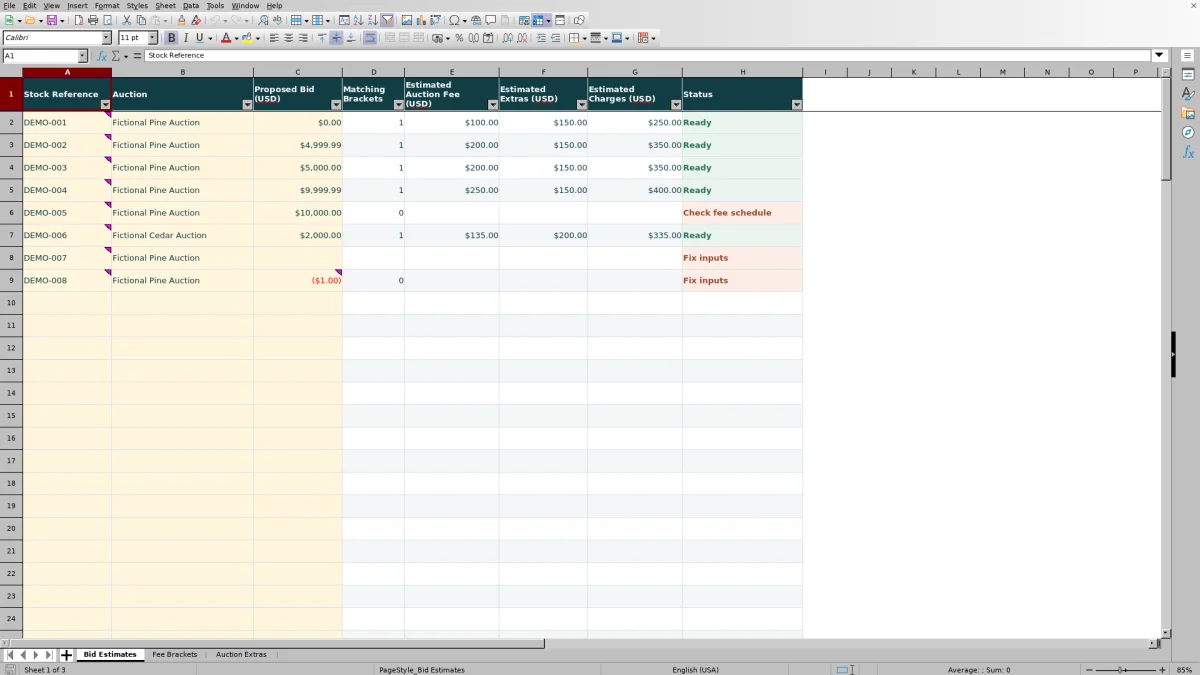
Before you bid on a used car, estimate the auction charges attached to that bid. This Car Dealer Sheets Excel workbook uses fee brackets and auction-specific flat extras you enter, so you can review the charge estimate alongside your buying plan.
You maintain the assumptions; the workbook calculates the matching fee and extras. It is not an all-in acquisition cost or bid cap, and the supplied auctions and amounts are fictional examples rather than current fee schedules.
When to use this workbook
- Review estimated auction charges at different proposed bids before deciding what to offer.
- Keep fee brackets and combined flat extras separate so you can check each assumption.
- Spot missing, overlapping or invalid schedule entries before relying on a charge estimate.
- Associate each estimate with a stock reference for your buying review.
What is in the file
How to use the workbook
1. Replace the fictional auction extras
Read the use notes on Auction Extras, then replace the sample auction names and amounts in columns A–B. Use one row per auction and enter its combined Flat Extras (USD). Enter numeric zero if no extras apply. The auction names here supply the dropdowns elsewhere in the workbook.
2. Enter the applicable fee brackets
On Fee Brackets, select the auction and enter the lower and upper bid limits, Flat Fee (USD) and Bid Rate. Enter every numeric component, including zero where applicable. Use only schedules that fit the workbook's flat-fee-plus-bid-rate calculation, and resolve any Schedule Check result other than Ready.
3. Add your proposed bids
On Bid Estimates, enter Stock Reference, choose Auction and enter Proposed Bid (USD). Use a nonnegative numeric bid with no more than two decimal places. Work within rows 2–101 and leave the calculated columns D–H intact.
4. Check the result before using it
Review Status first. When it shows Ready, inspect Estimated Auction Fee (USD), Estimated Extras (USD) and Estimated Charges (USD). Compare the assumptions with the applicable auction schedule, then carry the charge estimate into your separate acquisition-cost calculation. Update Review Date on Auction Extras when you perform your review.
Check whether your auction's fee structure fits
The supported fee model is flat fee + proposed bid × bid rate. The rate applies to the entire proposed bid, not just the portion above the bracket's lower limit. Each matching bracket supplies one flat fee and one rate.
For a flat-only fee, enter the fee and a 0% Bid Rate. For a percentage-only fee, enter zero in Flat Fee (USD) and the applicable rate. Rates are constrained to 0%–100%; that is an input rule, not a statement about which rates an auction should charge.
Do not force a schedule into this model if it uses a different calculation, such as a percentage of only part of the bid or conditional charges that the entered brackets cannot represent. Calculate those charges separately or use a tool that explicitly supports the applicable rules.
Set bracket boundaries without gaps or overlaps
On Fee Brackets, Lower Bid, Inclusive (USD) includes the entered amount. Upper Bid, Exclusive (USD) excludes it. In practical terms, a bid at the upper limit needs the next bracket.
The fictional Pine schedule has one bracket from $0 up to, but not including, $5,000, followed by a bracket from $5,000 up to, but not including, $10,000. A $5,000 bid therefore uses the second bracket. A $10,000 bid has no match in that sample schedule.
When transcribing a schedule expressed in cents, a band ending at $4,999.99 would use an exclusive upper limit of $5,000.00. Confirm that this translation matches the source schedule. Matching Brackets must equal one for an estimate to proceed. Schedule Check detects overlaps, but a gap may only become apparent when you enter a bid in that gap; Ready on individual schedule rows does not prove every possible bid is covered.
Example: interpreting a $6,000 proposed bid
This is a fictional example using the supplied Fictional Pine Auction assumptions. For a $6,000 proposed bid, the matching bracket has a $150 flat fee and a 1% bid rate. The auction fee is $150 + ($6,000 × 1%) = $210. With $150 in combined flat extras, estimated charges are $360. All amounts are USD.
The $360 result represents the modeled auction charges, not the car's purchase price. Bid plus modeled charges would be $6,360 in a separate buying calculation, before any other applicable costs. The workbook's Estimated Charges (USD) field does not add the bid.
Before deciding whether to place that bid, verify the fee assumptions and account separately for transport, prep and any other costs relevant to your purchase. This example demonstrates the arithmetic; it is not an auction quote or a recommended bid.
Errors and solutions: blank estimates and warning statuses
Blank charges do not mean zero charges. The workbook withholds the fee and extras results unless Status is Ready. Use the warning to find the input that needs attention rather than filling the result cells manually.
- Fix inputs on Bid Estimates: check that Stock Reference and Auction are present and the bid is numeric, nonnegative and limited to two decimal places.
- Check fee schedule: confirm that the proposed bid has exactly one matching bracket. Then inspect every Fee Brackets row for that auction. An invalid row for the same auction blocks its estimate even when that row is outside the proposed bid's range.
- Fix inputs on Fee Brackets: supply all four numeric entries. The upper limit must exceed the lower limit, dollar inputs must meet the precision rules, and the rate must be within 0%–100%.
- Overlap in Schedule Check: correct intersecting ranges for the same auction. Adjacent brackets can share a boundary because the upper limit is exclusive.
- Fix extras in Extras Check: use one auction row with a nonnegative numeric flat amount. Combine the extras into that row; duplicate auction names or a missing amount prevent a usable configuration.
After correcting the inputs, allow formulas to recalculate and check the status again. Ready means the entered model passes its checks, not that the charges are official or complete.
Maintain the assumptions before each buying review
Use the applicable auction schedule as your source and confirm that it covers the buying circumstances you intend to model. The workbook does not fetch fee changes. Keep the source schedule and your supporting extras breakdown outside the file so you can trace how you arrived at each entered amount.
Auction Extras holds one combined flat amount per auction. That amount is used for estimates selecting that auction; it is not an itemized charge list or a per-car extras calculation. If extras differ by vehicle or transaction, review them separately rather than assuming the same flat amount covers every purchase.
There are 100 prepared rows on each sheet, from row 2 through row 101. Those rows hold up to 100 estimates, 100 fee-bracket entries across all auctions and 100 auction-extra entries. The lookup and checking ranges end at row 101, so do not assume entries added below that row will be included.
Carry charges into the buying decision, not the books
Use the estimate as one input to your purchase decision. The file does not calculate an all-in bid cap, vehicle value or expected margin. It also does not determine taxes or verify title details. Resolve those matters through your separate buying process before committing to a bid.
After a purchase, compare the actual auction invoice with the assumptions you used. Investigate differences before updating the schedule for future estimates. An estimate is not an invoice, an amount of settled funds or a bookkeeping entry, and this workbook does not provide retail, prep, finance or handover accounting.
Changing a fee bracket or extras amount affects calculations that reference those assumptions when formulas recalculate. If you need to retain the basis for a past buying decision, save a dated copy before revising the schedule; do not treat the current estimate as a preserved historical record.
Compare this workbook with a blank spreadsheet or paper log
Choose a method based on the calculation you need and how you want to maintain it. This workbook provides a defined fee model and checks. A blank spreadsheet gives you a starting point for a different model, while a paper log leaves the arithmetic and consistency review to you.
| Method | Setup | Calculation and checks | Practical fit and limits |
|---|---|---|---|
| Car Dealer Sheets workbook | Enter auction extras, brackets and proposed bids in prepared rows. | Uses the entered flat fee, bid rate and extras; includes input and schedule checks. | Fits repeated estimates within the supported model and 100-row ranges; schedules remain manually maintained. |
| Blank spreadsheet | Design the fields, formulas and review process yourself. | No auction calculation or checking rules exist until you build them. | Consider it when you need a different structure and can build and verify the required logic. |
| Paper log | Write down the bid, fee assumptions and calculated charges. | Perform arithmetic and check bracket selection manually. | Consider it for occasional estimates when you prefer a manual record; revised bids require a fresh calculation. |
Use this workbook when its formula matches the applicable schedule and you want a consistent place to review multiple proposed bids. Choose a different method when your fee rules cannot be represented faithfully; do not simplify them merely to make an estimate display Ready.
Frequently asked questions
Does the workbook include current auction fees?
No. All supplied auction names, fee schedules, extras and demonstration scenarios are fictional. Replace them with applicable assumptions you have checked. There is no live synchronization with an auction.
How should I enter a percentage rate?
Enter 2% or its decimal equivalent, 0.02, in Bid Rate for a two-percent fee. Entering 2 would represent 200%, outside the workbook's permitted range. The rate is multiplied by the full proposed bid in the matching bracket.
Can I compare several bids for the same car?
Yes. Use separate rows on Bid Estimates with the same Stock Reference and different proposed bids. Compare the calculated charges after each row reaches Ready. The stock reference identifies your estimate; it does not connect the workbook to an inventory system.
What does Review Date tell me?
Review Date is an editable date in cell E2 on Auction Extras, displayed as MM/DD/YYYY. It starts with the workbook creation date, so it is not evidence that the fee schedule has been reviewed. Update it as part of your own review process; it does not trigger reminders or guarantee freshness.
What should I check if formula results do not update?
Confirm that spreadsheet recalculation has occurred and that the calculated cells have not been overwritten. The release checks described in the workbook cover reference logic and workbook structure, not spreadsheet recalculation. Verify a known fictional example in your working file before relying on the displayed estimates; those checks are not a compatibility guarantee.
Editorial areas

Owen AshfordVehicle stock & purchasing
About this editorial area →
Mara WestbrookSales records & delivery
About this editorial area →