Before committing to another used-car purchase, review the cash still owed on acquisitions you have already signed. This Car Dealer Sheets Excel workbook records purchase commitments and due dates so you can review future acquisition cash separately from your posted inventory records.
Enter the signed purchase amount, settled payments and one due date per vehicle. The workbook calculates remaining committed cash and groups valid unsettled records by timing. Resolve incomplete records before relying on the totals; this schedule does not post inventory or confirm that you have funds available.
When to use this workbook
- See the unpaid portion of recorded signed acquisitions before considering another purchase.
- Separate overdue acquisition cash from amounts due within your chosen planning window.
- Identify records that need correction before using the cash summary.
- Keep a focused buying schedule separate from retail stock and prep accounting.
What is in the file
How to use the workbook
1. Remove the fictional inputs
Rows 2–11 in Purchase Commitments contain fictional examples labeled FC-001–FC-010 and FS-001–FS-010. Clear or replace their inputs in columns A–G before using the schedule for your dealership. Leave formula columns H–K unchanged. Sheet protection is not enabled, so take care not to overwrite those formulas.
2. Set the review period
In Settings, check Review Date in B2 and Planning Window (days) in B3. The date initially uses TODAY(), and the window starts at 14 days. Use a valid date displayed as MM/DD/YYYY and a nonnegative whole number of days. For a fixed-date review, enter that date in B2 instead of leaving the changing TODAY() formula.
3. Record each signed acquisition
Complete columns A–G in Purchase Commitments for one vehicle commitment per row. Column B is labeled Fictional Stock Reference in the supplied file; replace the example reference with the stock number you use to identify the acquisition. Enter dates, the signed purchase amount in USD, settled acquisition payments in USD and the appropriate Commitment Status. Enter numeric zero when no payment has settled, rather than leaving the payment field blank.
4. Correct warnings and review cash timing
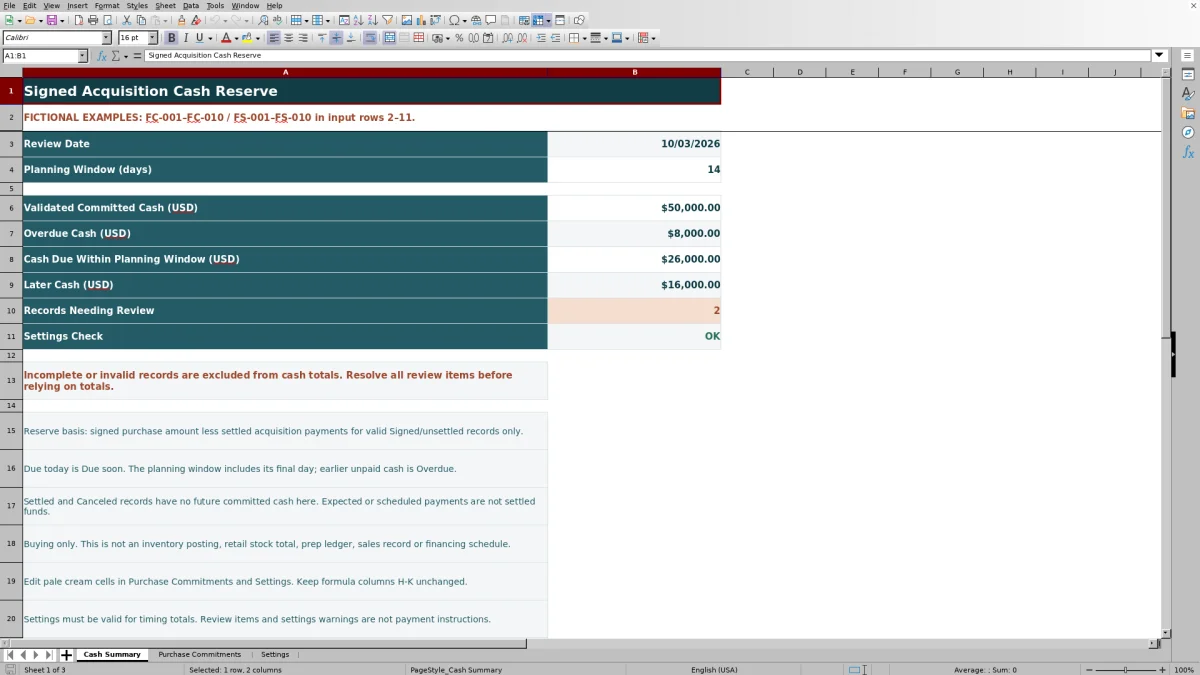
Check Input Check and Timing, using the sheet filters to find records needing attention. Then open Cash Summary and review Records Needing Review and Settings Check before interpreting the cash totals. Ensure formulas have recalculated. Compare the entries with your signed agreements and payment evidence before deciding what cash to reserve.
Decide what belongs in the commitment schedule
Use this schedule for a signed acquisition commitment for one vehicle, with one cash due date. Enter the amount agreed in the purchase paperwork—not your asking price or an expected retail sale price. The result is a view of the remaining acquisition obligation you have recorded, not the vehicle's full cost or value.
Keep this separate from inventory posting. The workbook does not post or total owned or consigned retail stock. Prep estimates and prep invoices are also outside its scope. If you need to assess the cash available for another purchase, review this schedule alongside your bank information and other obligations; the committed cash total alone does not establish buying capacity.
Use settled funds to measure the remaining obligation
For a valid Signed/unsettled record, Remaining Committed Cash (USD) equals Agreed Purchase Amount (USD) less Settled Acquisition Payments (USD). This tells you how much of the recorded purchase amount still needs funding.
A scheduled payment is not settled funds. Do not reduce the commitment merely because you intend to pay or have scheduled a transfer. Update the settled payment amount from your payment evidence. If nothing has settled, enter 0; a blank payment field makes a started record incomplete and excludes it from the cash totals.
A valid Settled record must have settled payments equal to the agreed purchase amount and contributes no future committed cash. A valid Canceled record also contributes zero, but the workbook does not track recovery of any deposit or other refund. Follow up on those amounts outside this schedule rather than treating zero future cash as proof that every issue is closed.
Read the planning window before prioritizing payments
Days Until Due is the Payment Due Date minus the Review Date. A negative result places valid unsettled cash in Overdue. A result from zero through the selected number of planning days places it in Due soon; a larger result places it in Later.
Due today and the final window day are included. For example, with a review date of 10/03/2026 and a 14-day window, the Due soon group covers 10/03/2026 through 10/17/2026, inclusive. A due date of 10/02/2026 is overdue, while 10/18/2026 falls in Later. A zero-day window includes only amounts due on the review date in Due soon.
Use these groups to decide which agreements and payments to review first. They are operational classifications based on the dates you enter, not legal deadline determinations or payment instructions. Because Review Date initially uses TODAY(), timing can change when the workbook recalculates even if you have not edited a purchase.
Fictional example: reserve cash for an unpaid balance
In this fictional example, a vehicle purchase was signed on 09/23/2026 for USD 12,000. Settled acquisition payments total USD 3,000, the Payment Due Date is 10/10/2026, and Commitment Status is Signed/unsettled. Assume the reference fields are complete, the record passes Input Check, and Settings uses a review date of 10/03/2026 with a 14-day window.
The remaining commitment is USD 12,000 minus USD 3,000, or USD 9,000. The due date is seven days after the review date, so the row is Due soon. It contributes USD 9,000 to both Validated Committed Cash (USD) and Cash Due Within Planning Window (USD).
The practical next step is to include that USD 9,000 in your near-term acquisition cash review and confirm the due date against the agreement. If another USD 2,000 is merely scheduled, the remaining commitment stays at USD 9,000. After that payment settles and you update total settled payments to USD 5,000, the recorded remaining obligation becomes USD 7,000.
Errors and solutions: fix warnings before trusting totals
Excluded input can make the summary look too low. A blank Remaining Committed Cash (USD) result on an incomplete or invalid row does not mean nothing is owed. Cash Summary counts records marked Check input under Records Needing Review, and those rows are left out of the cash totals.
- For Check input, complete all seven input fields in columns A–G. Enter dates as actual spreadsheet dates and amounts as numbers, not text.
- Check that Payment Due Date is not earlier than Signed Date, the purchase amount is greater than zero, and settled payments are between zero and the purchase amount.
- Use the supplied status labels exactly: Signed/unsettled, Settled or Canceled. For a Settled record, confirm that settled payments equal the purchase amount.
- For Check settings, correct Settings!B2 and Settings!B3. The review date must be valid and the planning window must be a nonnegative whole number.
Invalid settings prevent timing totals from being used, even though the overall validated committed cash total can still appear. Correct the settings rather than interpreting a timing warning as zero cash due. An OK input result means the row passes the workbook's checks; it does not verify the agreement, payment, title or vehicle condition.
Know when a different record is needed
This schedule has one due date per commitment. It is not a split-payment schedule, financing schedule or refund recovery record. If an acquisition has several future installments, do not duplicate the full purchase amount across several rows just to represent the dates; that can overstate the obligation. Keep the installment detail in a separate suitable record.
The supplied formulas and summary ranges cover Purchase Commitments rows 2–101, giving 100 prepared record rows. Entries below row 101 are outside those supplied ranges. Do not assume that adding a row extends the calculations or checks.
The workbook also does not cover sales, handover administration, consumer lending or loan servicing. It does not determine taxes or values, submit registrations or verify title. Use the relevant records and processes for those tasks rather than treating this focused buying schedule as a complete dealership system.
Compare the workbook with a blank spreadsheet
Choose the method according to how consistently you need to review acquisition cash. This workbook provides an existing structure for a defined task. A blank spreadsheet gives you freedom to design a different register, but you must establish and check its calculations yourself.
| Method | Initial setup | Cash and timing review | Fit and limits |
|---|---|---|---|
| Car Dealer Sheets workbook | Replace fictional inputs and set the review date and window. | Supplied formulas calculate remaining cash, timing groups and review warnings. | Prepared for 100 records, one vehicle and one due date per commitment; no inventory posting. |
| Blank spreadsheet | Design the fields, status rules and checks you need. | Calculate balances manually or build and verify your own formulas. | Useful when your required structure differs; no supplied commitment logic until you add it. |
Use this workbook when its single-due-date structure matches your buying process. Consider a custom register when your required detail falls outside that structure. If you need a broader dealer management system, evaluate specialized software against your actual requirements and verify its functions rather than assuming this schedule provides them.
Frequently asked questions
Does Validated Committed Cash mean the money has been verified?
No. It is the sum of remaining cash on records that pass the workbook's input checks and have the Signed/unsettled status. It does not confirm bank balances, settlement evidence or the accuracy of the source paperwork. Review those sources before using the result to reserve cash.
Can I rename the commitment statuses?
Keep Signed/unsettled, Settled and Canceled unchanged. Although the list is stored in Settings, the calculations depend on those labels and their meanings. Adding or renaming a label is not a supported way to create a new workflow; other labels require review.
Why do the fictional example totals change over time?
The example due dates are fixed, while Review Date initially advances through TODAY() when formulas recalculate. As the review date moves, example balances can shift between Later, Due soon and Overdue. The example check printed on Cash Summary refers to the creation-date review with a 14-day window, not every later opening date.
Does entering a stock number update inventory?
No. The reference identifies the acquisition within this register. It does not create an inventory posting or establish a connection to another system. Maintain and reconcile your inventory records separately.
Can I leave an unfinished row and return to it later?
Yes. Blank inputs are permitted during entry, but a started row with missing required information is marked Check input and excluded from cash totals. A completely empty input row is left blank by the formulas. Finish or resolve every review item before treating the summary as your recorded commitment position.
Editorial areas

Owen AshfordVehicle stock & purchasing
About this editorial area →
Mara WestbrookSales records & delivery
About this editorial area →