Before arranging collection of a newly acquired car, compare the carrier’s price with your collection window, delivery preference and stated cargo cover. This Car Dealer Sheets workbook brings those details together so you can review the quotes and record your choice.
The Excel workbook is set up for one acquired vehicle per workbook, with space for 100 inbound transport quotes. Its assessments use the information and preferences you enter; they do not verify a carrier, confirm insurance coverage or book transport.
When to use this workbook
- Compare base prices and additional charges on the same USD basis.
- Review quoted timing against your collection window and preferred delivery deadline.
- Keep stated cargo limits, deductibles and evidence gaps beside each quote.
- Record your chosen quote and see its total when the selection meets the workbook’s checks.
What is in the file
How to use the workbook
1. Replace the fictional examples
Save a working copy for the acquired vehicle. The ten sample carrier quotes, stock details and route are fictional. Replace or clear their editable inputs before using the file, including the sample Buyer Choice entries. Pale cream cells are editable; preserve the formulas in Total Quote, Assessment and the summary outputs. The cells are not protected.
2. Set the vehicle, route and buying preferences
On Settings and Summary, enter your stock number in the field labeled Fictional Stock Reference, then enter the collection and destination city and state. Set the collection window, latest preferred delivery date, minimum stated cargo limit, maximum stated deductible and Comparison Date. Use your own requirements rather than treating the sample settings as defaults.
3. Enter each carrier’s offer
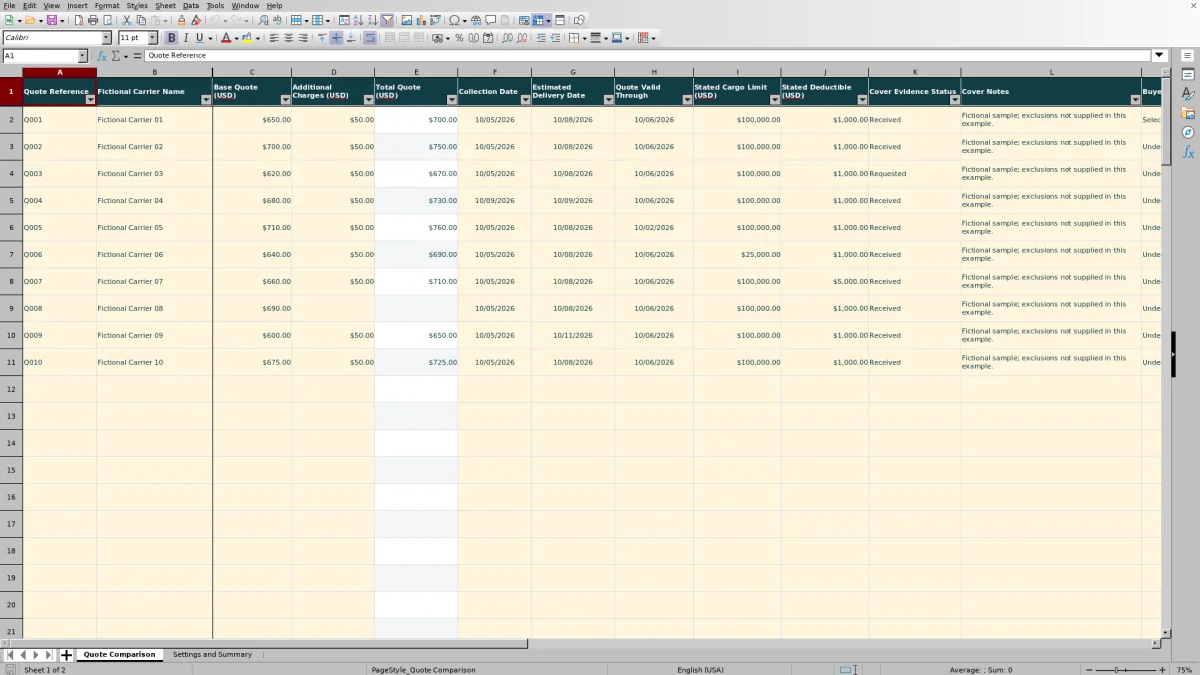
On Quote Comparison, use one row per quote and enter a Quote Reference. Replace the sample name under Fictional Carrier Name with the quoted carrier’s name. Record the price, additional charges, dates and stated cover details. Use USD amounts and dates displayed as MM/DD/YYYY. Enter an explicit zero when no additional charges apply.
4. Review exceptions and record one choice
Check Assessment, follow up on missing information and review Cover Notes before choosing. Use the header filters to narrow the list. If sorting, sort the entire A:N range rather than a single column. Mark one quote Selected in Buyer Choice, then check the selection outputs on Settings and Summary.
Compare the full quoted cost, not just the headline price
Total Quote (USD) adds Base Quote (USD) to Additional Charges (USD). It gives you the recorded expected transport cost for that offer, not the car’s acquisition cost or a final transport invoice.
Before comparing totals, ask what each quoted amount includes. Put any quoted extra charges into Additional Charges rather than leaving them outside the comparison. The workbook adds only the amounts you enter; it does not discover omitted fees.
A blank total is not a free move. The total stays blank if the row has no Quote Reference or either price input is not numeric. If the carrier confirms that there are no additional charges, enter 0. If the amount is still unknown, obtain it before relying on the total.
Check collection, delivery and quote validity together
The shared Earliest Collection Date and Latest Collection Date define your acceptable pickup window. Each quote has one Collection Date and one Estimated Delivery Date, which you can review against that window and the Latest Preferred Delivery Date.
The checks flag timing exceptions, including collection outside the window, delivery before collection and delivery after your preferred deadline. A quoted date remains an estimate or offer entered by you, not a confirmed transport event.
Comparison Date is a stored input, not a date that advances automatically. Quote Valid Through is checked against it. Update Comparison Date when revisiting the offers, and reconfirm availability before booking. A quote can pass the recorded validity check without confirming that the carrier still has capacity.
Separate stated cover from verified protection
Use Minimum Stated Cargo Limit (USD) and Maximum Stated Deductible (USD) to express your buying preferences. Compare each carrier’s stated figures with those thresholds, then use Cover Notes for relevant quoted exclusions or unresolved questions. These settings are not legal defaults or guarantees of adequate protection.
Cover Evidence Status offers Received, Requested and Not received. Received means supplied, not verified. A stated limit alone does not establish whether a particular loss would be covered.
Before selecting transport, review the supplied evidence and resolve unclear terms with the carrier or relevant insurance contact. Record useful quoted exclusions without personal information. Comparable means the entered fields pass the workbook’s checks; it is not a carrier endorsement or coverage verification.
Fictional example: a lower price with an evidence gap
The workbook’s fictional Q001 offer has a USD 650 base quote and USD 50 in additional charges, producing a USD 700 total. Fictional Q003 has a USD 620 base quote and USD 50 in additional charges, producing a USD 670 total. Q003 is therefore USD 30 lower on the entered expected cost; that difference is not a confirmed saving.
Both examples show collection on 10/05/2026, estimated delivery on 10/08/2026 and quote validity through 10/06/2026. Against the fictional collection window of 10/04/2026–10/07/2026, delivery deadline of 10/10/2026 and Comparison Date of 10/03/2026, those dates fit the recorded timing requirements.
Both state a USD 100,000 cargo limit and USD 1,000 deductible, within the sample USD 50,000 minimum limit and USD 2,500 maximum deductible. However, Q001 shows evidence Received while Q003 shows Requested, and both sample notes say exclusions were not supplied. The next decision is to obtain and review the missing information, not simply select the USD 670 offer.
Errors and solutions for incomplete or unexpected results
Use Assessment as a prompt for follow-up rather than changing preferences just to clear an exception.
- Incomplete: Check the carrier name, both price inputs, all three quote dates, the stated limit and deductible, and Cover Evidence Status. Also check that the stock reference, route and all six numeric or date settings are filled in on Settings and Summary.
- Outside preferences: Review timing, quote validity, stated cover figures and evidence status. Correct a transcription error if there is one; otherwise seek a revised offer or make a deliberate decision about your requirements.
- Blank calculated results: Enter a Quote Reference for an active row. Rows without one display blank calculated results even if other inputs have been entered.
- Unexpected date or amount behavior: Check that amounts are numeric and dates are recognized as dates, rather than text copied from a message.
Keep Total Quote and Assessment formulas intact. Because cells are not protected, typing over an output can remove its calculation. If that happens, restore the affected formula from an untouched copy before relying on the comparison.
Read the selection summary before arranging collection
Buyer Choice lets you record Undecided, Selected or Rejected independently of the calculated Assessment. Selecting a row does not make it Comparable.
On Settings and Summary, Comparable Quotes counts rows assessed as Comparable, while Selected Quotes counts rows marked Selected. Selected Comparable Quote Total (USD) appears only when there is exactly one selected quote and that quote is Comparable. Multiple selections are highlighted.
If the selected total is blank, check for no selection, more than one selection or a selected quote that is not Comparable. Do not read the blank as a zero-dollar cost. After resolving the selection, confirm the arrangements directly with the carrier and retain the supporting quote separately. This workbook is a quote comparison record, not a dispatch assignment or movement record.
Comparison: the workbook versus a blank spreadsheet
For the complete inbound transport buying task, you can use this workbook or build a quote register in a blank spreadsheet. The workbook provides a prepared structure for one vehicle, calculated quote totals, preference checks and a selection summary. A blank spreadsheet lets you design a different structure, but you must create and check any calculations or decision rules yourself.
| Method | Setup and scope | Price comparison | Timing and cover review | Selection record |
|---|---|---|---|---|
| Car Dealer Sheets workbook | Replace fictional inputs and set shared preferences for one vehicle; 100 quote rows are prepared. | Base quote and additional charges are added by existing formulas. | Entered dates, stated cover figures and evidence status are assessed against the settings; supporting evidence still needs review. | Buyer Choice records the decision, with counts and a total for exactly one selected, comparable quote. |
| Blank spreadsheet | Create the fields and layout to match your buying process. | Calculate totals manually or build and check your own formulas. | Review each offer manually unless you create your own checks. | Create your own choice field and any summary calculations. |
Choose this workbook when its one-vehicle scope and prepared checks match your buying decision. Choose a blank spreadsheet when you need a different layout and can maintain the calculations. Neither method verifies insurance evidence or replaces the carrier’s quote and booking confirmation. If you need multi-vehicle dispatch or live movement tracking, evaluate a separate system against those requirements rather than treating this comparison file as an operational transport platform.
Frequently asked questions
Can I compare transport quotes for several stock numbers in one file?
The workbook is designed for one acquired vehicle. Every quote row uses the stock reference, route and preferences on Settings and Summary. Use a separate copy for each vehicle so quotes are not assessed against another car’s requirements.
How many carrier quotes can I enter?
Rows 2–101 on Quote Comparison are prepared for 100 quotes. Keep entries within that range unless you separately extend and check the formulas, validation, filters and summary references. Adding rows beyond it is not established as an automatic extension.
Does the workbook automatically choose the cheapest carrier?
No. You record the decision in Buyer Choice. You can sort the full quote range by Total Quote to review prices, but the lowest entered amount is not a substitute for checking timing, evidence and quoted exclusions.
Can I use the selected total as proof of payment?
No. Quote amounts are expected costs, not actual invoices or settled funds. Use the carrier’s invoice and your payment records to establish the final charge and payment status.
Can I store insurance documents or book the carrier through the workbook?
The file provides fields for stated cover information, evidence status and notes. It does not provide a verified document-storage integration or a transport-booking function. Keep the supplied documents separately and arrange collection directly through your usual carrier process.
Editorial areas

Owen AshfordVehicle stock & purchasing
About this editorial area →
Mara WestbrookSales records & delivery
About this editorial area →