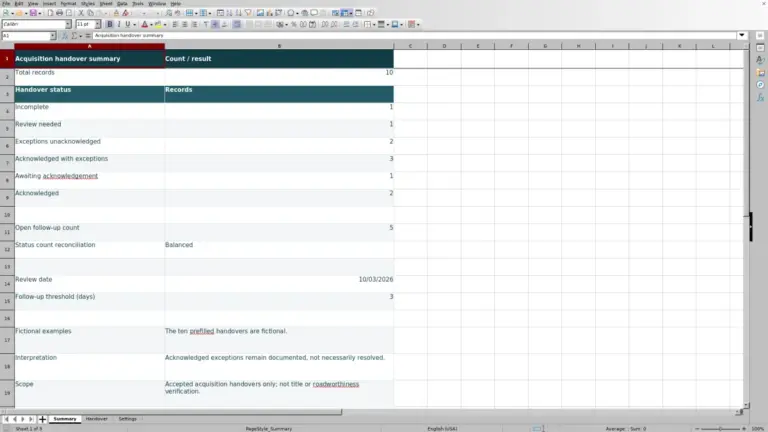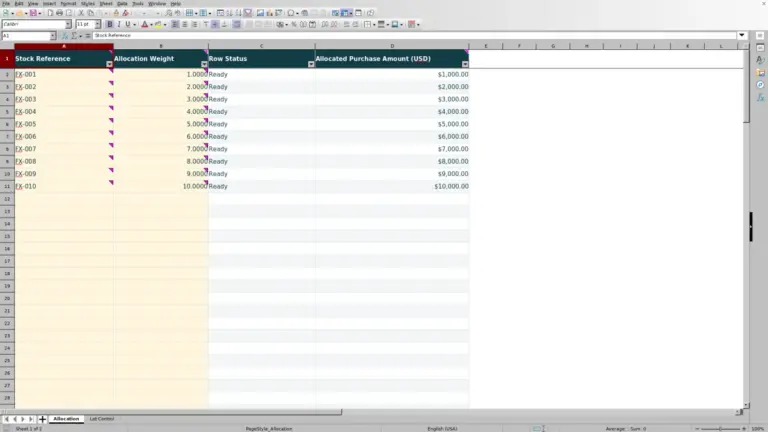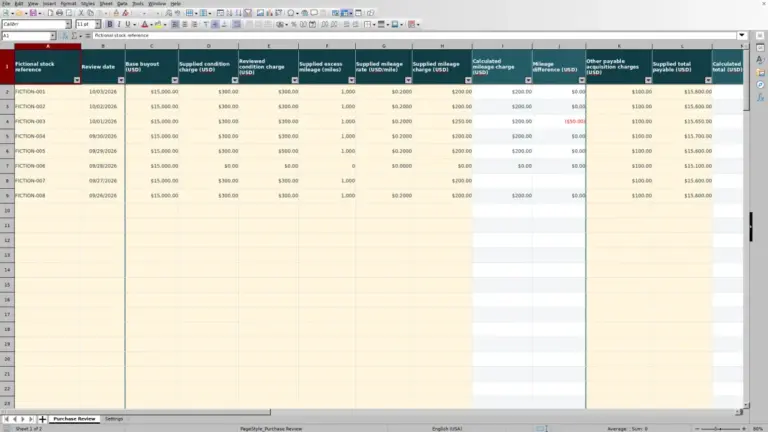
When you dispute an auction purchase, you need to know what evidence you have sent and when to follow up. This Car Dealer Sheets Excel workbook brings case details, recorded evidence submissions and manually entered response targets into one review process.
Use the used car auction arbitration case tracker to decide which vendor contacts or evidence items need attention next. Its indicators support administrative follow-up, not legal deadline calculation; you remain responsible for confirming applicable auction requirements and updating the record.
When to use this workbook
- Review response targets and your own follow-up dates separately before deciding whom to contact.
- Distinguish evidence collected from evidence recorded as submitted.
- Keep dispute details and the latest vendor response date alongside the case record.
- Use a chosen review date and reminder window to focus your case review.
What is in the file
How to use the workbook
1. Set the date for your review
On Settings, check Review Date in B2 and Due Soon Window (days) in B3. B2 initially uses TODAY(); replace it with a valid date if you want the indicators assessed against a fixed date. B3 starts at 3 days and accepts nonnegative whole days. Dates display as MM/DD/YYYY.
2. Enter the disputed purchase
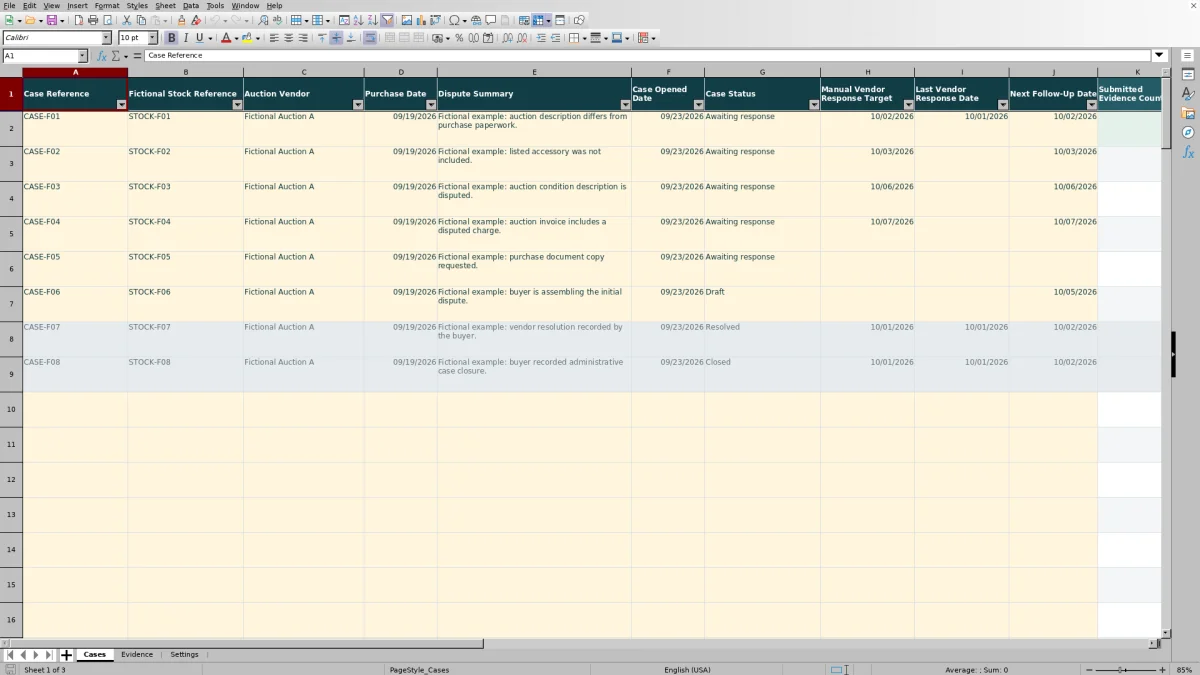
On Cases, use one prepared row per disputed auction purchase and assign a unique Case Reference. Record the auction vendor, purchase date, dispute summary and case opened date. The stock-reference column is labeled Fictional Stock Reference. The file includes eight fictional case examples and two fictional evidence examples; clear or replace those sample inputs before relying on the workbook for your own cases. Preserve the calculated cells in Cases K:M.
3. Record status and the next dates
Select Case Status, then enter the Manual Vendor Response Target and Next Follow-Up Date that you have established for the case. Record Last Vendor Response Date when a reply arrives. These are manual entries: the workbook does not derive an auction deadline from the purchase date or decide whether a reply resolves the dispute.
4. Log evidence against the case
On Evidence, select the matching Case Reference and enter an Evidence Reference, description and Collected Date for each item. Enter Submitted Date only when submission has occurred. Keep the actual documents and submission records separately; this sheet records descriptions and dates, not attachments.
5. Review and act
Filter Cases by Response Indicator or Follow-Up Indicator to review past targets, upcoming actions and missing dates. Check Evidence for blank Submitted Date entries. Confirm what needs to happen, contact the vendor or submit evidence through your usual process, then update status, dates and notes manually.
Separate vendor response targets from your next action
A vendor response target and a buyer follow-up date answer different questions. Manual Vendor Response Target records when you expect a response. Next Follow-Up Date records when you intend to take action. Keeping them separate lets you schedule a check-in without changing the recorded response expectation.
Response Indicator depends on Case Status. Only Awaiting response cases receive Past target, Due soon or Later based on the manual target. A blank status produces Status needed; a different active status produces Not awaiting response. Resolved and Closed cases show Inactive.
Follow-Up Indicator uses Next Follow-Up Date for cases other than Resolved or Closed. It can therefore flag an action even when the case is not awaiting a vendor response. Review this column as well as the response column so an evidence-preparation task does not disappear from your review.
A date before Review Date is past target or overdue. A date from Review Date through Review Date plus the due-soon window is due soon. These comparisons use calendar days, not an auction-specific business-day or holiday schedule. Confirm any formal deadline separately before deciding how long you can wait.
Read the evidence count as a record of submission
Submitted Evidence Count answers a narrow question: how many Evidence rows match this Case Reference and contain a positive Submitted Date? A Collected Date alone does not count. This helps you distinguish material you have gathered from material you have recorded as sent.
A submission count is not proof of receipt. It does not confirm that the vendor received, accepted or reviewed the material. Before telling someone that a case is fully supported, compare the log with the actual submission records and any vendor acknowledgment.
Use one evidence row per item you intend to track, with a clear Evidence Reference and description. The formula counts qualifying rows, not distinct Evidence Reference values, so duplicate rows can inflate the count. Keep supporting files outside the workbook and use Notes to record enough context to locate them.
Update the case after a vendor replies
Entering Last Vendor Response Date preserves the date of the latest reply, but it does not change either indicator. The response formula does not use that field to satisfy the target, and the workbook does not infer closure from a reply.
Read the response before changing the case. If the vendor requests another document, record the request in Notes, add the evidence item if needed and set your next follow-up date. If you are still waiting for a substantive answer, review whether Awaiting response and the existing manual target still describe the situation.
When the recorded outcome warrants Resolved or Closed, update Case Status yourself. Both labels make the response and follow-up indicators Inactive, even if old target dates remain. Inactive means excluded from active date flags, not that the workbook has verified the outcome or any agreed payment.
Fictional example: decide what needs attention today
For this fictional example, set Review Date to 10/03/2026 and Due Soon Window (days) to 3. The upcoming window includes 10/03/2026 through 10/06/2026.
The sample CASE-F01 is Awaiting response, with a Manual Vendor Response Target and Next Follow-Up Date of 10/02/2026. Both dates are before the review date, so the results are Past target and Overdue follow-up. Its Last Vendor Response Date of 10/01/2026 does not suppress either result. Your next decision is to read that reply, confirm what remains open and revise the case record before making another contact.
CASE-F01 also has two fictional evidence rows. One has a Submitted Date of 09/25/2026; the other has only a Collected Date. Submitted Evidence Count is therefore 1, not 2. Check whether the collected-only item still needs to be sent rather than assuming the evidence package is complete.
The fictional CASE-F03 has both target dates set to 10/06/2026. With the same review settings, its results are Due soon and Follow up soon because the last day of the window is included. Schedule the next action after confirming that these manually recorded dates remain appropriate.
Errors and solutions for case links and date indicators
- Evidence is missing from the count: check that Case Reference matches the case exactly, Submitted Date is a valid date and the evidence row is within rows 2–101. A blank submission date correctly excludes the row.
- A renamed case has disconnected evidence: update its Case Reference on Evidence as well. Changing the case reference on Cases does not rewrite existing evidence entries.
- A date flag looks wrong: check Settings B2 and B3, the relevant date and Case Status. TODAY() makes the review date change over time, while the fictional sample dates remain fixed.
- A populated row has blank calculated results: check Case Reference first. The formulas in Cases K:M return blank when that reference is blank. If the reference is present, check that the formulas have not been replaced.
Direct-entry validation checks references, status choices and dates, but pasting may bypass it. Review highlighted unmatched evidence and missing case references after importing or pasting data. Enter dates as actual spreadsheet dates, not text that merely looks like MM/DD/YYYY.
Know the prepared capacity and scope
The workbook has 100 prepared case rows and 100 prepared evidence rows, including the fictional examples. Evidence capacity is shared across all cases; it is not 100 items per case.
The case formulas, filters, validation and evidence-count ranges are prepared through row 101. Do not assume that typing below that row extends the working tracker. In particular, the submitted-evidence formulas count Evidence rows 2–101 only. If you need more capacity, have the affected formulas and ranges deliberately extended and checked before relying on the results.
This is a buying dispute register, not a retail inventory system, prep workflow or deal administration workbook. It does not assess whether a dispute qualifies for arbitration, verify title, diagnose safety or provide legal, tax or compliance advice. Use the recorded facts to organize your next action, not to establish the merits of a claim.
Compare the workbook with a blank spreadsheet
Choose this workbook when its case-and-evidence structure matches your review process and its prepared capacity is enough. A blank spreadsheet is a realistic alternative when you need a different layout and are willing to build and check your own tracking logic.
| Method | Starting structure | Date review | Evidence tracking | Maintenance |
|---|---|---|---|---|
| Car Dealer Sheets workbook | Prepared Cases, Evidence and Settings sheets | Calculated indicators use manual dates, status and review settings | Case-linked log with a count of rows recorded as submitted | Update records manually and stay within prepared ranges unless extended and checked |
| Blank spreadsheet | You design the columns and layout | Review dates manually or create your own formulas | You design the item log and any case matching | You define and maintain the formulas, validation and working ranges |
Neither choice makes a recorded date an authoritative auction deadline or turns an evidence entry into proof of delivery. If your needs include system connections, document storage or notifications, evaluate specialized software against those requirements rather than assuming those functions exist in this workbook.
Frequently asked questions
Does the tracker calculate the auction arbitration deadline?
No. You supply Manual Vendor Response Target and Next Follow-Up Date. The workbook compares those dates with Review Date; it does not interpret auction terms or calculate a legal filing deadline. Confirm applicable requirements through the relevant auction process or qualified advice.
Can I keep the indicators tied to a particular review date?
Yes. Replace TODAY() in Settings B2 with the date you want to use. This fixes the date used by the indicators, but it does not freeze the case data or create a change history. Save a separate dated copy if you need to retain the records as they stood at that review.
Can I rename the case-status options?
The status options are editable on Settings, but preserve the exact labels Awaiting response, Resolved and Closed. The formulas test those labels directly. Renaming them without revising the formulas can change how response targets are assessed or prevent a completed case from showing Inactive.
Why does Submitted Evidence Count show zero when I have collected documents?
Zero means no matching evidence rows within the prepared range have a positive Submitted Date. You may have collected documents without recording submission, or the case references may not match. Verify the log against what actually happened; do not enter a submission date just to increase the count.
Does entering evidence send it to the auction vendor?
No. Evidence is a manual log, not a submission connection. Send documents through the vendor's required process, keep the submission record separately and then record the actual Submitted Date in the workbook.
Editorial areas

Owen AshfordVehicle stock & purchasing
About this editorial area →
Mara WestbrookSales records & delivery
About this editorial area →