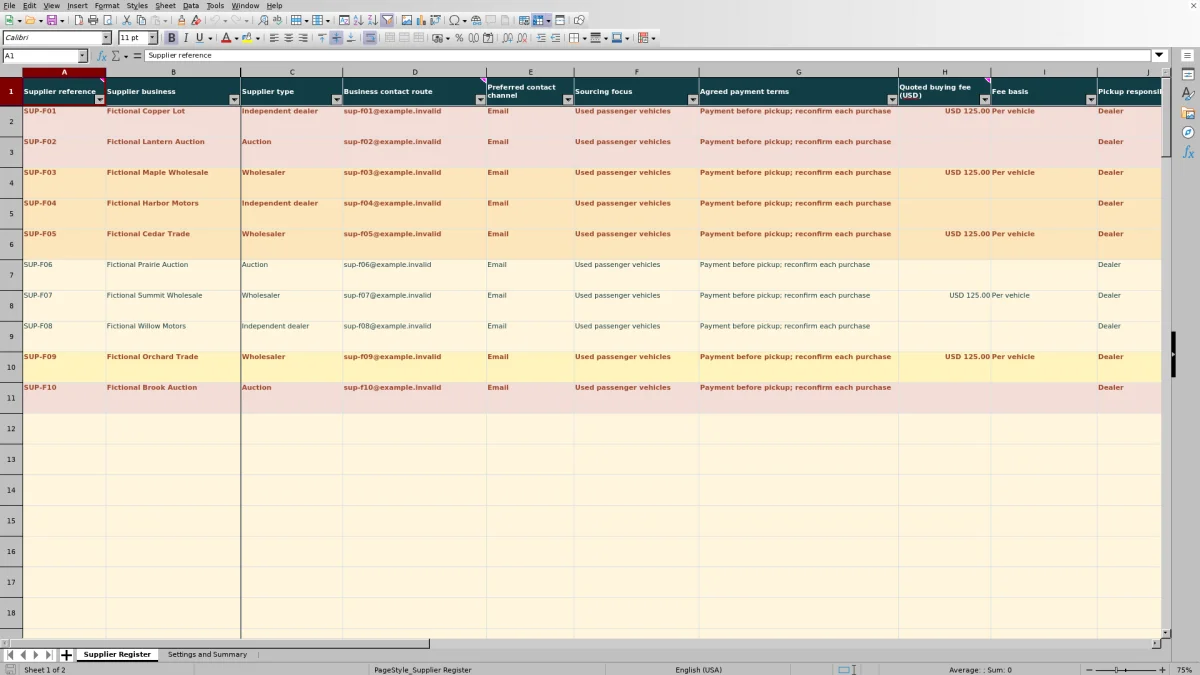
Before contacting a seller or auction about your next purchase, check who to reach and which terms need reconfirming. This used car supplier contact register from Car Dealer Sheets gives you one workbook for business contact details, communication preferences and recorded commercial terms.
Use the register to plan repeat sourcing and spot records that need attention. Its calculated review dates support internal follow-up; they do not verify supplier details or indicate purchasing approval.
When to use this workbook
- Find the business contact route and preferred channel before approaching a supplier.
- Keep payment terms, quoted buying fees and pickup responsibility together for purchase discussions.
- Identify missing details and terms that are due for review before relying on a record.
- Use review-status counts to plan which supplier records to work through next.
What is in the file
How to use the workbook
1. Set your review assumptions
Open Settings and Summary. Check Review as of in B2, which uses TODAY() by default. Set Review interval (days) in B3 and Upcoming window (days) in B4 to suit your internal routine. The supplied values are 90 days and 14 days. These settings apply across the register, not separately to each supplier.
2. Replace the fictional records
On Supplier Register, replace the sample entries with your own business records. Use a distinct text Supplier reference for each supplier, then enter the business name, type, contact route and preferred channel. Add Sourcing focus when it helps you decide whom to approach.
3. Record terms you have actually confirmed
Enter Agreed payment terms, Pickup responsibility and Terms confirmed date. If you enter a Quoted buying fee (USD), also enter its Fee basis. Use MM/DD/YYYY for dates, and put qualifications or unresolved points in Notes. Leave calculated columns L and M intact; Next review date and Review status are not inputs.
4. Review the follow-up list
Check the counts on Settings and Summary, then use the filters on Supplier Register to work through the relevant statuses. Resolve incomplete records and date problems, and contact suppliers whose terms need review. Update Terms confirmed date only when you have reconfirmed the terms, rather than simply when you open the file.
Choose the right contact for a sourcing enquiry
Start with the type of supplier you want to approach and the vehicles you are looking for. Supplier type distinguishes entries such as an independent dealer, wholesaler or auction. Sourcing focus lets you describe the supplier's relevance to your buying needs; it is your recorded description, not a live stock feed.
Keep Business contact route and Preferred contact channel aligned. An email address paired with Email gives you a usable route; a record marked Phone still needs a suitable business number. The workbook checks whether these fields are filled, not whether the contact route works or matches the selected channel.
Portal is one of the available channel choices. It records how you intend to contact the supplier and does not establish a portal connection. Use the register to decide whom to contact, then confirm availability directly.
Keep quoted fees and commercial terms in context
A buying fee is useful only when its basis is clear. Quoted buying fee (USD) records the amount, while Fee basis distinguishes Per vehicle, Per purchase order or Flat quote. A USD 125.00 per-vehicle fee means something different from a USD 125.00 fee covering an entire purchase order.
Read that fee alongside Agreed payment terms and Pickup responsibility before discussing a purchase. If pickup is recorded as To be agreed, the row can still pass the workbook's completeness check. You must resolve that point with the supplier before arranging collection.
This is a terms register, not a purchase-cost calculator. It does not calculate a vehicle's acquisition cost, multiply fees by purchased quantities or confirm settled funds. Check the supplier's current quote and supporting documents for the specific purchase rather than treating a stored fee as a final amount payable.
Understand what each review status tells you
Next review date adds the shared Review interval (days) to Terms confirmed date. Review status then compares that result with Review as of and the Upcoming window (days). With a 90-day interval, the result is an internal date for reconfirming terms—not a supplier-imposed deadline.
- Incomplete means one or more required details are missing, the confirmation date is not numeric, or a fee has been entered without a fee basis.
- Check date means an otherwise complete record has a confirmation date later than Review as of.
- Due now means the next review date is on or before Review as of.
- Upcoming means the next review date is after Review as of but within the upcoming window, including its final day.
- Current means the next review date falls beyond that window.
The checks run in that order, so an incomplete record can conceal a date issue until you finish its missing details. Current describes the review schedule, not the accuracy of the terms, supplier reliability or permission to buy.
Example: decide whether to reconfirm before buying
In this fictional example, Fictional Lantern Auction has all required details completed and a Terms confirmed date of 07/04/2026. Set Review as of to 10/02/2026, the review interval to 90 days and the upcoming window to 14 days.
The workbook adds 90 calendar days to 07/04/2026, producing a Next review date of 10/02/2026. Because the review date equals the review-as-of date, Review status is Due now. The 14-day upcoming window does not change that result: a record already due takes priority.
Your next action is to contact the auction and reconfirm the relevant terms before relying on them for a new purchase. If you confirm them on 10/02/2026 and enter that date, the next review date becomes 12/31/2026. That moves the record to Current under these assumptions; it does not prove that any particular vehicle is available or that a purchase has been approved.
Fix missing records, incomplete flags and date problems
If a populated row has no review status, check Supplier reference first. A blank reference leaves Review status blank, and the summary's Recorded suppliers count relies on text references. Other details in that row do not make it a counted supplier. Use a distinct text reference and check pasted records for missing or duplicate references.
For an Incomplete result, inspect Supplier business, Supplier type, Business contact route, Preferred contact channel, Agreed payment terms, Pickup responsibility and Terms confirmed date. Also check Fee basis when a quoted fee is present. Sourcing focus and Notes are useful context but are not required by this status check.
If Next review date is blank, check that both the reference and a valid confirmation date are present. A date pasted as text may look correct but fail the formula's numeric-date test. For Check date, compare the confirmation date with Review as of and correct whichever input is wrong.
Review pasted entries separately. The workbook includes entry validation, but pasting can bypass it. A row that is no longer marked Incomplete has passed the formula's checks; that does not mean every value is accurate or every pasted choice is valid.
Work within the prepared register and its limits
The prepared range covers rows 2–101, giving you space for 100 supplier records. Calculated dates, status formulas, validation, filtering and summary counts are defined for that range. Do not assume an entry in row 102 will be included. Expanding the file requires checking and extending the affected ranges, not just typing beneath the last prepared row.
The same review interval and upcoming window apply to every supplier. If one supplier requires closer attention, record that context in Notes and manage the extra follow-up yourself; the supplied calculations do not use a separate interval for each row.
The status flags are visible worksheet results, not sent reminders. The register also has one confirmation date per supplier row, rather than a separate communication-history log. If you need to retain earlier terms or correspondence, keep dated supporting records outside this register before overwriting the current entry.
Compare the workbook with a blank spreadsheet or paper log
Choose a method according to the structure and follow-up you need. This workbook provides a prepared supplier record and date-based review process. A blank spreadsheet gives you more freedom to design a different layout, while a paper log can suit a small list you are willing to check manually.
| Method | Record structure | Review follow-up | Ongoing upkeep |
|---|---|---|---|
| This workbook | Prepared contact and terms fields for 100 suppliers | Calculated review dates, statuses and summary counts | Maintain inputs and shared settings; check ranges before expanding |
| Blank spreadsheet | You design the fields and layout | You create any formulas, flags and counts you need | Maintain both the records and your own spreadsheet structure |
| Paper log | You choose the written headings and entry format | Review dates and follow-up lists are checked manually | Keep entries legible and update or replace outdated pages |
Use the workbook when its contact-and-terms structure fits your routine. Choose a blank spreadsheet when your record requirements are substantially different and you can maintain the design. If you need supplier records tied to purchasing transactions, shared workflows or a detailed activity history, evaluate specialized dealer management software and verify those capabilities with the provider rather than expecting them from this file.
Frequently asked questions
Can I change the supplier type or contact channel choices?
Yes. The choice lists on Settings and Summary supply the register's dropdowns. Keep choices distinct and nonblank. Changing a choice does not update existing supplier records, so review entries that used the old wording. The dropdowns point to fixed list ranges; adding text outside those ranges does not automatically add a choice.
Can I review the register as of a fixed date?
Yes. Review as of in Settings and Summary B2 uses TODAY() by default, but you can replace it with a valid date in MM/DD/YYYY format for a dated review. That replaces the formula, so the date will stay fixed until you change it or restore =TODAY(). Review statuses are assessed against B2, not the workbook creation date.
Does a blank buying fee mean the supplier charges nothing?
No. A blank Quoted buying fee (USD) is not treated as a missing required detail, so a row can be Current without a recorded fee. Use Notes to distinguish an unknown fee from one that does not apply. If the supplier has confirmed a zero fee and you enter 0, also enter Fee basis because zero is still a recorded fee value.
Can I keep several contact routes for one supplier?
The prepared structure has one Business contact route and one Preferred contact channel per supplier row. Use the main business route there. Notes can hold additional context, but the workbook does not provide a separate multi-contact directory. If several contacts per business are essential, consider a structure designed for that need rather than duplicating supplier rows and inflating the supplier count.
Does the workbook send emails, texts or auction enquiries?
No sending function or auction integration is established for this workbook. Email, Phone, Text and Portal are recorded channel choices. You make the contact separately and update the register after confirming the relevant details.
Editorial areas

Owen AshfordVehicle stock & purchasing
About this editorial area →
Mara WestbrookSales records & delivery
About this editorial area →