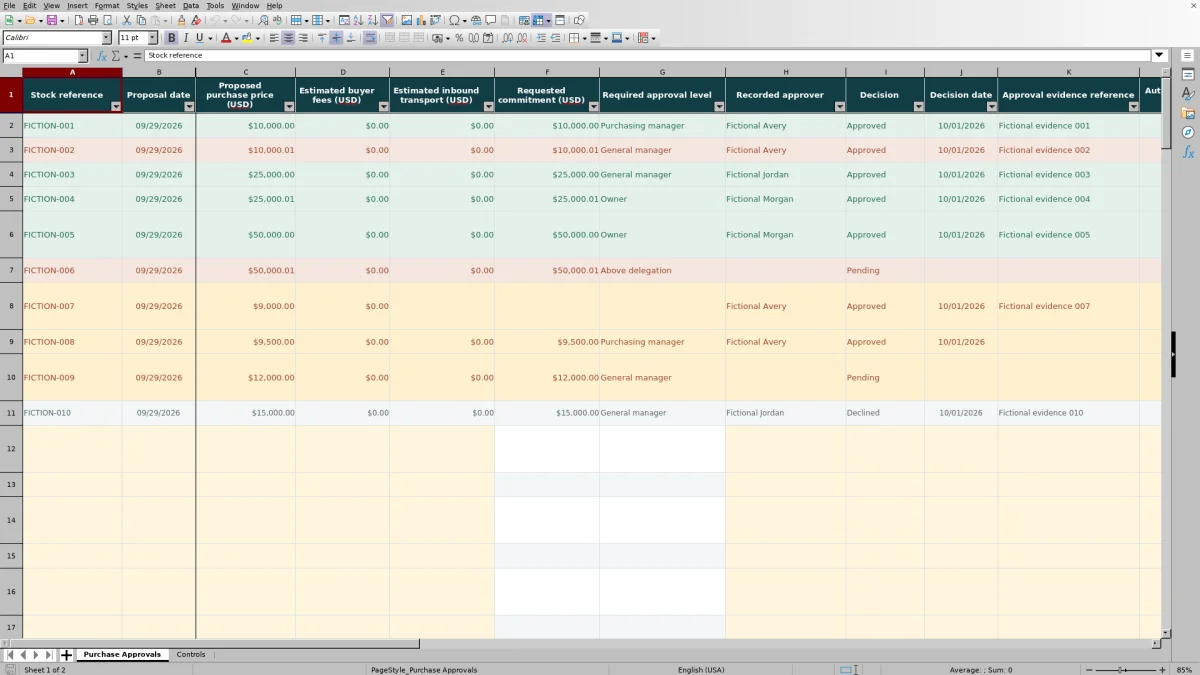
Before committing to a used-car purchase, check who has authority to approve the amount. This Car Dealer Sheets Excel workbook helps you log proposed purchases, compare the requested commitment with spending thresholds, and record the approval decision and supporting evidence reference.
Use Purchase Approvals for individual proposals and Controls for your dealership’s delegated limits and named approvers. The file supports authorization recordkeeping for purchases of owned inventory; it does not authenticate approvals or process payments.
When to use this workbook
- See the approval level required for the purchase price plus estimated buyer fees and inbound transport.
- Keep the recorded decision, approver, ceiling and evidence reference beside the proposal.
- Identify incomplete proposals, settings problems and purchases above the configured delegation.
- Review selected authorization-status counts before following up on open purchase decisions.
What is in the file
How to use the workbook
1. Set your dealership’s delegation
On Controls, replace the fictional approval levels, limits and names in A5:C7 with your own authorized settings. Keep limits nonnegative and strictly increasing, and use a different nonblank name for each approver. Do not sort these three rows. Confirm that Settings status reads Ready.
2. Remove the training entries
Clear the input values from the ten fictional examples on Purchase Approvals before entering actual proposals. Keep the formulas in columns F, G, M and N. Rows 2–101 are prepared for use. Cream cells identify editable inputs, but sheet protection is not enabled, so formula cells can still be overwritten.
3. Enter a complete purchase proposal
Enter a unique stock number in Stock reference, a Proposal date, and the three USD estimates: Proposed purchase price (USD), Estimated buyer fees (USD), and Estimated inbound transport (USD). Enter a numeric zero when an estimated charge is zero. Review Requested commitment (USD) and Required approval level before seeking approval.
4. Record the decision and check the result
Select Recorded approver and Decision. For an approved decision, enter Decision date, Approval evidence reference and Authorized ceiling (USD). Read Authorization status and resolve any issue before relying on the record. Retain the underlying approval evidence separately; a reference in the workbook does not verify that approval occurred.
Set thresholds that reflect your actual buying authority
The supplied limits of $10,000, $25,000 and $50,000 are fictional training settings, not recommended spending limits. Replace them with the amounts your dealership has actually delegated before using the results for a purchase decision.
The routing formula selects the first level whose limit covers the requested commitment. An amount exactly equal to a threshold stays within that level. A higher-limit approver may authorize a smaller proposal, so Required approval level identifies the minimum configured level rather than the only person who can be recorded.
The workbook has three delegation rows and one named approver per row. Settings status checks the limits and names for structural issues; Ready does not establish that your dealership has granted those people authority. If your policy needs multiple approvers at the same level or joint signatures, this structure does not represent that requirement.
Example: buyer fees can change who must approve
In this fictional example, a vehicle has a proposed purchase price of $9,600, estimated buyer fees of $300 and estimated inbound transport of $250, all in USD. The requested commitment is $10,150: $9,600 + $300 + $250. With the supplied fictional thresholds, that routes to General manager because it exceeds the Purchasing manager limit of $10,000 but remains within $25,000.
The purchase price alone would fit under the first threshold, but the full entered commitment does not. Your next step is to seek an approver whose configured limit covers the proposal, rather than route it using only the vehicle’s purchase price.
For the first proposal row, F2 uses =IF(COUNT(C2:E2)=3,SUM(C2:E2),""). It adds the three estimates only when all three are numeric. A missing transport estimate leaves the total blank; entering zero asserts that the current estimate is zero. This total excludes preparation costs and is not the vehicle’s complete acquisition-and-prep cost or its asking price.
Keep the decision, ceiling and evidence together
Decision records what you entered: Pending, Approved or Declined. Authorized ceiling (USD) records the amount covered by the approval. Approver limit (USD) is different: it looks up the recorded person’s delegated limit from Controls. Compare both amounts with the requested commitment when reviewing a proposed purchase.
An approved decision needs a named approver, decision date, evidence reference and numeric ceiling. Use Approval evidence reference to record an identifier your team can trace to the supporting record, such as an internally assigned approval reference. The field is a reference, not an attachment or an authenticated signature.
Approved is not proof of authorization. Read Authorization status as well as the decision, then check the underlying evidence. The workbook does not authenticate the person named, and a green status does not replace that check.
Use the review date without confusing it with approval timing
Controls!F2 is the Review date and initially uses TODAY(). You can edit it. Proposal dates must be valid spreadsheet dates no later than that review date. Decision dates must be on or after the proposal date and no later than the review date. Enter dates in the displayed MM/DD/YYYY format.
For a current working log, check that Review date reflects the date you intend to review against. If you replace TODAY() with a fixed date, later proposals may be flagged until you update it. The training examples have dates set at creation and should not be treated as current purchase records.
Controls counts Authorized, Awaiting decision, Escalate and Review approval entries. These are selected status counts, not a count of every possible issue. Use the filter on Purchase Approvals to inspect the relevant rows and also look for incomplete proposals or settings problems. Follow-up remains a manual task.
Errors and solutions: missing totals and review flags
- Blank requested commitment: Check all three cost inputs for missing values or numbers stored as text. Enter explicit numeric zeros only where zero is the intended estimate.
- Check settings: Review the three delegated limits, confirm that they increase from top to bottom, and check for blank or duplicate approver names. Also check that Review date is a valid positive date value.
- Incomplete proposal: Check Stock reference, Proposal date and the three cost inputs needed to calculate the commitment.
- Review proposal: Look for duplicate or whitespace-only stock references, invalid or future proposal dates relative to Review date, and negative cost inputs.
- Above delegation or Escalate: The requested commitment exceeds the highest configured threshold. Seek a decision through your dealership’s escalation process rather than changing a limit merely to clear the flag.
- Blank approver limit: Check that Recorded approver matches one of the configured names. Selecting from the dropdown avoids introducing a different spelling.
Validation checks typed entries, but pasted data can bypass those checks. Status formulas add checks; they do not make pasted data trustworthy. Read the status text rather than relying on color alone, and verify the affected inputs against the proposal and approval evidence.
Reconsider changed proposals and preserve the context
Approval covers the entered ceiling. If the vehicle, purchase terms or cost scope changes materially, arrange a fresh review under your dealership’s process. Do not assume that an earlier approval covers a changed proposal merely because a name and decision remain in the row.
The routing and approver-limit formulas refer to the current Controls settings. Changing an approver’s name or limit can therefore change results for existing entries. Before updating your delegation, retain a dated copy of the workbook and the supporting approval records so you can refer back to the settings used at the time. This is a manual recordkeeping step, not an automatic history feature.
The supplied formulas, validations and proposal filter cover rows 2–101. Entries below that range are not covered by the prepared setup. The file also excludes prep tracking, receipts, payment processing and retail stock management. An authorization record does not establish that a vehicle was bought, received or paid for with settled funds.
Compare this workbook with a manual purchase register
Choose a method based on the approval checks you need to perform repeatedly and the records your team needs to retain. This workbook supplies a defined calculation and routing structure; a paper register leaves those checks to the person maintaining it.
| Method | Commitment and routing | Decision record | Setup and limits |
|---|---|---|---|
| This approval workbook | Adds three cost estimates and compares the total with three configured thresholds. | Dedicated fields for approver, decision, date, evidence reference and ceiling; calculated status checks. | Requires your limits and names; 100 prepared proposal rows; no approval authentication. |
| Paper purchase register | You total costs and consult the delegation policy manually. | You write the decision details and organize supporting evidence separately. | You design the record layout and manually check missing details and authority. |
Use the workbook when its three-level delegation and defined proposal fields fit your process. A manual register may suit occasional proposals if you are prepared to perform and document the checks yourself. If you need authenticated approvals, enforced multi-person workflows or connections to a dealer management system, evaluate specialized software against those requirements rather than treating this workbook as that system.
Frequently asked questions
Can the owner approve a purchase below the manager’s threshold?
Yes. The operating notes allow higher-limit approvers to authorize smaller proposals. Required approval level shows the minimum configured level, while Approver limit (USD) reflects the person selected in Recorded approver. The approval details and supporting evidence still need to be recorded.
Should I include prep costs in the requested commitment?
The implemented total includes only proposed purchase price, estimated buyer fees and estimated inbound transport. Preparation costs are excluded. If your policy bases buying authority on purchase plus prep, this calculation alone does not match that policy; use a separate documented assessment or a resource built for that scope.
Can I record the same stock number on two proposal rows?
The prepared range expects unique Stock reference values. Duplicate references are checked by validation and the proposal-status formula. For a revised proposal, follow a consistent internal revision process and retain the earlier supporting record rather than creating duplicate stock references within the active range.
Does the evidence reference send or verify an approval?
No. Approval evidence reference is a place to record a reference to supporting evidence. It does not send an approval request, authenticate the approver or establish an integration with another system. Obtain and verify the approval through your dealership’s process.
Why might a file preview show no calculated results?
The file does not supply cached formula results. A preview that relies on stored results may therefore leave calculated fields blank. Recalculate the workbook before interpreting totals or authorization statuses; a blank preview is not an approval outcome.
Editorial areas

Owen AshfordVehicle stock & purchasing
About this editorial area →
Mara WestbrookSales records & delivery
About this editorial area →