Before accepting a vehicle, review which ownership and seller documents you have received and which still need attention. This Car Dealer Sheets Excel workbook organizes your acquisition checklist by stock reference and summarizes the recorded paperwork status for your buyer decision.
You supply the requirements for each jurisdiction and transaction. The workbook separates receipt from administrative review, but it does not verify legal title or authorize acceptance. Its populated acquisitions and document checks are fictional examples, not a recommended document list.
When to use this workbook
- See missing paperwork and unresolved administrative checks before making an acquisition decision.
- Keep each buyer-specified requirement linked to the right stock reference.
- Distinguish documents received from checks completed as of your review date.
- Prioritize unresolved acquisitions using planned decision dates and a configurable follow-up window.
What is in the file
How to use the workbook
1. Set the review date and timing window
In Settings, check Review Date in B2. It defaults to =TODAY(), or you can enter a specific review date. Keep a valid date here because completed checks depend on it. Set Follow-Up Window (calendar days) in B3 to an integer from 0 through 365. Use MM/DD/YYYY for dates.
2. Replace the fictional acquisition entries
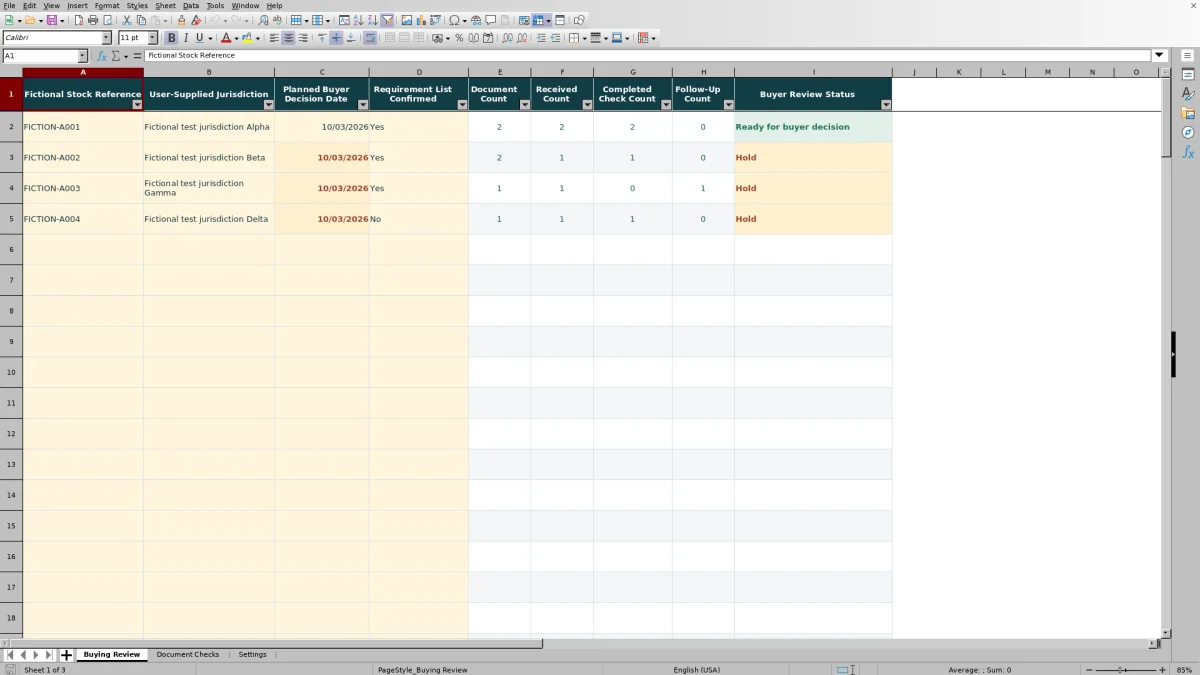
In Buying Review, replace the four fictional acquisitions with your own entries. Enter each acquisition once in the column labeled Fictional Stock Reference, then enter User-Supplied Jurisdiction and Planned Buyer Decision Date. Use the pale cream input cells; leave the calculated counts and Buyer Review Status formulas intact.
3. Build the applicable document list
Replace the six fictional rows in Document Checks. Select the matching Stock Reference and enter one Document Requirement per row. After establishing and entering the complete applicable list, set Requirement List Confirmed to Yes in Buying Review. The sample requirements are not a complete checklist.
4. Record receipt, review and exceptions
For each requirement, update Receipt Status, Administrative Review Status and Received Date. Use Brief Exception Note to explain an unresolved issue or the clarification you need. Record Checked administratively only to reflect the administrative work you have actually performed; the workbook does not perform that review.
5. Review the result before deciding
Return to Buying Review and use its filters to focus on Hold entries or follow-up work. Compare the counts with the underlying document rows and supporting paperwork. A Ready for buyer decision result means the recorded checklist meets the workbook's criteria, not that the vehicle must be accepted.
Choose the requirements before relying on readiness
Start with the documents applicable to the proposed acquisition, not with the workbook's sample labels. Establish the requirements for your jurisdiction and transaction using the appropriate sources, then enter each requirement as a separate row in Document Checks. The workbook does not supply or determine jurisdiction-specific requirements.
Requirement List Confirmed is your declaration that the applicable list has been entered. Yes is a user confirmation, not a completeness test. A requirement you omit has no document row, so it cannot appear as missing in the counts. Reconcile the entered list with your source requirements before changing this field to Yes.
The tool is limited to acquisition paperwork review. It does not certify roadworthiness, submit registrations or provide legal, tax or compliance advice. Use separate processes for those decisions and for retail stock, prep, sales and handover.
Understand what the counts and buyer status mean
Document Count includes every document row with a matching stock reference, even if its requirement name is blank. Received Count is narrower: the row must also have a requirement name and Receipt Status set to Received. Receipt alone therefore does not establish that an administrative check is complete.
Completed Check Count requires all of the following on each linked row:
- A nonblank Document Requirement.
- Receipt Status of Received.
- Administrative Review Status of Checked administratively.
- A positive Received Date no later than the Review Date in Settings.
For an acquisition with a stock reference, Buyer Review Status becomes Ready for buyer decision only when the jurisdiction field is nonblank, Requirement List Confirmed is Yes, at least one document row is linked and every linked row qualifies as a completed check. Otherwise, it shows Hold. A blank stock reference leaves the calculated outputs blank.
Readiness reflects recorded entries only. The formula checks that jurisdiction text exists, not that it is correct. Planned Buyer Decision Date is not a readiness requirement, and Brief Exception Note is not interpreted by the formula. Read those details before making your decision.
Fictional example: received does not mean completed
Suppose fictional acquisition FICTION-A002 has a jurisdiction entered, Requirement List Confirmed set to Yes and two named document requirements. Set Review Date to 10/03/2026 for this example. One document is Received, Checked administratively and dated 09/30/2026. The other is Missing and Pending, with no received date.
The result is Document Count 2, Received Count 1, Completed Check Count 1 and Follow-Up Count 0. Buyer Review Status is Hold because only one of the two document rows qualifies as completed. A zero Follow-Up Count does not mean nothing is outstanding. That count only includes rows explicitly marked Follow-up needed; it does not include every missing or pending item.
Your next action is to obtain the missing paperwork and perform the applicable administrative check. If you record it as Received on 10/02/2026 but leave the review status Pending, Received Count rises to 2 while Completed Check Count remains 1. Once that row is also marked Checked administratively, the completed count becomes 2 and the status becomes Ready for buyer decision, assuming the other entries remain as described. You still make the acceptance decision outside the checklist result.
Use planned dates to prioritize unresolved acquisitions
The timing alert helps you identify unresolved acquisitions approaching their planned decision date. An amber Planned Buyer Decision Date means the acquisition is unresolved and its planned date is on or before Review Date plus the follow-up window. Overdue planned dates are included.
For a fictional scheduling example, a Review Date of 10/03/2026 and a two-calendar-day window put the alert cutoff at 10/05/2026. An unresolved acquisition planned for 10/05/2026 falls within that window; one planned for 10/06/2026 does not. Use the alert to decide which seller questions or missing documents to address first.
This is a visual workflow cue, not a legal deadline or a reminder service. Keep the planned date filled in if you want that timing cue to be useful. Changing the window affects the alert, not the readiness criteria. Because the default Review Date uses =TODAY(), check it when revisiting a file; enter a fixed date if you need to assess the checklist as of a particular day.
Errors and solutions for acquisition document checks
- A received document is not counted as completed: Check its requirement name, administrative review status and received date. A blank date or one later than Review Date prevents completion, even when Receipt Status is Received.
- Document Count is higher than expected: Look for duplicate rows or rows containing only a matching stock reference. Every matching reference counts toward the total. Keep one row per requirement and remove unintended entries.
- A document seems absent from the summary: Compare its Stock Reference with the acquisition reference in Buying Review. Use the stock-reference list to link it to the intended acquisition.
- All document checks appear complete but the acquisition remains on Hold: Check User-Supplied Jurisdiction and Requirement List Confirmed. Readiness also needs at least one linked document row.
- The readiness result conflicts with an exception note: Notes do not control the calculation. If an administrative issue remains unresolved, reflect that in Administrative Review Status rather than relying on the note alone.
Use the supplied status choices consistently. The count formulas look for specific labels such as Received and Checked administratively; renaming those choices without adjusting the related formulas can change the results. Review the underlying rows rather than overwriting a calculated count or status to make it look correct.
Plan around the shared document-row capacity
The prepared range supports 100 acquisitions in Buying Review, but Document Checks has 100 document rows total, not 100 for each acquisition. Paperwork volume may reach that limit before the acquisition list does.
For example, 20 fictional acquisitions with five requirements each would use all 100 document rows. If your requirements vary, count the rows you need across the entire buying review batch before entering it. Preserve a separate dated copy when useful for your records; the workbook's current entries should not be treated as a preserved change history.
The summary formulas shown in the file refer to Document Checks rows 2–101. Do not assume that entering documents below row 101 extends the counts, validation or filters. For larger workloads, use a separate prepared copy for a clearly defined batch or have the ranges and formulas deliberately revised and tested before relying on them.
Compare this workbook with a blank spreadsheet
Choose the method according to how much structure your buying review needs. This workbook provides a defined receipt-and-review process. A blank spreadsheet gives you a starting point for a different process, but you must build and check its summaries yourself.
| Method | Starting structure | Review summary | Capacity and maintenance |
|---|---|---|---|
| This acquisition checklist workbook | Linked acquisition and document entries, status lists and review settings are prepared. | Counts and buyer status follow defined receipt, review, date and list-confirmation criteria. | 100 acquisition rows and 100 shared document rows; changes beyond prepared ranges need checking. |
| Blank spreadsheet | You define the fields, requirement layout and entry rules. | You review entries manually or create and test your own formulas. | You design the working range and maintain any formulas or controls you add. |
Use this workbook when its fixed workflow and shared document capacity fit your acquisition review. Start from a blank spreadsheet when your process requires a materially different layout and you are prepared to validate it. If you need broader dealership operations or document-system connections, evaluate specialized dealer management software against those specific needs; this workbook is an acquisition checklist, not a substitute for those functions.
Frequently asked questions
Does the workbook include the required acquisition documents for my state?
No. You supply the applicable jurisdiction and transaction requirements. The included ownership and seller-paperwork labels are fictional examples, not a complete or recommended state-specific list.
Can I mark a document as received before completing its review?
Yes. Receipt Status and Administrative Review Status are separate. A named document marked Received contributes to Received Count, but it does not qualify as completed until it is also Checked administratively and has a positive received date no later than Review Date.
Does Ready for buyer decision mean I can accept the vehicle?
No. It means the recorded checklist meets the workbook's formula criteria. It does not verify the documents, establish legal title or authorize acceptance. Review the supporting paperwork and resolve the applicable acquisition questions before deciding.
Can I record a received date after the review date?
The Received Date validation allows a blank or a valid whole-date value no later than Review Date. A later date does not qualify for Completed Check Count. If you are recording a genuinely later receipt, first decide whether the review should move to that later date or remain an earlier-date assessment.
Does the follow-up window create deadlines or send reminders?
No. It is a user-set calendar-day assumption used for the planned-date visual alert. The workbook does not establish legal deadlines or send reminders. Use the highlighted unresolved acquisitions to plan your own follow-up.
Editorial areas

Owen AshfordVehicle stock & purchasing
About this editorial area →
Mara WestbrookSales records & delivery
About this editorial area →