
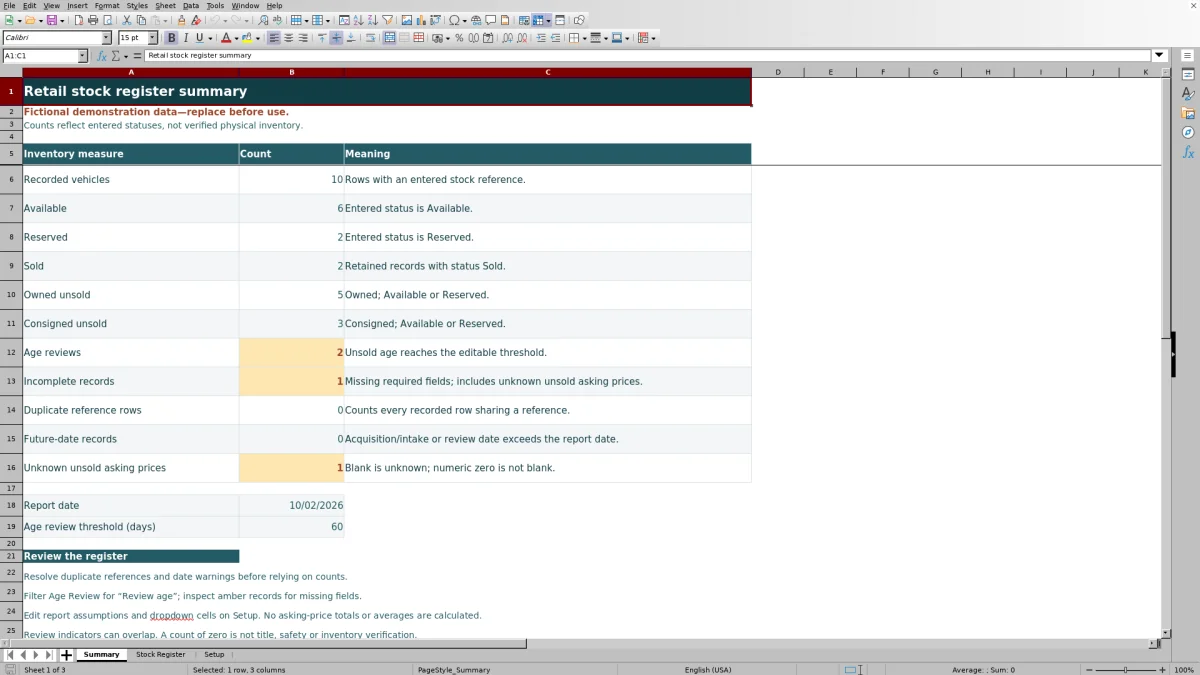
Before answering a stock inquiry, check which cars you have recorded as available, where they are and whether their details need attention. This Car Dealer Sheets Excel workbook gives you a retail stock register for owned and consigned vehicles, with a summary of entered statuses and review indicators.
Maintain one row per vehicle using an internal stock reference, updating that row when its location or sale status changes. This is not a VIN register: it has no vehicle identification number field and is designed to exclude VINs and customer information.
When to use this workbook
- Find a vehicle’s recorded location and sale status before checking its current availability.
- Separate owned and consigned unsold stock when reviewing your recorded inventory.
- Identify older unsold records for an administrative review using your chosen day threshold.
- Focus cleanup on duplicate references, missing details and dates later than the report date.
What is in the file
How to use the workbook
1. Set the reporting assumptions
On Setup, review Report Date in B2 and Age Review Threshold (days) in B3. The date starts with TODAY(); enter a fixed date if you need a fixed reporting basis. The initial 60-day threshold is a fictional demonstration assumption, not an industry or legal standard. Dates display as MM/DD/YYYY.
2. Replace the demonstration records
In Stock Register, replace the fictional entries with your own records in rows 2–101. Use the editable input cells in columns A–H and preserve the formulas in Days in Register and Age Review. Calculated cells look different but are not locked, so avoid clearing entire rows when removing sample inputs.
3. Complete each vehicle’s record
Enter its Stock Reference, description, ownership basis, acquisition or intake date, location and sale status. Record the asking price in USD and the date you reviewed the record. Use the dropdown labels as supplied for ownership and status. Update the existing row rather than adding a new row for each move or status change.
4. Resolve exceptions before using the totals
Review Summary for duplicate reference rows, incomplete records and future-date records. Use the Stock Register filters to inspect relevant entries, including Age Review entries marked Review age. Compare the recorded details with your source documents and physical stock checks; the workbook does not perform those checks for you.
Keep vehicle identity consistent without creating movement rows
Choose a stable internal stock number and enter it in Stock Reference. Use the same row when a car moves from the front lot to another location or changes from Available to Reserved. Creating another row for the same vehicle can inflate the recorded vehicle count.
The duplicate check compares stock references, not vehicle identities. Two rows with the same reference are flagged, but the workbook cannot recognize that two different references describe the same car. Resolve that question against your dealership’s source records.
This file covers owned and consigned retail stock. If your process requires a VIN-based register, keep that requirement in a separate appropriate record or select a resource designed for it. Do not treat this workbook as a VIN decoder, title record, repair-job tracker or deal-administration system.
Read the stock counts before making an availability decision
Recorded vehicles counts rows with an entered Stock Reference, including retained Sold records. It is therefore not a count of cars currently available to sell. Use the separate Available, Reserved and Sold measures to understand the statuses you have entered.
Owned unsold includes records marked Owned and either Available or Reserved. Consigned unsold applies the same status test to Consigned records. A reserved car remains in these unsold counts; changing its status to Sold removes it from them while leaving it in Recorded vehicles.
Keep ownership labels as Owned and Consigned, and status labels as Available, Reserved and Sold. The summary formulas depend on those exact labels. A custom status could leave a recorded row outside the expected status totals.
Before promising a vehicle to a buyer, check the actual vehicle and current deal situation. These totals describe entered records, not verified physical inventory, prep readiness or settled funds.
Example: use the age prompt to choose what to review
Days in Register subtracts Acquisition or Intake Date from Report Date, giving elapsed calendar days. Age Review displays Review age when a record has a status other than Sold and its calculated age reaches or exceeds the threshold.
In a fictional example, set Report Date to 10/02/2026 and the threshold to 60 days. A car entered as Available with an acquisition date of 08/03/2026 has an age of 60 calendar days and receives Review age. A Reserved car acquired on 08/04/2026 has an age of 59 days and does not yet receive that prompt.
Use the first result to prioritize checking the car’s recorded status, location and asking price. The prompt does not recommend a price cut or determine whether the vehicle is ready for sale. Choose any follow-up action from your own review.
Changing Record Reviewed Date does not reset the age: the calculation still starts from acquisition or intake. Sold records no longer receive an age prompt, but Days in Register still uses the report date because there is no sale-date field. It is not a days-to-sale calculation.
Errors and solutions: missing details, duplicates and dates
Incomplete records counts referenced rows missing a description, ownership basis, acquisition or intake date, location, sale status or review date. It also includes a missing asking price when the status is not Sold. Inspect the affected row and fill the gap from a reliable source rather than inserting a placeholder to remove the warning.
- Duplicate reference rows counts every row sharing a reference. If one stock number appears twice, both rows count. Check whether you entered the same vehicle twice or assigned one number to two different vehicles before correcting anything.
- Future-date records identifies acquisition or review dates later than Report Date. Confirm the report date first, then check the row dates. A fixed historical report date may legitimately be earlier than records entered later.
- A blank Days in Register result can mean the stock reference or acquisition date is missing, or the acquisition date is later than the report date. It does not mean the car has been held for zero days.
- A blank Age Review result can mean no prompt is due, the status is Sold, or required age or status information is missing. Check the inputs before treating a blank as a clean result.
Review indicators can overlap. One record may be incomplete and duplicated, so do not add the warning counts to estimate a number of affected vehicles. Zero warnings also do not establish title, safety or inventory verification.
Record asking prices without treating them as inventory value
Asking Price (USD) stores the price you enter for the vehicle. For Available and Reserved records, a blank price is treated as unknown and appears in Unknown unsold asking prices. Sold records may leave the asking price blank without that omission making them incomplete.
Blank and numeric zero have different meanings. Entering 0 is not treated as an unknown price. If you have not established an asking price, leave it blank and use the resulting prompt to follow up; do not enter zero merely to clear the missing-price indicator.
The workbook does not calculate asking-price totals or averages. It also has no acquisition-cost, prep-cost or sale-proceeds calculation, so its price entries do not establish recorded cost, margin or market value. Use your cost and deal records for those decisions.
Manage reporting dates, locations and the 100-row limit
The prepared record area is rows 2–101. Summary calculations, age formulas, dropdowns and the filter are set up for that area. Do not assume entries below row 101 will be included. Extending capacity requires reviewing and extending all affected ranges, not merely typing another vehicle below the register.
Setup B2 starts with TODAY(), so age results can change as that formula recalculates on a later date. Replacing it with a fixed date holds the reporting basis, but it does not preserve earlier versions of your records. Save a separate dated copy if you need to retain a particular reporting view.
You can rename the three location options in Setup E2:E4. After doing so, review existing records because changing a dropdown option does not rewrite their entered locations. Additional locations require an adjustment to the validation range; adding text below the supplied list alone does not extend it.
Protect the working file through your own file-handling process. The workbook’s calculated cells are visibly distinct, not locked, and the register is a current-state record rather than a movement or change-history log.
Compare this workbook with a blank spreadsheet or paper log
Choose the method that fits the record you need to maintain. This workbook supplies a defined retail-stock structure and review calculations. A blank spreadsheet gives you more freedom to design fields, while a paper log may suit a small manual recording process where you accept manual counting and review.
| Method | Starting structure | Counts and reviews | Scope and upkeep |
|---|---|---|---|
| Car Dealer Sheets workbook | Prepared stock fields, dropdowns and 100 record rows | Formula-based status counts, age prompts and specified data-quality indicators | Internal-reference retail stock register; you maintain entries, assumptions and formulas |
| Blank spreadsheet | You choose and build the fields | You create any formulas, filters and checks you need | Flexible design, with testing and maintenance left to you |
| Paper log | You draw or select a manual register layout | You count records and identify review items manually | Requires legible updates and a filing process for retained records |
Use this workbook when its internal stock-reference approach and prepared review measures fit your task. Choose a custom register if your required fields or capacity differ substantially. If you need VIN decoding, dealer management system synchronization, payments or other connected workflows, assess specialized software against those requirements; none of those integrations is included here.
Frequently asked questions
Does changing Sale Status to Sold record the sale?
It changes the stock classification and the related summary counts. It does not record a sale date, agreed deal price, buyer, payment or handover. Retain the row if you want it included in the Sold count, and keep the actual deal documentation separately.
Do I enter the purchase date for a consigned vehicle?
The field is Acquisition or Intake Date. For a consigned vehicle, enter the applicable intake date for your register and select Consigned as Ownership Basis. Days in Register measures time from that entered date; it does not establish legal ownership or the terms of the consignment.
Why do the demonstration age counts change?
The demonstration records use fixed dates, while Report Date initially uses TODAY(). Age results and future-date warnings therefore depend on the report date when calculations run. The counts noted at creation are not permanent expected results. Replace the fictional records before using the workbook for your dealership.
Can I change the age-review threshold?
Yes. Edit Age Review Threshold (days) in Setup B3 using a nonnegative whole number. A qualifying unsold record is prompted when its calendar-day age is equal to or greater than that number. The initial 60 days is a demonstration assumption, not a recommended holding period or deadline.
Does Record Reviewed Date trigger overdue reminders?
No overdue-review reminder is implemented for that field. The workbook checks whether the review date is missing or later than Report Date, but Age Review is based on acquisition or intake age. Record Reviewed Date documents the date you enter; it does not prove that a review occurred or send a message.
Editorial areas

Owen AshfordVehicle stock & purchasing
About this editorial area →
Mara WestbrookSales records & delivery
About this editorial area →

