
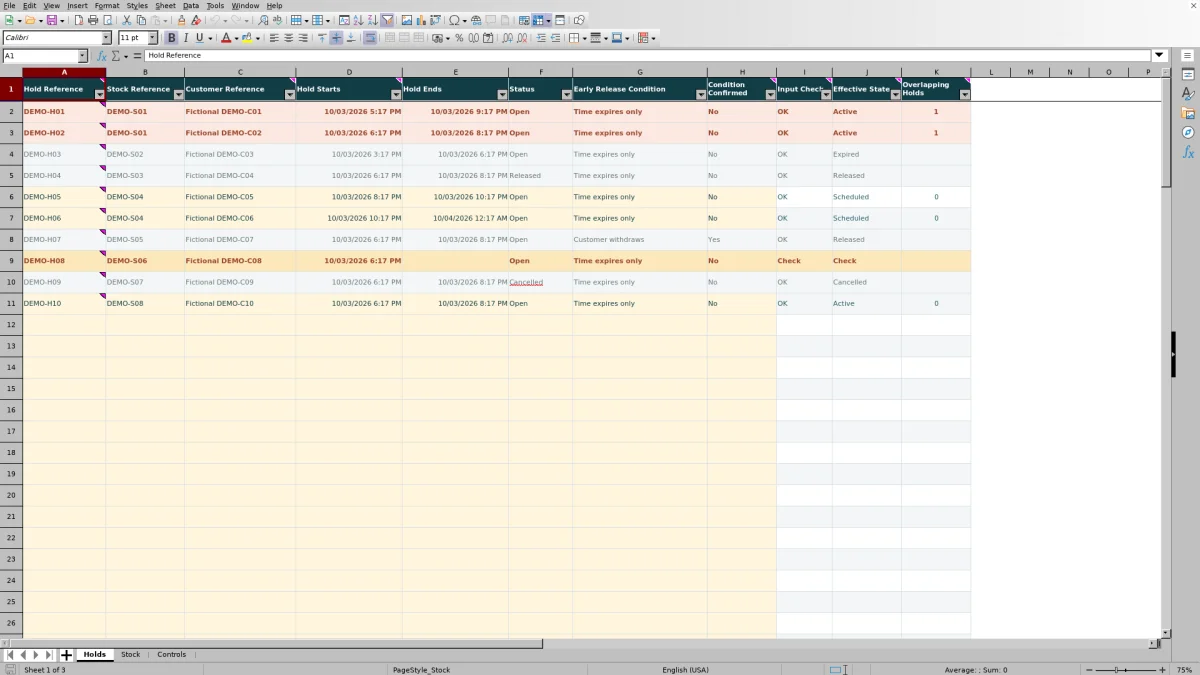
Before promising a vehicle to another customer, check the holds already recorded against its stock number. The Car Dealer Sheets vehicle reservation tracker is an Excel workbook for recording customer references, hold periods and release conditions on owned or consigned retail stock.
Enter the proposed hold, update the review time and inspect the calculated state and overlap count before confirming it. The workbook helps you identify competing recorded holds, but it does not block a reservation or verify a release; you still need to resolve exceptions and make the decision.
When to use this workbook
- Check a proposed hold against other recorded hold periods before confirming it to a customer.
- Distinguish current holds from future, expired, released and cancelled holds at a chosen review time.
- Keep the selected early-release condition beside the customer and stock references.
- Use input checks and summary counts to focus your review on records that need attention.
What is in the file
How to use the workbook
1. Prepare the stock list
On Stock, replace the fictional DEMO entries with your stock references and select Owned or Consigned under Ownership Type. Each stock reference must be unique. Correct highlighted stock rows, including rows not yet used by a hold.
2. Set the review time
On Controls, enter the current local dealership date and time in B2, labeled Review As Of. The file displays dates and times as MM/DD/YYYY with an AM/PM time. This is a manually entered review point, not a live clock.
3. Record the proposed hold
On Holds, use a unique Hold Reference, select the Stock Reference and enter the Customer Reference. Enter Hold Starts and Hold Ends, with the end later than the start. For a new open proposal, select Open under Status, choose the agreed Early Release Condition and record Condition Confirmed accurately. Replace or clear the fictional example inputs before using the workbook for live decisions.
4. Resolve checks before confirming
Review Input Check, Effective State and Overlapping Holds. Enter the proposed hold before checking its interval, but do not treat entry as approval. Resolve every Check record and invalid stock row, then investigate any overlap count above zero before making a promise.
5. Maintain the hold record
Record a release or cancellation when appropriate, and update Condition Confirmed only when the selected early-release condition has actually been established. Refresh Controls B2 for each new review. Keep Holds columns I:K and the summary formulas intact; the sheets are not protected against editing.
Keep one stock reference tied to each vehicle
The workbook matches reservations by Stock Reference. It has no dedicated vehicle identification number (VIN) field or VIN-matching calculation. Use the stock number that your dealership consistently associates with the vehicle, and verify that association in your stock records before entering a hold.
One vehicle should not appear under competing stock references. If staff record the same car under two different references, its holds will not be compared as holds for the same stock entry. Conversely, duplicate references on Stock fail the uniqueness requirement rather than creating two separate usable stock records.
Ownership Type must be Owned or Consigned. This records the category you enter; it does not establish ownership or authority to sell. Confirm those matters from your dealership records separately.
Read the hold state against the review time
Effective State answers what the recorded hold means at Controls B2. For an otherwise valid Open hold with Condition Confirmed set to No, a start later than the review time produces Scheduled. Once the start is reached, the hold is Active until its end. At the exact end time, it becomes Expired.
Refresh Review As Of before deciding. A timestamp left from an earlier review can leave a hold appearing Active after its end or Scheduled after its start. The Review Timestamp check can identify an invalid timestamp, but a valid old timestamp still needs your attention.
Released or Cancelled status takes precedence over the clock. For a valid Open hold, Condition Confirmed set to Yes produces Released before the date-and-time rules are applied. A row with an input problem instead shows Check, so do not interpret it as an available vehicle or a completed hold.
Fictional example: two promises on one stock number
In this fictional example, stock number EX-101 is listed once as Owned. Two otherwise valid holds have unique hold references, customer references, Open status, Time expires only as the release condition and No under Condition Confirmed. The first runs from 10/03/2026 9:00 AM to 10/03/2026 12:00 PM. The second runs from 10/03/2026 11:00 AM to 10/03/2026 1:00 PM. Set Review As Of to 10/03/2026 10:00 AM, using the same local dealership time for all entries.
The first hold is Active and the second is Scheduled. Their recorded intervals overlap from 11:00 AM to 12:00 PM, so each shows 1 under Overlapping Holds. With no other holds, Holds With Conflicts is 2: two affected hold records, not two vehicles.
The next decision is to resolve the competing commitments before confirming the second hold. If the agreed second start is changed to 12:00 PM, both overlap counts become 0, assuming these are the only relevant holds. A hold includes its start but excludes its end, so periods that only touch at noon do not overlap. That mathematical boundary does not by itself confirm that the vehicle is ready for another customer.
Record early release without mistaking it for verification
Early Release Condition offers Time expires only, Customer withdraws and Manager authorizes release. Record the condition agreed for the hold rather than treating this field as a free-text explanation. Keep the displayed choice vocabulary unchanged because the calculations rely on the exact values.
Condition Confirmed is a staff assertion. For example, after establishing that a customer has withdrawn under that selected condition, recording Yes causes an otherwise valid Open hold to show Released. The workbook does not contact the customer, obtain a manager's authorization or carry out a release action.
Keep supporting release evidence separately. There are no dedicated fields for the confirming employee, confirmation time or supporting document. Follow your dealership's process for keeping that evidence, and check it before updating the record or promising the vehicle again.
Errors and solutions for hold records
- Check instead of a usable state: inspect the hold reference for duplicates, confirm that the stock reference appears exactly once on Stock with an allowed ownership type, and complete the customer reference. Check the required choices and the review timestamp as well.
- Dates that will not validate: enter actual spreadsheet date-and-time values, not text descriptions such as “tomorrow afternoon.” Hold Starts must be a positive date-time value and Hold Ends must be later than it.
- No overlap count on a problem row: Overlapping Holds is calculated only for Active or Scheduled rows. A blank result on a Check row is not evidence that there is no competing promise. Resolve all Check records before relying on the conflict review.
- A stock row is highlighted: correct its reference or ownership entry even if no current hold uses it. Leaving invalid stock entries in the selection list creates problems for later reservations.
A zero overlap count means the formula found no other Active or Scheduled hold for the same stock reference with an overlapping interval inside the prepared range. It does not account for unentered promises, a vehicle recorded under a different reference or records outside that range.
Use the summary to decide what to inspect next
Controls counts hold records by Effective State and reports Holds With Conflicts. Start with Check records, then review the affected Active and Scheduled holds on Holds. Use the sheet filters to inspect the relevant stock reference and compare the recorded intervals.
The conflict summary counts rows with an overlap result above zero. It is not a count of unique vehicles or distinct conflict pairs. Similarly, the state totals are hold counts, not a complete statement of how many vehicles are available to sell.
The supplied formulas, validation and filters cover rows 2 through 101 on Holds and Stock. Typing beneath those ranges does not establish that the new rows have the same checks or are included in the summaries. If you need more than 100 hold records or 100 stock references, the workbook needs deliberate extension and testing before those additional records can support decisions. Keep expired or closed records according to your recordkeeping process rather than overwriting them merely to make room.
Comparison: this workbook or a manual reservation log
A paper log can record the same business facts, but staff must compare the times and keep status notes current themselves. This workbook supplies a structured stock list, hold records and review controls with calculations. Choose according to whether you need that calculated review or a manually maintained record, not on the assumption that either method enforces a reservation.
| Method | Hold-period review | Input checks | Staff responsibility | Capacity and setup |
|---|---|---|---|---|
| Car Dealer Sheets workbook | Calculates states at a manual review time and counts overlapping Active or Scheduled holds. | Includes entry validation and formula-based checks within its prepared ranges. | Enter every proposed hold, refresh the time, resolve checks and verify release evidence. | Prepared for 100 holds and 100 stock references; additional rows require extension and testing. |
| Paper reservation log | Staff compare start and end times and mark changes manually. | Staff check completeness and consistency without spreadsheet formulas. | Keep the log current and inspect relevant entries before making each promise. | Staff choose the layout and add pages as needed. |
Use this workbook when its defined fields and calculated interval review fit your process. A manual log may fit a process where staff can consistently inspect every relevant entry themselves. If your operation requires automated reservation enforcement, notifications or integration with other dealership records, evaluate those requirements separately; they are not established capabilities of this workbook.
Frequently asked questions
Can I record more than one hold for the same vehicle?
Yes. Each hold needs its own unique Hold Reference, while multiple Holds rows can use the same Stock Reference. Active and Scheduled holds for that reference are compared for overlapping time periods. The workbook flags overlaps rather than preventing you from entering them.
Does the tracker record reservation deposits or settled funds?
No. The workbook has no deposit amount, payment receipt or settled-funds fields. Use your payment and deal records to establish payment status; an Active or Released hold does not confirm that money has been received or refunded.
Does Customer Reference connect to a customer database?
No customer-database connection is established by this workbook. Customer Reference is an entered identifier. Use a reference that staff can match to the correct customer in your dealership records without assuming the spreadsheet retrieves or verifies customer details.
Can I rename the status or release choices?
Keep the supplied vocabulary unchanged. The formulas use the exact English values, including Open, Released, Cancelled and the Yes/No confirmation choices. Renaming a choice is not simply a cosmetic change and can affect the calculations.
Are the formulas protected from accidental changes?
No. Sheet protection is intentionally not applied. Cream cells identify inputs, while Holds columns I:K and the Controls summary results contain formulas. Replace fictional example inputs without clearing those formulas, and retain an untouched copy of the workbook so you have a reference if a calculation is accidentally changed.
Editorial areas

Owen AshfordVehicle stock & purchasing
About this editorial area →
Mara WestbrookSales records & delivery
About this editorial area →

