
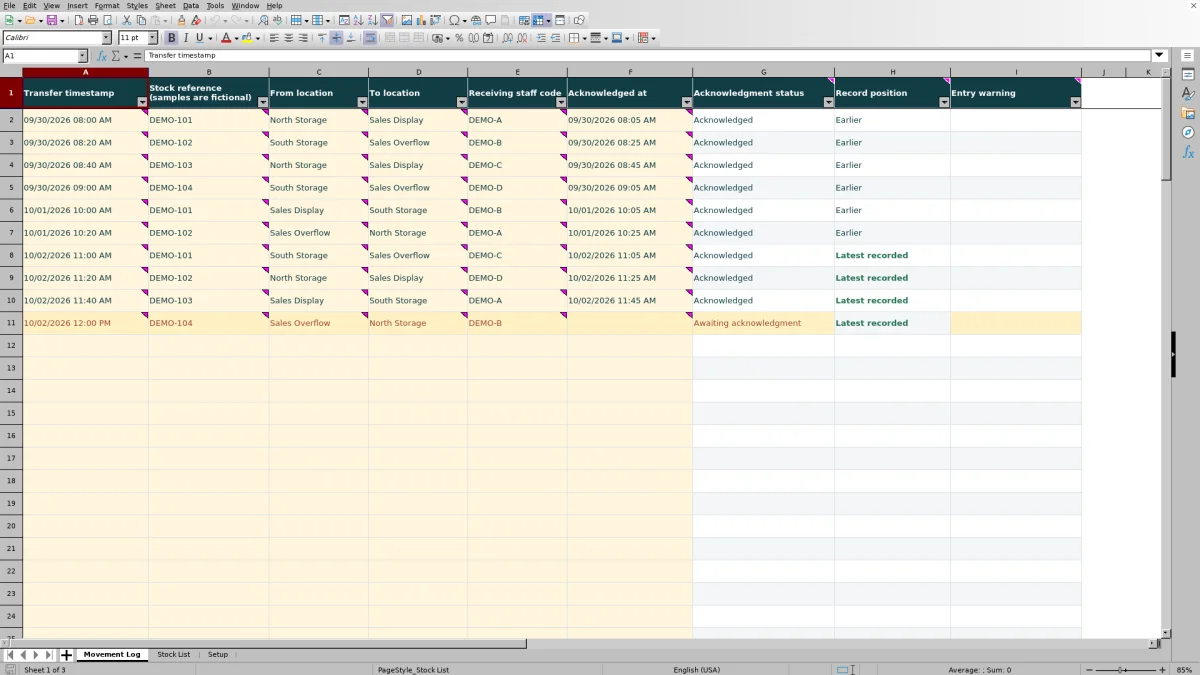
When a car moves between storage and the sales area, record where it went and who received it before the next stock enquiry. The Car Dealer Sheets vehicle location movement log workbook gives you a structured Excel record of on-site transfers for owned or consigned retail stock.
Use timestamped entries to trace each stock number, follow up on missing acknowledgments and review the latest recorded destination. This is a manual administrative record, not live vehicle tracking or proof that a car is physically present.
When to use this workbook
- Trace recorded moves for a stock number without relying on row order.
- Identify complete transfer entries that still need a receiving acknowledgment.
- Use consistent location names and staff codes from maintained lists.
- Spot timestamp conflicts and selected entry problems before relying on a destination.
What is in the file
How to use the workbook
1. Prepare your locations and stock references
Read the use notes on Setup. Replace the fictional sample inputs before operational use, preserving the formulas on Movement Log. Enter your location names under Permitted location and your staff codes under Permitted staff code. On Stock List, register each unique stock number under Stock reference and select its Ownership type.
2. Record one transfer per row
On Movement Log, enter the Transfer timestamp, select the stock reference, and complete From location, To location and Receiving staff code. Use an actual Excel date-time value; the timestamp cells display MM/DD/YYYY hh:mm AM/PM. Work in the pale cream input cells and leave unused inputs genuinely blank.
3. Enter the receiving acknowledgment
After receipt has been confirmed through your dealership's process, manually enter Acknowledged at. It must not precede the transfer time. Check Acknowledgment status and Entry warning rather than assuming a filled timestamp makes the record correct.
4. Review the record before directing someone to the car
Filter Movement Log by stock reference. Use a destination for operational reference only when Acknowledgment status is Acknowledged, Record position is Latest recorded and Entry warning is blank. Review the underlying inputs as well. Keep columns G:I intact because they contain the formulas used for these checks.
Deciding which destination you can use
Start with the stock number, not the last populated row. Record position compares transfer timestamps for that reference across Movement Log rows 2–101. A newer timestamp takes precedence even if its row appears above an older entry.
Latest recorded is a chronology label. It includes unacknowledged transfers, so it is not enough on its own to support a location decision. Check that the same row is also Acknowledged and has no Entry warning before using its To location as an operational reference.
If the latest move is pending, contact the receiving staff member and confirm what happened. Do not treat an older acknowledged destination as the current location simply because that row is complete. The car may have moved, while the acknowledgment has not yet been entered.
A missing transfer timestamp on any row for that stock produces Review timestamps and blocks latest identification. Equal newest timestamps produce Tie - resolve. Resolve these gaps from the actual transfer details before choosing a destination.
What the acknowledgment does—and does not—confirm
Acknowledgment status checks whether the transfer timestamp, stock reference, both locations and receiving staff code are present. If any is missing, the row is Incomplete. Once those inputs are present, a blank Acknowledged at produces Awaiting acknowledgment; a populated acknowledgment produces Acknowledged.
The Receiving staff code identifies the recipient you recorded. The acknowledgment time is also entered manually: it is not an authenticated signature. The workbook does not independently establish who entered it or whether the vehicle was received.
Use pending entries as a follow-up list during your lot review. Confirm receipt with the relevant staff member, then record the acknowledgment time accurately. No automated message is sent, and a status of Acknowledged does not override an entry warning or incorrect inputs.
Example: a move back from the sales area
This fictional scenario assumes EX-201 is registered on Stock List, the locations and staff codes are in Setup, and only two transfers exist for that reference. The first move is from North Storage to Sales Display at 10/05/2026 09:00 AM, with acknowledgment at 09:05 AM that day. The second is from Sales Display to South Storage at 10/05/2026 02:00 PM, with the receiving staff code entered but Acknowledged at blank.
With all other required inputs complete, the first row is Acknowledged and Earlier. The second is Awaiting acknowledgment and Latest recorded. Those results mean the newest entered move points toward South Storage, but receipt has not been recorded. Your next action is to confirm the move with the receiving staff member—not simply send a salesperson to either location.
If receipt is then recorded at 10/05/2026 02:06 PM, the second row becomes Acknowledged. Provided its Entry warning is blank and the inputs are correct, South Storage becomes the destination you can use as an operational reference. This still does not independently verify the car's physical presence.
Errors to resolve before relying on the log
- Incomplete or Review timestamps: check the required inputs and recover any missing transfer time from the people involved. Do not invent a time merely to clear the label.
- Tie - resolve: inspect the entries sharing the newest timestamp. Determine whether they are duplicate records or separate moves whose recorded times need correction.
- Check locations: From location and To location match. Verify whether a transfer occurred and correct the locations as needed.
- Check acknowledgment: the recorded acknowledgment precedes the transfer. Check both dates and times against what actually happened.
Entry warning checks matching locations before it checks acknowledgment chronology. After correcting a location warning, review the row again because another warning may then appear. A blank warning only means these specific checks found no issue; it is not a complete verification of the record.
Pasting can bypass validation. Review pasted dates, stock references, location names, staff codes, ownership types and duplicates before operational use. Acknowledgment status checks whether inputs are present, so text in a timestamp cell can be misleading even if the row appears complete. Use real Excel date-time values rather than date-like text.
Keeping the log usable as records accumulate
The prepared range is 100 transfers, not 100 moves per vehicle. Movement Log formulas, validation and filtering cover rows 2–101. Stock List also has 100 prepared registration rows, and Setup provides rows 2–101 for locations and staff codes.
Do not assume typing below row 101 extends the working log. Before using additional rows, the formulas, comparison ranges, validation and filter range would need to be extended and checked. Without that work, newer entries may fall outside the chronology checks. Plan how you will retain older records before the prepared range fills.
Keep each stock reference unique on Stock List, but reuse that reference on Movement Log for every separate transfer. Give locations distinct, recognizable names so staff can tell storage areas from sales areas without interpretation.
Review historical records before renaming or removing a location or staff code in Setup. Editing a list does not rewrite earlier transfers. Formula columns G:I are not protected, so avoid overwriting them when clearing samples, pasting entries or rearranging records.
Where this workbook fits in dealership operations
Use this file for on-site movement of retail stock between storage and sales areas. Owned and Consigned provide informational ownership labels; the workbook does not verify title or change the transfer checks based on ownership.
Keep purchasing, outsourced prep, repair work, sales transactions and customer handover in the records you use for those tasks. A move to a sales area does not establish that the car is sale-ready, and this log is not a repair-shop job tracker or a deal administration system.
The workbook has no network connections, live synchronization, automated messages, payments or macros. A staff code or stock reference is a recorded identifier, not an integration with another system. If your task requires live location information or independently authenticated receipt, this manual log alone does not meet that need.
Comparison: workbook, blank spreadsheet or paper log
Choose a method based on how you will record moves and review exceptions. This workbook supplies a linked stock list, setup lists and transfer checks. A blank spreadsheet or paper register leaves more of that structure and review process for you to establish.
| Method | Initial setup | Reviewing a vehicle's history | Acknowledgment and error checks | Main limitation |
|---|---|---|---|---|
| Car Dealer Sheets workbook | Replace fictional inputs and maintain stock, location and staff lists. | Filter by stock reference and review timestamp-based record labels. | Prepared status formulas, validation and selected warnings. | Manual entries and a fixed 100-transfer prepared range; no physical location verification. |
| Blank spreadsheet | Design the columns, lists and review rules yourself. | Depends on the structure and review method you build. | Manual unless you add and check your own controls. | No ready-made movement checks or linked lists at the outset. |
| Paper movement register | Agree on a consistent layout and recording process. | Read the entries for the relevant stock number. | Check completeness and time order manually. | No formula-based chronology or exception labels. |
Use this workbook when its prepared structure matches your on-site transfer process and you can maintain the entries. Choose a blank spreadsheet when you need a different layout and are prepared to build the controls. A paper register may suit a process centered on handwritten entries, provided you assign responsibility for reviewing it.
Frequently asked questions
Can I use my dealership's stock numbers?
Yes. Register them under Stock reference on Stock List, then select them on Movement Log. The stock reference cells use text formatting. Keep each reference unique on Stock List so separate vehicles do not share a movement history.
Are the vehicles and staff already entered real?
No. All populated stock references, locations, staff codes and transfers are fictional examples. Remove or replace the sample inputs before using the workbook for your dealership, while retaining the formula columns.
Can I sort the movement records?
Yes, but sort complete records together rather than sorting an individual input column. Keep each transfer's inputs and formula cells aligned. The latest-record calculation uses timestamps rather than row order.
Does the workbook fill in the transfer or acknowledgment time automatically?
No. Both timestamps are manual inputs. Enter the actual event date and time as an Excel date-time value; the display format is MM/DD/YYYY hh:mm AM/PM. The acknowledgment time must be at or after the transfer time.
Can a vehicle have more than one transfer in the log?
Yes. Enter each move on a separate row using the same stock reference. The workbook compares those entries to identify their chronological position. All vehicles share the 100 prepared transfer rows, so repeated moves consume additional rows.
Editorial areas

Owen AshfordVehicle stock & purchasing
About this editorial area →
Mara WestbrookSales records & delivery
About this editorial area →

