
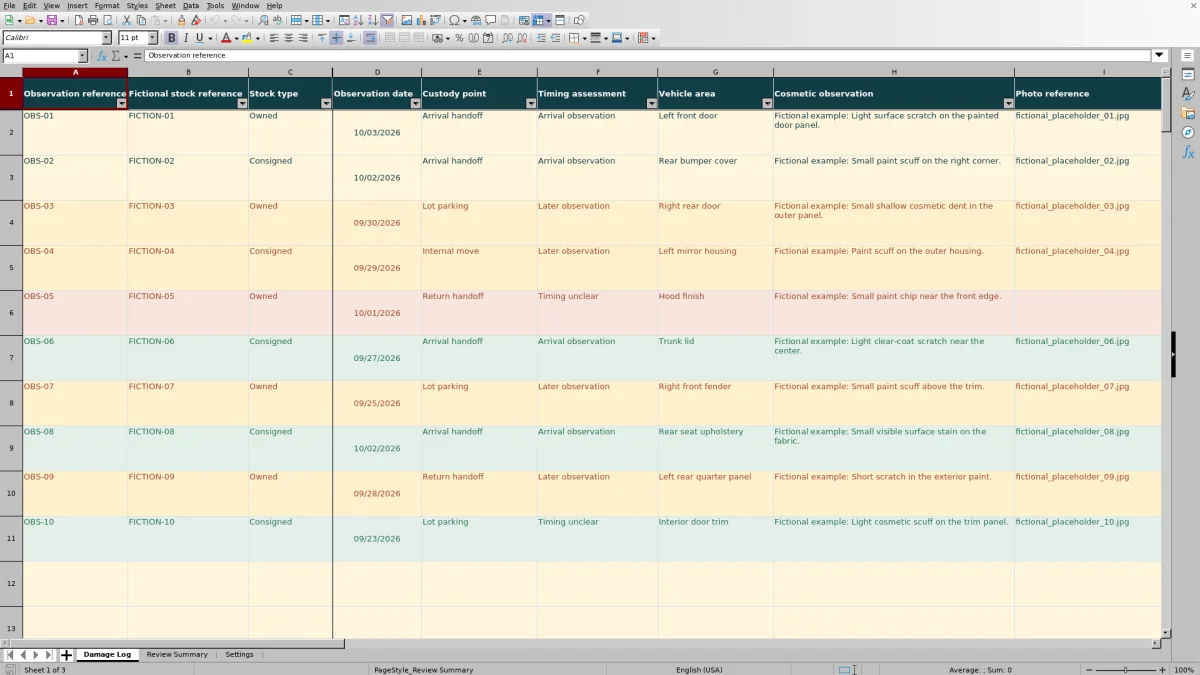
When you notice a scratch, scuff or dent on retail stock, record what you saw and where the car was in your custody process. The Car Dealer Sheets vehicle damage intake log workbook brings the observation, date, timing assessment and photo reference together for later review.
Use one row per cosmetic observation, rather than one row per car. The workbook checks for missing details and flags complete open entries that reach your review target. It records when damage was documented; it does not establish when the damage occurred or who caused it.
When to use this workbook
- Keep cosmetic observations tied to a stock reference and custody point so you can find the relevant record.
- Separate arrival observations from later discoveries without treating timing as proof of responsibility.
- Identify missing details before relying on an entry during a damage review.
- Prioritize complete open observations using an editable calendar-day review target.
What is in the file
How to use the workbook
1. Set the date and review target
On Settings, check Review date in B2 and Review target (calendar days) in B3. The review date uses TODAY() by default and updates when recalculated. The supplied target is 3 calendar days. Keep both cells populated; the target is an operational choice, not a legal deadline.
2. Replace the fictional entries
The supplied observations and photo filenames are fictional examples. Replace or clear their inputs before using the summary for your own records. Work in the cream input cells in rows 2–101 on Damage Log, and leave calculated columns M–O unchanged. The stock-reference column is labeled Fictional stock reference; when adapting the log for use, enter a non-personal internal stock reference, not a vehicle identification number (VIN) or customer information.
3. Record the observation and supporting reference
Complete columns A–I and K, including a unique Observation reference, the Observation date, Custody point, Timing assessment and Photo reference. Use MM/DD/YYYY dates. For Later observation, also fill Earlier observation or photo reference in column J. Enter photo filenames or internal reference text, not external links.
4. Work through the review queue
Recalculate the workbook in Excel, then filter Damage Log by Review alert. Address Complete entry and Check date before relying on the due-review queue. When you have reviewed an observation, set Review status to Reviewed and enter Reviewed date. Use Review Summary to see the resulting counts, remembering that Closed means reviewed, not repaired.
Separate observation timing from the cause of damage
Use Custody point to record the stage at which you documented the condition: Arrival handoff, Lot parking, Internal move or Return handoff. Then use Timing assessment to distinguish Arrival observation, Later observation or Timing unclear. These describe different things: the custody stage and your assessment of the documentation timing.
A scratch first noticed in lot parking may have existed earlier. Choose Timing unclear when you cannot support a clearer assessment. For Later observation, the workbook requires an Earlier observation or photo reference so you have a prior record to consult.
Documentation timing is not proof of cause. Review the current and earlier records before deciding what needs further investigation. The workbook does not inspect images, establish responsibility or verify the account entered by staff.
Make photo references useful at the next review
Photo reference is a text field for a filename or internal reference, not a photo-storage or image-verification function. Keep the actual images in your dealership's separate storage process, and enter a reference that lets you locate them. The filenames supplied in the workbook are placeholders, not evidence of a vehicle's condition.
Write the Vehicle area and Cosmetic observation so they can be matched to the referenced image. For example, a fictional entry could identify the left front door and describe a light surface scratch on the painted panel. That is more useful for comparison than a description such as “damage on side.”
Use a separate Observation reference for each observation, even when several concern the same stock number. Follow the workbook's privacy guidance: do not enter personal data, addresses, VINs, license details or credit information, and do not put external links in the photo-reference fields.
Example: decide which open observation needs review
In this fictional example, an observation was recorded on 10/03/2026. Set Settings B2 to 10/06/2026 and leave B3 at 3 calendar days. Assume the entry has all required details and Review status is Open.
Days since observation subtracts the observation date from the review date: 10/06/2026 minus 10/03/2026 equals 3 calendar days. Because 3 meets the target of 3, Review alert shows Review due. The next action is to examine the observation and its supporting references—not to assume that a repair is overdue.
If the same entry lacks Photo reference, Entry check instead shows Incomplete and Review alert shows Complete entry. Missing information takes priority over the due alert. Once you complete the review and enter Reviewed with a valid Reviewed date, the alert becomes Closed and the age field becomes blank.
The target includes weekends. It is an editable review assumption, not a service promise or legal deadline, and the worksheet alert should not be treated as a notification sent to staff.
Fix incomplete entries and date problems
Use the alert to choose the correction rather than changing the status simply to remove a warning.
- Complete entry: Fill every field in A–I and Review status in K. Later observation also requires J; Reviewed also requires Reviewed date in L.
- Check date: For an otherwise complete open entry, check that Observation date is a real spreadsheet date and is not after the Review date on Settings. Text that looks like a date may not be usable in the calculation.
- Rejected review date: Reviewed date must be on or after Observation date and no later than the review date on Settings. Enter dates without a time component.
- Duplicate observation reference: Use a distinct reference for each observation. The validation checks uniqueness within A2:A101; a stock number alone may repeat across observations and is not a substitute for an observation reference.
Pasting can bypass validation, so inspect pasted records before relying on the results. Ready means the formula found the required fields populated; it does not verify the description, photo reference or accuracy of the dates. A blank Days since observation value is not zero days—it can indicate a reviewed record or an open entry whose date cannot be used.
Read the summary as observations, not vehicle totals
Review Summary counts observations, not vehicles. Three separate entries for one car count as three recorded observations when each has an Observation reference. Do not use this total as a stock count or a count of damaged cars.
Recorded observations counts populated observation references. Open observations and Reviewed observations count referenced rows with those statuses. Incomplete entries also includes started rows that have no observation reference, while Reviews due counts complete open entries that have reached the target.
These measures overlap and should not be added together. An open entry can also be incomplete. A row marked Reviewed can appear in the reviewed count while still missing its Reviewed date. Before using the figures in a stock meeting, check Incomplete entries and filter Damage Log for the specific follow-up needed.
Keep the log within its operating limits
This workbook covers cosmetic observations on owned or consigned retail stock. Use it to organize what was documented and what still needs review, not to manage buying, outsourced prep, repair jobs, sales, financing, delivery or a fleet.
The calculated area and summary cover Damage Log rows 2–101. Entries below row 101 are outside the supplied formula, validation and summary ranges. If you need more than 100 observations in one file, those ranges need a deliberate extension and checking; merely typing beneath them does not extend the implemented setup.
The log does not diagnose safety issues, certify roadworthiness or verify title. If an observation raises a safety concern, arrange the appropriate separate assessment rather than treating a Ready or Closed label as clearance for sale or use.
Compare the workbook with a blank spreadsheet or paper log
Choose according to how you capture observations and organize follow-up. This workbook supplies a defined review process; a blank spreadsheet lets you design your own structure, while paper may suit the initial walkaround if you maintain a separate review routine.
| Method | Record structure | Review follow-up | Photo references and limits |
|---|---|---|---|
| This workbook | Supplied fields and checks for 100 observation rows | Calculated completeness, age and review alerts with summary counts | Filename or internal reference text; images remain separate |
| Blank spreadsheet | You choose and maintain the columns | You create any formulas, checks and summary logic you need | You design the reference method and storage process |
| Paper log | You write observations on a chosen form or register | You inspect entries and track elapsed days manually | You write image references and retrieve the images separately |
Use this workbook when its cosmetic-observation scope and review statuses fit your process. Start with a blank spreadsheet when you need a different record structure and can maintain the checks yourself. Use paper when handwritten capture suits the task, but decide who will check completeness and open items. None of these methods turns a written observation into proof of responsibility.
Frequently asked questions
Can I review the log as of an earlier date?
Yes. Replace Settings B2 with a fixed MM/DD/YYYY date to calculate against that review date. This changes the date basis, not the underlying records; it does not restore an earlier version of their statuses or contents. Observations after that date can require date attention. To resume a current-date basis, restore =TODAY() and recalculate.
Can I change the dropdown labels?
The source cells on Settings are editable, but preserve Open, Reviewed and Later observation because the calculations depend on those exact labels. If you change other source labels, update existing records consistently so the log does not mix old and new wording.
Are the calculated columns protected against editing?
No. Sheet protection is not enabled. Enter data in the cream input cells and avoid editing Damage Log columns M–O or the summary formulas. Keep a clean copy before adapting the workbook so you have a reference if a formula is overwritten.
Does the workbook calculate repair costs or stock value?
No. It records cosmetic observations and their review status. It has no implemented repair-cost, acquisition-cost, asking-price or valuation calculation. Keep any prep authorization and cost records in your separate dealership process.
Can owned and consigned cars use the same log?
Yes. Stock type offers Owned and Consigned. Record the relevant type on each observation. That label organizes the entry; it does not verify ownership, consignment terms or who is responsible for damage.
Editorial areas

Owen AshfordVehicle stock & purchasing
About this editorial area →
Mara WestbrookSales records & delivery
About this editorial area →

