
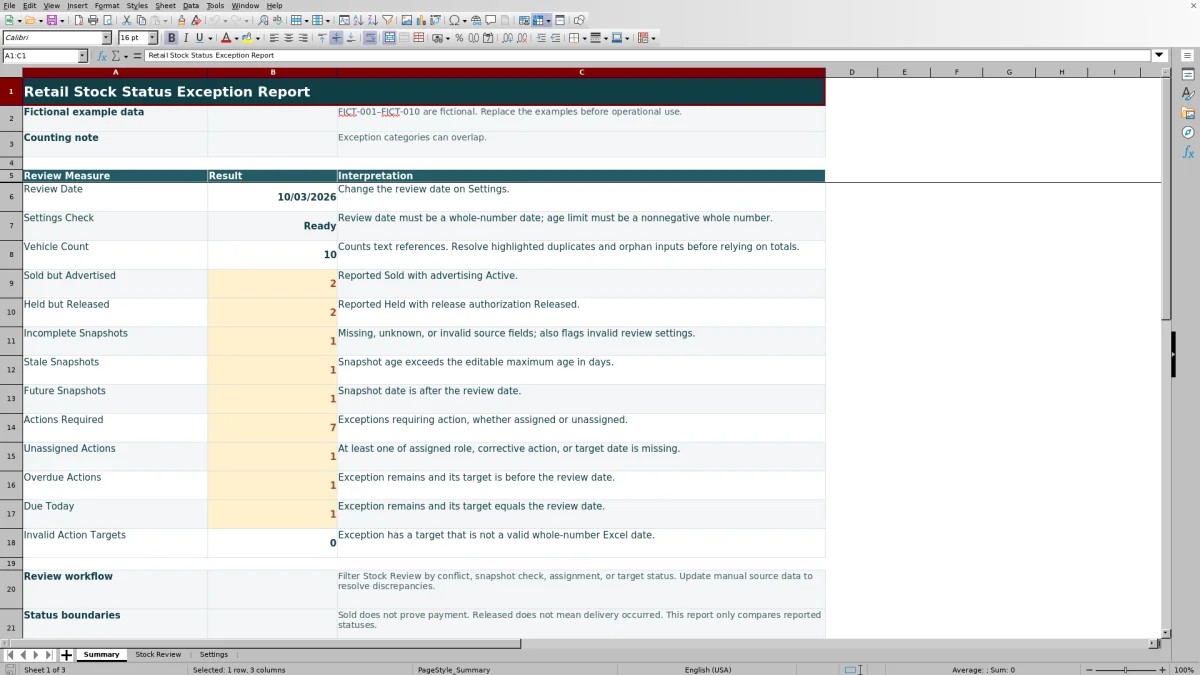
When a car is reported sold but still advertised, or held but authorized for release, you need to establish which record needs correcting. This Car Dealer Sheets Excel workbook compares manually entered statuses so you can identify those conflicts and assign follow-up work.
Use the car dealer stock status exception report for one current snapshot per owned or consigned retail vehicle. It also checks snapshot freshness and action targets, helping you separate status discrepancies from missing or outdated information. The report compares recorded inputs; it does not verify the car’s actual status.
When to use this workbook
- Focus your review on sold-and-advertised or held-and-released status combinations.
- Identify missing, outdated or future-dated snapshots before relying on them.
- Record who should act, what needs correcting and the internal target date.
- Review unassigned and overdue exceptions alongside overall stock counts.
What is in the file
How to use the workbook
1. Set the review date and age limit
On Settings, check Review Date in B2 and Maximum Snapshot Age (days) in B3. The date defaults to TODAY(), and the age limit starts at 7 days. Enter a fixed date if you are reviewing a specific day. Use MM/DD/YYYY dates without a time component and a nonnegative whole number for the age limit. Confirm that Settings Check on Summary reads Ready.
2. Replace the fictional records
Replace FICT-001 through FICT-010 on Stock Review before operational use. Enter one unique text Stock Reference for each car, using your stock number as the reference. Complete Ownership, Snapshot Date and the three source-status fields. Use the cream input cells and leave the calculated columns J:M intact.
3. Find exceptions and assign the next action
Filter Stock Review by Status Conflict or Snapshot Check. For each exception, complete Assigned Role, Corrective Action and Action Target Date. Make the action specific enough for the responsible person to know which reported information needs checking.
4. Recheck the sources and review the totals
After follow-up, update the source statuses and Snapshot Date to reflect the information you have confirmed. Check Action Assignment and Target Status, then return to Summary for outstanding counts. Assigning work does not clear an exception; the underlying inputs must no longer trigger it.
Practical example: resolve a reported stock status conflict
A Status Conflict points to a combination of reported values, not a verified operational mistake. Sold in Reported Stock Status together with Active in Advertising Status produces Sold but advertised. Held together with Released in Release Status produces Held but released.
Fictional example: FICT-001 has Sold, Active and Blocked recorded for its stock, advertising and release statuses. The result is Sold but advertised. This means the entered sale status conflicts with the entered advertising status; it does not establish which record is wrong. Check the reported sale and the actual advertising record, decide which information needs correction, and give the responsible role a clear task. The Blocked release value does not remove the advertising conflict.
For a held car marked Released, check the hold and reported release authorization before using the record to make a handover decision. The workbook does not choose which source is right. A blank Status Conflict means neither of these two combinations was detected; it is not a general approval of every stock-status combination.
Choose a snapshot age that fits your review
Maximum Snapshot Age (days) on Settings controls how old a snapshot may be before it is marked Stale. The age is the elapsed number of days between Snapshot Date and Review Date. A snapshot becomes stale only when its age is greater than the limit, not when it equals it.
In a fictional review dated 10/10/2026 with a 7-day limit, a valid, complete snapshot dated 10/03/2026 is 7 days old and remains Current. A snapshot dated 10/02/2026 is 8 days old and is Stale. Use that result to request refreshed source information rather than assuming the car’s status has changed.
A date after the review date produces Future snapshot. Missing, unknown or invalid source inputs can instead produce Incomplete. Resolve those issues before interpreting freshness. Current means current enough under your chosen limit, not independently verified. If you leave Review Date as TODAY(), age and target results can change as the review date advances on recalculation.
Turn an exception into an accountable action
An exception requires follow-up when Status Conflict is populated or Snapshot Check is not Current. Action Assignment shows Assign action if any of Assigned Role, Corrective Action or Action Target Date is missing. It shows Assigned when all three are present.
Write an action that describes the check and correction needed, such as reconciling the hold record with the reported release authorization. The supplied role choices are Inventory Manager, Advertising Coordinator and Sales Manager. Choose the role responsible for that particular discrepancy rather than treating every exception as an advertising task.
Assigned does not mean the target date is valid or the work is complete. Check Target Status separately: a target before Review Date is Overdue, and a target equal to Review Date is Due today while the exception remains. Invalid target identifies a target that is not a valid whole-number Excel date. These dates are internal operating targets, not legal deadlines.
When the underlying conflict or snapshot problem is resolved, the row can move to No action. There is no separate completion field in this report, so do not use assignment details as proof that the correction occurred.
Fix input problems before trusting a clear result
Start with references and settings when results look incomplete or unexpectedly quiet. Calculated results in J:M are blank when Stock Reference is blank, even if other inputs remain on that row.
- Duplicate reference warning: check whether the same car has been entered twice. Keep one current snapshot per vehicle, or correct the reference if the rows represent different cars.
- Inputs without a reference: add the correct unique text Stock Reference or clear the stray inputs. Do not interpret blank calculated cells as a passed check.
- Check settings: enter a valid review date without a time component and a whole-number age limit of zero or more. Invalid settings can cause snapshot checks to show Incomplete.
- Incomplete snapshot: check Ownership, Snapshot Date and the three source-status fields for missing or invalid values. Unknown in a status field also requires follow-up.
- Invalid target: replace text or a date-and-time entry with a valid date in Action Target Date. Changing its display format alone may not correct the stored value.
The validation lists are on Settings in columns D:H. Exact status labels drive the formulas. Renaming a label requires corresponding formula changes; simply changing a dropdown choice does not update the comparison rules.
Read Summary without double-counting the workload
Use Summary to decide which part of the review needs attention, then filter Stock Review to locate the rows. Unassigned Actions identifies exceptions missing at least one assignment detail. Overdue Actions and Due Today help you review unresolved exceptions against their targets.
Exception categories can overlap. A single car can be sold but advertised, have a stale snapshot and have an overdue action. Adding those category counts would not give you a unique vehicle total. Actions Required counts exception rows whether assigned or unassigned; it is not a count of separate tasks written in Corrective Action.
Vehicle Count counts text references in Stock Review rows 2:101. Resolve duplicate references and inputs without a reference before relying on it. The summary formulas and prepared checks cover those 100 rows, so records added below row 101 are outside the supplied calculation ranges unless the workbook is deliberately extended.
Know what the report cannot authorize
Use this workbook to reconcile reported retail-stock information, not to authorize a deal or handover by itself. Sold does not establish that funds have settled. Released records reported release authorization; it does not establish that delivery occurred. Ownership is an entered classification, not title verification.
The workbook does not provide roadworthiness certification, financial processing or registration submission. Advertising Status is also a manual input, not evidence of an advertising integration. Check and correct the relevant source record outside the workbook, then refresh the snapshot.
Keep the report’s current-snapshot purpose in mind when retaining records. If you need to revisit a previous review, save a dated copy rather than assuming that replacing inputs preserves an audit trail. The manifest confirms formula setup and reference-logic checks, but not spreadsheet-engine recalculation testing; check recalculated results before operational use.
Compare this workbook with a blank spreadsheet or paper log
Choose the method according to how you want to conduct the review. This workbook supplies a defined set of checks and action fields. A blank spreadsheet gives you a starting point for a different process, while a paper log keeps the review entirely manual.
| Method | Status checks | Action follow-up | Setup and limits |
|---|---|---|---|
| Car Dealer Sheets workbook | Prepared checks for two conflicts, snapshot quality and age | Role, corrective action, target date and calculated target status | 100 prepared rows; source information must be entered and updated manually |
| Blank spreadsheet | You define the fields and build any comparison formulas | You create the assignment and target process | Requires setup and checking to reflect your own review rules |
| Paper log | You compare each recorded status manually | You write assignments and review target dates manually | No spreadsheet setup, but totals and checks require manual work |
Use this workbook when its two conflict rules and current-snapshot workflow match your review. Start with a blank spreadsheet if you need materially different comparisons and can build and check them. A paper log may suit a limited manual review. If you need system-fed statuses or broader deal administration, evaluate specialized dealer management software against those requirements rather than assuming this file supplies them.
Frequently asked questions
Can I use stock numbers that contain only digits?
Yes, but store them as text in Stock Reference. The field validates text entries, and Vehicle Count counts text references. Keep each reference unique and check for duplicate warnings after entering or pasting records.
Can I include consigned cars?
Yes. Ownership provides Owned and Consigned choices. Use one current snapshot per retail vehicle. That selection records the ownership category you supply; it does not verify title or consignment terms.
Why is an action Assigned but still overdue?
Assigned means the role, corrective action and target date are all filled in. Overdue means the exception still exists and its target date is before Review Date. Recheck the source information and complete the correction rather than treating assignment as closure.
Does the workbook remove advertisements or block a release?
No. It compares the advertising and release statuses you enter and flags the supported conflicts. You must make any required correction in the relevant operating record or system, then update the workbook’s source inputs and snapshot date.
Why does Summary show actions required when there are no status conflicts?
Snapshot problems also require action. A row marked Incomplete, Stale or Future snapshot can contribute to Actions Required even when Status Conflict is blank. Filter Snapshot Check on Stock Review to find the information that needs correcting or refreshing.
Editorial areas

Owen AshfordVehicle stock & purchasing
About this editorial area →
Mara WestbrookSales records & delivery
About this editorial area →

