
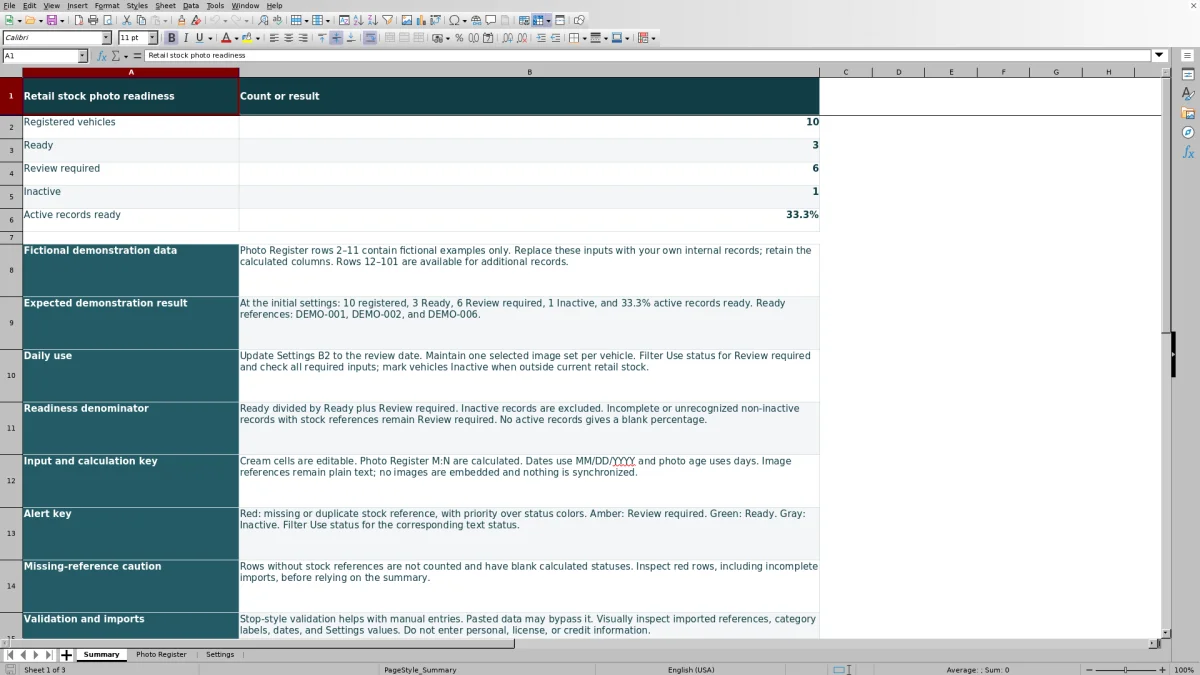
Before using photos in a vehicle listing, locate the selected image set and check its recorded permission, age and coverage. The Car Dealer Sheets stock photo asset register workbook keeps these details together by stock number for owned and consigned retail vehicles.
Maintain one selected image set per vehicle, then use the calculated status to find records needing attention. This is a register of references and staff-entered checks—not image storage or independent verification that photos are authorized for use.
When to use this workbook
- Find the recorded image set and its permission evidence from the same stock record.
- Focus follow-up on records flagged Review required before choosing listing photos.
- Apply a consistent photo-age threshold as of your chosen review date.
- See the recorded readiness of active stock separately from inactive records.
What is in the file
How to use the workbook
1. Set the date and photo-age threshold
In Settings, enter your review date in B2 and Maximum photo age (days) in B3. Use MM/DD/YYYY for dates and a nonnegative whole number for the age limit. The initial settings are 10/03/2026 and 30 days; update them for your review rather than treating them as current or legally prescribed defaults.
2. Replace the fictional records
Photo Register rows 2–11 contain fictional demonstration data. Replace those inputs with your records; rows 12–101 are available for additional entries. Enter your stock number in Stock reference and maintain one row per vehicle's current selected image set. Edit the cream input cells and retain the formulas in columns M:N.
3. Record the supporting checks
Enter the image set reference, shot date and permission evidence reference. Choose the applicable dropdown values for permission, personal-content review and shot coverage only after checking the actual images and supporting records. Keep the images, authorization evidence and detailed shot checklist outside the workbook.
4. Resolve exceptions before relying on the totals
Filter the calculated Use status column in Photo Register for Review required. Check each required input because the status does not identify a single failure reason. Also inspect red reference alerts, including rows with blank statuses, before reading Summary. After corrections, check the recalculated results against the underlying records.
Locate the right image set before preparing a listing
Use Stock reference as the connection between your dealership's stock record and the selected photos. Vehicle description helps you recognize the car, while Image set location records where to find the current set. Use a reference that your team can understand and check it against the actual folder or asset record before using the photos.
These locations remain plain text. The workbook does not embed images or establish a connection to an image library, listing platform or dealer management system. A populated location field meets a data requirement; it does not prove that the destination exists, is accessible or contains the correct vehicle.
When you select a replacement set, update the location, shot date and associated checks together. Otherwise, a recent date or an old approval could appear beside a different set of photos.
Understand what Ready means for permissions and content
Ready is an operational flag based on the values you enter. An active record needs a stock reference, vehicle description, a recognized Owned or Consigned stock basis, an image set location and a valid shot date within the allowed age. It also needs Image permission set to Approved, a Permission evidence location, an acceptable permission term, Personal-content review set to Cleared and Shot coverage set to Complete.
For Permission term set to Dated, the recorded end date must be on or after the review date. An end date equal to the review date is accepted by the formula. For No stated end date, Permission end date must be blank. Unknown does not qualify the record as Ready.
Approved and Cleared are staff assertions, not checks performed on the images or authorization documents by the workbook. Owning a vehicle is also separate from having permission to use its photos. Read the supporting authorization and inspect the selected images before recording these values; the calculated result does not interpret usage restrictions or establish legal compliance.
Example: decide whether a photo set is too old
In the fictional demonstration data, the review date is 10/03/2026 and the maximum photo age is 30 days. DEMO-002 has a shot date of 09/03/2026. Subtracting the shot date from the review date gives 30 days, so it meets the age condition at the 30-day boundary. With its other required entries satisfied, it is expected to be Ready.
DEMO-003 has a shot date of 09/02/2026. At the same review date, its photos are 31 days old, so the record requires review even though its other displayed checks are favorable. Check whether a newer selected set exists or whether new photos are needed. Do not alter the shot date merely to remove the flag.
Photo age measures elapsed days, not whether the images still represent the car accurately. A vehicle's appearance may have changed within the permitted period. The review date is an editable setting rather than an automatically advancing daily date, so update it whenever you assess readiness.
Read the summary without overstating readiness
Summary counts nonblank Stock reference cells in Photo Register rows 2–101. It counts registered rows, not verified unique vehicles. A duplicate reference can therefore inflate the registered total, while a partially filled row without a stock reference is excluded and has no calculated status.
Active records ready is Ready divided by Ready plus Review required. Inactive records are excluded from this percentage. At the initial settings, the workbook notes an expected fictional demonstration result of 10 registered rows, 3 Ready, 6 Review required and 1 Inactive. The ready share is 3 ÷ (3 + 6), or 33.3%—not 3 ÷ 10.
Use that percentage to understand the recorded review workload, then inspect the exceptions. If there are no Ready or Review required records, the percentage is blank rather than 0%. That means there is no active denominator, not that all stock has failed its checks.
Fix missing references, date problems and unexpected flags
- Inspect pasted data before trusting the summary. Stop-style validation helps with manual entry, but pasting can bypass it. Check stock references, category labels, dates and Settings values after an import.
- Resolve red reference alerts first. Red identifies missing or duplicate stock references and takes priority over status colors. A row without a reference has a blank calculated status, so filtering only for Review required will not find every incomplete record.
- If photo age is blank, check the stock reference and Shot date. A missing or nonnumeric date, or a shot date later than the review date, can leave the age blank. A blank age is not the same as a new photo set.
- If a record remains Review required, inspect all required inputs. Common issues include Pending permission, missing evidence, an expired dated permission, incomplete shot coverage or personal-content review that is not Cleared.
- Keep the original dropdown labels. The readiness formula recognizes the original English values exactly; changing a label in Settings does not rewrite the formula's conditions.
Enter real calendar dates displayed as MM/DD/YYYY. A future shot date is allowed as an input but cannot qualify the record as Ready. Correct mistaken dates against the source record rather than changing them solely to obtain a green status.
Keep the register within its record and capacity limits
The supplied workbook has fixed coverage through row 101: 100 register rows, including the ten fictional examples. Its calculated columns, validation, filter and summary references cover that area. Do not assume entries added below it will receive the same checks or appear in the totals.
If you need more capacity, the affected formulas, ranges and controls need to be extended and checked together. Simply typing beneath the existing area is not enough to establish that the additional records are included.
The record unit is a vehicle's current selected image set, not each individual photo or every historical set. Use a separate asset record if you need per-image information or version history. This workbook is limited to retail stock photo administration; it does not manage acquisition costs, prep work, deals, payments or handover.
Compare the workbook with a blank spreadsheet or paper log
Choose the method according to how much structure you need for recording and reviewing image sets. This workbook supplies a defined workflow, while a blank spreadsheet or paper log leaves you to design the record and carry out the checks.
| Method | Record structure | Readiness checks | Photo and evidence handling | Capacity and changes |
|---|---|---|---|---|
| This workbook | Prepared fields for one selected image set per retail vehicle | Formula-based age and status checks using entered values | Plain-text references; images and evidence remain external | 100 prepared rows; extending coverage requires checks |
| Blank spreadsheet | You design the columns and record rules | You add formulas or perform the checks manually | You choose how to record references | You build and maintain any controls and totals |
| Paper log | You write the stock and image details in a register | Manual date, permission and completeness checks | Written references to separately kept files or documents | Additional pages require manual organization and counting |
Use this workbook when its one-set-per-vehicle structure and recorded readiness checks fit your process. Choose a blank spreadsheet when your record structure differs substantially and you can maintain the calculations yourself. A paper log may suit a small manual process, but each change and readiness count must be checked by hand. If you need connected image publishing or detailed asset history, evaluate a separate system against those requirements; this workbook does not provide those functions.
Frequently asked questions
Does the register include a VIN field?
No. The supplied Photo Register has Stock reference and Vehicle description, but no dedicated vehicle identification number (VIN) field. Use your stock number to cross-reference the dealership record that holds the VIN. The workbook does not validate VINs or match them to images.
Can I use it for consigned vehicles?
Yes. Stock basis includes Owned and Consigned. Either can meet the readiness conditions, but the stock basis does not establish permission to use the photos. Record and check the image authorization separately.
Does it detect or remove personal content from photos?
No. Personal-content review records your assessment using Cleared, Not reviewed or Contains personal content. The workbook does not scan or edit images. Keep personal photos out of the register and record only the references needed for your merchandising task.
What does Complete mean under Shot coverage?
Complete means the selected set meets your dealership's required merchandising shot checklist. The workbook does not supply or inspect that detailed checklist. Keep it externally and compare the actual set with it before selecting Complete.
What should I do when a vehicle leaves active retail stock?
Set Retail status to Inactive. For a row with a stock reference, the calculated Use status becomes Inactive and the row is excluded from the active readiness percentage, while still counting as a registered row. This change does not remove photos from any folder or published listing; handle those separately.
Editorial areas

Owen AshfordVehicle stock & purchasing
About this editorial area →
Mara WestbrookSales records & delivery
About this editorial area →

