
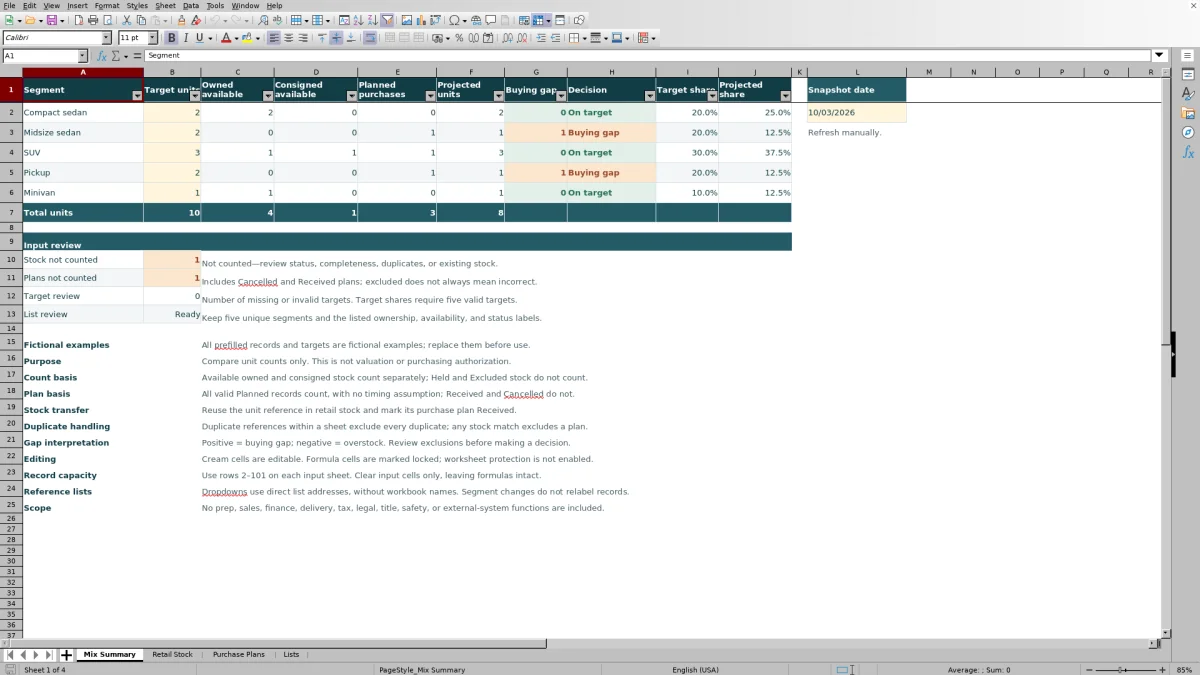
Before planning your next buys, compare the cars you want to carry with available stock and purchases already planned. The Car Dealer Sheets stock mix planner is an Excel workbook that shows unit gaps and overstock across five segments.
You enter targets, retail stock and purchase plans; the summary calculates projected counts and segment shares. Use it to organize a buying review, not to value cars or authorize purchases. All prefilled records and targets are fictional examples and should be replaced before use.
When to use this workbook
- Focus your buying review on segments below your recorded unit targets.
- See how planned purchases affect the mix before treating a gap as an unfilled need.
- Keep owned and consigned availability visible separately within the projected total.
- Check excluded records before acting on an apparent shortage or surplus.
What is in the file
How to use the workbook
1. Set your segments and targets
Review the five segment names in Lists, cells A2:A6. Keep five unique, nonblank names and retain the displayed ownership, availability and plan-status labels. Enter your desired whole-number counts, including zero where appropriate, in Target units on Mix Summary, cells B2:B6.
2. Replace the retail stock examples
In Retail Stock, enter one car per row using Unit reference, Segment, Ownership and Availability. Use a unique text stock number or other consistent unit reference. Enter data within rows 2–101, and leave Counted units formulas intact. Only qualifying records marked Available contribute to the summary.
3. Enter prospective purchases
In Purchase Plans, replace the examples with one prospective unit per row. Complete Unit reference, Segment and Plan status within rows 2–101. Choose Planned for a current plan; Received and Cancelled records do not add projected units.
4. Resolve exclusions and review the mix
On Mix Summary, check Input review before relying on Buying gap or Decision. Investigate unexpected exclusions on the input sheets, then compare Target units with Projected units. A positive gap means fewer projected units than your target; a negative gap means more.
5. Date and retain your review
Manually update Snapshot date in Mix Summary, cell L2, using MM/DD/YYYY. After checking the records, save a dated copy if you need a record of that review. The date is a manual label, not a cutoff that limits which purchase plans count.
Set unit targets before interpreting segment shares
Your targets are desired car counts, not percentages entered directly. Set a nonnegative whole number for each of the five segments. A zero is a deliberate target of no units; a blank leaves the target unset and produces Set target in Decision. An invalid entry produces Review target.
Target share expresses a segment's target as a percentage of total target units. Projected share expresses that segment's projected units as a percentage of all projected units. Read shares alongside unit gaps: a segment can have a different percentage share even when its unit count is on target, because other segments are short or over.
Target shares require five valid targets and a nonzero target total. Projected shares remain blank when the projected total is zero. Do not interpret those blanks as a 0% mix; complete the targets or review the counted records first. The workbook compares the targets you supply—it does not determine what demand should be.
Separate available stock from the broader stock list
A car entered in Retail Stock is not automatically included in available units. To contribute one unit, its record needs a unique, nonblank Unit reference, a recognized Segment, valid Ownership and Availability set to Available. Owned and Consigned units appear separately on Mix Summary, then both contribute to Projected units.
Held and Excluded stock contribute no units. Before changing a status to close an apparent gap, confirm that the new status accurately describes the car. The count follows your recorded availability; it does not verify physical stock or readiness to sell.
Use the sheet's filters to inspect availability and Counted units when the summary differs from your expectation. A car may be present in the list but intentionally absent from the buying calculation.
Fictional example: when planned buys create overstock
Suppose your target for sport utility vehicles (SUVs) is 4 units. You record 2 available owned SUVs, 1 available consigned SUV and 2 valid Planned purchases with unique references that do not appear in Retail Stock. These fictional inputs produce 5 projected units: 2 + 1 + 2 = 5.
Buying gap subtracts projected units from target units, so 4 − 5 = −1. Decision shows Overstock. This means the projection is one unit above your target, even though only three units are currently counted as available stock.
If all five segments together have 20 target units and 20 projected units, the SUV Target share is 4 ÷ 20 = 20.0%, while Projected share is 5 ÷ 20 = 25.0%. Review the two planned buys before adding another SUV. Check whether both plans are still current and whether you still want the four-unit target; the result alone is not a reason to cancel a purchase or change an asking price.
Move a purchase plan into retail stock without counting it twice
When a planned unit becomes retail stock, reuse its Unit reference in Retail Stock and change its Plan status in Purchase Plans to Received. Complete the stock record and select the appropriate availability. This keeps the plan's status consistent with the move.
Any matching retail stock reference excludes the plan, even if that stock row is Held, Excluded or otherwise not counted. If the received car is Held, it contributes neither a planned unit nor an available unit. That can increase the buying gap; review the held car before interpreting the gap as a need for another purchase.
All otherwise valid Planned records count without a timing assumption. The planner has no arrival-date calculation, so a projected total can include purchases that will not be available for the same selling period. Confirm timing separately before committing to additional units.
Errors and solutions for unexpected zeros and missing counts
Counted units shows 1 for a contributing record, 0 for a populated record that does not qualify, and a blank for an unused row. Start with Stock not counted and Plans not counted under Input review, then inspect the affected input rows. An exclusion is not always an error: Held stock and Cancelled or Received plans are expected exclusions.
- Duplicate references exclude every duplicate within that sheet, rather than keeping the first occurrence. Verify the real unit identities and correct or clear redundant input entries.
- For incomplete records, fill in the missing reference or required choices. Use the dropdowns to select recognized labels; pasted data still needs review.
- For an unexpected zero on a Planned row, check whether its reference already appears anywhere in Retail Stock.
- For target warnings, enter whole-number targets of zero or more. Check Target review before interpreting shares.
- For a List review warning, restore five unique segment names and the displayed controlled labels. If you renamed a segment, update its existing input records too.
Correct the underlying inputs rather than typing over Counted units or the summary results. Otherwise, the displayed totals may no longer follow the workbook's counting rules.
Use the snapshot as a count review, not a purchase approval
The planner compares unit counts only. It does not calculate acquisition cost, prep costs, asking prices, margins or market values. A Buying gap identifies a shortage against your chosen target, not whether a particular car is affordable or suitable to buy.
Before acting, confirm the current stock position, the status of planned purchases and your purchasing budget using the relevant records outside this workbook. Likewise, Overstock means above your target count; it does not establish that a vehicle is overpriced or should be discounted.
Refresh the inputs and Snapshot date for each review. Saving a dated copy is a practical way to retain the reviewed position, but you should not assume that changing the date refreshes stock records or preserves prior versions.
Compare this planner with a blank spreadsheet
Choose based on whether the fixed five-segment, unit-count approach matches your buying review. This workbook supplies the counting structure; a blank spreadsheet lets you design a different structure but requires you to create and check the calculations.
| Method | Setup work | Counting approach | Scope and limits | Suitable need |
|---|---|---|---|---|
| Car Dealer Sheets stock mix planner | Replace fictional inputs, set segments and enter targets. | Provided formulas separate ownership, include eligible plans and exclude specified duplicate or incomplete records. | Five segments and 100 records per input sheet; unit counts only. | A repeatable review of targets against available stock and planned buys. |
| Blank spreadsheet | Design the fields, calculations and review checks yourself. | Depends on the rules and formulas you build. | Structure is your choice; calculations need to be established and checked. | A custom review requiring different categories or additional measures. |
Use the planner when its defined count basis fits your task. Consider a custom spreadsheet when you need a different segment structure or a combined cost-and-count analysis. If you need this review connected to wider dealership processes, assess specialized dealer management software against your actual requirements rather than assuming this workbook provides those connections.
Frequently asked questions
Can I rename the five stock segments?
Yes. Edit Lists, cells A2:A6, while keeping exactly five unique, nonblank segment names. The summary uses those names, but existing Retail Stock and Purchase Plans entries are not relabeled automatically. Update the affected records and recheck their counts. Keep the ownership, availability and plan-status spellings unchanged because they have fixed meanings.
How many cars and purchase plans can I enter?
The provided capacity is 100 Retail Stock records and 100 Purchase Plans records, using rows 2–101 on each sheet. Each qualifying row contributes one unit. Do not assume entries below row 101 will be included; the provided calculation ranges stop there.
Are formula cells protected from accidental changes?
No. Formula cells are marked locked, but worksheet protection is not enabled. Edit the cream input cells and preserve formulas. When clearing records, clear only the input cells rather than deleting whole rows or overwriting Counted units.
Do I need a vehicle identification number for each record?
The workbook uses Unit reference, not a required vehicle identification number (VIN) field. Enter a unique, nonblank text reference, such as your stock number, and use it consistently when moving a plan into retail stock. The prefilled FX references are fictional stock references, not VINs.
Does On target mean I should stop buying that segment?
Not by itself. On target means projected units equal the target you entered. Projected units include qualifying planned purchases as well as available owned and consigned stock. Check those plans, current availability and whether the target still reflects your needs before making another buying decision.
Editorial areas

Owen AshfordVehicle stock & purchasing
About this editorial area →
Mara WestbrookSales records & delivery
About this editorial area →

