
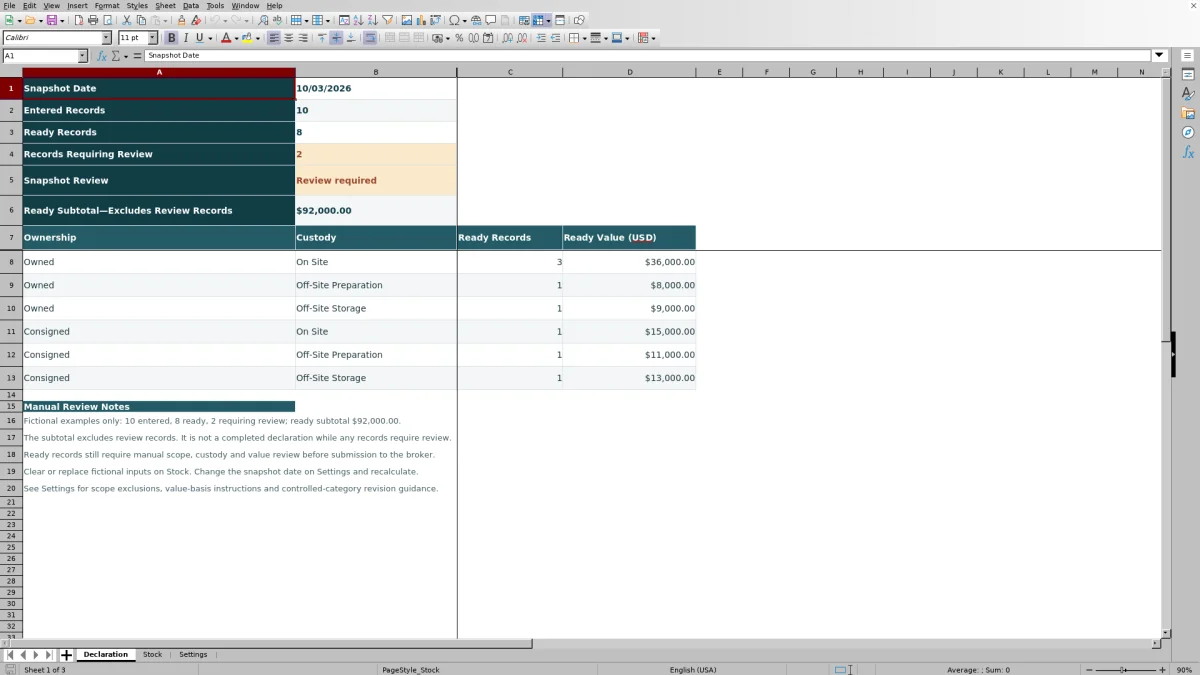
When preparing a stock insurance declaration for your broker, you need a dated list of the vehicles in scope and the values you intend to report. This Car Dealer Sheets Excel workbook groups your entered values by ownership and custody so you can check the snapshot before submission.
The workbook flags records that need attention and totals only those marked Ready. Ready means ready for manual review, not approved coverage or a completed declaration. You supply the values and confirm the scope; the file does not determine coverage or premiums.
When to use this workbook
- Review entered, ready and flagged record counts together before using the declaration subtotal.
- Separate owned and consigned stock across on-site, off-site preparation and off-site storage categories.
- Find missing details, duplicate stock references and invalid entries before manually submitting your figures.
- Keep each entered USD value alongside its value date for a dated stock review.
What is in the file
How to use the workbook
1. Set the snapshot date and clear the examples
Enter the intended snapshot date in Settings!B2 using MM/DD/YYYY. Clear or replace the fictional inputs in Stock columns A–F, leaving the Review Status formulas in column G intact. The fictional example note on Declaration is explanatory text, not your current result.
2. Confirm which vehicles and values belong in the snapshot
Read the scope instructions on Settings and obtain the declaration value basis from your broker. Include only owned or consigned, unsold retail stock held on the snapshot date. Do not substitute asking prices or acquisition costs without confirming the required basis.
3. Enter one record per vehicle
Use Stock rows 2–101. Enter a unique stock number in Stock Reference, a Vehicle Description, Ownership, Custody, Entered Declaration Value (USD) and Value As Of Date. Choose the supplied categories, enter a positive numeric value, and use a value date no later than the snapshot date.
4. Resolve flags and review the summary
Recalculate the workbook, then use the Stock filter to inspect Review Status. Correct flagged inputs rather than overwriting the formulas. On Declaration, review the record counts, all six category subtotals and Snapshot Review. Confirm the underlying scope, custody and values manually before preparing your broker submission.
Decide which retail stock belongs in the snapshot
Start with the vehicles your dealership held on the selected date, not every vehicle appearing in your wider records. The workbook's stated scope is owned or consigned, unsold retail stock. Its instructions exclude purchase prospects, sold vehicles awaiting delivery, fleet vehicles and repair-shop customer vehicles.
Scope is a manual decision. Stock has no sold-status field or formula that establishes whether a vehicle is unsold. A complete row for an out-of-scope vehicle can still pass the entry checks. Compare your list with the supporting dealership records before relying on the summary.
Keep this file focused on the declaration task. The instructions say not to enter customer data, vehicle identification numbers (VINs), credit details, deal finance, expected funds or settled receipts. Use the stock reference and description to identify the vehicle within this worksheet.
Enter the broker's value basis, not a price assumption
Ask your broker what value basis is required before filling Entered Declaration Value (USD). The workbook accepts the amount you enter; it does not calculate a valuation or supply valuation assumptions. Its instructions distinguish declaration value from asking price, sale price, estimated prep cost and actual invoice amount.
For each vehicle, enter the amount in USD and record Value As Of Date in MM/DD/YYYY. The date checks require a valid numeric date no later than Settings!B2. A date that passes this check does not establish that the value is current enough for your broker's requirements.
A valid entry is not a verified value. Check the amount and its basis against your supporting information. If the basis remains unresolved, do not invent a figure just to make the row Ready. Resolve the question before treating the declaration as complete.
Example: why a $92,000 ready subtotal is still unfinished
The workbook includes a fictional example described as 10 entered records, 8 ready records and 2 records requiring review, with a ready subtotal of $92,000.00 USD. Those figures illustrate how the summary works; they are not dealership data or a recommended declaration amount.
The category formulas count and sum only rows marked Ready. Declaration!B6 then adds the six ready-value subtotals in D8:D13. In this fictional example, the $92,000.00 result represents the entered values of the eight ready records, not the value of all ten entered records.
Review records are excluded from the subtotal. The next decision is to investigate the two flagged records and establish whether they belong in the snapshot. Correcting their entries may change the counts and total; the example does not establish their missing or valid values.
Use the calculated cells for your current results. The fictional explanation in Declaration!A16 is fixed text and does not update when you replace the sample inputs.
Fix entry problems before using the declaration total
Use Review Status on Stock to locate records that are excluded from the ready subtotal. Work through the underlying inputs and recalculate after corrections. A row can have more than one problem, so fixing the first reported issue may reveal another.
- Incomplete: Fill the missing entries in columns A–F, or clear the entire input row if it does not belong in this snapshot. Completely blank input rows are ignored.
- Duplicate reference: Check whether you entered the same vehicle twice or assigned the same stock number to different vehicles. Correct the actual record issue rather than adding a suffix simply to bypass the check.
- Category or value problems: Use the choices supplied in Settings and enter a positive number in Entered Declaration Value (USD). Zero, negative and text values do not meet the row checks.
- Date problems: Check both Settings!B2 and Value As Of Date. Enter actual spreadsheet dates rather than text that only looks like a date, and make sure the value date is not after the snapshot date.
On Declaration, Check snapshot date calls for correcting the date setting first. No records means the status range contains no entered records; it does not mean the dealership has no stock. Review required means at least one entered record is not Ready. Ready for manual review still leaves the scope and value checks to you.
Separate ownership from custody without implying coverage
Ownership uses Owned and Consigned. Custody uses On Site, Off-Site Preparation and Off-Site Storage. Declaration combines these into six groups so you can see both how stock is held and where it is recorded as being kept.
For example, a fictional consigned car held away from the dealership for prep would use Consigned and Off-Site Preparation, provided it meets the snapshot scope. That category records custody only. It does not track prep jobs, invoices or the work's completion.
These are worksheet categories, not coverage classifications. Confirm the recorded circumstances and ask your broker how they should be reported. No category establishes that a vehicle or location is covered.
If you need different categories, treat that as a controlled workbook revision rather than casually adding another list item. Validation and summary labels reference the Settings cells directly. Preserve unique, nonblank choices and review all six subtotals after any change; an added category is not automatically a new summary group.
Know the snapshot and capacity limits
This is a single manual snapshot, not a live inventory feed. Changing the date does not reconstruct earlier stock holdings, update custody or replace entered values. For each new snapshot, reconcile the vehicle list and supporting values to the selected date, then retain a dated copy outside your working file if you need a record of what you prepared.
The supplied input and calculation ranges cover Stock rows 2–101: 100 records. Declaration formulas reference that fixed range. Entries below row 101 are outside the supplied summary calculations, so do not assume that adding a row expands the workbook.
If you need more capacity, have the formulas, validation and summary ranges revised and checked together before relying on the result. Also preserve the formula cells: the entered-record count is derived from Review Status, so replacing those formulas can undermine the summary.
The workbook does not verify legal title, certify roadworthiness or submit registrations. It supplies no legal deadlines, regulatory rates or tax calculations, and submission to the broker remains a manual step.
Compare the workbook with a blank sheet or paper register
Choose the method according to how much structure you need for this declaration task. This workbook supplies a defined entry layout and ready-only calculations. A blank spreadsheet or paper register may suit a different layout, but you must establish your own checking and totaling process.
| Method | Entry structure | Checks and totals | Practical limit |
|---|---|---|---|
| Car Dealer Sheets workbook | 100 rows with two ownership and three custody categories | Formula-based row checks and six ready-only subtotals | Fixed ranges; scope and values still require manual confirmation |
| Blank spreadsheet | You design the fields and categories | You must create and check formulas or total entries manually | Requires setup before it provides a repeatable declaration process |
| Paper register | You record each vehicle and its supporting details by hand | Review, grouping and arithmetic are manual | Corrections and subtotal reconciliation need a separate manual process |
Use this workbook when its scope, categories and 100-record capacity fit your snapshot. Choose a custom register when the reporting structure differs substantially. If you need live stock updates, larger-scale records or a submission workflow, evaluate specialized dealer management software against those specific needs rather than assuming this worksheet provides them.
Frequently asked questions
Does Ready mean a vehicle is insured?
No. Ready indicates that the row has passed the workbook's entry checks and is ready for manual review. It does not establish coverage, approve a value or confirm that the vehicle belongs in your broker declaration.
Why is the ready subtotal lower than the values I entered?
Incomplete, duplicate and invalid records are excluded from the ready subtotal. Check Records Requiring Review on Declaration, then inspect Review Status on Stock. Do not use the smaller subtotal as a completed declaration while unresolved records remain.
Does filtering Stock change the Declaration totals?
No. The Declaration formulas use the fixed Stock ranges and the Ready status, ownership and custody criteria. Filtering Stock helps you inspect records, but it does not change which qualifying rows the summary counts or sums.
Can I use acquisition cost as the declaration value?
Only use a value basis confirmed for your declaration task by your broker. The workbook does not choose the basis or derive a declaration value from acquisition cost, prep costs or asking price. Enter the required amount manually in USD and record its value date.
What should I check if the summary has not changed after editing?
Recalculate the workbook after changing inputs or the snapshot date. Then confirm that your entries are within Stock rows 2–101 and that the Review Status and Declaration formulas have not been replaced. Read the calculated results rather than the fixed fictional example note on Declaration.
Editorial areas

Owen AshfordVehicle stock & purchasing
About this editorial area →
Mara WestbrookSales records & delivery
About this editorial area →

