
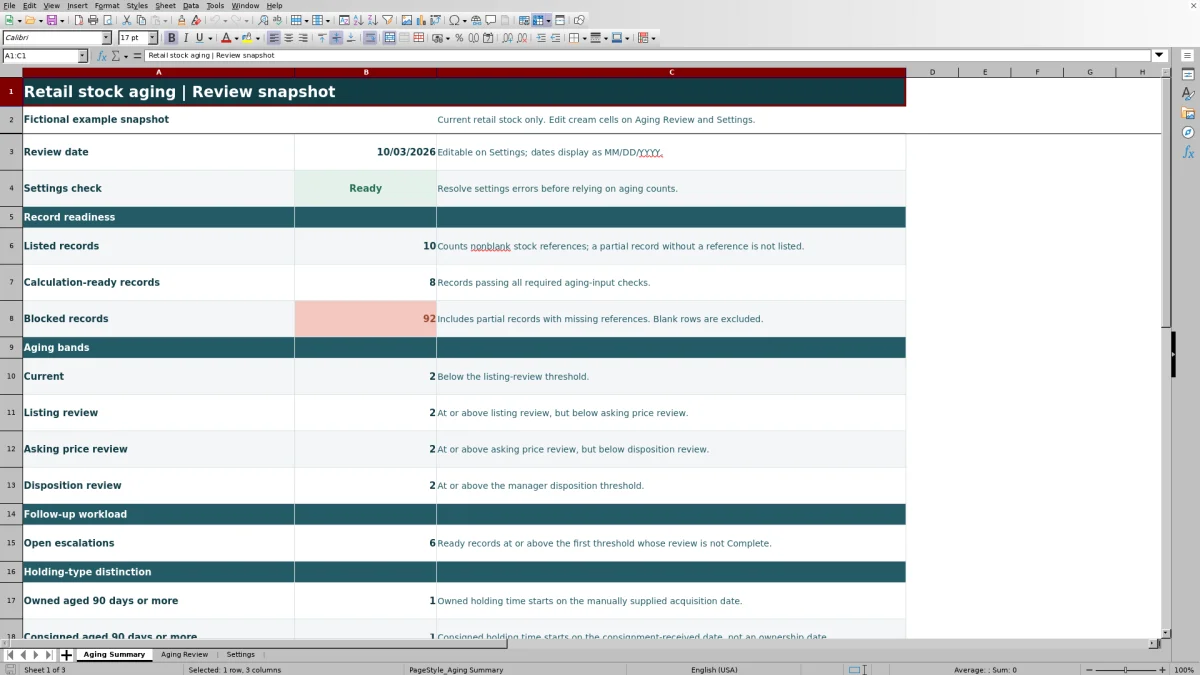
When retail stock sits longer than planned, use its holding time to decide what needs attention next. This Car Dealer Sheets Excel workbook calculates days held and assigns a listing, asking price, or manager disposition review using thresholds you set.
Use it as a current-stock review snapshot, not a second inventory register. Enter the stock number, holding type, and start date, then record the responsible role and review status to organize follow-up.
When to use this workbook
- Focus your review on vehicles that have reached your chosen aging thresholds.
- Give staff a clear review action and a place to record responsibility and progress.
- Distinguish owned acquisition dates from consignment-received dates when measuring holding time.
- See blocked records alongside aging totals so missing inputs do not go unnoticed.
What is in the file
How to use the workbook
1. Set the review date and thresholds
On Settings, use B2 for the review date and B3–B5 for the three escalation thresholds. Keep =TODAY() for a rolling review or enter a fixed date displayed as MM/DD/YYYY. Thresholds must be positive whole days in strictly increasing order. Confirm that Settings check reads Ready.
2. Replace the fictional records
Rows 2–11 on Aging Review contain fictional examples. Replace or clear their inputs before using the report for your dealership. Enter one currently held retail vehicle per row in Stock reference, Holding type, and Holding start date. Use your stock number as the reference, choose Owned or Consigned, and enter the acquisition date for owned stock or the consignment-received date for consigned stock.
3. Resolve checks and assign responsibility
Read Input check before relying on Days held or Aging band. Correct blocked inputs, then enter Responsible role and choose Not started, In review, or Complete in Review status. Edit the pale cream input cells in columns A–C and G–H; retain the formulas in D–F and I.
4. Review the workload and maintain the snapshot
Use Aging Summary to check readiness, aging bands, and Open escalations. Filter Aging Review to inspect the relevant records. For the next review, remove sold or returned vehicles by clearing all five input cells in A–C and G–H while keeping the formulas. The workbook does not synchronize this list with your inventory records.
Choose a consistent date basis for the review
Days held is elapsed calendar time: the review date minus Holding start date. A valid vehicle entered with the same start date as the review date has zero days held. This is not a count of selling days or days since the listing went live.
For Owned stock, enter the acquisition date manually. For Consigned stock, enter the date the dealership received the vehicle on consignment. Both can inform a stock review, but consignment holding time is not an ownership period.
A fixed review date keeps the date basis consistent for a meeting or saved snapshot. With =TODAY() in Settings B2, the date follows the current day when the workbook recalculates, so results can change without a change to the vehicle inputs. Save a separate dated copy if you need to retain a previous review.
Turn aging thresholds into review priorities
The default thresholds are 30, 60, and 90 days. The threshold day starts the new band, even though the Settings labels use the wording “starts after this many days.” With the defaults, the assignments are:
- 0–29 days: Current, with Routine monitoring.
- 30–59 days: Listing review, with Review listing.
- 60–89 days: Asking price review, with Review asking price.
- 90 days or more: Disposition review, with Manager disposition review.
Use those prompts to decide which discussion comes next. A listing review can begin with checking the vehicle’s advertised details; an asking price review calls for your own pricing assessment. The workbook assigns the review category but does not inspect listings, calculate a market value, recommend a price, or choose a disposition.
Change Settings B3–B5 if your dealership uses different escalation points. These are business assumptions, not legal deadlines or guaranteed selling periods. Confirm Settings check is Ready after editing them.
Fictional example: a vehicle reaches asking price review
For this fictional example, set the review date to 10/03/2026 and keep the 30-, 60-, and 90-day thresholds. Enter stock reference EXAMPLE-060, select Owned, and enter an acquisition date of 08/04/2026. Assuming the required inputs pass the checks, the date difference is 60 calendar days.
The result is Asking price review, with Review asking price as the assigned action. At exactly 60 days, the vehicle has crossed the second threshold; it is no longer in Listing review. Assign the responsible role and review the asking price using information outside this workbook before deciding whether to change it.
If Review status is Not started, In review, or blank, this ready record contributes to Open escalations. Changing the status to Complete removes it from that count, but Days held remains 60 and its aging band remains Asking price review for this fixed date.
Keep review completion separate from vehicle age
Assigned review action comes from the aging band. Responsible role is entered by you, and Review status records progress through Not started, In review, or Complete. Assigning a role in the file does not send that person a message.
Complete closes the recorded review, not the aging clock. It does not reset days held or remove age highlighting. Before each new review, inspect previously completed records that still need attention and update their status manually as appropriate.
This matters when a vehicle moves into a higher band. Its assigned action changes with its calculated age, but Complete is still a manual status. Do not treat Open escalations as a complete work queue without checking whether older completed records need another review.
Read the summary without overlooking incomplete stock
Start with Settings check and Blocked records before interpreting the aging bands. Only calculation-ready records receive aging results. A low aged-stock count can therefore reflect missing inputs rather than a younger stock list.
Listed records counts nonblank Stock reference cells. Blocked records also includes partially entered rows without a stock reference, while completely blank rows are excluded. As a result, listed records does not always equal ready records plus blocked records. Resolve partial rows rather than forcing the totals to match.
Open escalations counts ready records at or above the first threshold whose Review status is not Complete. A blank status still counts as open. The owned and consigned aged counts use the highest threshold in Settings B5 and do not exclude completed reviews. They describe holding time, not outstanding review work.
Errors and solutions for blocked aging calculations
A blank age is not a zero-day holding period. If Days held, Aging band, and Assigned review action are blank on a populated row, read Input check and address the issue before using that vehicle in the review.
- Check settings: verify the review date and ensure the three thresholds are positive whole days in strictly increasing order.
- Missing stock reference: enter the stock number, or clear all five input cells if the row should be removed.
- Duplicate stock reference: reconcile the repeated entries against your stock records and retain one row per currently held vehicle.
- Check holding type: select Owned or Consigned.
- Missing, invalid, or future holding date: enter a valid date on or before the chosen review date, using the correct date basis for the holding type.
A date that appears correct on screen may have been entered as text. Re-enter it as a date and confirm that Input check changes to Ready. Ready means the required aging-input checks passed; it does not verify the underlying acquisition or consignment documentation, title, or roadworthiness.
Compare the workbook with a blank spreadsheet or paper log
Choose the method based on how much structure you need for the aging review. This workbook supplies a defined calculation and follow-up layout, but it still depends on manual stock inputs and review decisions.
| Method | Initial setup | Aging calculations | Follow-up record | Ongoing upkeep |
|---|---|---|---|---|
| This workbook | Set the review date and thresholds, then replace the examples. | Prepared formulas and input checks cover 100 rows. | Assigned action, responsible role, status, and summary counts. | Manually update current stock and review status. |
| Blank spreadsheet | Design your own fields, formulas, and checks. | Depend on the calculations you build. | Define your own responsibility and progress fields. | Maintain both stock entries and the spreadsheet structure. |
| Paper log | Create a written review layout. | Calculate and update elapsed days manually. | Write actions, responsibility, and completion notes. | Recheck dates and tally the workload manually. |
Use this workbook when its current-stock snapshot and prepared review rules fit your process. A blank spreadsheet may suit a deliberately different review layout. A paper log may suit a small manual review where you accept recalculating dates and totals yourself. If you need connected stock and deal administration, assess specialized dealer management software separately; this workbook does not synchronize records or manage deals.
Frequently asked questions
How many vehicles can I include?
Aging Review has 100 prepared rows, from row 2 through row 101. The summary formulas reference that range. Entries below row 101 are outside the prepared calculations and summary ranges, so do not assume that adding rows extends the report correctly.
Should sold or returned vehicles stay in the report?
No. The snapshot is for currently held owned or consigned retail stock. Remove sold or returned vehicles from the next review by clearing columns A–C and G–H on their rows, leaving formulas in D–F and I. Keep historical stock and transaction records separately.
Does the workbook calculate holding costs or a suggested asking price?
No. It calculates holding time and assigns review actions, not financial results. There are no acquisition-cost, prep-cost, holding-cost, valuation, or suggested-price calculations in this workbook. Use your supporting financial and pricing records when deciding what action to take.
Are the sample stock references real vehicles or VINs?
No. FICTION-001 through FICTION-010 in rows 2–11 are fictional stock references, not vehicle identification numbers (VINs). The examples include blocked records to illustrate input problems. Replace or clear them before relying on dealership totals; their aging results can also change with the rolling review date.
Does the report enforce deadlines or notify staff?
No. The thresholds are editable operating assumptions, not legal deadlines. The workbook records a responsible role and review status but does not send messages or verify legal requirements. You must arrange follow-up outside the file and make the stock decisions yourself.
Editorial areas

Owen AshfordVehicle stock & purchasing
About this editorial area →
Mara WestbrookSales records & delivery
About this editorial area →

