
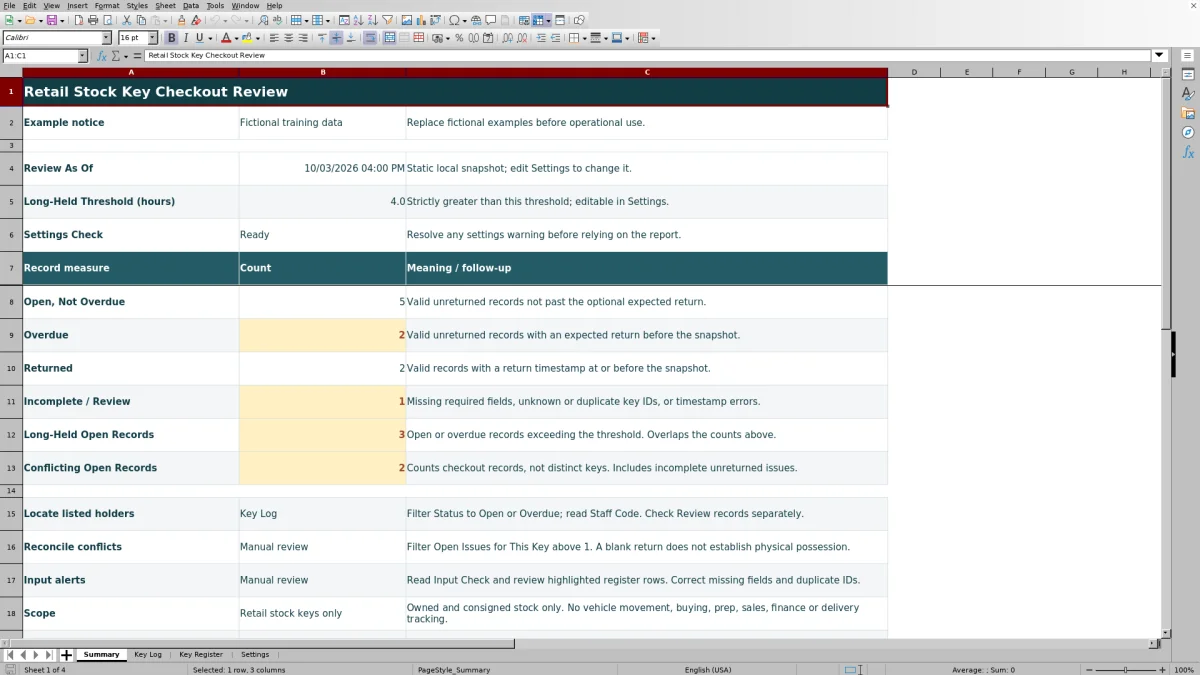
When a stock key is missing from its usual place, check who signed it out before assuming the car has moved. This Car Dealer Sheets Excel workbook records key issues and returns so you can follow up with the listed staff member.
The car dealer key checkout log covers physical key sets for owned and consigned retail stock. It flags recorded exceptions at a review time you enter; it does not track vehicle movements or establish who physically holds a key.
When to use this workbook
- Find the listed staff member for an unreturned checkout without using a vehicle movement record.
- Prioritize follow-up using expected return times and an editable long-held threshold.
- Spot multiple unreturned checkout records for the same key ID before relying on a listed holder.
- Keep separate checkout records for repeated use of the same physical key set.
What is in the file
How to use the workbook
1. Replace the training inputs and register your keys
The supplied entries are fictional training data. Replace the example inputs while retaining formulas. In Key Register, assign a unique text Key ID to each physical key set. Enter your stock reference in the column currently labeled Fictional Stock Reference, and select Owned or Consigned under Stock Type. Give separate key sets for the same car separate IDs.
2. Set the review time and follow-up threshold
In Settings, enter Review As Of in B2 and Long-Held Threshold (hours) in B3. Use a local date and time displayed as MM/DD/YYYY hh:mm AM/PM and a positive number of hours. Check that Settings Check says Ready, and keep spreadsheet calculation enabled. The review time stays fixed until you edit it.
3. Record each checkout and return
Use one Key Log row per checkout. Enter Key ID, Staff Code and Checked Out At in columns A–C. Expected Return At is optional; leave Returned At blank until the key is returned, then record the actual return time on that same row. Use a new row for the next checkout. Columns F–I contain formulas, not inputs.
4. Review exceptions before contacting holders
Update the snapshot for your review, then check Summary. In Key Log, resolve Input Check messages, filter Status to Open or Overdue, and read Staff Code. Review records marked Review separately. Also check Open Issues for This Key for values above 1 and reconcile those entries before deciding which staff member to contact.
Use the snapshot to make a current key review
Review As Of is the reference point for status and elapsed hours. Before an end-of-day check, enter the local date and time you want to review in Settings!B2. Leaving yesterday’s value in place means today’s elapsed hours will not be reflected. A checkout or return entered after that snapshot can also trigger a timestamp warning.
An otherwise valid, unreturned record becomes Overdue only when Expected Return At is earlier than the snapshot. A return due exactly at the snapshot is not overdue. With no expected return entered, the record remains Open, but it can still exceed your long-held threshold.
Overdue and long-held answer different questions. Overdue means the staff estimate has passed. Long-held means the elapsed time exceeds the hours threshold, whether or not an expected return was entered. Neither is a legal deadline, and the workbook does not send follow-up messages.
Example: deciding which checkout needs follow-up
In this fictional example, K02 is registered once and has a valid checkout to STAFF-B at 10/03/2026 10:00 AM. Expected Return At is 10/03/2026 12:00 PM, Returned At is blank, and Review As Of is 10/03/2026 04:00 PM. With no input errors, the record is Overdue because the expected return is before the review time.
Hours Outstanding is the time between checkout and review, expressed in hours. Here, 04:00 PM minus 10:00 AM equals 6.0 hours outstanding. The formula subtracts the checkout timestamp from the snapshot and multiplies the result by 24, converting spreadsheet days to hours. With Long-Held Threshold (hours) set to 4, this record also counts as long-held because 6 is greater than 4.
The next action is to contact the listed staff member and check the key’s location, not conclude that the key is lost. If you confirm it was returned at 03:30 PM, enter 10/03/2026 03:30 PM in Returned At. At the 04:00 PM snapshot, the valid record then becomes Returned and no longer contributes to the long-held open count. A record held for exactly 4 hours would not exceed a 4-hour threshold.
Resolve conflicting holders by physical key set
A stock number identifies the car in your records; Key ID identifies one physical key set. If a car has two sets, register each with its own ID and use the stock reference to associate them with the same car. Reusing one ID for both sets makes the checkout history ambiguous.
Open Issues for This Key counts matching Key Log records with a positive checkout timestamp and no return timestamp. It can include incomplete entries, so a conflict is not limited to rows whose Status is Open or Overdue. Filter this field above 1, then read each matching row and speak with the listed staff members.
A blank return is not proof of possession. Two unreturned records might reflect a missed return entry or an incorrect checkout entry. Confirm what happened before correcting the record. Summary counts conflicting checkout records, not distinct keys: two qualifying unreturned rows for one key contribute two records to that measure.
Input errors and solutions before using the counts
Use the warning text to choose the correction rather than overwriting Status. Status and Input Check are formula results.
- Check required fields or key ID: confirm Key ID, Staff Code and a numeric Checked Out At value are present. The key ID must appear exactly once in Key Register. Correct an unknown ID or duplicate register entry before relying on the status.
- Check timestamps: look for a checkout after Review As Of, an expected return before checkout, or a return before checkout or after the snapshot. Date text that is not recognized as a spreadsheet timestamp can also cause a warning. Verify the actual event time before changing it.
- Review settings: enter a valid positive timestamp and a positive hours threshold in Settings. Resolve this warning before relying on Summary.
- Highlighted Key Register rows: check for missing stock references, duplicate IDs or invalid entries, including Stock Type. Register alerts need their own review; not every register problem is represented by a Key Log status.
Validation checks typed edits, but pasted data can bypass those checks. After pasting, inspect Input Check, highlighted register rows and Settings Check. These checks help identify specified input problems; they do not verify that a key was actually issued or returned.
Read the Summary without double-counting exceptions
Start with Incomplete / Review so missing or invalid records do not disappear from your attention. Then work through Overdue and Open, Not Overdue to locate the listed holders. Returned counts valid checkout records with a return timestamp at or before the snapshot.
Do not add every Summary count together. Long-Held Open Records overlaps the Open and Overdue categories. Conflicting Open Records is another exception measure and can include incomplete unreturned issues. These are different views of records, not separate groups of physical keys.
A practical review ends with the exceptions reconciled against staff responses and the keys you can locate. A zero Overdue count alone does not mean all keys are back: there may still be Open records without an expected return, Review records needing correction, or conflicting entries. The Summary is a follow-up list, not a physical key count.
Plan for the workbook’s record and task limits
The prepared Key Log and Key Register areas each run from row 2 through row 101. Summary formulas, the key-ID lookup and conflict counts refer to those fixed ranges. Repeated checkouts consume separate log rows, even when they concern the same key.
Do not assume that adding a row below 101 brings it into every calculation. If you need more capacity, have the affected formula ranges, validation and summary references extended and checked before relying on the additional records. Keep completed records rather than overwriting earlier checkouts just to create space.
The workbook is limited to retail stock key administration for owned and consigned vehicles. It does not record vehicle movements, buying, prep, sales, deal finance or handover. Stock references and staff codes do not create integrations with other systems; there is no synchronization. Keep customer, address, license and credit details out of this log.
Compare the workbook with a blank spreadsheet or paper log
Choose the method around how you will record each handoff and review unreturned keys. This workbook provides a prepared register, checkout log and exception summary. A blank spreadsheet leaves you to design those rules, while a paper log relies on a manual review of entries.
| Method | Setup | Exception review | Operating limits |
|---|---|---|---|
| Car Dealer Sheets workbook | Replace fictional inputs, register keys and set the review time. | Calculated statuses, elapsed hours and conflict counts within prepared ranges. | Manual entry and snapshot updates; 100 prepared rows per register or log. |
| Blank spreadsheet | Create your own fields, formulas and input checks. | Depends on the calculations and review process you build. | You must define and check the record boundaries and reporting ranges. |
| Paper checkout log | Prepare columns for key ID, holder, checkout and return. | Read entries and compare times manually. | No spreadsheet-calculated exception counts; physical location still needs confirmation. |
Use this workbook when you want the implemented exception rules and can maintain a manual key log within its prepared capacity. Choose a blank spreadsheet when your process needs a different structure and you can build and check it. A paper log may suit a desk-based process where staff will consistently record handoffs and someone will review it. If your requirement includes broader connected dealer operations, evaluate specialized dealer management software against that requirement rather than treating this key log as a replacement.
Frequently asked questions
Can one vehicle have more than one key ID?
Yes. Each Key ID identifies one physical key set, so a car with two sets should have two unique IDs. Record the same stock reference for those sets in Key Register so you can associate them with the car without combining their checkout records.
Do I have to enter an expected return time?
No. Expected Return At is an optional staff estimate. Without it, a valid unreturned record stays Open rather than becoming Overdue. It can still appear in Long-Held Open Records when its hours outstanding exceed the threshold in Settings.
Why is Hours Outstanding blank on some rows?
Hours Outstanding is calculated only for records marked Open or Overdue. Returned, Review and unused rows show no elapsed-hours result. A blank is therefore not the same as zero hours; check Status and Input Check to understand the row.
Can I move the snapshot backward to reconstruct an earlier day?
Do not treat the snapshot setting as a historical reconstruction tool. A checkout or return timestamp after the selected snapshot triggers Review rather than recreating that record’s earlier status. Use Review As Of for a deliberate review of the recorded entries, and retain dated copies if you need a record of what you reviewed at a particular time.
Does Staff Code confirm the current holder or notify them?
No. Staff Code records the person listed on the checkout entry; it does not verify identity or current possession, and the workbook sends no messages. Use a code your team can consistently associate with a staff member, reconcile conflicting records, and contact that person through your normal process.
Editorial areas

Owen AshfordVehicle stock & purchasing
About this editorial area →
Mara WestbrookSales records & delivery
About this editorial area →

