
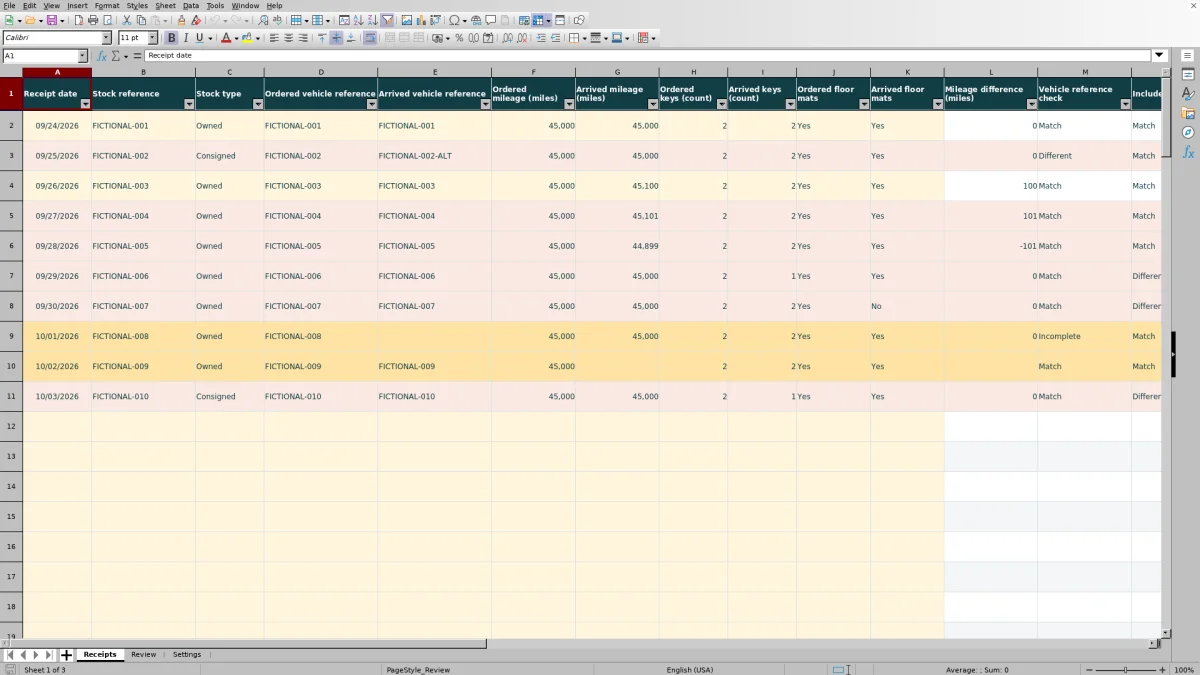
When a used car arrives, compare its identity, mileage and included items with the order before passing receipt differences to purchasing. The Car Dealer Sheets incoming vehicle discrepancy report workbook organizes those checks for owned or consigned retail stock.
You enter the order and arrival details, review the calculated results, and record when you notified purchasing. This Excel resource supports receiving comparison only; it does not inspect the vehicle, send messages or resolve a discrepancy.
When to use this workbook
- Keep ordered and arrived details side by side for a clearer receiving review.
- Separate missing inputs from receipt differences before deciding what to send to purchasing.
- Apply one entered mileage tolerance across the prepared receipt rows.
- Find discrepant receipts that still need a manually recorded purchasing notification.
What is in the file
How to use the workbook
1. Confirm the mileage rule
Open Settings and review Mileage tolerance (miles) in B2. The supplied value is 100 miles, an illustrative assumption rather than a legal standard. Enter the nonnegative whole-mile tolerance you intend to use, and keep the listed stock type and floor mat option wording unchanged.
2. Record a new arrival
Use a blank prepared row on Receipts, starting in rows 12–101. Enter the Receipt date in MM/DD/YYYY format, your stock number in Stock reference, and the Stock type. Complete the ordered and arrived vehicle references, mileage, key counts and floor mat selections. Use the same identifier type on both sides.
3. Read the comparison results
Check Mileage difference (miles), Vehicle reference check, Included items check and Receipt status. Complete missing inputs before treating the result as a finished receipt check. Leave calculated columns L:O and Q intact; their formulas are not locked against editing.
4. Notify purchasing and review the queue
Filter Follow-up to Notify purchasing, check the underlying order and arrival details, and contact purchasing through your normal process. After doing so, enter Purchasing notified date and add useful context in Receipt notes. Use Review to see receipt and notification counts.
Use consistent identifiers for the vehicle check
To compare a vehicle identification number (VIN), enter the ordered VIN in Ordered vehicle reference and the observed VIN in Arrived vehicle reference. These are text fields, not dedicated VIN verification tools. You can also compare another vehicle reference, but mixing an ordered VIN with an arrived stock number will not give a meaningful identity comparison.
The Vehicle reference check ignores letter case and trims leading, trailing and repeated spaces before comparing the entries. A Match means the normalized text agrees; it does not validate a VIN, decode the vehicle or verify title. Check the source records and the vehicle itself when an identifier is uncertain. The supplied examples use fictional stock references, not VINs.
Practical example: mileage at the tolerance boundary
Mileage difference (miles) subtracts ordered mileage from arrived mileage. A positive result means the entered arrival reading is higher; a negative result means it is lower. Receipt status uses the size of that difference in either direction and flags mileage only when it is greater than the tolerance in Settings!B2.
Fictional example: with ordered mileage of 45,000 miles, arrived mileage of 45,100 miles and a tolerance of 100 miles, the difference is +100 miles. If all required inputs are complete and the other comparisons match, Receipt status is Matched because the difference equals, rather than exceeds, the tolerance. At 45,101 arrived miles, the +101-mile difference produces Discrepancy. An arrived reading of 44,899 miles also exceeds the tolerance because its difference is −101 miles.
Use the result to decide which readings need follow-up, not to conclude that the odometer is accurate. Confirm the source readings before contacting purchasing. Changing the single tolerance setting changes the comparison rule for existing rows as well as new ones; it is not a receipt-specific stored allowance.
Check keys and floor mats without overstating the scope
Included items check compares Ordered keys (count) with Arrived keys (count), and Ordered floor mats with Arrived floor mats. Both comparisons must agree for Match. A missing numeric key count or a blank floor mat selection makes this individual check Incomplete.
Enter zero when the confirmed key count is zero, rather than leaving the cell blank. Zero keys on both sides can match, just as No floor mats on both sides can match. That result describes agreement with the entered order, not whether the car has everything you need to sell or hand over.
The automated included-item comparison covers only keys and floor mats. Use Receipt notes to describe other observed differences, but review them separately: notes do not affect Receipt status. This workbook is not a preparation work order or a general vehicle condition checklist.
Keep notification separate from resolution
For a discrepant receipt with no Purchasing notified date, Follow-up displays Notify purchasing. Once that date field contains an entry, Follow-up changes to Notified. Enter the date only after you have actually contacted purchasing, and include enough context in Receipt notes to explain the difference and the action taken.
Notified does not mean resolved. The date does not remove the Discrepancy status, confirm that purchasing received your message or record a settlement. The workbook sends no automated messages and does not authorize a purchase.
When forwarding a receipt difference, include the stock number, the ordered and arrived values, and the supporting information purchasing needs to investigate. Keep any resolution or approval record in your dealership's established process; the workbook has no separate resolution status.
Errors and solutions for incomplete or misleading entries
If Receipt status shows Incomplete, first check the required receipt inputs in A:K and the mileage tolerance in Settings!B2. A missing receipt date, stock reference or stock type matters even when the comparison values appear complete. Completed individual checks can remain visible while the overall receipt is still Incomplete.
- A blank, nonnumeric or negative tolerance makes populated receipts Incomplete. Restore the intended nonnegative whole-mile value.
- A blank Mileage difference (miles) is not a zero difference. The calculation needs two numeric mileage entries; verify both readings before interpreting the result.
- Direct-entry validation permits blanks and restricts mileage and key counts to nonnegative whole numbers. Pasted values can bypass validation, so review their types, units and allowed selections rather than relying only on the status label.
- If a calculated result has been overwritten, restore the affected formula from an intact copy before relying on that row.
Matched means agreement within the entered rules, not proof that the inputs are correct. It also says nothing about damage, title, roadworthiness or items outside the implemented comparisons.
Read the review counts and plan for the prepared capacity
Review separates receipt outcomes from notification tracking. Matched receipts, Discrepant receipts and Incomplete receipts count Receipt status. Awaiting notification and Notification recorded count Follow-up. Do not add all five figures as a total: notification figures overlap the discrepant receipt count.
The prepared calculation and summary range is Receipts rows 2–101. Ten rows contain fictional examples, leaving 90 blank prepared rows in rows 12–101. Those examples contribute to Review until you clear or replace their inputs. Clear only input cells if you want to retain the formulas for live use.
Use the Receipts filters to investigate the rows behind a count. The Review formulas count the full prepared range, not just the currently visible filtered rows. Entries beyond row 101 are outside the supplied summary ranges; do not assume that adding rows extends calculations, validation or review counts automatically.
Compare this workbook with a blank receiving spreadsheet
Choose this workbook when your receiving task fits its fixed comparison scope and you want prepared checks and a manual notification queue. A blank spreadsheet is a realistic alternative when you need a substantially different receiving record and are prepared to define and maintain it yourself.
| Method | Setup | Comparison approach | Purchasing follow-up | Scope and capacity |
|---|---|---|---|---|
| This workbook | Prepared entry fields, formulas and review counts; confirm the tolerance before use. | Vehicle reference, mileage, keys and floor mats use the implemented rules. | Manual contact, with a notified date and calculated follow-up label. | Receiving only; formulas and counts cover rows 2–101. |
| Blank spreadsheet | You define the columns, entry rules and any formulas. | You decide which comparisons to perform manually or build into formulas. | You design and maintain the notification record. | You define the scope and ranges and check them as the record grows. |
If receiving must connect to broader stock, preparation or deal administration, evaluate specialized dealer management software against those requirements. This workbook does not synchronize with a dealer management system (DMS), so it should not be selected on the assumption that it will update another system.
Frequently asked questions
Can I use the workbook for consigned vehicles?
Yes. Stock type offers Owned and Consigned. The same receiving comparisons apply to both. Selecting Consigned does not add consignment accounting, ownership verification or payment tracking.
Does No action mean the vehicle is ready to sell?
No. Follow-up shows No action for a receipt classified as Matched under the workbook's comparison rules. It does not certify preparation, condition, title or readiness for sale.
Can I attach photographs or order documents to a receipt?
No attachment workflow is established in this workbook. You can write a reference to supporting records in Receipt notes and keep the actual documents in your dealership's normal record location.
What date should I enter for purchasing notification?
Enter the date you actually notified purchasing, using MM/DD/YYYY. Do not use it as a planned reminder date: for a discrepant receipt, an entry in that field makes Follow-up display Notified.
Does the report calculate a claim amount for a discrepancy?
No. It collects no price, cost or funds data and calculates no financial adjustment. Use the receipt comparison to explain the difference to purchasing, then handle any agreed adjustment through your separate accounting or purchasing process.
Editorial areas

Owen AshfordVehicle stock & purchasing
About this editorial area →
Mara WestbrookSales records & delivery
About this editorial area →

