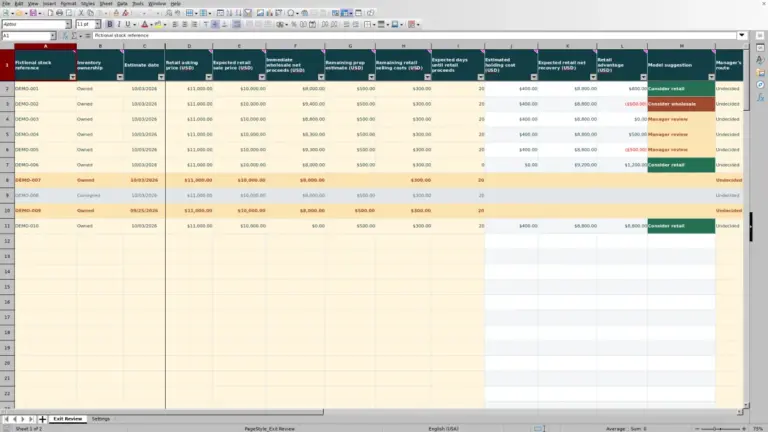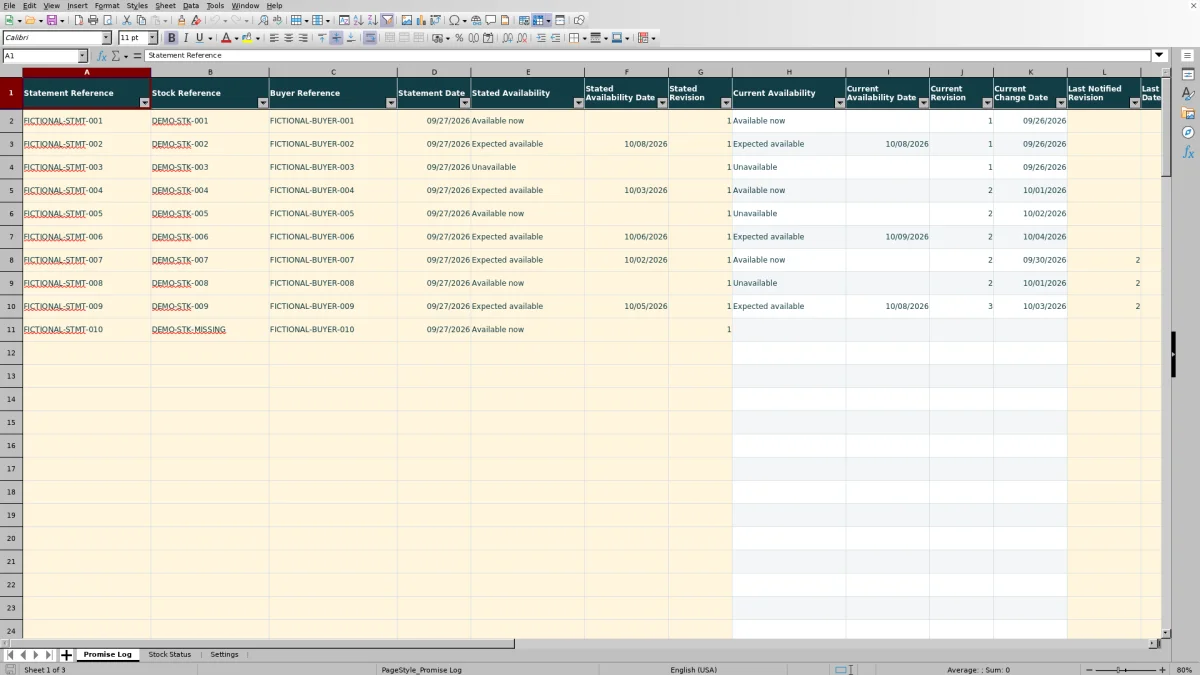
When a car’s availability changes, you need to know which buyers were told something different. The Car Dealer Sheets stock availability promise log workbook records dated statements and flags newer stock revisions that have not been recorded as communicated.
Use this Excel resource to preserve what you told each buyer, maintain current stock availability, and organize manual follow-up. It does not reserve a car, guarantee availability, or send messages to buyers.
When to use this workbook
- Keep the original availability statement separate from the car’s current recorded status.
- Find statement records that need a buyer update after a stock revision.
- Prioritize outstanding updates using calendar days and your internal attention threshold.
- Identify missing or inconsistent records before relying on the follow-up list.
What is in the file
How to use the workbook
1. Set your review date and attention threshold
Open Settings. Review Date in B2 starts with TODAY(); replace it with a date if you need a fixed review. Set Attention After Days in B3 to your internal threshold. Dates display as MM/DD/YYYY. Inspect the fictional sample records before replacing their inputs with your own data.
2. Enter current stock availability
In Stock Status, enter a unique Stock Reference—your stock number—and select Stock Type and Availability. Add Expected Availability Date only for Expected available. Enter a positive whole-number Revision and the Change Date. Use one current record per stock number.
3. Record what you told the buyer
In Promise Log, enter a unique Statement Reference, select the Stock Reference, and add Buyer Reference and Statement Date. Copy the availability, applicable expected date, and revision you communicated into Stated Availability, Stated Availability Date, and Stated Revision. Preserve this original snapshot when stock details later change.
4. Maintain changes and review the action list
Whenever availability or the expected date changes, manually increase Revision in Stock Status and update Change Date. In Promise Log, use the Action filter to review Check record and Notify buyer rows. Leave H:K and N:O intact because these columns calculate current details and follow-up results.
5. Record the update after communicating it
Contact the buyer through your normal process. Then enter Last Notified Revision and Last Notification Date together. Record the revision actually communicated, not a newer revision the buyer has not received. Check the resulting Action before moving on.
Keep each buyer statement tied to the right stock number
One Promise Log row represents one dated statement to one buyer reference about one stock reference. This lets you record separate statements about the same car without changing its single current record in Stock Status. Give each statement its own Statement Reference so you can distinguish those conversations.
The statement fields describe what you communicated at that time. The Current Availability fields describe what is recorded now. That separation matters when prep is delayed, a car becomes unavailable, or an expected car becomes ready sooner than you previously stated.
Buyer Reference is an identifier, not a contact integration. Keep a dependable way to locate the buyer’s contact details in your existing records. The workbook does not verify the car’s physical availability or whether a buyer received your communication.
Use revisions to decide who needs an update
Revision numbers drive follow-up; the workbook does not detect a change merely by comparing the original and current availability wording. Increase Revision for every availability or expected-date change, including a return to an earlier status. Update Change Date at the same time.
After its record checks pass, the Action formula compares Current Revision with the higher of Stated Revision and Last Notified Revision. A newer current revision produces Notify buyer. Otherwise, it returns No update needed.
- Notify buyer means a newer revision is not recorded as communicated. It is a prompt for manual action, not a sent notification.
- Check record takes priority when required information is missing or related entries are inconsistent.
- No update needed means there is no newer revision outstanding under this logic. It does not mean the car is available or that the recorded information has been independently confirmed.
After an update, keep Last Notified Revision paired with Last Notification Date. These fields hold the latest recorded notification, not a complete communication history. If you need the wording and dates of every exchange, retain that record separately.
Fictional example: an expected availability date moves
In this fictional example, you told a buyer on 09/27/2026 that stock number EXAMPLE-101 was Expected available on 10/08/2026 at revision 1. Those details remain in the statement fields.
On 10/04/2026, you learn the expected date is now 10/09/2026. In Stock Status, keep Availability as Expected available, change Expected Availability Date to 10/09/2026, increase Revision to 2, and enter Change Date as 10/04/2026.
For a fixed Review Date of 10/06/2026, with no notification recorded and all required fields complete, Action becomes Notify buyer. Days Awaiting Update is 2 calendar days: 10/06/2026 minus 10/04/2026. With Attention After Days set to 2, this row also qualifies for Attention Needed because equality meets the threshold.
The next decision is to communicate the revised expected date. After doing so on 10/06/2026, enter Last Notified Revision as 2 and Last Notification Date as 10/06/2026. With Current Revision still 2, Action becomes No update needed and Days Awaiting Update becomes blank. Do not replace the original 10/08/2026 statement date expectation with the new one.
Read aging as time since the latest change
For a Notify buyer row, Days Awaiting Update subtracts Current Change Date from Review Date. It counts calendar days from the latest change, not from the original statement or the earliest change the buyer has not heard about.
This distinction affects priority. If stock changes again before you contact the buyer, updating Change Date makes the aging calculation start from that newer change. A low age can therefore coexist with an older unresolved conversation. Use the statement and notification details as context rather than treating age as the full history.
Attention After Days is an internal workflow threshold, not a legal deadline. Settings counts Notify buyer rows at or above that threshold. Review Date starts with TODAY(), so aging can change on later review dates; a fixed date keeps the review tied to that date.
A zero means the latest recorded change falls on Review Date. A blank age can mean the row is not marked Notify buyer. It also remains blank if Current Change Date is later than Review Date, so check the dates rather than treating every blank as resolved.
Errors and solutions for availability statement records
Start with Check record rows before relying on the notification list. A missing stock match leaves the calculated current fields blank, which triggers a record check. Confirm that Stock Reference matches a unique entry in Stock Status within rows 2–101.
- Missing expected date: enter the applicable date when either the stated or current availability is Expected available. Otherwise, leave the corresponding expected-date field blank.
- Incomplete statement: check Statement Reference, Stock Reference, Buyer Reference, Statement Date, Stated Availability, and Stated Revision.
- Revision mismatch: Current Revision cannot be below Stated Revision. Last Notified Revision must fall between the stated and current revisions.
- Half-entered notification: enter Last Notified Revision and Last Notification Date together after communicating the update.
- Duplicate reference: inspect red reference warnings and remove the ambiguity. A duplicate stock number can make a lookup use the first matching row rather than the record you intended.
Direct-entry validation checks dates and revisions, but pasting can bypass validation. Inspect the warning formatting as well as Action. Statement, change, and notification dates should not exceed Review Date; Last Notification Date must not precede Statement Date.
The seeded fictional statement using DEMO-STK-MISSING intentionally has no matching stock record. It demonstrates a missing lookup rather than representing a real car that needs follow-up.
Stay within the workbook’s operating limits
This file is a focused statement-and-follow-up log. It has no timed reservation function, sales funnel, or availability guarantee. A car marked Available now is only as current as the information you entered.
Stock maintenance remains manual. Changing availability without increasing Revision can leave a buyer update unflagged. The workbook also does not preserve every stock revision as a separate historical event: Stock Status holds the current details, while Promise Log preserves the statement snapshot and latest notification fields.
Preserve the supplied dropdown labels, especially Expected available, because formulas use that exact text. Stock Type offers Owned and Consigned; neither label creates an external connection or verifies ownership.
The prepared data ranges cover 100 stock records and 100 statement records. Formulas, lookups, validation, and filters use those ranges. Do not assume entries below row 101 will participate in the review without extending and checking the affected ranges.
Compare the workbook with a blank sheet or paper log
Choose a method based on how you want to maintain statements and check for changes. This workbook supplies a defined revision-based process. A blank spreadsheet or paper log leaves more of that structure to you.
| Method | Starting structure | Change review | Ongoing responsibility |
|---|---|---|---|
| Car Dealer Sheets workbook | Prepared statement log, stock status records, and review settings | Calculated action flags and calendar-day aging based on entered revisions | Maintain stock changes, contact buyers, and record notifications manually |
| Blank spreadsheet | You choose and build the fields and layout | Manual comparison unless you create and check formulas | Maintain the records and any review logic you add |
| Paper log | You write a register or use a printed form | Read and compare statements with current stock information manually | Keep entries legible, locate affected buyers, and document follow-up |
Use this workbook when its statement, revision, and notification structure fits your process and you want prepared review calculations. Choose a blank spreadsheet if you need a substantially different record layout and can build the checks you require. A paper log can suit a process where you are prepared to perform every comparison manually.
If your requirement includes reservations, message delivery, or a broader deal workflow, assess specialized dealer software against those specific needs. Those functions are not provided by this workbook.
Frequently asked questions
Can I record more than one buyer for the same car?
Yes. Use a separate Promise Log row for each dated statement to each buyer reference, with a unique Statement Reference. Select the same Stock Reference where appropriate. Keep only one current Stock Status record for that stock number so the lookup is unambiguous.
Do the Settings totals count unique buyers?
No. Updates Needed counts Promise Log rows marked Notify buyer, and Records to Check counts rows marked Check record. Attention Needed counts Notify buyer rows whose age meets or exceeds Attention After Days. One buyer can appear in more than one counted statement row.
Why is there no update flag after I changed the expected date?
Check whether you also increased Revision in Stock Status. Follow-up is revision-based, so changing the date alone does not create a newer revision for the formula to detect. Also check Action for Check record, which takes priority over Notify buyer when the record needs correction.
Can I record an expected availability date in the future?
Yes. Expected availability dates can be future dates when the availability is Expected available. Statement Date, Change Date, and Last Notification Date describe events already recorded and must not exceed Review Date. Use MM/DD/YYYY and leave expected-date fields blank for the other availability choices.
Should I delete the fictional examples before using the file?
Review them first, then clear or replace the fictional input records on both data sheets so they do not mix with your operational records. All ten seeded records on each data sheet are fictional. Preserve the formulas in Promise Log H:K and N:O and the calculation cells in Settings when clearing sample inputs.
Editorial areas

Owen AshfordVehicle stock & purchasing
About this editorial area →
Mara WestbrookSales records & delivery
About this editorial area →