When a key goes missing, someone accesses stock without authorization, or a car moves without a recorded handoff, you need a clear follow-up record. Use this Car Dealer Sheets Excel workbook to log the incident, identify the retail stock involved, and assign responsibility for resolution.
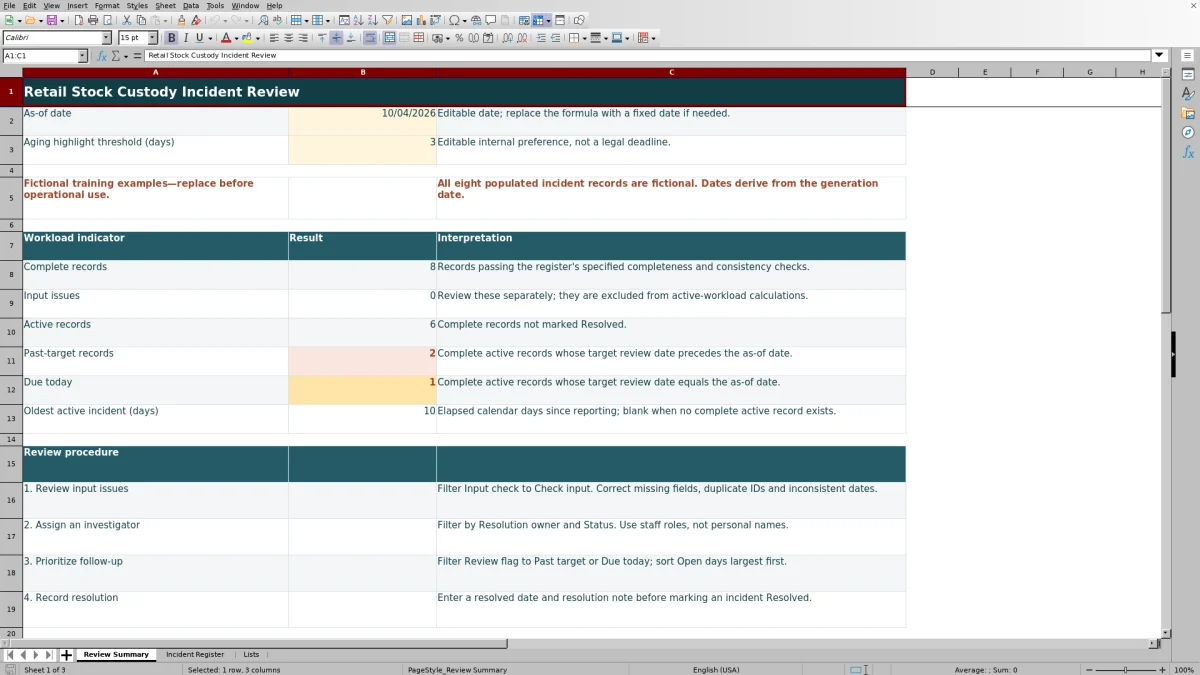
The register brings evidence references, review dates, status, and resolution notes into one place. Its summary helps you separate records needing input corrections from complete active incidents, so you can decide what to investigate next. It covers owned or consigned retail stock custody incidents, not damage-only intake.
When to use this workbook
- Keep the incident, stock reference, custody location, and responsible role together for follow-up.
- Identify missing details and inconsistent dates before relying on the active-workload summary.
- Prioritize complete active incidents by target review date and elapsed days since reporting.
- Record a resolution date and note alongside the original incident details.
What is in the file
How to use the workbook
1. Prepare the file for your dealership
The eight records in Incident Register rows 2–9 are fictional training examples. Clear their inputs in A:M before operational use, retaining the formulas in N:P. In Review Summary, check As-of date in B2 and Aging highlight threshold (days) in B3. B2 starts with TODAY(); you can replace it with a fixed date. The default threshold is 3 days and is an internal preference, not a legal deadline.
2. Set up your local choices
On Lists, review the custody locations and resolution-owner roles. List entries in A:E can be edited through row 101; append choices without gaps. Preserve the exact status labels Open, Under review, and Resolved because the formulas rely on Resolved. Use staff roles rather than personal names.
3. Enter one incident per row
In Incident Register, enter a unique Incident ID, Reported date, and your stock number in Fictional or internal stock reference. Complete the ownership, type, location, summary, Evidence reference, Resolution owner, Status, and Target review date. Use MM/DD/YYYY dates. Evidence references are local identifiers; enter Not available if none exists.
4. Correct, prioritize, and close
Review Input check for Check input before using the workload totals. Then filter Review flag for Past target or Due today and sort Open days largest first to plan follow-up. When the incident is resolved, enter Resolved date and Resolution note before setting Status to Resolved. Edit inputs, not formulas: N:P are visually distinguished but are not protected against overwriting.
Decide what belongs in the custody register
Use a row to describe a particular custody incident, rather than treating the file as a vehicle condition report. The supplied incident types are Lost key, Unauthorized access, and Custody breach. A useful summary states what was reported and where the custody process broke down without presenting an unconfirmed explanation as fact.
Give every separate incident a unique Incident ID, even when several incidents involve the same stock number. Related incidents may share a local evidence reference. This keeps the incident count meaningful: three separate reports concerning one car are not the same thing as three cars affected.
The file is not a buying record, prep tracker, sales or handover register, fleet log, or repair-shop job record. It also does not verify title, diagnose safety, or certify roadworthiness. A custody entry should not be treated as approval to sell or move a vehicle.
Make evidence references and ownership useful
Enter a local identifier in Evidence reference that your team can use to locate supporting material through its separate recordkeeping process. A reference is not an attachment: the field stores manually entered identifiers, not files or links, and it does not connect to an evidence system. If no supporting material is available, enter Not available rather than leaving the required field blank.
Use Resolution owner to identify the staff role responsible for investigation and follow-up. The supplied roles include Inventory Manager, Sales Manager, and General Manager. Assigning a role in the workbook does not send a message, so communicate the assignment separately.
Use internal stock references rather than vehicle identification numbers (VINs). Keep personal names, addresses, license details, and credit information out of the register. The workbook is designed to hold the operational reference and incident account, not a customer or employee dossier.
Read workload counts before choosing the next action
Start with Input issues on Review Summary. A row marked Check input is excluded from active-workload calculations, even if it describes an unresolved incident. Zero active records does not necessarily mean no unresolved incidents; check whether incomplete records are waiting for correction.
Complete records counts rows whose Input check is Ready. Active records takes that count and removes rows marked Resolved. Past-target records and Due today count complete active rows by comparing Target review date with As-of date. These indicators organize the information you entered; they do not measure incident severity.
Open days is elapsed calendar days from Reported date to As-of date for a complete active record. It is not business days, time since the custody event itself, or days since the last follow-up. Oldest active incident (days) shows the largest of those ages and stays blank when no complete active record exists.
Review Past target and Due today first, then use Open days to identify older reports needing attention. Target dates are manually selected review dates, not automated legal deadlines. The editable aging threshold is a separate local review preference; it does not change the date comparison used for Past target.
Fictional example: a missing key reaches its review date
In this fictional example, stock number DEMO-01 has a Lost key incident reported on 09/28/2026. The row has all required inputs, a unique Incident ID, Status set to Open, and a Target review date of 10/03/2026. Set As-of date on Review Summary to 10/04/2026 for this exercise.
With those inputs and no other input issues, Input check returns Ready. Open days is 6 calendar days: 10/04/2026 minus 09/28/2026. Review flag returns Past target because the target review date is one day earlier than the as-of date. The incident contributes one record to both the active and past-target counts.
The result means follow-up is past its recorded review date; it does not establish why the key is missing or whether the car is secure. Your next action is to contact the assigned role, examine the separately held supporting material, and update the record based on the investigation.
If the fictional incident is resolved on 10/04/2026, enter that date and a resolution note, then select Resolved. Provided the row still passes the input checks, it remains a complete record but no longer contributes to active or past-target counts. Open days becomes blank rather than showing a final duration.
Fix input problems without hiding unresolved work
Ready is an input-check result, not verification. It checks specified required fields and date relationships. It does not confirm that the incident account is accurate, the evidence exists, or the chosen role has accepted the assignment.
- A started row needs entries in A:K. Check for missing incident details, owner, status, evidence reference, or target review date. Use Not available only when evidence is genuinely unavailable.
- Duplicate Incident ID values trigger Check input. Give separate incidents separate IDs; retain a shared evidence reference if they are related.
- Reported date cannot be later than As-of date, and Target review date cannot precede Reported date. Correct the date or the review basis rather than changing dates merely to remove a flag.
- A Resolved row needs both Resolved date and Resolution note. The resolved date must fall between the reported and as-of dates. A row with another status must not retain a resolved date.
- Pasted values need manual checking. Confirm that dropdown values match Lists and that dates are actual numeric whole dates, not text or date-time values. Pasting can bypass validation, and the Ready formula does not test every validation rule.
If formula results are missing after editing, inspect whether N:P was overwritten. Those cells are unprotected. Keep formula changes separate from routine incident entry, and do not assume the summary remains reliable after a formula has been removed.
Close incidents with a record of what was resolved
Before changing Status to Resolved, use Resolution note to explain the outcome and the action that addressed the recorded incident. The formula requires a note to be present; it does not assess whether the explanation is sufficient. Review the supporting material yourself before relying on the closure entry.
Enter Resolved date as the date of resolution, within the permitted range from Reported date through As-of date. Leaving a resolved date on an Open or Under review row produces Check input, which can remove that row from the active count until corrected.
Resolved records remain in the register and can still count as complete records, but Open days becomes blank. The supplied workbook does not calculate a time-to-resolution measure. Do not use the active-aging summary to compare how long closed investigations took.
Compare this workbook with a blank spreadsheet or paper log
Choose the recordkeeping method according to how you review custody incidents. This workbook supplies a defined register, supporting lists, and a formula-based review summary. A blank spreadsheet lets you design a different process, while a paper log may suit a process where review and counting are done manually.
| Method | Setup and structure | Follow-up review | Evidence handling | Main constraint |
|---|---|---|---|---|
| This workbook | Prepared register, lists, and summary for 100 records | Input checks, active counts, review flags, and calendar-day aging | Manually entered local references | Needs manual entry and review; no messages or synchronization |
| Blank spreadsheet | You define fields, choices, and any formulas | You create calculations or review entries manually | You decide how references are recorded | Checks and summary logic must be built and tested |
| Paper log | You choose a written layout | You inspect dates and count open items manually | Written references to separately kept material | No formula-based counts or input checks |
Use this workbook when the prepared custody fields and manual follow-up process fit your needs. Choose a blank spreadsheet when you need a materially different structure and can maintain its logic. A paper log is an option if manual review is sufficient. If your process requires shared access controls, evidence attachments, or automated assignments, assess a specialized system against those requirements; do not assume this workbook provides them.
Frequently asked questions
How many incidents can I record?
The prepared range supports 100 records in Incident Register rows 2–101. Eight of those rows initially contain fictional examples, not dealership incidents. Clear only their A:M inputs to reuse them. The supplied formulas and summary ranges are set through row 101; entries beyond that row should not be assumed to be included without extending and checking the relevant ranges and logic.
Can I add custody locations and resolution-owner roles?
Yes. Edit the relevant columns on Lists and append entries without gaps through row 101. Changes affect future dropdown choices. Check existing records separately if you rename a role or location. Preserve the exact status labels Open, Under review, and Resolved so the existing status-dependent formulas continue to work as intended.
Can I use a fixed as-of date for a manager’s review?
Yes. Replace TODAY() in Review Summary B2 with a valid fixed date displayed as MM/DD/YYYY. Aging and review flags will use that date. This does not reconstruct historical statuses: the formulas still use the current incident inputs, and a reported or resolved date after the fixed as-of date can trigger Check input. Save a separate dated copy if you need to retain the information used for a particular review.
Does the workbook notify the resolution owner or retrieve evidence?
No. Resolution owner is a recorded role, and Evidence reference is a manually entered local identifier. The workbook includes no automated messages, synchronization, or external integrations. Assign the work through your normal communication process and keep the referenced material separately.
Does a Ready result confirm legal compliance or vehicle safety?
No. Ready means the row passes the specified completeness and consistency checks. It is not certification of the incident, title, safety, roadworthiness, or legal compliance. The review dates and aging threshold are internal management choices, not legal deadlines.
Editorial areas

Owen AshfordVehicle stock & purchasing
About this editorial area →
Mara WestbrookSales records & delivery
About this editorial area →