Before a dealership stock count, divide the retail stock areas into clear staff assignments and give each blind count packet its own reference. This Car Dealer Sheets Excel workbook helps you track who is responsible, when paperwork is due, and which returned packets still need attention.
Use it for assignment administration, not count results. The planner tracks returns and administrative acceptance; keep vehicle quantities, discrepancies, and recount results in a separate workbook.
When to use this workbook
- Give each staff member a defined stock area, ownership category, and count packet to handle.
- Identify overdue paperwork before deciding whom to contact for an update.
- Separate returned packets awaiting review from assignments marked administratively complete.
- Check entry problems before using the completion percentage in a supervisor update.
What is in the file
How to use the workbook
1. Prepare a working copy
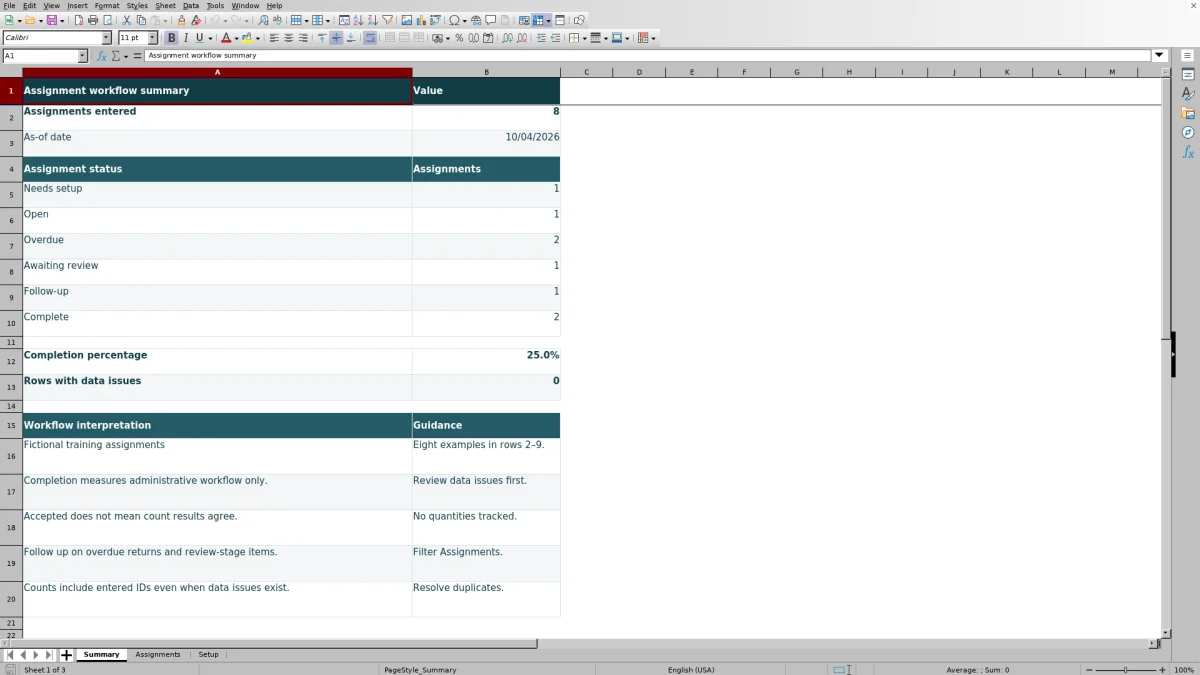
Assignments rows 2–9 contain eight fictional training assignments. Clear their input cells in columns A:I before entering live work, but retain the calculated columns J:L. The prepared input and formula range ends at row 101.
2. Set the reporting date and staff choices
On Setup, check As-of date in B2. It uses TODAY() by default; enter a fixed date for a historical snapshot. Replace the stock-area and staff placeholders in D2:D5 and F2:F5 with your choices. Keep the review labels Pending, Accepted, and Follow-up unchanged.
3. Enter and issue each assignment
On Assignments, enter a unique text Assignment ID, Stock area, Stock type, Blind sheet reference, Assigned staff, and Planned return date. Use one row for one staff assignment covering one area, one ownership category, and one manually prepared blind sheet packet. Record dates as MM/DD/YYYY and enter Pending in Review status when issuing the assignment.
4. Record returns and resolve open work
Enter Returned date when the packet comes back, then record the administrative Review status and any Exception note. Check Data check before relying on Summary. Use the Assignments filters to find overdue returns, packets awaiting review, or follow-up work; do not overwrite the calculated Assignment status.
Divide the count without mixing ownership categories
Start with the work you intend to hand out, rather than a list of individual cars. Each assignment represents one staff member’s responsibility for a retail stock area, an ownership category, and a blind sheet packet. If the same person counts owned and consigned cars in the same area, use separate assignments and packet references.
Keep owned and consigned retail stock separate. The planner’s supported categories are Owned and Consigned. Its area and staff entries let you record the allocation, but they do not prove that every area has been covered or that assignments do not overlap. Compare your planned rows with your actual lot layout before issuing packets.
Blind sheet reference is a manual identifier for paperwork you prepare separately. It does not create a blind count sheet, supply expected quantities, or connect to another workbook. Use the same reference on the physical packet and in your separate results record so you can locate the right paperwork later.
Read the status before choosing the next action
Assignment status follows the entries in each row. With an Assignment ID present, a missing area, stock type, sheet reference, staff member, or planned return date produces Needs setup. Complete those details before issuing the work.
- Open means the packet has no Returned date and its planned return date has not passed the reporting date.
- Overdue means the packet has no Returned date and its planned return date is earlier than the reporting date.
- Awaiting review means a returned packet is not marked Accepted or Follow-up.
- Follow-up means a returned packet has Review status set to Follow-up.
- Complete means a returned packet has Review status set to Accepted, with the required setup fields filled.
Accepted means administratively complete, not that the count agrees with inventory records. Use Exception note to describe what still needs attention, and review Data check even when the displayed status is Complete. Status and data-quality checks are separate calculations.
Use the reporting date to judge late returns
Days late measures calendar days after Planned return date. For an unreturned packet, it uses the As-of date in Setup B2. Once Returned date is entered, it uses that return date instead. Negative differences display zero, so an early or on-time return has zero days late.
A packet due on the reporting date is still Open if it has not been returned. It becomes Overdue when the reporting date is later than its planned return date. This is an internal paperwork schedule, not a legal deadline.
Setup B2 contains TODAY(), which updates on recalculation. For a dated supervisor report, replace it with the intended fixed date in MM/DD/YYYY format and save a separate copy. Returned date validation allows dates only through the reporting date, so align that date with the period you are reviewing. Changing the reporting date does not reconstruct earlier versions of assignment entries.
Example: a late packet can still be complete
In a fictional example, an assignment has all required setup details, a Planned return date of 10/02/2026, and a Returned date of 10/03/2026. Review status is Accepted, and the reporting date is 10/04/2026. Days late is 1 calendar day because the packet came back one day after it was due. Assignment status is Complete because the returned paperwork has been administratively accepted.
The practical reading is that the return was late, but its administrative workflow is now closed. You do not need to chase that packet for return; any vehicle-count discrepancy belongs in the separate results workbook.
Suppose a fictional set of eight valid assignments has two marked Complete. Summary shows a completion percentage of 2 ÷ 8 = 25.0%. That is the share of assignments administratively complete—not the share of cars counted or stock reconciled. Review the remaining status groups to decide whether to request returns or process paperwork already received.
The percentage is blank when no qualifying IDs are counted. Assignments entered counts text-bearing IDs in A2:A101, and it includes duplicate or otherwise problematic IDs. Use text IDs such as COUNT-01 and resolve data issues before interpreting the percentage.
Errors and solutions before reporting completion
Data check shows the first applicable issue in a row, not every issue at once. After correcting a warning, check the row again. Summary’s Rows with data issues is a count of flagged rows, not a total of all underlying problems.
- Missing assignment ID: add the intended unique text ID to a partially entered row. Without an ID, the calculated assignment status stays blank.
- Duplicate assignment ID: confirm whether the same work was entered twice or whether two different assignments need different IDs.
- Duplicate sheet reference: check the issued packets before changing the reference. Each assignment should point to its own packet.
- Review without return: verify receipt and enter the actual Returned date, or correct a review label entered prematurely.
- Date or dropdown issue: check the value against the reporting date and the supported Setup choices. Pasted entries are also checked, so pasting does not remove the need to review warnings.
Do not treat a zero Days late value as proof that a row is valid or complete. It only describes timing when the calculation has usable dates. A Needs setup row can still require attention even if its planned return date has already passed.
Maintain the lists and stay within the prepared range
The dropdowns use fixed ranges on Setup: D2:D5 for areas, E2:E3 for stock types, F2:F5 for staff, and G2:G4 for review statuses. Replace the four area and four staff placeholders as needed. Adding entries beneath those ranges does not automatically add dropdown choices.
Existing assignment entries do not change when you edit a list. If you rename an area or staff choice during a count, review the affected rows and update them deliberately. Preserve Pending, Accepted, and Follow-up unless the workflow formulas are also revised, because those labels drive the status logic.
The prepared capacity is 100 assignments. Formulas, validation, filtering, and Summary references cover rows 2–101. Do not assume that typing below row 101 extends those functions. Work requiring more rows or larger lists needs the related ranges and formulas revised and checked before use.
This is a retail stock-count assignment planner. It is not a buying, prep, sales, deal finance, handover, fleet, or repair-job register, and it does not verify title or determine legal requirements.
Comparison: this Excel planner or a manual register
Choose according to how you want to supervise packet allocation and returns. This workbook provides a prepared administrative workflow. A paper register can serve a simpler process when you are willing to maintain statuses and totals manually. Neither method replaces the actual count results.
| Method | Assignment setup | Progress review | Checks and boundaries | When to choose it |
|---|---|---|---|---|
| This Excel planner | Prepared fields for area, ownership category, staff, packet, and dates | Calculated statuses, late days, and completion summary | Entry checks within 100 prepared rows; no vehicle quantities or reconciliation | You want a structured packet-return and administrative-review register |
| Paper assignment register | You write the fields and assignments you need | You update statuses and tally completion manually | You inspect duplicate references and date consistency yourself; keep count results separately | You prefer a physical log and can maintain the review totals yourself |
If your need is to reconcile counted vehicles against recorded stock, choose a separate results process designed for that task. Do not extend this planner’s completion percentage into a measure of inventory accuracy.
Frequently asked questions
Does the workbook include real dealership assignments?
No. The eight assignments in rows 2–9 are fictional training examples. DEMO IDs, BLIND packet references, and Counter A–D are placeholders. Replace or clear their input cells before using Summary for live work, while retaining the formulas in columns J:L.
Can I record vehicle quantities or recount results here?
No quantity or recount fields are provided. Keep vehicle quantities, discrepancies, and recount results in a separate workbook. The Blind sheet reference helps you identify a packet manually; it is not an automated connection to its results.
What should I do with a returned packet that needs correction?
Record its Returned date, select Follow-up in Review status, and describe the required action in Exception note. Once the administrative issue is resolved, update the review entry as appropriate. Record any changes to vehicle-count results in the separate results workbook.
Does 100% completion mean all inventory agrees?
No. It means the calculated Complete assignments equal the counted text-bearing assignment IDs, subject to data issues being resolved. Administrative acceptance does not establish agreement with inventory results or prove that every required area was assigned.
Can I use the planner for another count date?
You can prepare a separate working copy for another count, clear the prior assignment inputs in A:I, retain the formulas, and set the appropriate reporting date. Keeping the earlier copy with a fixed As-of date preserves a dated record; simply changing the date in the current file does not restore its earlier contents.
Editorial areas

Owen AshfordVehicle stock & purchasing
About this editorial area →
Mara WestbrookSales records & delivery
About this editorial area →