
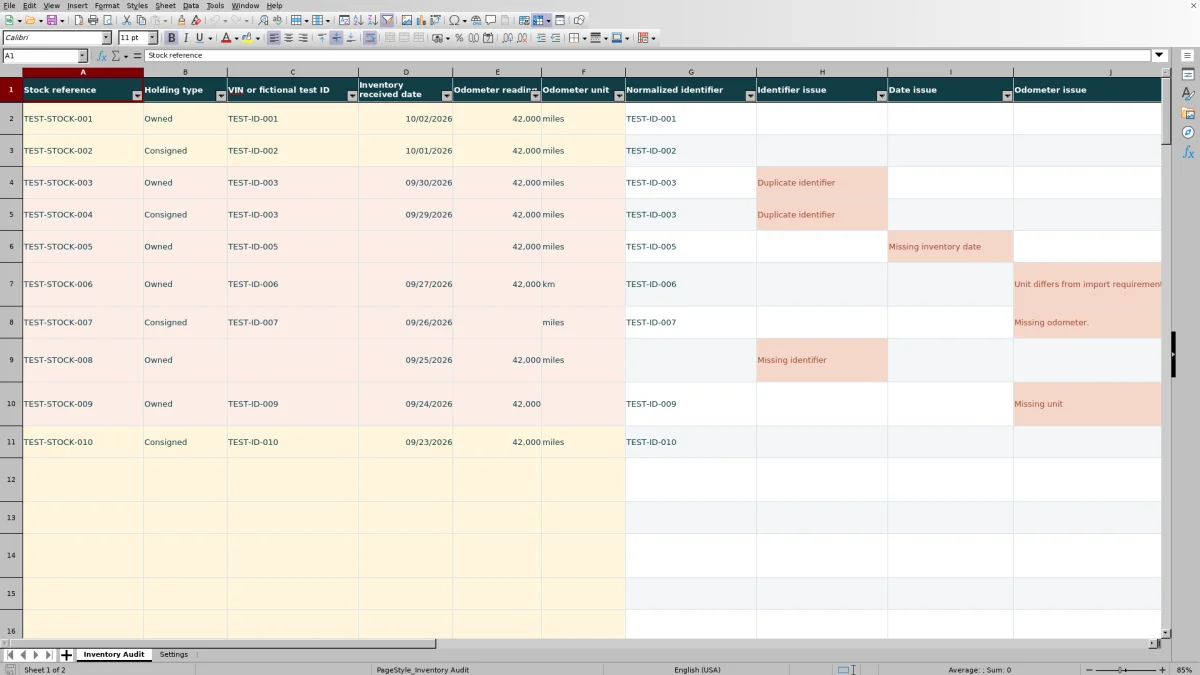
Before preparing a stock import, check which records need attention. This Car Dealer Sheets Excel workbook helps you audit used-car inventory for duplicate identifiers, missing or invalid received dates, and odometer unit mismatches.
Enter your records, review the issue messages, and filter the results into a working correction list. A Ready status means the row passed this workbook’s checks; it does not confirm that a VIN is genuine or that another system will accept the record.
When to use this workbook
- Find repeated identifiers even when capitalization or ordinary leading and trailing spaces differ.
- Separate records needing correction from records that pass the included checks.
- Check odometer units against one stated import requirement before preparing your data.
- Keep each issue beside its stock reference so you can trace corrections back to the source.
What is in the file
How to use the workbook
1. Set the required odometer unit
On Settings, set Required import unit in B2 to miles or km, according to the receiving system’s requirement. The supplied setting is miles. This controls the unit comparison only; it does not convert readings.
2. Replace the fictional examples with your records
On Inventory Audit, clear the fictional example inputs and enter your own data in A2:F101. Use Stock reference for your stock number or source-row reference, choose Owned or Consigned, and enter the identifier, received date, odometer reading and unit. Keep the formulas in G:L and the indicators in N:O intact. Dates display as MM/DD/YYYY.
3. Review the rows marked Correct
Use the existing filter on Status to show Correct. Read Identifier issue, Date issue, Odometer issue and Record issue to see why each row needs attention. Check the supporting source before changing a value; do not remove a warning merely by entering a convenient substitute.
4. Recheck and prepare the handoff
After making verified corrections, review the status and the Audit indicators again. If other staff need a correction list, copy the affected stock references and issue messages into a separate working record. Before preparing an import file, also check the receiving system’s required columns, formats and rules; this workbook does not perform the import.
Resolve duplicate identifiers before removing records
The workbook creates a Normalized identifier by applying UPPER and TRIM to the value in VIN or fictional test ID. It then compares that result with the other normalized identifiers in rows 2–101. If an identifier appears more than once, each matching row receives Duplicate identifier.
A duplicate flag is a reason to investigate, not an instruction to delete. Compare the stock references and source records to decide whether you have entered one car twice or assigned the wrong identifier to a different car. Resolve that cause in the source data as well as in the audit copy.
This is not vehicle identification number (VIN) structure validation. A unique, nonblank identifier can pass without being a valid VIN. The normalization also does not establish that differently punctuated identifiers refer to the same vehicle.
Distinguish missing dates from dates stored as text
Inventory received date must contain a numeric, whole-number Excel date serial from 1 through 2,958,465. An empty cell produces Missing inventory date. A text value, an out-of-range number or a date with a fractional time component produces Invalid inventory date.
A cell can look like a date while still holding text. If you see a warning beside an apparently correct MM/DD/YYYY entry, verify the source date and replace the text with a real Excel date value. Changing the display format alone does not turn text into a date.
The check establishes the stored date type and range, not whether the date makes sense for your stock. A future received date can pass. Compare questionable dates with your acquisition or receiving records before releasing the row for import preparation.
Example: a mileage warning that needs more than a label change
In a fictional example, a stock record has an Odometer reading of 42,000 and an Odometer unit of km, while Settings B2 requires miles. Assuming the other inputs pass, the result is Unit differs from import requirement and a Status of Correct. The number itself passes because it is numeric and nonnegative; the unit causes the warning.
The next decision is whether the source truly reports kilometers or whether someone entered the wrong unit label. Check the source before changing either field. If the source really is in kilometers, handle any required conversion outside this workbook using an agreed method, then record the appropriate reading and unit for the import.
No mileage conversion occurs in this file. Changing km to miles without changing a genuine kilometer reading would clear the unit warning while misrepresenting the distance. Unknown also differs from either supported required unit, so it remains an issue until you establish the unit.
Turn the audit results into an actionable correction list
Use the Status filter to focus on Correct rows, then carry the Stock reference and the relevant issue messages into your correction handoff. Keep a separate note of the source checked, the person responsible and the agreed change if you need those details; the audit sheet does not provide dedicated columns for a correction owner or resolution history.
The status formula marks an active row Ready only when all four issue cells in H:K contain no message. One row can have several problems but still counts as one record needing correction. Record counts are not counts of individual errors.
Review Active records, Ready records and Records needing correction as a summary of the entered batch. Rows with duplicate identifiers describes affected rows, not the number of distinct duplicate groups. For example, one identifier repeated on two rows affects two rows. After each correction, review the row again because another issue may still prevent a Ready result.
Common audit problems and practical fixes
- An unexpected stock reference appears in the results: check whether a fictional TEST-STOCK example was left in A:F. Remove unused example inputs without deleting the formula cells.
- A pasted odometer reading is flagged even though it looks numeric: confirm that it is stored as a number rather than text, and verify the value against the source. Negative readings are also flagged.
- Most rows suddenly show a unit warning: check Settings B2 against the actual import requirement before editing individual records. Do not change the requirement just to make the warnings disappear.
- A row shows Missing or invalid holding type: choose Owned or Consigned after confirming how the dealership holds the car. Other values do not pass this check.
- A partially cleared row still appears in the audit: inspect all six input cells in A:F. Any remaining input keeps the row active, which can expose missing fields elsewhere in that row.
Dropdowns and entry validation help with data entry, but the calculated issue messages are the place to review the audit result after entering or pasting a batch.
Keep the audit within its checked range
The supplied formulas, entry validation and filter cover 100 records in rows 2–101. Entries below row 101 are outside the supplied audit range. Do not assume that typing another row extends the duplicate checks, status calculations or summary indicators.
If you split a larger inventory into separate copies, each copy checks duplicates only within its own batch. You will need a separate full-list duplicate review to find identifiers repeated across batches, or a larger audit setup whose ranges have been checked before use.
This workbook is a pre-import data check, not a live stock system or an import connection. It does not check asking prices, acquisition costs or every requirement a receiving system may impose. Use its results to organize corrections, then prepare and validate the final import layout separately.
Comparison: audit workbook versus a blank spreadsheet
Use this workbook when your immediate need matches its defined checks and your batch fits the supplied range. A blank spreadsheet is a realistic alternative when you need a different field layout or a custom review process, but you must build and verify the checks yourself.
| Method | Starting setup | Issue review | Scope and handoff |
|---|---|---|---|
| Car Dealer Sheets audit workbook | Supplied input fields, formulas and unit setting | Calculated issue messages, status filter and summary indicators | 100 checked rows; prepare the correction handoff and import layout separately |
| Blank spreadsheet | You define the columns, entry rules and calculations | Manual review unless you add and verify formulas or other checks | You design the review range and handoff format for your requirements |
Choose based on the review you actually need. The supplied workbook provides a defined starting point for these checks; a custom sheet may suit a different schema. Neither choice, by itself, proves that the source records are accurate or that an import will be accepted.
Frequently asked questions
Does changing Example reference date update the received dates?
No. Example reference date in Settings B3 records the reference used to seed the fictional examples. Changing it does not rewrite Inventory received date values or set a date eligibility threshold.
Are zero and decimal odometer readings accepted?
The formula accepts numeric readings greater than or equal to zero, including decimals. The displayed number format has no decimal places, so inspect the stored value if precision matters. Acceptance by this check does not establish that zero, a fractional reading or any unusually high reading is correct for the car.
Does the workbook detect duplicate stock numbers?
No duplicate stock-reference check is shown in the supplied formulas. Record issue checks whether Stock reference is missing and whether Holding type is Owned or Consigned. Duplicate detection uses Normalized identifier instead, so review stock-number uniqueness separately if your import requires it.
What happens to a completely empty input row?
When all six input cells in A:F are empty, the calculated audit cells for that row remain blank and the row is not counted as Ready or Correct. A blank status on an unused row is therefore not a passing result. If you expected a record there, check that its inputs were actually entered within rows 2–101.
Editorial areas

Owen AshfordVehicle stock & purchasing
About this editorial area →
Mara WestbrookSales records & delivery
About this editorial area →

