
Before handing a car over to sales or delivery staff, check whether its promised spare keys and removable accessories have been physically counted. This Car Dealer Sheets Excel workbook helps you record requirements by stock reference and identify shortages or checks that need attention.
The vehicle accessory inventory checklist separates quantity completeness from check freshness, so a sufficient count does not hide an old inspection date. It supports owned and consigned retail stock; it is not workshop parts inventory or confirmation that a vehicle is ready for customer delivery.
When to use this workbook
- See which recorded accessory requirements are short before passing the checklist to sales or delivery staff.
- Keep storage locations beside physically confirmed quantities so staff know where to look.
- Distinguish missing documentation from a confirmed shortage rather than treating unknown quantities as zero.
- Review older checks against an editable review date and calendar-day threshold.
What is in the file
How to use the workbook
1. Set the date for your review
On Settings, enter Review Date in B2 using MM/DD/YYYY and set Recheck After Days in B3. The supplied threshold is seven calendar days. Choose the interval for your operating process; it is not a legal deadline, and the review date does not advance automatically.
2. Replace the fictional starting records
On Accessory Checklist, replace or clear the editable inputs in all ten fictional example records before operational use. Use rows 2–101, with one row for each stock vehicle–accessory requirement. Enter your stock number in Stock Reference, choose Stock Type and Accessory, and enter Required Quantity.
3. Count and locate each item
Enter only physically counted items in Confirmed Quantity—not items ordered or expected. Record Storage Location when the confirmed count is above zero, and enter Checked Date. Use the pale cream input cells in columns A–G; leave the calculated columns H–J intact.
4. Resolve exceptions before reviewing totals
Review Missing Quantity, Quantity Status, and Check Status. Resolve amber duplicate stock/accessory pairs, fill missing documentation, and investigate old or future-dated checks. Recalculate the workbook before relying on Summary, then review all recorded requirements for the stock number being handed over.
Set up one requirement for each accessory on a stock vehicle
Start with the accessories the dealership has identified as required for the car. The workbook does not determine what was promised in the deal or whether every requirement has been entered. Check that scope against your dealership records before using the checklist for handover.
Use one row per stock/accessory pair. A car needing a spare key and a cargo cover has two requirement rows under the same Stock Reference. If it needs two spare keys, enter a Required Quantity of 2 on one spare-key row rather than creating duplicate rows.
The starting accessory choices are Spare key, Cargo cover, Floor mat set, Wheel lock key, and Cargo net. Counts are whole accessory units; a floor mat set counts as one unit. Required Quantity accepts 1–99, while Confirmed Quantity accepts 0–99.
There is no dedicated VIN field or VIN decoding. If your process starts from a vehicle identification number (VIN), confirm the stock-number-to-VIN match in your dealership records. The fictional FIC references in the workbook are not VINs and do not establish that link.
Example: turn a counted shortage into a next action
In a fictional example, stock number EX104 requires two spare keys. You physically find one in the key cabinet on 10/03/2026. Enter Required Quantity as 2, Confirmed Quantity as 1, Storage Location as Key cabinet, and Checked Date as 10/03/2026, along with the stock reference, stock type, and accessory.
Missing Quantity is required units minus confirmed units, with a minimum result of zero. Here, 2 − 1 gives one missing key. With the required documentation present, Quantity Status is Short. If Review Date is 10/03/2026, Check Status is Current: the count is recent, but the requirement is still short.
The next decision is how to resolve that missing key before passing the requirement on as complete. An order for another key does not increase Confirmed Quantity. Update the count, location, and check date only after physical confirmation.
If you later count two keys, Missing Quantity becomes 0 and Quantity Status becomes Complete, provided the other required entries remain present. If the confirmed count exceeds the required count, Missing Quantity still shows 0; it is a shortage measure, not an excess-stock total.
Decide when an accessory count needs another check
Check Status compares Checked Date with the Review Date and Recheck After Days values on Settings. It evaluates the age of your recorded check, not whether an item has remained in its recorded location.
Using a fictional review date of 10/03/2026 and a seven-calendar-day threshold, a check dated 09/26/2026 is exactly seven days old and remains Current. A check dated 09/25/2026 is eight days old and shows Recheck. A date after 10/03/2026 shows Future date and needs investigation.
Review Date is a manual snapshot date. Update it when starting a new review; opening the file alone does not advance it. A blank Checked Date produces Not checked for an active requirement and also leaves its quantity documentation incomplete.
Use Recheck to identify records for a new physical check. If an item has moved since the last count, confirm its current quantity and location before updating the date. The date threshold is an operating assumption, not proof that a current record is still physically accurate.
Read the summary without overstating handover readiness
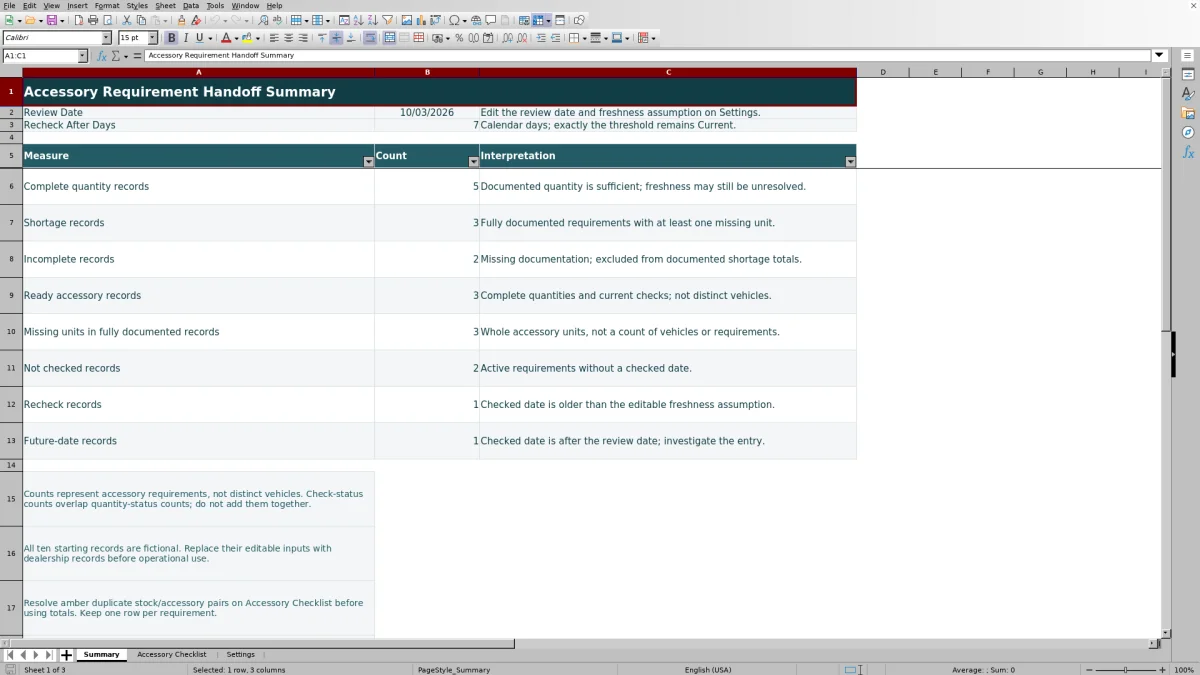
Summary counts accessory requirements, not distinct vehicles. A car with five recorded accessories can contribute five records. Ready accessory records counts only rows whose Quantity Status is Complete and whose Check Status is Current.
That ready count is a checklist handoff measure. It does not confirm customer delivery, vehicle condition, title status, or that every required accessory was entered. Before handing over a particular car's checklist, review all its requirement rows rather than relying on the overall ready count.
Missing units in fully documented records adds Missing Quantity only for rows marked Short. Incomplete records are excluded. A total of zero therefore does not establish that nothing is missing if Incomplete records is above zero.
Keep the two status groups separate. A row can be both Short and Recheck, so check-status counts overlap quantity-status counts. Do not add them together as though they represent separate requirements. Use shortages to plan quantity follow-up and check-status exceptions to plan physical rechecks.
Errors and solutions for accessory checklist records
A blank confirmed quantity means unknown, not zero. If no count has been made, leave it unresolved. Enter 0 only when a physical check confirms that none are present, and record the check date. Storage Location may remain blank when the confirmed count is zero.
- Missing information despite a sufficient count: check Stock Reference, Stock Type, Accessory, both numeric quantity entries, and Checked Date. A positive Confirmed Quantity also requires Storage Location.
- A missing quantity appears on a row but is absent from the summary shortage total: inspect Quantity Status. Missing Quantity can calculate before all documentation is complete; the summary includes only rows marked Short.
- Amber stock/accessory cells: review the repeated pair and consolidate it into one requirement row. Duplicate warnings do not remove or merge records for you, and unresolved duplicates can distort totals.
- Future date: compare Checked Date with the intended Review Date. Correct the mistaken entry rather than treating the record as current.
- Unexpected results after editing: confirm that inputs remain in columns A–G and that the formulas in H–J have not been overwritten, then recalculate and review the affected rows.
Use the checklist as a handoff record, not a delivery certificate
Before passing the checklist to sales or delivery staff, review the relevant stock number's shortages, missing documentation, and check-date exceptions. Use the recorded location to find each confirmed accessory and compare the recorded requirements with what the dealership has agreed to provide.
If an exception remains open, communicate it through your dealership's normal handover process. This workbook has no dedicated fields for an action owner, promised resolution date, or customer delivery sign-off. It also does not send messages or reminders.
A Complete and Current row says that the recorded quantity is sufficient and the recorded check falls within your chosen interval. It does not certify the accessory's condition or suitability, verify title, or certify roadworthiness. Keep those decisions and customer delivery confirmation in the appropriate dealership records.
Compare the workbook with a blank spreadsheet
Choose the format based on whether this defined accessory-checking process fits your stock operation. The supplied workbook combines a requirement checklist, review settings, and a summary. A blank spreadsheet gives you an open layout, but you must create the fields and review logic you want to use.
| Method | Initial setup | Review support | Ongoing upkeep |
|---|---|---|---|
| Car Dealer Sheets workbook | Replace fictional inputs, set the review date and threshold, and enter requirements. | Supplied shortage calculations, documentation statuses, freshness checks, duplicate warnings, and summary counts. | Manually confirm items, update dates and locations, resolve exceptions, and stay within the supplied 100-row reporting range. |
| Blank spreadsheet | Create your own columns, entry rules, and layout. | Review entries manually unless you build calculations and checks. | Maintain both the records and any formulas or reporting ranges you create. |
Use this workbook when you need its specific distinction between confirmed quantities, missing documentation, and dated checks. Choose a blank spreadsheet when you need a substantially different record structure and are prepared to build and check it. If your requirement is shared workflow, automated communication, or synchronization with a dealer management system (DMS), evaluate a tool for those needs rather than assuming this workbook provides them.
Frequently asked questions
How many accessory requirements can I record?
The supplied checklist has 100 requirement rows, from row 2 through row 101. This is not a 100-vehicle limit: each accessory requirement uses a row, so one car may use several rows. Summary formulas reference those same rows. Do not assume entries beyond row 101 are included; expanding the file requires checking formulas, validation, formatting, and summary ranges.
Can I change the accessory and stock type choices?
Yes. Edit the existing accessory choice cells in Settings D2:D6 and stock type choice cells in E2:E3. Changing a list choice does not rewrite existing checklist records, so review affected entries manually. Adding choices outside those ranges does not by itself extend the supplied dropdown sources.
Will it import stock records or synchronize with my DMS?
No. The workbook is manually operated and includes no external integration, DMS synchronization, VIN decoding, valuation feed, or macro. Stock Reference is a recorded identifier, not a connection to another system.
Can I use it to manage workshop parts or accessory purchasing?
This file is designed for removable accessories and spare keys assigned to owned or consigned retail stock before checklist handoff. It does not provide purchasing or workshop inventory management. Keep orders and repair-shop parts records separately, and enter received accessories here only when they have been physically confirmed for the relevant requirement.
Editorial areas

Owen AshfordVehicle stock & purchasing
About this editorial area →
Mara WestbrookSales records & delivery
About this editorial area →

