
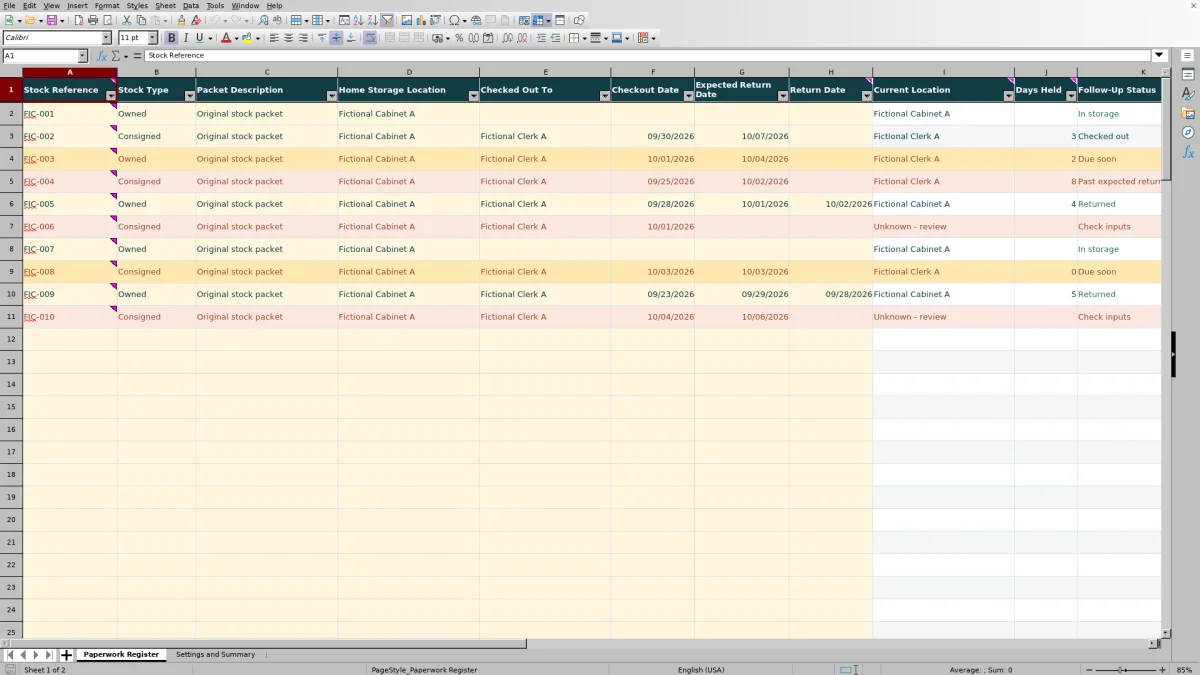
Before preparing a deal or handover, check where the vehicle’s original paperwork packet is recorded and who has it. This Car Dealer Sheets Excel workbook gives you a stock-reference register for storage locations, staff custody and return dates.
Use it for owned or consigned retail stock without copying full personal document details into the register. Each row covers one vehicle’s original packet and latest checkout cycle; it is a current-location index, not a document archive or checkout history.
When to use this workbook
- Find the recorded storage location or staff holder before looking for an original paperwork packet.
- Use expected return dates and follow-up statuses to organize calls to staff holding packets.
- Keep a practical packet index using stock references, short descriptions and staff aliases.
- Review status counts to see which records need attention before deal preparation.
What is in the file
How to use the workbook
1. Set up your locations and staff aliases
On Settings and Summary, replace the fictional entries in Storage Locations at E2:E11 and Staff Aliases at F2:F11 with your working labels. Check As-of Date at B2 and Due-Soon Window (days) at B3. The date defaults to TODAY(), and the supplied window is 2 days. Confirm that Settings Check reads Ready.
2. Replace the fictional packet records
On Paperwork Register, enter a unique text value in Stock Reference, choose Owned or Consigned in Stock Type, and complete Packet Description and Home Storage Location. Use a short description that identifies the packet rather than reproducing customer document contents. Enter records within rows 2–101.
3. Record a checkout when the packet leaves storage
Complete Checked Out To, Checkout Date and Expected Return Date together. Use the staff alias list and enter dates in MM/DD/YYYY format. Leave Return Date empty while the packet is out. Keep the calculated columns Current Location, Days Held and Follow-Up Status intact.
4. Review records needing attention
Use the header filters on Paperwork Register to review Follow-Up Status, including Check inputs and Past expected return. Consult the counts on Settings and Summary to plan your review, then contact the recorded holder or inspect storage as needed. The workbook shows recorded information; it does not confirm physical custody.
5. Close the checkout before reusing the row
Enter Return Date only after the packet is back at Home Storage Location. Before a later checkout, preserve any previous-cycle details you need separately, then replace the fields in E:H together. Leaving the old return date in place can make a new checkout appear to be back in storage.
Connect each packet to the right vehicle
The register uses Stock Reference, not a dedicated VIN field. A VIN is the vehicle identification number. If your dealership normally retrieves paperwork by VIN, keep a reliable way to match that VIN to the stock number you enter here; the workbook does not supply that lookup.
Stock Reference must be text and unique within the register. Use one consistent convention so an administrator can match the row to the packet label and your stock records. Do not add another row with the same reference to track a second checkout: duplicate references trigger an input check.
One row represents the vehicle’s original packet, rather than separate custody records for every document inside it. If originals for the same vehicle are split between several holders, this single-packet structure cannot describe all those locations independently.
Read the location before arranging a handover
For a row without an input warning, Current Location shows Home Storage Location when there is no checkout date or when a return date has been recorded. While a checkout remains open, it shows Checked Out To. That means the result may be a staff alias rather than a cabinet name.
Return Date means the packet is back at its home location. If a staff member has only passed it to someone else or left it elsewhere, do not use the return field as a general movement note. Confirm the packet’s actual placement before recording the return.
When Follow-Up Status is Check inputs, Current Location displays Unknown - review instead of presenting a location as usable. Resolve the row first, then verify possession before relying on the packet for a deal or handover.
Example: interpret Days Held before following up
In a fictional example, a packet is checked out to Fictional Clerk A on 10/01/2026, with an expected return of 10/04/2026. Assume the row has valid inputs, Return Date is blank and As-of Date is 10/05/2026. Days Held is 4 calendar days: the as-of date minus the checkout date.
Those 4 days describe elapsed custody time, not days late. The expected return date has passed by 1 calendar day, so your next action is to ask the recorded holder whether the packet is still needed and where it is physically held.
If the packet comes back to its home location on 10/06/2026 and you enter that Return Date, Days Held becomes 5 days and Current Location shows the home location. For returned packets, the calculation uses the return date instead of the as-of date. It does not count business days or exclude weekends.
Use the summary as a review list, not a physical count
Settings and Summary counts rows labeled In storage, Checked out, Due soon, Past expected return, Returned and Check inputs. Register Entries adds those six counts. These are counts of register records, not a count of individual documents or a physical inventory of packets.
Start with Check inputs so questionable records do not obscure your review. Then inspect packets marked Past expected return and Due soon to decide whom to contact. The due-soon setting is a nonnegative whole number of days; choose a window that fits when you normally check paperwork availability.
Check the As-of Date before interpreting time-based results. B2 contains TODAY() by default. If you replace it with a fixed review date, open-checkout Days Held calculations use that date until you change it again. Status counts are a workbook review aid, not evidence that staff have been notified.
Errors and solutions: input warnings and misleading blanks
If a row shows Check inputs, first inspect Stock Reference, Stock Type, Packet Description and Home Storage Location. The visible checks require these details, require a text stock reference, flag duplicate references and compare the selected stock type and location with the settings lists.
For a checkout, check the whole group rather than one cell: Checked Out To, Checkout Date and Expected Return Date must be supplied when cycle details are present. The staff alias must also match the settings list. Use actual date values, not text that only looks like a date.
A blank Days Held does not mean zero days. It can mean the row is unused, the row needs input review or no checkout date is recorded. A valid same-day checkout can show 0 because no full calendar day has elapsed.
If Settings Check shows Check settings, inspect B2 and B3 on Settings and Summary. The as-of date must be a valid whole-number Excel date value, and the due-soon window must be a nonnegative whole number. Correct settings before using the results for follow-up.
Keep the register within its operating limits
The supplied formulas, filters, validations and summary references cover 100 record rows, from 2 through 101. Adding a record below that range does not establish that it will receive the same checks or appear in the summary. Plan any expansion as a workbook change that needs verification.
The location and staff dropdown sources each cover 10 slots. Settle on clear labels before entering live records. If you later rename a location or alias in Settings and Summary, review existing register entries too, because the input checks compare them with those lists.
This file retains only the latest checkout cycle in each row. Replacing E:H removes that cycle’s previous details from the row; it is not a custody audit trail. Keep a separate dated record if you need earlier movements.
Keep Packet Description limited to what helps identify the packet. A stock reference and staff alias reduce the need to copy personal details, but this structure does not establish access controls or legal compliance. Manage file access and original-document handling separately.
Comparison: this workbook, a blank spreadsheet or a paper log
Choose this workbook when you want a defined packet-location structure with calculations and a status summary. A paper log may suit a simple sign-out process kept beside a cabinet. A blank spreadsheet gives you more design freedom, but you must build and check the structure yourself.
| Method | Initial setup | Location and follow-up review | Earlier checkouts | Scope to consider |
|---|---|---|---|---|
| This workbook | Replace fictional data and configure lists and settings. | Calculated location, elapsed days, filters and status counts. | Only the latest cycle is held in each row. | 100 supplied record rows and fixed dropdown source ranges. |
| Blank spreadsheet | Create fields, checks and any calculations you need. | Depends on the structure and formulas you build. | Can be designed for a separate row per movement. | You must verify your design and reporting ranges. |
| Paper sign-out log | Prepare headings and establish where the log is kept. | Read entries and calculate elapsed time manually. | Earlier entries remain if you retain the pages. | No calculated summary or spreadsheet filtering. |
If you need multiple simultaneous document locations per vehicle or a retained sequence of every movement, choose a log designed around individual movements rather than treating this workbook as a full history system. If you consider specialized dealer management software, verify those requirements with the provider rather than assuming they are included.
Frequently asked questions
Can I use this register for consigned vehicles?
Yes. Stock Type includes Owned and Consigned. Both use the same packet-location and checkout fields. The selection records the stock type; it does not manage consignment terms or establish ownership rights.
Does the workbook check whether a paperwork packet is complete?
No. Packet Description identifies the packet, and the other fields record location and checkout details. The workbook does not provide a document-by-document completeness checklist or verify the contents of the originals.
Can I attach scanned titles or customer documents?
No attachment or document-storage function is established by the manifest. Use the workbook as a location index, and keep scans and original documents in your separate document-handling process. Avoid placing full personal document data in Packet Description.
Will it send reminders when a packet is due back?
No reminder-sending capability is established. Review Follow-Up Status and the summary counts, then contact the recorded holder through your normal process.
What should I do with the fictional entries already in the file?
Replace the fictional stock records, cabinet labels and clerk aliases before using the register for live work. Edit the input fields and settings lists, while retaining the formulas in columns I:K and the summary formulas. Otherwise, example records can remain in your status counts.
Editorial areas

Owen AshfordVehicle stock & purchasing
About this editorial area →
Mara WestbrookSales records & delivery
About this editorial area →

