
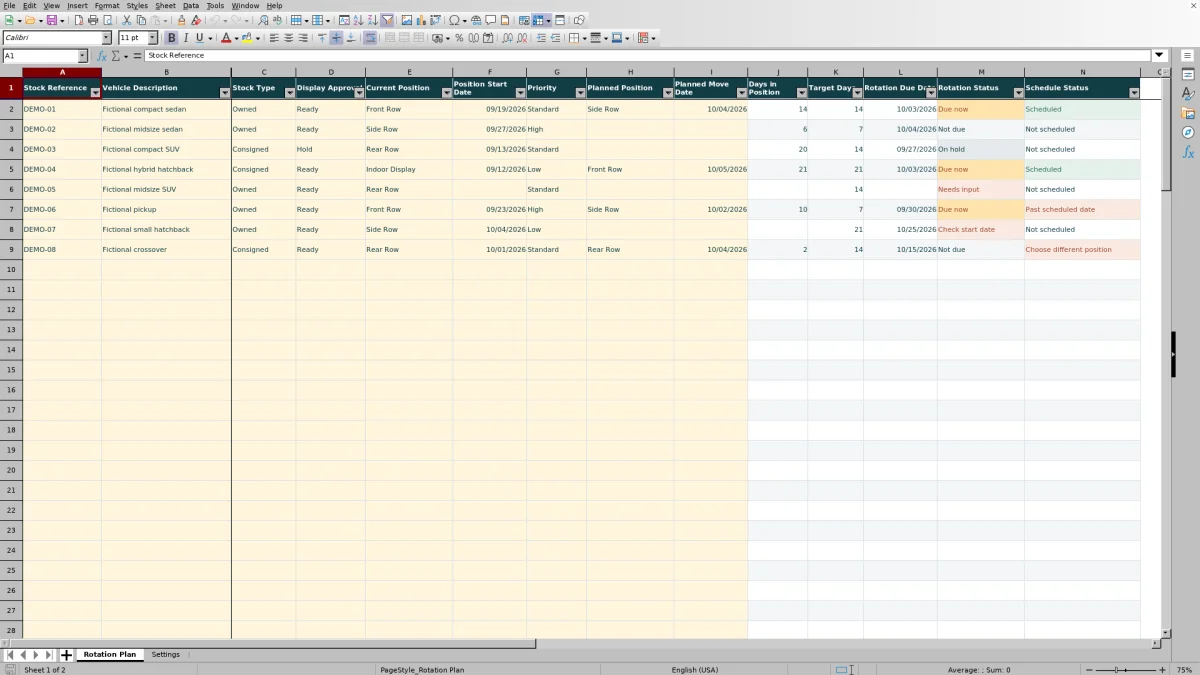
Before moving cars around your lot, check which display placements are due for a change and which vehicles you have approved to move. This Car Dealer Sheets Excel workbook helps you review time in position, apply priority-based targets and record the next planned move.
The car dealer display rotation planner covers owned and consigned retail stock, not stock valuation. It includes fictional examples and uses a DEMO-format stock reference requirement, so review that restriction before using it for your dealership’s records.
When to use this workbook
- Focus your display review on approved vehicles that have reached their recorded time-in-position target.
- Separate a car’s rotation need from whether its next move has a complete schedule.
- Use different rotation intervals for High, Standard and Low priority vehicles.
- Keep the current placement and next planned move together for each listed car.
What is in the file
How to use the workbook
1. Set the review date and rotation targets
Open Settings and check Review Date in B2. It starts with TODAY(); enter a fixed date in MM/DD/YYYY format if you want a dated planning review. Check the Target Days assumptions: High starts at 7 days, Standard at 14 and Low at 21. Review the four display-position choices before entering vehicles.
2. Replace the fictional records carefully
Rotation Plan contains eight fictional vehicle examples. Use one row per vehicle, entering a unique Stock Reference first. The existing validation accepts DEMO-00 through DEMO-999 format references, not ordinary dealership stock numbers. If you need actual stock numbers as the row identifier, this unchanged file does not fit that requirement.
3. Record the current placement and approval
Complete Stock Type, Display Approval, Current Position, Position Start Date and Priority. Vehicle Description is optional. Use Ready only after you have manually confirmed display approval, including any required permission for consigned stock. Leave formula columns J:N intact; the formulas are shaded, not protected.
4. Review due cars and enter the next move
Filter Rotation Status to Due now, then read Schedule Status. Enter Planned Position and Planned Move Date together, choosing a position different from the current one. Resolve warnings before using the row as a move instruction, and confirm that the intended space is available.
5. Update the record after the physical move
Once the car has moved, manually update Current Position and Position Start Date, then clear Planned Position and Planned Move Date. A scheduled date does not change the current placement automatically.
Use exposure time to decide which placements need attention
Days in Position measures elapsed whole days from Position Start Date to Review Date. Target Days comes from the priority you selected, and Rotation Due Date adds that target to the start date. These are calendar-day calculations, not counts of dealership opening days or actual customer exposure.
For a complete record marked Ready, Rotation Status becomes Due now when Review Date reaches or passes Rotation Due Date. Due now means the recorded interval has been reached; it does not establish that a particular location is unsuitable or that moving the car will improve sales.
Use that result to select cars for a display review. Then consider the physical space and your merchandising plan before choosing a destination. The workbook does not choose a position for you or measure foot traffic, enquiries or display performance.
Example: a car can be due and already scheduled
This fictional example uses DEMO-01, the compact sedan supplied in the workbook. Assume you set Review Date to 10/03/2026. Its Current Position is Front Row, its Position Start Date is 09/19/2026, and Standard priority has a 14-day target. Its Owned stock type and Ready approval are recorded.
The elapsed time is 14 days: 10/03/2026 minus 09/19/2026. Adding the 14-day target to the start date gives a Rotation Due Date of 10/03/2026, so Rotation Status is Due now.
The example also has Side Row as Planned Position and 10/04/2026 as Planned Move Date. Because the position differs and the move date is not before the review date, Schedule Status is Scheduled. The two statuses answer different questions: the placement has reached its target, but a next move is already recorded.
Your next decision is whether the 10/04/2026 move still suits the lot plan. This row contributes to Due Now on Settings but not to Due Without Valid Schedule. Scheduled does not mean the car moved by its due date, and it does not confirm completion.
Set priorities and interpret the review counts
The starting targets—7 days for High, 14 for Standard and 21 for Low—are editable merchandising assumptions. Choose intervals that reflect how you intend to rotate your display, rather than treating the supplied values as industry standards or legal requirements.
Changing Target Days in Settings changes the due-date calculation for every row using that priority. Increasing a target can move a due date later; shortening it can make a previously Not due vehicle Due now. Review affected cars after making a change.
Keep priority names in Settings!D2:D4 and display-position names in Settings!G2:G5 unique and nonblank. Update affected vehicle records if you rename a choice. The existing lookups and dropdowns use those fixed ranges, so adding a name below them does not automatically extend the planner.
The Settings counts help you scope the review. Vehicles Listed counts nonblank stock references, not verified physical stock or only complete records. Due Now counts rows marked Due now. Due Without Valid Schedule counts those due rows whose Schedule Status is anything other than Scheduled. On Hold counts rows marked On hold. Review the underlying rows before treating any count as an action list.
Errors and solutions before assigning a display move
Read the warning text as well as the color. Amber identifies Due now and gray identifies On hold. Red stock cells flag reference problems, while red input cells flag unsupported choices or invalid dates, including entries pasted past validation. A calculated status is not a substitute for checking those input warnings.
- Reference or input problems: enter a unique DEMO-format reference before completing the row. Check for duplicates, invalid formats and inputs left on rows without a reference. Use the supported dropdown choices and valid whole-date entries.
- Needs input: complete Stock Type, Ready approval, Current Position, Position Start Date and a recognized Priority. Hold instead produces On hold. A missing Vehicle Description does not prevent the rotation calculation.
- Check start date: the position start is later than Review Date. Confirm whether the placement date is wrong or you intentionally selected an earlier review date. Days in Position stays blank for a future start; it is not zero days of confirmed exposure.
- Complete schedule: only one of Planned Position and Planned Move Date is entered. Supply the other field or clear both if no move is intended.
- Not eligible: a complete proposed schedule exists, but approval or rotation-input checks prevent eligibility. Resolve the underlying record before proceeding.
- Choose different position or Past scheduled date: select a destination different from Current Position, or check whether the earlier planned move happened. Do not simply roll the date forward without checking the car.
Schedule Status shows one result at a time. For example, a row with both plan fields empty displays Not scheduled even when Rotation Status says On hold. Read both columns together.
Turn a valid schedule into an accurate placement record
A complete, eligible row can show Scheduled when its destination differs from the current position and its move date is on or after Review Date. The car does not have to be Due now first. This lets you record an earlier move, but it also means the workbook accepts a move planned after the rotation due date.
The schedule check is row-based. It does not reserve a space, detect two cars assigned to the same destination, or verify that the lot can accommodate a move. Before issuing move instructions, review other planned placements and confirm the physical arrangement.
After the move, record the actual placement date as Position Start Date. That date starts the next exposure interval. Clear the old planned move fields so they do not remain as an obsolete schedule.
Each row holds the current placement and one next move, not a placement history. If you need a record of earlier arrangements, keep a separate dated copy before replacing the current details.
Comparison: this workbook versus a manual display log
Use this workbook when you want a prepared, row-by-row review of rotation timing and schedule completeness, and can work within its reference format and 100-row setup. A manual display log may suit a small lot where flexible identifiers and handwritten move notes matter more than calculated checks.
| Method | Timing review | Schedule checks | Identifiers and records | Ongoing work |
|---|---|---|---|---|
| This Excel workbook | Calculates elapsed days and priority-based due dates against a review date. | Checks completeness, eligibility, different position and past planned dates. | Uses DEMO-format references and 100 prepared rows; stores current placement and one next move. | You maintain inputs, confirm physical moves and update placements manually. |
| Paper or manual display log | You calculate or review rotation dates yourself. | You check approval, destination and dates yourself. | You choose stock-number formats and how to retain earlier entries. | You maintain the log and reconcile it with the lot manually. |
If your requirement includes actual stock numbers without the DEMO restriction, a long-term movement history or coordination with other dealership records, select a recordkeeping method that supports those needs. Do not assume this workbook provides integrations or expands automatically beyond its prepared range.
Keep display planning separate from stock valuation and approval evidence
This file records no asking prices, acquisition costs, receipts or currency. Days in Position is time in the recorded display location, not total inventory age, a market-value estimate or a measure of profitability. Use separate records when deciding how to price stock.
Ready is your manual display approval. For a consigned car, that includes checking any required permission outside the workbook. The label does not verify permission, establish roadworthiness, verify title or submit registration paperwork.
The prepared calculation and validation range is Rotation Plan rows 2–101. Do not assume entries below row 101 receive the same checks or appear in the Settings counts. The workbook is limited to display rotation; it does not manage buying, prep, sales, finance, handover or repair work.
Frequently asked questions
Can I use my dealership’s regular stock numbers?
Not in Stock Reference under the existing validation. It requires unique references in the DEMO-00 through DEMO-999 format. The supplied records are fictional examples. If regular stock numbers are essential to your workflow, use a different setup rather than assuming this restriction can be ignored.
Does the review date always stay on today?
Settings!B2 starts with TODAY(), so the review date follows the current date when the workbook recalculates. You can replace it with a fixed date for a particular review. After that, it stays fixed until you change it or restore =TODAY().
Can owned and consigned cars be planned together?
Yes. Stock Type offers Owned and Consigned, and both use the same priority-based timing calculation. Record Ready only after your manual approval checks, including any required consignment permission. The workbook does not obtain or verify that permission.
Why are calculated cells blank instead of showing zero?
A blank Stock Reference leaves the calculated outputs blank. Days in Position also stays blank when the start date is missing or later than Review Date. Target Days stays blank when the priority cannot be matched, which also leaves Rotation Due Date blank. Check the inputs rather than interpreting a blank as no rotation work needed. A genuine zero in Days in Position means the start and review dates are the same.
Can I overwrite a calculated result to correct it?
The formula cells are not protected, so they can be overwritten, but doing so removes the calculation from that cell. Correct the relevant input or Settings value instead. If a formula has been replaced accidentally, restore it from an unchanged copy before relying on the row’s result.
Editorial areas

Owen AshfordVehicle stock & purchasing
About this editorial area →
Mara WestbrookSales records & delivery
About this editorial area →

