
When a stock vehicle moves between your two dealership locations, both branches need to agree on what left and what arrived. Use this car dealer stock transfer checklist workbook to record the vehicle, keys and paperwork at dispatch and receipt, then review differences before sign-off.
The Car Dealer Sheets workbook brings transfer entries, calculated reconciliation statuses and a summary into one file. It supports operational acknowledgment for owned or consigned retail stock; it does not independently verify the vehicle or the contents of its paperwork packet.
When to use this workbook
- Give both branches a shared record of dispatch and receipt details for each stock transfer.
- Identify recorded key-count, vehicle or paperwork differences before closing a transfer.
- Focus follow-up on incomplete records and in-transit transfers exceeding your internal target.
- Separate reconciled entries awaiting a coordinator’s decision from transfers with a recorded sign-off.
What is in the file
How to use the workbook
1. Set the branches and review assumptions
On Settings, replace the fictional branch names in D2:D3 with your two distinct branch names. Set Reporting date in B2 and Internal transit target (calendar days) in B3. Keep the Owned/Consigned and Yes/No choices unchanged. Check that Settings check on Transfer Summary reads OK before relying on the counts.
2. Prepare your working records
Transfers rows 2–9 contain eight fictional examples. Clear their input values in columns A–Q before using the file for live records, but retain the formulas in R and S. Rows 2–101 are prepared for 100 transfers. Enter a unique text Transfer reference first, then put your stock number in Stock reference and select the stock basis and route.
3. Record dispatch and actual receipt
Enter the dispatch date, vehicle acknowledgment, keys sent, paperwork packet reference, paperwork acknowledgment and dispatcher initials. At the receiving branch, enter the receipt date, vehicle and paperwork acknowledgments, keys received and receiver initials from the actual handover. Use MM/DD/YYYY dates and whole-number key counts.
4. Resolve exceptions before sign-off
Review Reconciliation status (Calculated) on Transfers and use the row 1 filters to find entries needing attention. Resolve warnings and differences before recording Sign-off date. Ready for sign-off means the entered acknowledgments reconcile; the coordinator still makes the decision. Finish by reviewing Transfer Summary against the current reporting date.
Make the dispatch record useful to the receiving branch
Use one row for one retail stock vehicle moving between the two branches. Transfer reference identifies the movement, while Stock reference identifies the car. Keep those purposes separate: a later movement of the same car needs its own unique transfer reference so the two handovers remain distinguishable.
Before dispatch, record the actual number of keys and identify the document bundle in Paperwork packet reference. That reference gives the receiver something specific to reconcile against; it is not a list of the documents inside. Keep sensitive packet contents out of the workbook and check the bundle itself through your dealership’s separate paperwork process.
Select From branch and To branch from the configured choices. A route with the same branch at both ends is flagged for review. If you change branch names after entering records, review existing route entries against the new choices rather than assuming the old entries have been updated.
Treat receipt and sign-off as separate decisions
The receiving branch should enter what arrived, not copy what the dispatcher expected to arrive. Compare Vehicle received and Paperwork received with the dispatch acknowledgments, then compare Keys received (count) with Keys sent (count). Missing receipt information can leave a record incomplete; a vehicle, paperwork or key-count mismatch produces a discrepancy.
A blank receipt field is not an acknowledgment. Enter the receipt date and receiver initials explicitly. For keys, zero means an actual count of no keys, while a blank leaves the count unrecorded. Matching zero counts should still prompt you to consider whether the car has the keys your dealership needs; reconciliation alone does not establish that it is ready to sell.
When the entered acknowledgments reconcile, Ready for sign-off directs the record to the coordinator. Review the supporting handover information before entering Sign-off date. A date alone does not override an input or date/route warning, and initials are not electronic signatures.
Example: decide which in-transit car needs follow-up
In this fictional example, a complete dispatch record has a Dispatch date of 10/01/2026 and no Receipt date. Set Reporting date to 10/05/2026 and the internal target to 3 calendar days. Assuming the other entries are valid and the status is In transit, the workbook calculates 4 calendar days: 10/05/2026 minus 10/01/2026.
Four days is greater than the 3-day target, so the transfer contributes to Overdue in transit on Transfer Summary. Contact the receiving branch to establish whether the car is still moving or whether its receipt has simply not been recorded. The result is a follow-up cue, not proof of the vehicle’s physical location.
If the reporting date were 10/04/2026, elapsed time would be 3 days and the transfer would not be overdue: the rule is strictly greater than the target. Once an actual Receipt date of 10/03/2026 is entered, the transit calculation uses that date instead of the reporting date and returns 2 calendar days. These are date differences, not business days or hour-by-hour travel times.
Read the summary without overstating open work
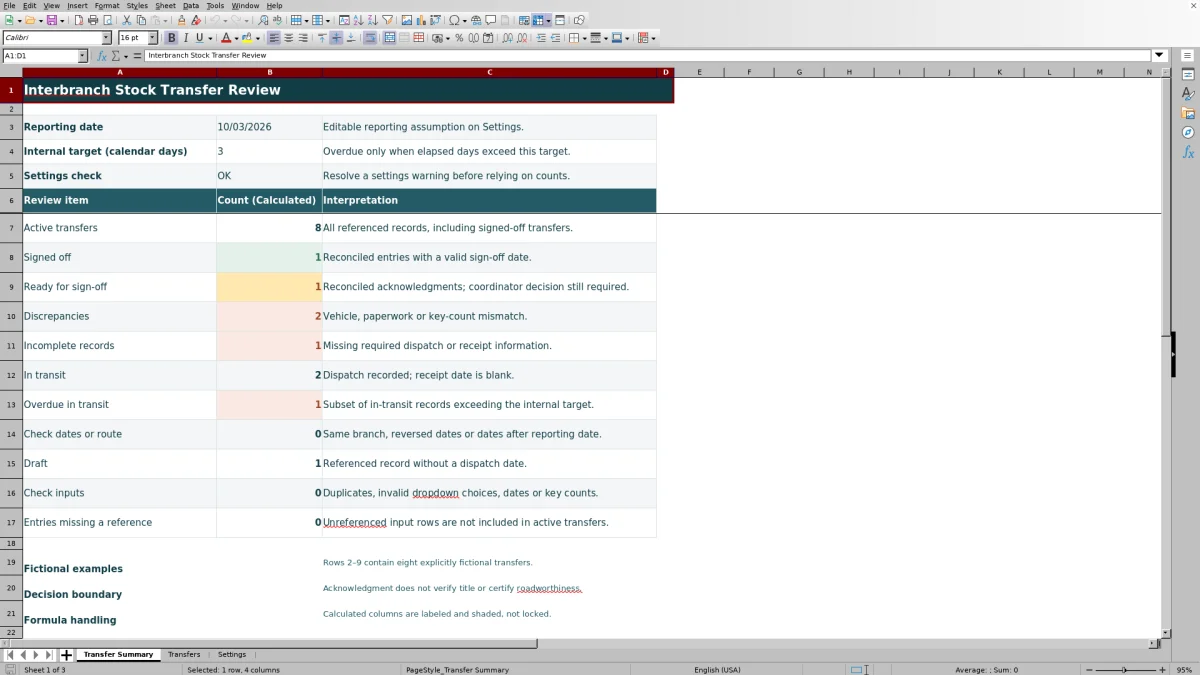
Start a review with Settings check, then look at input warnings, date/route warnings, discrepancies and incomplete records. Those categories tell you where the entered information needs attention before a sign-off decision. Ready for sign-off is a separate queue for reconciled entries awaiting that decision.
Active transfers includes signed-off records. It counts referenced records rather than only unfinished movements. Use the individual status counts and the Transfers filters when you need to identify open work. Overdue in transit is a subset of In transit, so do not add the two counts together as separate groups.
Reporting date starts with TODAY(). For a reproducible review, replace it with the intended review date and retain a dated copy of the workbook. Fixing that date holds the timing assumption steady, but it does not prevent later edits to the underlying transfer entries. The fictional examples may show different timing results as the reporting date changes.
Errors and solutions: missing results and warning statuses
- Blank calculated results: Check Transfer reference first. A blank reference suppresses calculated results, even when other input cells contain information. Transfer Summary counts these rows separately under Entries missing a reference; they are not included in Active transfers.
- Check inputs: Look for duplicate transfer references, invalid dropdown choices, invalid dates or key counts outside the allowed whole-number range of 0–20. Correct the source entry rather than typing over the calculated status.
- Check dates or route: Check for the same branch at both ends, reversed date order or dates after Reporting date. Use a reporting date appropriate to the review instead of changing a genuine event date merely to remove a warning.
- Incomplete dispatch or Incomplete receipt: Compare the entered details with the actual handover record and fill only information you can substantiate. Do not enter Yes just to move the status forward.
- Settings warning: Review the reporting date, nonnegative whole-number target, two distinct branch names and the standard Owned/Consigned and Yes/No labels. Resolve the warning before relying on summary counts.
Pasting or clearing cells can bypass validation. Review the resulting statuses after bulk edits. Transit days also stays blank for Check inputs and Check dates or route; that blank is not evidence of a zero-day movement.
Know the file’s operating limits
The prepared range is Transfers rows 2–101, with formulas and summary references covering those 100 records. Do not assume row 102 is included. If you need more capacity, the formulas, validation, filters and summary ranges would need deliberate extension and checking.
Calculated columns R and S are shaded and labeled, but they are not locked or sheet-protected. Preserve them when clearing samples or entering new records. Recalculate and inspect the results in Excel before using them for a review; the workbook does not independently confirm the facts you enter.
This is a two-branch stock-transfer record, not a buying, prep-job, sales or customer-delivery system. It includes no synchronization, messages, external links, VIN decoding or valuation feeds. A stock reference or packet reference does not create an integration with another system.
Paperwork acknowledgment does not verify legal title, certify roadworthiness or submit registrations. The transit target is an internal operating target, not a legal deadline or a delivery guarantee. Handle those decisions through the appropriate separate dealership processes.
Comparison: workbook, blank spreadsheet or paper transfer log
Choose a recording method based on how you will reconcile handovers and review unfinished transfers. This workbook supplies a defined structure and calculations; a blank spreadsheet or paper register leaves more of that structure and review work to you.
| Method | Initial setup | Reconciliation review | Timing review | Main consideration |
|---|---|---|---|---|
| Car Dealer Sheets workbook | Set two branches, reporting date and target; clear fictional input records. | Calculated statuses compare recorded acknowledgments and key counts. | Calendar transit days and an overdue in-transit summary are provided. | Prepared for 100 records; entries remain manual and formulas are not locked. |
| Blank spreadsheet | Create your own fields, checks and review layout. | Compare entries manually unless you build reconciliation formulas. | Calculate elapsed days manually or create your own formulas. | Useful when your recording needs differ and you can maintain the structure. |
| Paper register | Agree on the fields and keep a consistent written log. | Read and compare dispatch and receipt entries manually. | Count days and identify overdue entries manually. | Useful for a paper-based process, but summary review requires manual counting. |
Use this workbook when two branches need a consistent entry format and a calculated exception review. Choose a manual register if a written record and manual review suit your process. If you need system-enforced access, connected stock updates or a broader dealership workflow, assess specialized dealer management software against those requirements; those capabilities are not supplied here.
Frequently asked questions
Can I record both owned and consigned stock?
Yes. Stock basis provides Owned and Consigned choices. This records the category you select; it does not verify ownership, consignment terms or permission to move the vehicle.
Can I add a third branch to the dropdown?
The supplied branch dropdowns use the two fixed cells Settings D2:D3, and the settings check expects two distinct branches. Adding a name below them does not expand the configured choices. A multi-branch version would require changes to the workbook logic and validation.
Does the workbook send an overdue reminder?
No. It displays an Overdue in transit count based on the reporting date and internal target, but it does not send messages. Assign someone to review the summary and contact the relevant branch.
Should I enter a sign-off date as soon as the car arrives?
Not solely because it has arrived. Record the receipt details, compare the vehicle, keys and paperwork acknowledgments, and resolve any warnings or differences first. Ready for sign-off indicates that the entered acknowledgments reconcile; the coordinator must still decide whether to record sign-off.
Does Paperwork received mean the title has been checked?
No. It records a paperwork acknowledgment. Paperwork packet reference identifies the bundle, but neither field verifies its contents or legal title. Keep document verification separate from the transfer reconciliation.
Editorial areas

Owen AshfordVehicle stock & purchasing
About this editorial area →
Mara WestbrookSales records & delivery
About this editorial area →

