
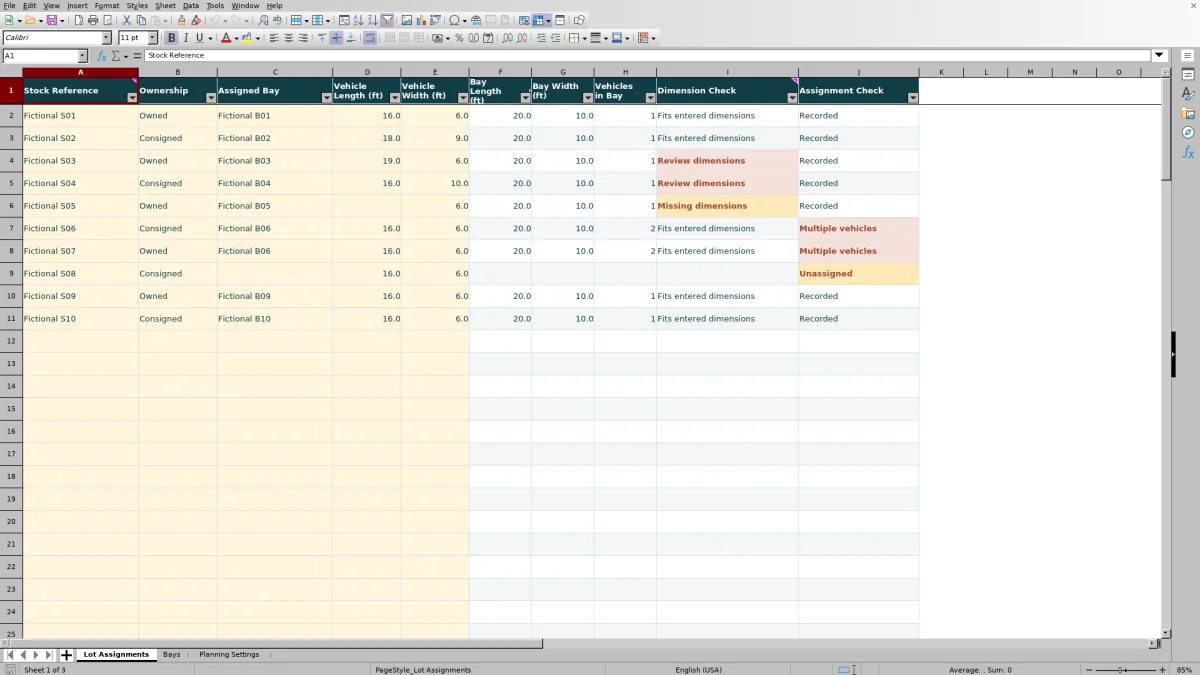
Before assigning an arriving car to a display or storage bay, check the space you have recorded and whether another vehicle is already assigned there. This Car Dealer Sheets Excel workbook helps you match retail stock to named bays and review dimension or assignment problems.
Use it as a current lot assignment register, not a drawn lot map or a safety assessment. It compares entered vehicle and bay dimensions with your clearance assumptions; you still need to confirm the actual space, access and conditions on the lot.
When to use this workbook
- Find bays with no recorded vehicle assignment before choosing a place for incoming retail stock.
- Check vehicle length and width against bay dimensions with your chosen clearance allowances included.
- Identify shared-bay assignments and duplicate stock records before relying on capacity counts.
- Keep owned and consigned retail stock in one current lot register.
What is in the file
How to use the workbook
1. Replace the fictional bay records
On Bays, enter each physical bay once in rows 2–21. Use columns A–D for Bay Reference, Area Type, Bay Length (ft) and Bay Width (ft). Select Display or Storage and enter usable rectangular dimensions in feet. Replace or clear the fictional input records rather than treating them as your lot layout.
2. Set your clearance assumptions
On Planning Settings, review Clearance at Each End (ft) in B3 and Clearance on Each Side (ft) in B4. The supplied values are fictional assumptions, not safety or legal standards. Choose values appropriate to your planning needs after checking the actual lot. Planning Date displays in MM/DD/YYYY and initially uses TODAY(), so it is not a fixed record date.
3. Enter and assign current retail stock
On Lot Assignments, use columns A–E in rows 2–101. Enter your stock number under Stock Reference, choose Owned or Consigned under Ownership, select Assigned Bay, and enter vehicle length and width in feet. Use one row per current vehicle. Leave Assigned Bay blank if you have not yet chosen a space.
4. Resolve alerts before using the plan
Review Dimension Check and Assignment Check, then check Bay Status on Bays and the capacity indicators on Planning Settings. Correct conflicting assignments, missing data and duplicate references before arranging a move. Keep calculated columns intact: Lot Assignments F–J and Bays E–F contain formulas and are not sheet-protected.
Choose a bay using both occupancy and fit
Start on Bays and filter Bay Status to Open. Use Area Type to distinguish display spaces from storage spaces, then compare the available bay dimensions with the car you need to place. Selecting a bay in Lot Assignments brings its recorded dimensions into that vehicle’s row.
Open means no entered stock is assigned. It does not prove the space is empty, accessible or suitable. Walk the space before using it, and check Dimension Check after making the assignment. A bay can be occupied in the register even when the assigned vehicle does not pass the dimension check.
The workbook does not choose an optimal bay or draw a layout. You make the allocation; the formulas help you examine that recorded choice.
Understand the clearance calculation
The length test adds an allowance at both ends of the vehicle. The width test adds an allowance on both sides. Both totals must be less than or equal to the corresponding bay dimensions for Dimension Check to report Fits entered dimensions.
- Required length = vehicle length + 2 × Clearance at Each End (ft).
- Required width = vehicle width + 2 × Clearance on Each Side (ft).
All measurements and allowances are in feet. Enter 6.5 for six feet six inches, not 6.6. The calculation assumes a rectangular footprint with vehicle length aligned to bay length; it does not test a rotated placement.
The two clearance settings apply across the register, rather than varying by vehicle or bay. Changing them changes the basis of every dimension check. Blank, text or nonpositive dimensions trigger Missing dimensions; missing, nonnumeric or negative clearances trigger Check planning settings.
Fictional example: a car that fits exactly
In the supplied fictional example, Fictional S02 is 18 ft long and 9 ft wide, assigned to Fictional B02, a 20 ft by 10 ft bay. With the fictional allowances of 1 ft at each end and 0.5 ft on each side, required length is 18 + 2 × 1 = 20 ft and required width is 9 + 2 × 0.5 = 10 ft.
Both totals equal the bay dimensions, so the result is Fits entered dimensions. This means there is no additional space beyond the entered allowances. It does not mean the car has been cleared for placement.
Your next decision is whether the measurements and allowances reflect the actual space and intended use. Confirm dimensions, obstructions and access before moving the vehicle. If the space is unsuitable in practice, choose another bay or correct the recorded measurements and reassess; do not reduce the allowances simply to obtain a fit result.
Read capacity counts without overstating space
Planning Settings summarizes Registered Bays, Occupied Bays, Open Bays and Conflicted Bays. These count bay records, not total vehicles. A bay with one or more assigned stock records counts as occupied; a bay with more than one also counts as conflicted.
The supplied fictional records illustrate the distinction: 10 registered bays, 8 occupied bays, 2 open bays and 1 conflicted bay. The conflicted bay is already included in the occupied count, so adding 8 occupied, 2 open and 1 conflicted would double-count that bay.
Resolve conflicts before relying on capacity. Two cars assigned to one bay do not create an extra physical space. Likewise, an unassigned car does not occupy any bay in these counts, even if it is physically on the lot. Review unassigned stock alongside open bays before deciding whether you can accommodate another car.
Lot assignment errors and solutions
Use the text alerts as prompts to correct the register, not as confirmation that every other detail is correct. Assignment Check reports one result at a time, so another issue may appear after you fix the first.
- Duplicate stock: keep one current row per vehicle and correct any mistaken Stock Reference. Recheck the bay counts afterward.
- Unassigned: select a bay only after checking the available space. A blank assignment is allowed, but it is not a completed allocation.
- Unknown bay: confirm the bay exists once on Bays, then select its reference from the Assigned Bay dropdown.
- Multiple vehicles or Conflict: check the actual locations and correct or reassign the records. The planning model assumes one vehicle per bay.
- Missing dimensions: check both the vehicle measurements and the source bay measurements for blanks, text, zero or negative values.
- Check planning settings: enter numeric, nonnegative clearance values in Planning Settings B3:B4.
If a populated vehicle row has no Stock Reference, its checks can remain blank and it is excluded from bay assignment counts. Review missing-reference highlights rather than interpreting blank results as a pass. Also check highlighted missing ownership and duplicate bay references.
Dropdowns and entry rules can be bypassed by pasted data. Use unique text references without asterisks, question marks or tildes, and inspect pasted entries before relying on the results.
Keep the register current within its limits
When you move a car, update Assigned Bay on its existing row rather than adding a second row. When stock leaves the lot, clear its input record from the current register while preserving the formulas. This keeps the workbook focused on present assignments rather than a movement history.
The supplied formulas and dropdown sources use fixed ranges: Lot Assignments rows 2–101 and Bays rows 2–21. Extra rows are not automatically covered. Extending the workbook requires coordinated changes to formulas, validation, filters and formatting; do not assume that typing below the existing ranges updates the capacity indicators.
This is administrative retail-lot planning only. It does not model turning paths, slopes, obstructions or aisle access, and a dimension match is not a safety assessment or roadworthiness certification. It is not a fleet route plan, prep job tracker or deal administration system.
Compare this workbook with a blank spreadsheet or paper log
Choose a method according to how you need to maintain current bay assignments. This workbook supplies linked registers and specific checks. A blank spreadsheet gives you a starting point for a different structure, while a paper log can hold a simple manually maintained record.
| Method | Initial setup | Dimension and conflict checks | Capacity review | Ongoing responsibility |
|---|---|---|---|---|
| Car Dealer Sheets workbook | Replace fictional records and set clearance assumptions within the supplied ranges. | Formula-based dimension and assignment checks use your entered data. | Summarizes registered, occupied, open and conflicted bays. | Update assignments, verify physical conditions and preserve formulas. |
| Blank spreadsheet | Create your own fields, layout and any calculations. | Manual unless you build and check formulas. | Manual unless you add counts or summaries. | Maintain both the records and your chosen spreadsheet structure. |
| Paper log | Write a bay list and stock assignments. | Compare measurements and look for duplicate assignments manually. | Count available and occupied spaces manually. | Keep entries legible and replace outdated assignments. |
Use this workbook when its one-vehicle-per-bay model and supplied range sizes match your process. Use a blank spreadsheet when you need a substantially different record structure and can build the checks you require. A paper log may be sufficient for a small, infrequently changing list, provided you still verify dimensions and actual availability.
Frequently asked questions
Can I track both owned and consigned cars?
Yes. Ownership on Lot Assignments offers Owned and Consigned, and the workbook’s scope includes both types of current retail stock. Ownership does not change the dimension calculation or bay counts, and the entry is not title verification.
Does Recorded mean the vehicle fits its bay?
No. Recorded is an Assignment Check result. It means that check has not found duplicate stock, a blank assignment, an unknown bay or multiple assigned vehicles. Read Dimension Check separately, then confirm the actual bay conditions.
Can I assign two small cars to one large bay?
The workbook assumes one vehicle per bay. Two stock records assigned to the same bay produce Multiple vehicles on the assignment records and Conflict on the bay record. It does not calculate combined vehicle footprints or shared-bay arrangements.
Why are there blank choices in the bay dropdown?
The dropdown includes Bays rows 2–21. Blank choices represent unused register rows, not additional physical spaces. Add a unique Bay Reference and its measurements within that register before assigning stock to a new bay.
Does Planning Date preserve the date of an earlier plan?
Not by default. Planning Settings B2 uses TODAY(), which can change when the workbook recalculates, and displays in MM/DD/YYYY. If you need a dated snapshot, enter the intended date and save a separate copy under your own recordkeeping process. The workbook is not a movement history.
Editorial areas

Owen AshfordVehicle stock & purchasing
About this editorial area →
Mara WestbrookSales records & delivery
About this editorial area →

