
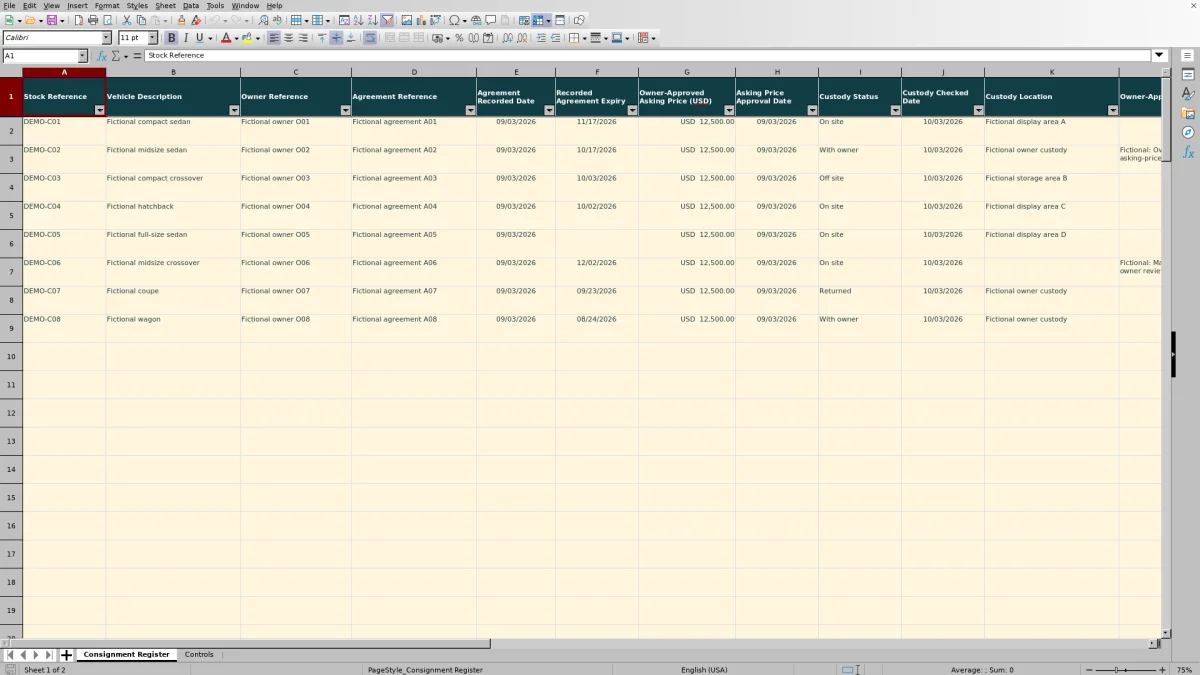
Before changing an asking price or arranging a viewing, check the owner’s recorded terms, agreement expiry and vehicle location. This Car Dealer Sheets Excel workbook gives you a consignment register for keeping those details together and identifying records that need attention.
Use it for owner-term and custody review, not deal settlement. Its indicators depend on the details you enter and the review date you choose; they do not verify owner approval, physical custody or legal title.
When to use this workbook
- Keep the approved asking price and any recorded restrictions beside the relevant agreement reference.
- Identify agreements approaching or past their recorded expiry for follow-up.
- Review missing custody details separately from agreement issues before arranging access to a car.
- Use summary counts to organize follow-up while keeping returned vehicles out of the exception totals.
What is in the file
How to use the workbook
1. Set the review basis
Open Controls and check Review Date in B2 and Review Window (days) in B3. B2 starts with =TODAY(), and B3 starts at 14 days. Use dates in MM/DD/YYYY format. The review window is an operational planning choice, not a legal deadline.
2. Separate examples from your live records
Rows 2–9 in Consignment Register contain fictional examples; rows 10–101 are available for entry. Before relying on totals for your dealership, clear or replace the fictional inputs in columns A–L while preserving the formulas in M–O. The supplied examples otherwise remain included in the counts.
3. Enter the agreement and asking terms
Enter your stock number in Stock Reference first, using one row per consignment agreement and vehicle. Add the vehicle, internal owner reference, agreement reference and dates. Record the approved amount in Owner-Approved Asking Price (USD), its approval date and any restrictions in Owner-Approved Asking Terms.
4. Record custody from your latest check
Select Custody Status, then enter Custody Checked Date and Custody Location. The supplied choices are On site, With owner, Off site and Returned. Record what you actually checked rather than assuming the car is still where it was previously listed.
5. Review the exceptions and act
Use the header filters on Consignment Register to inspect Agreement Review and Custody Review. Correct incomplete records, check questionable dates and discuss approaching expiry with the owner as appropriate. Leave calculated columns M–O intact; their formulas are not locked.
Check asking authority before changing the advertised price
Owner-Approved Asking Price (USD) records the owner’s approved asking amount. It is not an agreed sale price, a valuation or an amount due to the owner. Read it alongside Asking Price Approval Date and Owner-Approved Asking Terms before discussing a price change.
For example, a restriction requiring approval before any reduction belongs in Owner-Approved Asking Terms. Keep the supporting agreement available through your own filing process; entering an Agreement Reference does not connect the workbook to a document system.
A blank terms field means no additional terms were recorded. It does not establish that there are no restrictions. Agreement Review does not test that field for completeness, so a row can show Current while the terms field is blank. Check the source agreement when the recorded information is not enough to support your next decision.
Example: decide when to discuss an approaching expiry
Days to Recorded Expiry subtracts the review date from the recorded expiry date. The result is a calendar-day difference, not a business-day allowance. A positive number means days remain relative to the selected review date; zero means expiry falls on that date; a negative number means the recorded date has passed.
In a fictional example, use Review Date 10/03/2026, Review Window (days) 14 and Recorded Agreement Expiry 10/17/2026. The difference is 14 days. If the required agreement details are present and the dates pass the workbook’s checks, Agreement Review shows Review soon because the result is within the 14-day window, including its boundary.
That result gives you a reason to check the agreement and contact the owner about next steps. It does not extend the agreement or authorize continued advertising. With those same assumptions, an expiry of 10/03/2026 gives zero days and still shows Review soon; an expiry of 10/02/2026 gives minus one day and shows Past recorded expiry.
Current means the recorded expiry lies beyond the review window after the earlier checks pass. It is an operational indicator, not confirmation that the agreement is legally valid.
Confirm access to the car separately from agreement timing
A car can have a current recorded agreement and still be with its owner or off site. Before arranging a viewing or handover, check Custody Status, Custody Location and Custody Checked Date together.
Custody Review looks for a vehicle description, owner reference, custody status, checked date and location. If one is missing, it shows Needs custody details. A checked date later than the review date produces Check custody date; otherwise, a complete row shows Recorded.
Recorded does not mean physically verified by the workbook. There is no age threshold in this custody check: an old checked date can still produce Recorded. Decide whether you need a fresh location or access confirmation before making a commitment. The indicator also does not establish that the entered status accurately describes the car’s location.
Read the summary counts without overlooking returned cars
On Controls, Registered Agreements counts rows with a nonblank Stock Reference. It is a count of recorded entries, not a count of cars physically on your lot. The custody counts split those entries by the supplied status choices, while Missing or Unlisted Custody identifies the remainder.
The section Reviews Excluding Returned Vehicles counts agreement and custody exceptions only where Custody Status is not exactly Returned. A returned car still contributes to Registered Agreements and its custody count, and its individual review indicators remain visible in the register.
Returned is not proof of agreement termination. Use that status to describe recorded custody, not to close an agreement by implication. If an exception total seems unexpectedly low, inspect returned rows and the review settings before concluding that no follow-up remains.
Errors and solutions for consignment review records
The agreement indicator checks conditions in sequence and displays the first applicable result. A missing setting or required detail can therefore hide a later expiry warning until you correct it.
- Blank calculated results: enter Stock Reference first. Agreement Review and Custody Review stay blank without it. Days to Recorded Expiry also stays blank if the expiry or review date is missing.
- Set review date or Set review window: restore the relevant value on Controls. The window accepts whole numbers from 0 to 365 days. Zero is a valid same-day review window, not a missing value.
- Needs agreement details: check Agreement Reference, Agreement Recorded Date, Recorded Agreement Expiry, Owner-Approved Asking Price (USD) and Asking Price Approval Date. All five are required by this check.
- Check dates: compare the source records with your entries. This flag appears when expiry precedes the agreement recorded date, or when the agreement recorded date or asking-price approval date is later than the review date.
- Missing or Unlisted Custody: check for a blank status or text that does not match a current dropdown choice. A nonblank unlisted status may not trigger Needs custody details, so review this summary count separately.
After correcting the first issue, read the row again. A different flag may now appear because the formula can reach the next check. Do not change a date merely to remove a warning; reconcile it with the supporting record.
Keep the register within its working scope
The supplied formula and filter area covers 100 record rows, from row 2 through row 101. Eight rows initially hold fictional examples, leaving 92 initially blank entry rows. Replacing the examples makes all 100 supplied rows available for your records.
This is a fixed-range register, not an expanding Excel table. Entries below row 101 are outside the supplied summary ranges, validation ranges and filter area. If you need more space, extending only the visible rows is not enough: the formulas and related ranges also need to be extended and checked before you rely on the results.
The workbook records asking terms and review information. It does not calculate commission, owner proceeds, dealership profit or settlement amounts. Keep those calculations and checks on settled funds in a separate process. Nothing in these review indicators establishes title, legal deadlines or permission to complete a deal.
Compare this workbook with a blank spreadsheet or paper log
Choose according to how you need to review your consigned stock. This workbook provides an established entry layout and calculated review checks. A blank spreadsheet lets you define your own layout, while a paper log can serve as a handwritten register. Each still depends on accurate entries and someone acting on them.
| Method | Setup | Expiry review | Custody and follow-up | Scope |
|---|---|---|---|---|
| This workbook | Supplied fields and review controls | Day differences and indicators based on your review date | Recorded custody details and exception counts excluding Returned | 100 supplied record rows; no settlement calculations |
| Blank spreadsheet | You create the fields and layout | You review dates manually or build formulas | You design the status fields and summary checks | You define and maintain the scope |
| Paper log | You choose the written format | You compare dates manually | You record locations and tally follow-up items by hand | No spreadsheet calculations or filters |
Use this workbook when its asking-term, expiry and custody structure matches your task. Choose a blank spreadsheet if your record format differs substantially and you can maintain the checks yourself. A paper log may suit a handwritten process, but you will need a separate routine for date review and totals. If you need broader deal or settlement administration, assess a separate system against those requirements rather than treating this register as a complete dealer management system.
Frequently asked questions
Should I enter owner names and contact details?
The workbook’s entry guidance calls for internal owner references, not names, contact details or identity documents. Put your internal identifier in Owner Reference and maintain the corresponding owner information through your separate records process.
Can I use a fixed date for a weekly review?
Yes. Controls B2 starts with =TODAY(), but you can replace it with a fixed review date entered in MM/DD/YYYY format. Replacing the formula means that cell no longer uses TODAY(). The review results will be relative to your chosen date.
This does not reconstruct a past version of the register: the formulas evaluate the entries currently in the workbook. A fixed date is a review basis, not a change history.
Can I rename the custody dropdown choices?
The choices come from Controls D2:D5. Keep them distinct, and remember that editing a choice does not update existing records. Reconcile existing entries if you change a label.
Keep the exact label Returned for returned vehicles because the exception-count formulas use that text for their exclusion. Renaming it would change how those records are counted.
Does the workbook send expiry reminders or contact owners?
The supplied functions are worksheet indicators, filters and counts, not an owner-contact or reminder service. Establish your own review routine, inspect the exceptions and record any follow-up through your normal dealership process.
Editorial areas

Owen AshfordVehicle stock & purchasing
About this editorial area →
Mara WestbrookSales records & delivery
About this editorial area →

