
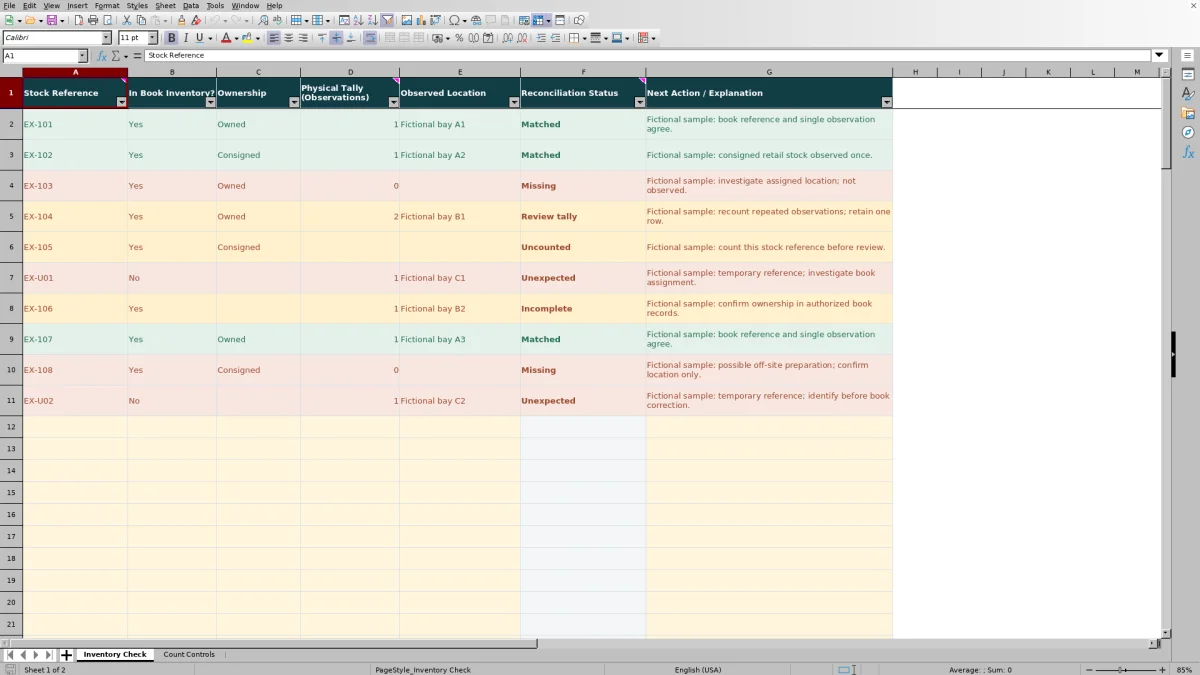
When the cars you observe do not line up with your book inventory, separate count errors from vehicles that need investigation. This Car Dealer Sheets Excel workbook helps you reconcile one dated physical count against one book snapshot for a selected dealership location.
You compare vehicle identification numbers (VINs) with authorized records outside the workbook, then enter stock references and observation tallies. The file flags discrepancies and data checks so you can decide what to recount, identify, or follow up. It does not match VINs automatically.
When to use this workbook
- Separate uncounted stock from vehicles explicitly recorded as not observed.
- Focus follow-up on missing stock, unexpected vehicles, and repeated observations.
- Check whether you entered the expected number of book records before relying on the review.
- Keep observed locations and next actions beside each stock reference.
What is in the file
How to use the workbook
1. Set the location and dated scope
On Count Controls, replace the fictional control settings with your Count Date, Count Location, Book Snapshot Date, and manually verified Expected Book Records. Dates display as MM/DD/YYYY. Include owned and consigned retail stock assigned to the selected location.
2. Replace the sample records with book stock
The ten populated inventory records are fictional examples. Replace or clear their inputs on Inventory Check without deleting the formulas in Reconciliation Status. Enter every scoped book vehicle once using Stock Reference, select Yes in In Book Inventory?, and choose Owned or Consigned in Ownership.
3. Record what you observe
Compare physical VINs with authorized book records outside the file. In Physical Tally (Observations), leave a blank until counted, enter 0 when not observed, or enter 1 when observed once. Record the Observed Location. Add an unexpected vehicle under a distinct temporary stock reference, select No for the book flag, and leave Ownership blank pending identification.
4. Review checks and assign follow-up
Let Excel recalculate the formulas, then use the Inventory Check header filters to review Reconciliation Status. Correct data checks, investigate Missing and Unexpected results, and enter the next step in Next Action / Explanation. Review Count Controls before treating the count as ready for follow-up; readiness does not mean all vehicles are reconciled.
Choose the count scope before walking the lot
Use one selected location, one physical count date, and one authorized book snapshot. Your Expected Book Records figure should come from that scoped snapshot, not from the number of cars you happen to find. Otherwise, omitted book vehicles can disappear from the reconciliation instead of showing as Missing.
Start with every scoped book vehicle. Then add unexpected observations. Include consigned retail stock assigned to the location as well as owned stock, using the Ownership field to distinguish them.
If cars move during the count, record enough detail in Next Action / Explanation to investigate the timing. The two date fields document your inputs; they do not establish that the snapshot and physical observations cover the same moment or that your selected scope is complete.
Example: turn observations into a follow-up list
In this fictional example, you count a retail lot on 10/03/2026 against a book snapshot dated 10/03/2026 containing two vehicles. Set Expected Book Records to 2 and enter each book vehicle under its own stock reference.
- EX-201: Yes for book inventory, Owned, and a tally of 1 produces Matched. The entered book record has one observation; no count discrepancy is flagged for that row.
- EX-202: Yes for book inventory, Consigned, and a tally of 0 produces Missing. Check its assigned location and recount before deciding whether the book record needs correction.
- EX-U02: No for book inventory, blank Ownership, and a tally of 1 produces Unexpected. Use the temporary reference to track the observation while you confirm identity and book assignment.
With unique references and otherwise complete inputs, Count Controls shows one Matched, one Missing, one Unexpected, zero Open Data Checks, and two Entered Book Records. With the control fields completed, Review Readiness becomes Ready for follow-up. That result tells you the listed checks pass—not that the missing and unexpected vehicles have been resolved.
Read the tally and status before changing the books
Blank and zero mean different things. For an otherwise complete row, a blank tally means Uncounted. A tally of 0 explicitly records that the vehicle was not observed; for book stock, that produces Missing. Do not fill unfinished counts with zeros just to remove blanks.
A tally of 1 means one observation. For a book vehicle with the required inputs, it produces Matched; for an unexpected vehicle entered with No and blank Ownership, it produces Unexpected. Matched does not verify title or roadworthiness.
A tally above 1 produces Review tally. It represents repeated observations of the same reference, not multiple distinct vehicles. Recount and investigate rather than summing tallies as a unique vehicle total. Use one row per distinct reference and keep repeated observations on that row.
For Missing stock, investigate location and recount. For Unexpected stock, confirm identity and book assignment. An off-site prep explanation can be recorded as a note, but the note does not change the formula result or verify where the car is.
Fix entry problems before interpreting discrepancies
The formulas check some input problems before assigning a physical reconciliation result. A row may therefore show a data-check status until you fix the underlying entry.
- Incomplete: Supply a missing Stock Reference or book flag. A Yes book flag also requires Ownership. A partly filled row without a stock reference can trigger this status.
- Duplicate reference: Review repeated stock references and consolidate observations into one record. Check the physical identity outside the workbook before combining entries.
- Review entry: Check inconsistent inputs. For example, a No book flag with an Ownership value needs review; unexpected vehicles should have Ownership left blank pending identification.
- Uncounted or Review tally: Finish the count or recount repeated observations rather than typing over the status formula.
Pasting can bypass validation. After a paste, manually check stock references for the 24-character limit and leading or trailing spaces. Also check dropdown values, ownership consistency, nonnegative whole-number tallies and expected totals, and valid dates. If results appear stale, ensure the workbook has recalculated; do not replace formula results with typed labels.
Use readiness as a review gate, not a sign-off
Count Controls combines five status categories into Open Data Checks: Incomplete, Duplicate reference, Uncounted, Review tally, and Review entry. Entered Book Records counts rows with a nonblank stock reference and a Yes book flag.
Review Readiness stays Provisional—check inputs when any required control is blank, Open Data Checks is above zero, or Entered Book Records differs from Expected Book Records. Otherwise, it displays Ready for follow-up.
Ready for follow-up is not a clean-stock confirmation. Missing and Unexpected vehicles can remain. The readiness formula also does not require an Observed Location or a completed Next Action / Explanation. Review those details yourself before handing the unresolved list to the person responsible for investigating it.
An equal expected and entered total is a useful completeness check, but it does not prove you entered the correct set of vehicles. Compare the stock-reference list with the authorized snapshot as well as checking the totals.
Keep the workbook within its operating limits
The prepared inventory area is rows 2–101: 100 rows for the combined book list and unexpected vehicles. Duplicate-reference checks and Count Controls formulas point to that fixed range. Rows added below 101 are outside those checks. If your combined list exceeds 100 references, do not assume typing more rows extends the reconciliation; use a process sized for the count or have the formulas and controls extended and checked before relying on them.
Store stock references only, not VINs or personal, address, license, or credit information. VIN comparison and identity confirmation take place outside this file. The workbook does not decode VINs or synchronize with dealer management software (DMS).
Use it for physical retail-stock reconciliation, not purchasing, prep work orders, sales, financing, handover, or repair-job management. Keep supporting records separately and save a dated copy for your own count records rather than assuming the file preserves a change history.
Comparison: this workbook or a blank spreadsheet
This two-sheet workbook provides a defined reconciliation structure. A blank spreadsheet is a realistic alternative when you need a different layout, but you must establish your own count rules and checks.
| Method | Setup | Discrepancy review | Scope and responsibility |
|---|---|---|---|
| Car Dealer Sheets workbook | Prepared inventory inputs and dated count controls | Formula statuses, summary counts, and a readiness indicator | 100 prepared rows; you compare VINs externally and investigate results |
| Blank spreadsheet | You design the fields, formulas, and count instructions | Manual review unless you build and check formulas | You define the size, scope, and safeguards for your process |
Choose this workbook when its single-location, dated-count structure fits your task. Choose a blank spreadsheet when a custom layout is more important and you can maintain the checks yourself. If your requirement includes automatic exchange with a dealer management system, evaluate a tool with that specific capability; this workbook does not provide it.
Frequently asked questions
Can I paste VINs into Stock Reference to match them automatically?
No. Compare physical VINs with authorized book records outside the workbook, then enter stock references only. The file does not decode VINs or automatically match a physical VIN list to book inventory.
How should I handle consigned vehicles?
Include consigned retail stock assigned to the selected location in your scoped book list. Select Yes in In Book Inventory? and Consigned in Ownership. For an unexpected vehicle, select No and leave Ownership blank until identity and book assignment are confirmed.
Does Missing mean the dealership has lost the car?
No. For a valid book-stock row, Missing means the entered tally is 0: the car was not observed in the count. Investigate location, timing, and the underlying records before deciding what happened or changing the books.
Will writing an explanation clear a discrepancy?
No. Next Action / Explanation holds your follow-up notes; an explanation does not turn a Missing or Unexpected row into Matched. Keep the tally faithful to the count and change inputs only when your investigation supports the correction.
Are the prefilled vehicles and dates real dealership records?
No. All ten populated inventory records and the initial control settings are fictional samples. The example dates are fixed values, not a live count date. Replace the sample inputs and control settings before recording your own count, while preserving the formula cells.
Editorial areas

Owen AshfordVehicle stock & purchasing
About this editorial area →
Mara WestbrookSales records & delivery
About this editorial area →

